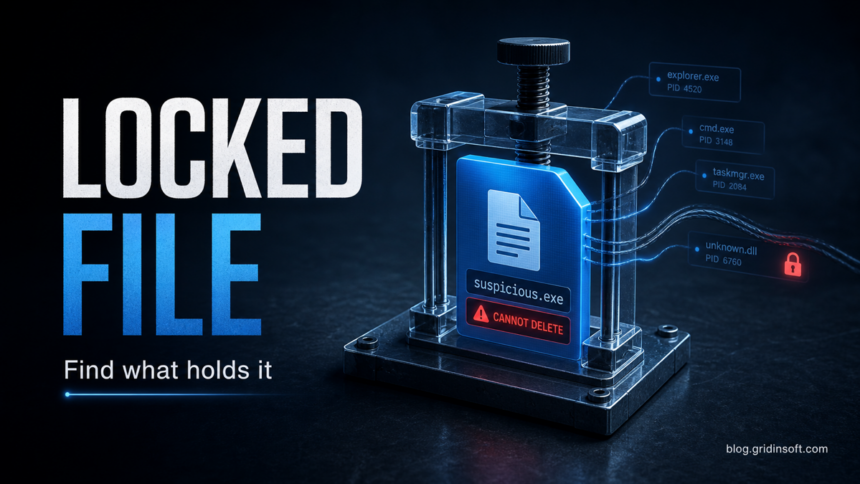
The Windows message “file is open in another program” does not prove malware by itself, but it deserves extra care when the file is an unknown EXE, DLL, script, archive, installer, or Temp/AppData item. Do not force-delete it blindly. First identify which process has the file open, check the file path and signature, stop the related app only when it makes sense, then scan the system if the file returns, relaunches, or keeps recreating itself.
This guide is for Windows users who are trying to remove a suspicious file and see “The action cannot be completed because the file is open in another program.” If your question is about whether an archive or media file can infect you, also see our guides on opening ZIP and RAR files safely and checking MP4 files for malware tricks.
If the locked file came from a fake video converter or YouTube downloader button, also check the YouTube video downloader virus cleanup guide for browser notifications, extensions, and startup tasks that may keep restoring the payload.
Why Windows Says the File Is Open
Windows blocks deletion when another process still has a handle to the file or folder. That process can be harmless, such as File Explorer previewing a video thumbnail, OneDrive syncing a file, an editor keeping a document open, or a game launcher updating its files. It can also be suspicious: a downloader, persistence task, browser hijacker, cracked installer, script runner, or malware component may keep the payload active so it cannot be removed while Windows is running.
| What you see | What it usually means |
|---|---|
| A document, photo, video, or archive in a normal folder | Often a normal lock from Explorer, preview panes, sync clients, media players, or backup software. |
| An EXE, DLL, SCR, BAT, PS1, JS, VBS, or LNK in Downloads, Temp, AppData, Startup, or a random folder | Treat it as suspicious until you identify the locking process and scan it. |
| The file disappears, returns, or changes names after reboot | Possible persistence. Check startup tasks, services, scheduled tasks, and related processes. |
| The file is connected to blocked PowerShell, script, or network alerts | Investigate the launcher and persistence chain, not only the single file. |
Start With Safe Checks
- Disconnect only if there is active suspicious behavior. If the file came from a phishing attachment, crack, fake update, torrent, or unknown Discord/Telegram link and you see outbound alerts, disconnect from the internet while you inspect.
- Show real file extensions. In File Explorer, enable file name extensions. A name like
invoice.pdf.exe,video.mp4.scr, orsetup.lnkchanges the risk completely. - Check the location. Files in
%TEMP%,%AppData%,%LocalAppData%, Startup folders, browser extension folders, or oddly named subfolders deserve more caution than a normal document in Documents. - Check the signature and properties. Right-click the file, open Properties, and review Digital Signatures when present. No signature is not automatic proof of malware, but a mismatched publisher or fake-looking name is a warning.
- Do not kill random Windows processes. Ending
explorer.execan be reasonable in some file-lock cases. Ending unknown system services or security processes can make cleanup harder or destabilize Windows.
Find What Is Holding the File
The cleanest fix is to identify the process that has the file open. Microsoft PowerToys includes File Locksmith, a shell extension that shows which processes are using selected files or folders and can restart with administrator rights to see more processes.[1] Microsoft Sysinternals Handle is another official tool for listing open file references from the command line.[2]
- Try PowerToys File Locksmith. Install PowerToys from Microsoft, enable File Locksmith, right-click the file, choose Show more options, then Unlock with File Locksmith. If it finds a normal app, close that app first.
- Use Resource Monitor for a built-in check. Press
Win + R, typeresmon, open the CPU tab, and search the file name under Associated Handles. This often identifies Explorer, a sync client, or a media app. - Use Sysinternals Handle for stubborn cases. Run an elevated Command Prompt and search for the file name. Only close a handle or stop a process when you understand what it is.
- If the holder is suspicious, investigate the parent behavior. A random process in AppData, a script host, or a hidden PowerShell chain matters more than the locked file itself. Our PowerShell outbound connection guide shows how to trace script-based persistence.
Delete the File Safely
After you know what is holding the file, use the least aggressive method that works.
- Close the owning app normally. Save work, exit the app, pause sync clients, close preview panes, or stop the related installer.
- Restart Windows. A reboot clears many ordinary locks. If the file is still locked immediately after startup, check startup entries and scheduled tasks.
- Boot into Safe Mode for stubborn locks. Microsoft documents Safe Mode under Windows startup settings; it loads a smaller set of drivers and services, which can prevent nonessential apps from locking the file.[3]
- Scan before and after deletion. Right-click scanning with Windows Security can check a specific file or folder, and a full system scan is better when the file came from an untrusted source.[4] Use Gridinsoft Anti-Malware as a second-opinion cleanup scan when the file is tied to browser redirects, fake installers, cracked software, or recurring suspicious activity.
- Remove the persistence point. If the file returns, look for a startup shortcut, scheduled task, service, browser extension, or updater that recreates it. Deleting only the visible file will not solve persistence.
If Windows says the file cannot be accessed rather than only “open in another program,” compare the symptoms with our Windows cannot access the specified device, path, or file guide. That error can involve permissions, SmartScreen, security policy, broken shortcuts, or malware interference.

Locked file keeps coming back?
After you identify the process and remove the visible file, scan for startup entries, bundled apps, scheduled tasks, and hidden components that can recreate it.
When to Treat It as Malware
Escalate from normal troubleshooting to malware cleanup when several of these signs appear together:
- The file name pretends to be a document, video, browser update, game mod, codec, crack, or invoice.
- The extension is executable or script-based:
.exe,.scr,.bat,.cmd,.ps1,.vbs,.js,.dll,.lnk. - The path is under Temp, AppData, Startup, ProgramData, a browser profile, or a random hidden folder.
- The locking process has a random name, no clear publisher, or relaunches after you stop it.
- You also see browser redirects, blocked outbound connections, Defender or antivirus alerts, new extensions, or unknown startup entries.
- The file reappears after reboot or after you delete it in Safe Mode.
In those cases, do not spend hours fighting one file. Save important work, keep the suspicious file quarantined if your security tool already caught it, run a full scan, remove the persistence mechanism, and change passwords from a clean device if you suspect an infostealer.
What Not to Do
- Do not download random “unlocker” tools from ads or software bundles just to delete one file.
- Do not force-delete files from
C:\Windows, driver folders, or application folders unless you know exactly what they are. - Do not disable your antivirus permanently to delete a file. If security software is locking or quarantining it, review the detection first.
- Do not assume Safe Mode proves the file is safe. Safe Mode only changes what starts with Windows; it is not a malware verdict.
- Do not restore the same suspicious file from backup before scanning the backup source.
FAQ
Does “file is open in another program” mean I have malware?
No. Most cases are normal file locks from Explorer, editors, sync clients, media players, or installers. Treat it as suspicious only when the file type, path, source, or related behavior looks risky.
Can malware keep its own file locked?
Yes. Malware can keep a process running, inject into another process, or recreate a deleted file through a startup task or service. If the file returns after reboot, look for persistence instead of deleting the same file repeatedly.
Is it safe to end the process that is locking the file?
It depends on the process. Closing a normal app is safe. Killing random system processes, drivers, or security components can crash Windows or hide the real problem. Identify the process name, path, publisher, and parent behavior first.
Should I use Safe Mode to delete a suspicious file?
Safe Mode can help when a nonessential app or startup item keeps the file open. For suspicious files, scan the system before and after deletion, because Safe Mode does not remove the persistence point by itself.
What if the file is locked but File Locksmith finds nothing?
Reboot first, then check permissions, preview panes, cloud sync, antivirus quarantine, and startup entries. If the file still cannot be removed and keeps returning, run a full malware scan and inspect scheduled tasks and services.
References
- Microsoft. “File Locksmith utility.” Microsoft Learn, updated January 20, 2026, accessed May 30, 2026. https://learn.microsoft.com/en-us/windows/powertoys/file-locksmith
- Microsoft Sysinternals. “Handle.” Microsoft Learn, accessed May 30, 2026. https://learn.microsoft.com/sysinternals/downloads/handle/
- Microsoft Support. “Advanced startup options, including safe mode.” Microsoft Support, accessed May 30, 2026. https://support.microsoft.com/en-us/windows/advanced-startup-options-including-safe-mode-b90e7808-80b5-a291-d4b8-1a1af602b617
- Microsoft Support. “Scan an item with Windows Security.” Microsoft Support, accessed May 30, 2026. https://support.microsoft.com/en-us/windows/scan-an-item-with-windows-security-d1c8c01d-12ed-e768-cbb8-830ea8ccf8e6