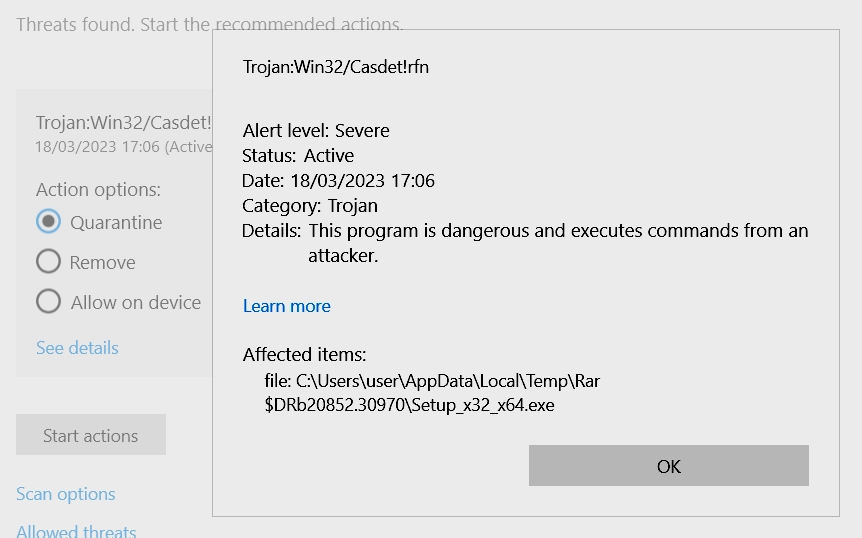
Trojan:Win32/Casdet!rfn is a Microsoft Defender detection that should be handled by path, source, and execution status. If Defender blocked the file before it ran, keep it quarantined and remove the source package. If the file executed, treat Casdet as a high-risk trojan/downloader case: scan the whole PC, check startup and scheduled tasks, and secure accounts from a clean device.
What should you do after a Trojan:Win32/Casdet!rfn alert?
- Do not restore the file first. Copy the affected item path from Protection History.
- Delete the source archive, installer, or mod if it came from Downloads, Temp, email, a crack, or an unofficial package.
- Run a full scan and a second-opinion scan before clearing Defender history.
- If the file opened, check persistence points and change important passwords from a clean device.
- A false positive is possible for trusted signed tools, but verify the publisher, hash, and source before allowing anything.
Start with a full Gridinsoft Anti-Malware scan.
If Windows Defender is already showing this alert, the blocked file may be only one part of the infection chain. Check the whole PC for hidden copies, startup entries, scheduled tasks, browser changes, and bundled components before you restore, exclude, or rerun anything.
| Detection Name | Trojan:Win32/Casdet!rfn |
| Threat Type | Remote Access Trojan (RAT) / Modular Malware Downloader |
| Primary Function | System reconnaissance, payload delivery, data theft, backdoor access |
| Persistence Method | WerFault.exe abuse, registry modification, scheduled tasks |
| Common Sources | Phishing emails, cracked software, P2P networks, malicious attachments |
| Evasion Techniques | Obfuscation, virtual machine detection, geofencing, process injection |
| Data Collected | OS version, username, CPU/GPU info, IP address, installed software |
| Payload Delivery | DLL execution via rundll32.exe, modular architecture |
| Risk Level | High – Can deploy ransomware, stealers, and other malware |
What is Trojan:Win32/Casdet!rfn?
Casdet is a sophisticated remote access trojan that works primarily as a malware downloader. It creates a backdoor into your computer and delivers additional malicious payloads. The malware can steal your personal information and give cybercriminals remote control over your system.
Sometimes Casdet shows up as a false positive detection. This happens when you download legitimate software like Android emulators or game mods. But most of the time, it’s a real threat that needs immediate removal.
The trojan is part of a broader category of trojan malware that can cause serious damage. What makes Casdet particularly dangerous is its modular structure, which allows it to adapt and perform different malicious functions.
How Casdet Operates
Understanding how Casdet works helps you remove it more effectively. This malware follows a specific pattern of infection and operation.
Initial Infection and Evasion
Casdet typically arrives through phishing emails or bundled with cracked software. Once it gets on your system, it immediately starts evasion techniques:
- Detection Evasion: Uses obfuscation techniques to hide from antivirus
- Environment Checks: Scans for virtual machines and debuggers
- Geofencing: Checks system language to avoid certain countries
- Idle Time: Waits several minutes before executing to avoid detection
The malware specifically checks these registry keys to determine your system’s language and location:
HKLMSOFTWAREMicrosoftWindows NTCurrentVersionLanguagePackHKCUSoftwareClassesLocal SettingsMuiCache13052C64B7ELanguageList
System Fingerprinting and Persistence
After initial checks, Casdet collects information about your system. This creates a unique fingerprint that gets sent to the command servers:
- Operating system version and architecture
- Username and computer name
- CPU and GPU specifications
- Display resolution and device vendor
- IP address and network information
- List of installed software
For persistence, Casdet abuses the Windows Error Reporting service by executing this command:
C:Windowssystem32WerFault.exe -u -p 3560 -s 216
This technique allows the malware to maintain access even after system reboots, similar to methods used by other advanced trojans.
Command and Control Communication
Casdet communicates with multiple command and control (C2) servers. The malware contains these hardcoded IP addresses:
- 20.99.133.109:443
- 20.99.186.246:443
- 20.99.185.48:443
- 23.216.147.64:443
- 23.216.147.76:443
- 104.80.88.11:443
- 192.229.211.108:80
- 20.99.184.37:443
The malware encrypts its communications and can receive various commands from these servers, including instructions to download and execute additional malware.
Payload Delivery Mechanism
This is where Casdet becomes extremely dangerous. It can deploy virtually any type of malware:
- Ransomware that encrypts your files
- Information stealers that harvest passwords and personal data
- Cryptocurrency miners that slow down your system
- Additional backdoors for persistent access
Casdet executes payloads using this technique:
"C:WindowsSystem32rundll32.exe" C:Users[Username]AppDataLocalTemp[random_name].dll,DllMain
This method makes detection harder because it uses legitimate Windows processes to run malicious code.
Signs Your Computer is Infected
You might notice these symptoms if Casdet is on your computer:
- Computer runs slower than usual
- High CPU usage from unknown processes
- Strange files in temporary folders
- Antivirus detection alerts
- Network activity when you’re not using the internet
- System freezes or crashes
- Browser redirects to suspicious websites
These symptoms are similar to other information stealing malware we’ve analyzed before.
Manual Removal Steps
You can remove Casdet manually by following these steps. This process takes time but it’s effective. Make sure to follow each step carefully.
Step 1: Preparation
First, you need to prepare your system for the removal process. This helps prevent the malware from interfering with your cleanup efforts.
- Disconnect your computer from the internet
- Boot your computer in Safe Mode
- Create a backup of important files (scan them first)
- Close all running programs
Safe Mode prevents most malware from running. This makes removal easier and safer.
Step 2: Identify Malicious Processes
Next, you need to find the malicious processes running on your system. Casdet often disguises itself as legitimate Windows processes.
- Press Ctrl + Shift + Esc to open Task Manager
- Click on the “Processes” tab
- Look for suspicious processes with high CPU usage
- Check for processes named “WerFault.exe” running from unusual locations
- Right-click suspicious processes and select “End Task”
Be careful not to end legitimate Windows processes. When in doubt, research the process name online first.
Step 3: Delete Malicious Files
Now you need to find and delete the malware files. Casdet typically hides in these locations:
- Navigate to
C:Users[Username]AppDataLocalTemp - Look for DLL files with random names (like “e8442b7f12ab7cb616c549181d39c10b.dll”)
- Delete any suspicious files you find
- Check
C:WindowsSystem32for modified WerFault.exe - Empty your Recycle Bin completely
Similar to other trojan variants, Casdet uses temporary folders to hide its files.
Step 4: Clean Startup Programs
Remove the malware from your startup programs to prevent it from running when Windows starts:
- Press Win + R to open the Run dialog
- Type “msconfig” and press Enter
- Click on the “Startup” tab
- Look for suspicious entries
- Uncheck any suspicious startup items
- Click “Apply” and “OK”
You can also check the startup folder at C:Users[Username]AppDataRoamingMicrosoftWindowsStart MenuProgramsStartup.
Step 5: Registry Cleanup
Clean the Windows Registry to remove malware entries. This is a critical step that many users skip.
- Press Win + R and type “regedit”
- Navigate to these registry keys:
HKEY_CURRENT_USERSoftwareMicrosoftWindowsCurrentVersionExplorerStartPage2ProgramsCacheHKEY_LOCAL_MACHINESOFTWAREMicrosoftWindows NTCurrentVersionLanguagePackHKEY_CURRENT_USERSoftwareClassesLocal SettingsMuiCache13052C64B7ELanguageList- Delete any suspicious entries you find
Warning: Be extremely careful when editing the registry. Wrong changes can damage your system.
Step 6: Check Scheduled Tasks
Casdet might create scheduled tasks to maintain persistence. Remove these tasks:
- Press Win + R and type “taskschd.msc”
- Look through the task list for suspicious entries
- Right-click suspicious tasks and select “Delete”
- Pay attention to tasks that run random executable files
This method is also effective against similar trojan families that use persistence techniques.
Browser Cleanup
If Casdet affected your browser, you need to clean it completely. The malware might have installed malicious extensions or changed your browser settings.
Remove Malicious Browser Extensions
- Launch Chrome.
- Click the three dots (...) in the top right corner.
- Select Extensions > Manage Extensions.
- Click Remove next to the extension you want to delete.
Quick Access: Type chrome://extensions/ in the address bar.
- Open Safari.
- In the menu bar, click Safari and select Settings (or Preferences).
- Click on the Extensions tab.
- Select the extension and click Uninstall.
- Click the menu button, select Add-ons and themes.
- Go to the Extensions tab.
- Click the three dots (...) next to the extension and select Remove.
Quick Access: Type about:addons in the address bar.
- Launch Microsoft Edge.
- Click the three dots (...) in the top right corner.
- Select Extensions.
- Find the extension and click Remove.
Quick Access: Type edge://extensions/ in the address bar.
- Launch Brave browser.
- Click the menu icon > Extensions.
- Find the extension and click Remove.
Quick Access: Type brave://extensions/ in the address bar.
- Launch Opera.
- Click the Opera logo in the top left corner.
- Select Extensions > Extensions.
- Click the X or Remove button next to the extension.
Quick Access: Type opera://extensions/ in the address bar.
Reset Your Browser
If you suspect browser-based malware components, reset your browser completely:
- Tap on the three dots (...) in the top right corner and Choose Settings.

- Choose Reset and Clean up and Restore settings to their original defaults.

- Tap Reset settings.

Quick Access: Type chrome://settings/reset in the address bar.
- Open Safari.
- In the menu bar, click Safari > Clear History.
- Select all history and click Clear History.
- Go to Safari > Settings (or Preferences).
- Click the Privacy tab and select Manage Website Data... > Remove All.
- In the Advanced tab, check Show features for web developers.
- In the menu bar, select Develop > Empty Caches.
- Launch Brave browser.
- Click the menu icon in the top right corner and select Settings.
- Click Additional settings > Reset settings.
- Tap Restore settings to their original defaults.
- Confirm by clicking Reset settings.
Quick Access: Type brave://settings/reset in the address bar.
- In the upper right corner tap the three-line icon and Choose Help.

- Choose More Troubleshooting Information.

- Choose Refresh Firefox... then Refresh Firefox.

Quick Access: Type about:support and click Refresh Firefox.
- Tap the three dots.

- Choose Settings.

- Tap Reset Settings, then Click Restore settings to their default values.

Quick Access: Type edge://settings/reset in the address bar.
- Launch the Opera browser.
- Click the Opera menu button in the top left corner and select Settings.
- Scroll down to the Advanced section in the left sidebar and click Reset and clean up.
- Click Restore settings to their original defaults.
- Click Reset settings to confirm.
Quick Access: Type opera://settings/reset in the address bar.
Automatic Removal with GridinSoft Anti-Malware
Manual removal can be complex and time-consuming. For a faster, more reliable solution, GridinSoft Anti-Malware offers automatic detection and removal of Casdet trojans. Professional anti-malware software can find hidden components and registry changes that you might miss.
GridinSoft Anti-Malware is specifically designed to handle advanced threats like Casdet. It can detect the malware even when it’s using obfuscation techniques to hide from basic antivirus programs.
How to Prevent Future Infections
Preventing Casdet infections is easier than removing them. Follow these simple steps to protect your computer:
Avoid Suspicious Downloads
Casdet often comes with cracked software and pirated games. Stick to official software sources. Cracked games pose serious security risks that aren’t worth taking.
Be Careful with Email Attachments
Don’t open attachments from unknown senders. Even if you know the sender, verify suspicious attachments before opening them. Professional hacker email scams are becoming more sophisticated.
Keep Your System Updated
Install Windows updates regularly. Updates often include security patches that protect against malware. Enable automatic updates if possible.
Use Reliable Antivirus Software
Keep your antivirus software active and updated. Real-time protection can stop malware before it infects your system.
Enable Windows Defender
Don’t disable Windows Defender unless you have a good reason. It provides basic protection against common threats.
FAQ
What is Trojan:Win32/Casdet!rfn and why is it dangerous?
Casdet is a remote access trojan that gives cybercriminals control over your computer. It can steal your personal information, download additional malware, and slow down your system. The trojan is particularly dangerous because it can install other threats like cryptocurrency miners or ransomware.
How did Casdet get on my computer?
Most people get infected through phishing emails or by downloading cracked software. The malware might also come from suspicious websites or infected USB drives. Sometimes it spreads through fake system compromise emails that trick users into downloading malicious attachments.
Can I remove Casdet manually?
Yes, you can remove Casdet manually by following the steps in this guide. However, manual removal requires technical knowledge and can be time-consuming. If you’re not comfortable with these steps, use automatic removal tools instead.
Is it safe to delete WerFault.exe?
The legitimate WerFault.exe is a Windows system file that handles error reporting. However, Casdet abuses this process for malicious purposes. Only delete WerFault.exe if it’s running from unusual locations or behaving suspiciously.
How can I prevent Casdet infections?
Avoid downloading cracked software, be careful with email attachments, keep your system updated, and use reliable antivirus software. These basic security practices will protect you from most malware threats.
What if manual removal doesn’t work?
If manual removal fails, use professional anti-malware software like GridinSoft Anti-Malware. Some malware variants are too sophisticated for manual removal. Professional tools can detect and remove hidden components that manual methods might miss.
Can Casdet steal my passwords?
Yes, Casdet can be modified to steal passwords and other sensitive information. It’s part of a broader category of information stealers that target personal data. Change your passwords after removing the malware.
Will Casdet slow down my computer?
Yes, Casdet typically slows down infected computers by using system resources for malicious activities. It might also download additional malware that further degrades performance. Similar to other system processes that get compromised, infected systems often show high CPU usage.
Conclusion
Removing Trojan:Win32/Casdet!rfn requires careful attention to detail. The malware is sophisticated and can hide in multiple system locations. Manual removal works but takes time and technical knowledge.
For most users, a full security scan is safer than guessing through every startup entry by hand. Gridinsoft Anti-Malware can check hidden files, startup entries, scheduled tasks, browser changes, and persistence points that are easy to miss manually.
Don’t ignore antivirus detections. Even if Casdet turns out to be a false positive, it’s better to be safe than sorry. Regular system scans and good security practices will keep your computer protected.
- Casdet is a dangerous trojan that can download additional malware
- Manual removal involves cleaning processes, files, registry, and startup programs
- Gridinsoft Anti-Malware can check hidden files, startup entries, scheduled tasks, browser changes, and persistence
- Prevention includes avoiding cracked software and suspicious email attachments
- Change passwords and scan other devices after cleaning your computer
References
- Microsoft Security Intelligence. “Trojan:Win32/Casdet!rfn threat description.” Microsoft, accessed June 13, 2026. https://www.microsoft.com/en-us/wdsi/threats/malware-encyclopedia-description?Name=Trojan%3AWin32%2FCasdet%21rfn
Samples of Trojan:Win32/Casdet!rfn
- Trojan.Win64.Casdet.bot: fedd3ec33986d3d13386e3528a583bd1e071d622781419d55aadb21af7be860b
- Trojan.U.Casdet.bot: f2da3ad65646e73981fd8fb1dc25f2ca331a662600bfb7ff41696fe5dbf74ad4