To disable Windows Defender temporarily in Windows 11, use Windows Security and pause Real-time protection only for a trusted, short task. Open Windows Security, go to Virus & threat protection, choose Manage settings, and switch Real-time protection off only while you finish that task. Microsoft Defender Antivirus can turn real-time protection back on automatically, and that behavior is intentional. If a crack, keygen, fake installer, cheat, or “Defender bypass” tells you to disable protection permanently, stop and scan the PC instead.
How do you disable Windows Defender in Windows 11 safely?
- Use Windows Security in Windows 11, not random Defender disabler tools, registry packs, or unknown scripts.
- Pause real-time protection only temporarily for a trusted installer, lab test, or troubleshooting step, then turn it back on.
- Expect Windows to turn protection back on. That is normal when no other active antivirus is protecting the device.
- Do not add broad exclusions for Downloads, Temp, game cracks, activators, or unknown folders.
- Scan afterward if the file came from a download site, archive, torrent, Discord link, or browser warning.
Use the table below to choose the least risky action before you touch Defender settings. Current search results mix safe temporary steps with permanent-disable scripts, registry edits, and remover tools. On a normal home PC, the safer answer is usually a short Real-time protection pause, a narrow exclusion for a verified file, or a malware cleanup check if the request came from a crack, script, fake installer, or “Defender remover”.
| Windows 11 path | Windows Security → Virus & threat protection → Manage settings → Real-time protection off. |
| Temporary pause | Use it for a trusted installation, false-positive check, or controlled troubleshooting session. |
| Third-party antivirus | Install a reputable replacement if you need another real-time provider; do not leave the PC unprotected. |
| Unsafe reason | A crack, activator, cheat, fake update, “Defender bypass,” or unknown script says Defender must be disabled. |
| Why it comes back | Windows self-protection, Tamper Protection, organization policy, another antivirus state, or malware/security tampering. |
| Managed device | If settings are greyed out or organization-managed, check work/school accounts, Group Policy, Intune, or IT policy before forcing changes. |
| High CPU reason | If MsMpEng.exe is scanning constantly, diagnose the scan source first instead of disabling protection or adding broad exclusions. |
Before you disable Defender, identify what Windows actually blocked
Windows can stop an app for several different reasons, and turning off Microsoft Defender is often the wrong response. Match the exact warning before changing protection settings:
- “Operation did not complete successfully because the file contains a virus”: Use the 0x800700E1 virus-block decision guide; record the detection, path, source, and signature before restoring anything.
- “Windows protected your PC”: This is usually Microsoft Defender SmartScreen reputation protection. Follow the Run anyway safety check instead of disabling antivirus.
- “This app has been blocked for your protection”: Check the publisher, signature, account type, and administrator policy with the blocked-app troubleshooting guide.
- Controlled folder access blocked an app: Review the executable and protected folder with the Controlled Folder Access allow-or-block guide; do not disable all real-time protection.
If you only need to pause real-time scanning for a trusted, verified task, use the temporary Windows Security steps below and turn protection back on immediately afterward.
If the SmartScreen for Microsoft Edge switch is grayed out when you try to restore it, identify the controlling policy before changing the Registry with our SmartScreen policy recovery guide.
How to disable Windows Defender in Windows 11 temporarily
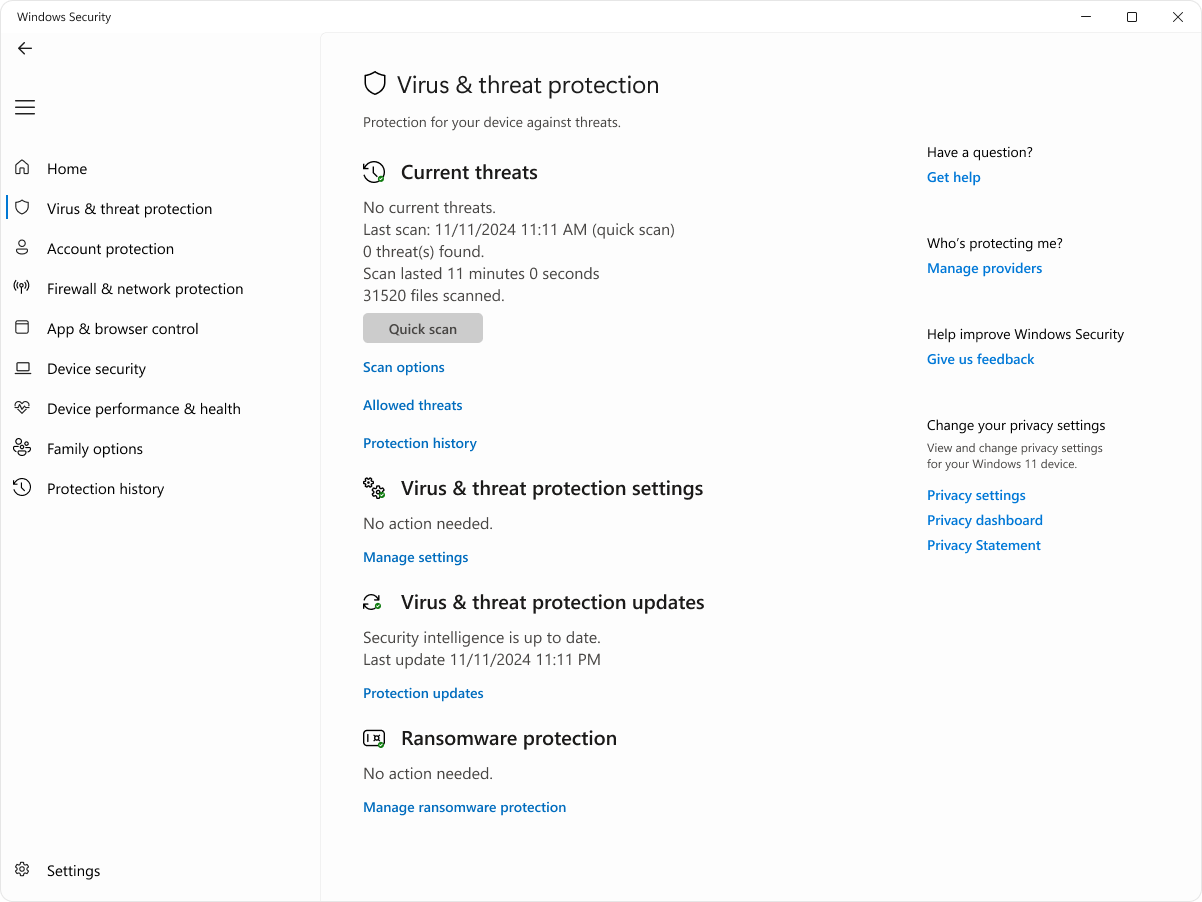
Windows 11 uses the Microsoft Defender Antivirus name inside the Windows Security app, but many users still search for the old Windows Defender wording. The safe temporary toggle is the same: Real-time protection.
- Open Start and search for Windows Security.
- Select Virus & threat protection.
- Under Virus & threat protection settings, click Manage settings.
- Switch Real-time protection to Off.
- Complete the trusted task, such as installing a known app from the vendor’s official site.
- Turn Real-time protection back on, then run a quick scan or full scan if the file source was not fully trusted.
Do not keep Defender off while browsing, opening email attachments, extracting archives, or testing unknown executables. If the goal is to compare antivirus products, install a trusted replacement instead of leaving the machine with no real-time protection.
Why Microsoft Defender keeps turning back on
Many people search for “disable Windows Defender permanently” because the toggle does not stay off. In most cases, that is not a bug.
- The Real-time protection toggle is temporary. Windows can re-enable it automatically after a short delay.
- Tamper Protection blocks many outside changes. Microsoft designed it to prevent apps, scripts, registry edits, and some policy changes from silently weakening security settings.
- Work or school devices may be managed. Group Policy, Intune, Microsoft Defender for Endpoint, or an organization account can enforce protection settings.
- Another antivirus can change Defender’s state. If a compatible security product is active, Defender may move into a different provider mode. If that product expires or is removed, Defender can turn itself back on.
- Malware may try the opposite: turning protection off. Unexpected exclusions, disabled protection, or security settings that flip repeatedly are reasons to scan the system.
If the page is greyed out or says your organization manages the setting, do not fight the toggle with random tools. Check whether the PC is domain joined, connected to a work or school account, or controlled by an endpoint security policy.
Can you permanently disable Windows Defender in Windows 11?
For a normal home Windows 10 or Windows 11 PC, the safer answer is no: do not try to permanently remove, spoof, or bypass Microsoft Defender just to run one blocked file. The supported consumer path is either to use Defender with current updates, or install another reputable antivirus so Windows can recognize that a different provider is protecting the device.
Permanent policy-level changes are mainly for managed business devices, test labs, virtual machines, or administrators who know exactly what replaces the protection. Articles that promise a permanent one-click registry, PowerShell, fake antivirus, service-deletion, or “Defender remover” fix often skip the important part: you become responsible for every download, script, macro, archive, and browser exploit that Defender would normally inspect.
Be especially cautious with Defender remover projects, old registry packs, and video-description scripts. Some tools disable or remove more than Microsoft Defender Antivirus: Windows Security UI, SmartScreen, security services, virtualization-based protections, or normal update recovery can be affected. If you only need to finish a trusted installer, that is a worse trade than a short pause or a narrow, documented exclusion.
What about Tamper Protection, PowerShell, CMD, Registry, and Defender remover tools?
Searchers often look for command-line or registry methods because the graphical toggle turns itself back on. That is exactly where the risk rises. Tamper Protection exists to stop unauthorized changes to Microsoft Defender settings. If a script tells you to disable Tamper Protection first, ask why the software cannot work safely with protection enabled.
Use PowerShell, Group Policy, or Registry changes only in a controlled admin scenario: a test VM, an enterprise policy rollout, or a short diagnostic window with a rollback plan. Do not paste commands from a download page just to run a crack, trainer, fake “driver updater,” or unknown executable.
When an exclusion is better than turning Defender off
A narrow exclusion can be safer than disabling the whole antivirus, but only when you have verified the file, folder, and publisher. Microsoft warns that exclusions reduce the protection Microsoft Defender Antivirus provides, so keep them specific and temporary.
| Possible safe exclusion | A verified developer build folder, a known business app cache, or a vendor-supported path with a clear reason. |
| Dangerous exclusion | Downloads, Desktop, Temp, browser cache, an entire drive, game cracks, keygens, cheats, or “all archives.” |
| Before adding one | Check the digital signature, original source, file hash, and whether the detection appears on other scanners. |
| After testing | Remove the exclusion unless it is still needed and documented. |
What to do if Defender blocks a file you need
- Do not disable Defender immediately. Read the detection name, affected file path, and source URL first.
- Check whether you downloaded from the official vendor. Fake mirrors, sponsored download buttons, and repack sites are common sources of trojans and PUAs.
- Verify the publisher and signature. Unsigned installers and renamed executables deserve extra caution.
- Use a second-opinion scan before allowing the file. For suspicious downloads, scan Windows with Gridinsoft Anti-Malware.
- For likely false positives, submit the file to Microsoft or ask the software vendor for a clean signed build instead of bypassing protection broadly.
- Remove unknown exclusions after testing. Malware and cracked installers often rely on exclusions to survive.
If Defender already found a named threat, start with the detection name. Our Microsoft Defender detection guide explains what labels such as Trojan, HackTool, PUA, Behavior, and VirTool usually mean. If you see a tampering alert, the VirTool:Win32/DefenderTamperingRestore guide or the exact Trojan:Win32/MpTamperSrvDisableAV.H guide is a better next step than trying more disable commands.
After uninstalling the suspicious app or deleting the visible threat, use Gridinsoft Anti-Malware to check hidden files, startup entries, scheduled tasks, bundled apps, browser changes, and other persistence points that can restore malware.
Download Anti-MalwareFresh 2026 context: Defender is not “weak by default”
Old advice often treated Windows Defender as something users should replace or disable immediately. That is outdated. In AV-TEST’s Windows 11 home-user testing for January-February 2026, Microsoft Defender Antivirus (Consumer) 4.18 scored 6/6 in protection, performance, and usability. That does not mean every user needs only Defender, but it does mean disabling it to satisfy a random installer is not a smart trade.
Extra security software can still be useful when you want additional cleanup tools, account-protection features, parental controls, identity monitoring, business management, or a second-opinion scanner. The key is to replace protection deliberately, not to leave Windows exposed because a risky file asked you to.
Safety checks before you pause Defender
Before turning Microsoft Defender off, check why you need the pause. A short, planned pause can be reasonable when you are testing a known internal tool, installing a trusted driver, or comparing security products. It is a bad sign when an unknown installer, crack, patcher, or browser pop-up tells you to disable protection before it can run.
| Situation | Safer action |
|---|---|
| A verified business app is blocked during setup | Pause real-time protection briefly, finish the task, then turn protection back on and scan the downloaded installer. |
| A game crack or keygen asks to disable Defender | Do not continue. This is a common delivery pattern for stealers, loaders, and unwanted miners. |
| A developer build triggers a detection | Submit the file for review or use a narrow temporary exclusion for the build folder only after verifying the source. |
| Defender turns itself back on after a restart | Treat that as normal Windows behavior. Re-check Windows Security, Tamper Protection, and organization policy instead of forcing a permanent bypass. |
What to check after re-enabling protection
- Open Windows Security and confirm real-time protection is active again.
- Remove any broad exclusions such as Downloads, Temp, Desktop, or an entire archive folder.
- Run a quick scan, then a full scan if the file came from an untrusted source.
- Check Startup Apps, browser extensions, and recently installed programs if Defender was disabled for more than a few minutes.
If Defender was disabled because a file demanded it, assume the file may be hostile. Delete the file, clear related exclusions, change passwords from a clean device if you ran it, and use a second-opinion scanner before continuing work on that computer.
FAQ
How do I disable Windows Defender in Windows 11?
Open Windows Security, go to Virus & threat protection, choose Manage settings, and switch Real-time protection off. Use it only as a temporary pause for a trusted task, then turn it back on.
Why does Microsoft Defender turn itself back on?
Real-time protection can re-enable automatically. Tamper Protection, organization policy, another antivirus provider, or security-health checks can also restore Defender settings.
Can I permanently disable Windows Defender?
It is not recommended for normal home PCs. Install another trusted antivirus if you need a different provider, or use policy-level changes only in managed or lab environments.
Should I turn off Tamper Protection?
Only for a controlled admin task where you understand the consequence and plan to turn it back on. Do not disable Tamper Protection because a downloaded file or script tells you to.
Is it safe to disable Defender to install a game crack or keygen?
No. A file that requires you to disable antivirus is a strong malware warning sign. Delete the file, remove related exclusions, and scan the system.
Is adding an exclusion safer than turning Defender off?
Sometimes, but only for a verified file or folder. Broad exclusions such as Downloads, Temp, or an entire game/crack folder can make future infections much easier.
References
- Microsoft Support. “Stay protected with the Windows Security app.” Microsoft, accessed June 24, 2026. https://support.microsoft.com/en-us/windows/virus-and-threat-protection-in-the-windows-security-app-1362f4cd-d71a-b52a-0b66-c2820032b65e
- Microsoft Learn. “Prevent changes to security settings with tamper protection.” Microsoft Defender for Endpoint documentation, accessed June 7, 2026. https://learn.microsoft.com/en-us/defender-endpoint/prevent-changes-to-security-settings-with-tamper-protection
- Microsoft Learn. “Configure custom exclusions for Microsoft Defender Antivirus.” Microsoft Defender for Endpoint documentation, accessed June 7, 2026. https://learn.microsoft.com/en-us/defender-endpoint/configure-exclusions-microsoft-defender-antivirus
- AV-TEST. “Test Microsoft Defender Antivirus (Consumer) 4.18 for Windows 11.” AV-TEST Institute, January-February 2026 test period, accessed June 7, 2026. https://www.av-test.org/en/antivirus/home-windows/windows-11/february-2026/microsoft-defender-antivirus-consumer-4.18-261115/