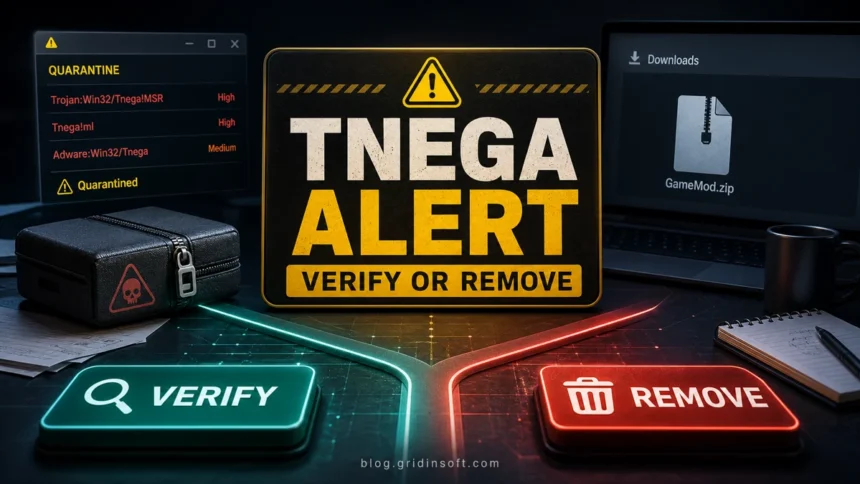
Trojan:Win32/Tnega!MSR is a Microsoft Defender detection that needs a source-and-path check before you restore anything. Tnega!ml and Adware:Win32/Tnega follow the same file-verification decision: if the affected file came from a crack, repack, fake installer, email attachment, Temp folder, or unknown archive, keep it quarantined and remove the source package. If it came from a trusted signed application, official game, or updater package, verify the publisher, hash, and official download source first, because Tnega variants have also appeared in false-positive reports around legitimate software.
Is Trojan:Win32/Tnega!MSR dangerous?
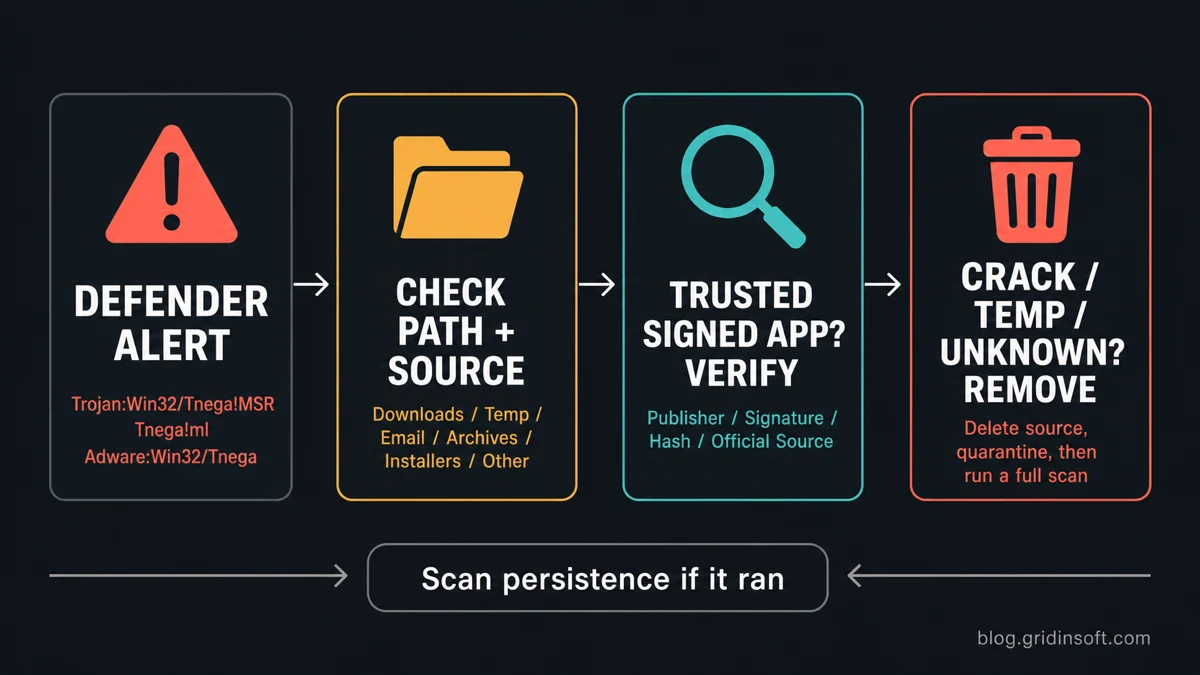
- Treat it as real until proven otherwise. Do not click Allow, Restore, or add an exclusion just to finish an install.
- Check the affected item path and source. Downloads, Temp, archives, cracks, repacks, trainers, and unsigned installers are high-risk contexts.
- Verify only trusted signed apps. Confirm the publisher, digital signature, hash, official download page, and whether other users of the same release report the same alert.
- Scan for persistence if the file ran. A quarantined file can be only the visible part of a loader, scheduled task, startup entry, or bundled component.
Start with a full Gridinsoft Anti-Malware scan.
If Windows Defender is already showing this alert, the blocked file may be only one part of the infection chain. Check the whole PC for hidden copies, startup entries, scheduled tasks, browser changes, and bundled components before you restore, exclude, or rerun anything.
| Detection searched | Trojan:Win32/Tnega!MSR / HackTool:Win32/Tnega!MSR / Trojan:Win32/Tnega!ml / Adware:Win32/Tnega |
| Main user question | False positive, safe to restore, or remove now? |
| High-risk source | Cracks, suspicious tools, repacked installers, fake updates, email attachments, unknown archives, Temp paths |
| Safer action | Quarantine, delete the source package, update Defender, scan fully, then check startup and scheduled tasks |
What is Tnega!MSR?
Microsoft Security Intelligence lists Tnega detections as threats that Microsoft Defender can detect and remove. The label follows the broader Microsoft Defender detection-name pattern, while the same search intent appears under several names, including Trojan:Win32/Tnega!MSR, Trojan:Win32/Tnega!ml, and Adware:Win32/Tnega. The label alone is not enough to decide whether a specific file is safe; the useful evidence is where the file was found, how it arrived, whether it is signed, and whether it executed before Defender blocked it.
Check the affected path and source first
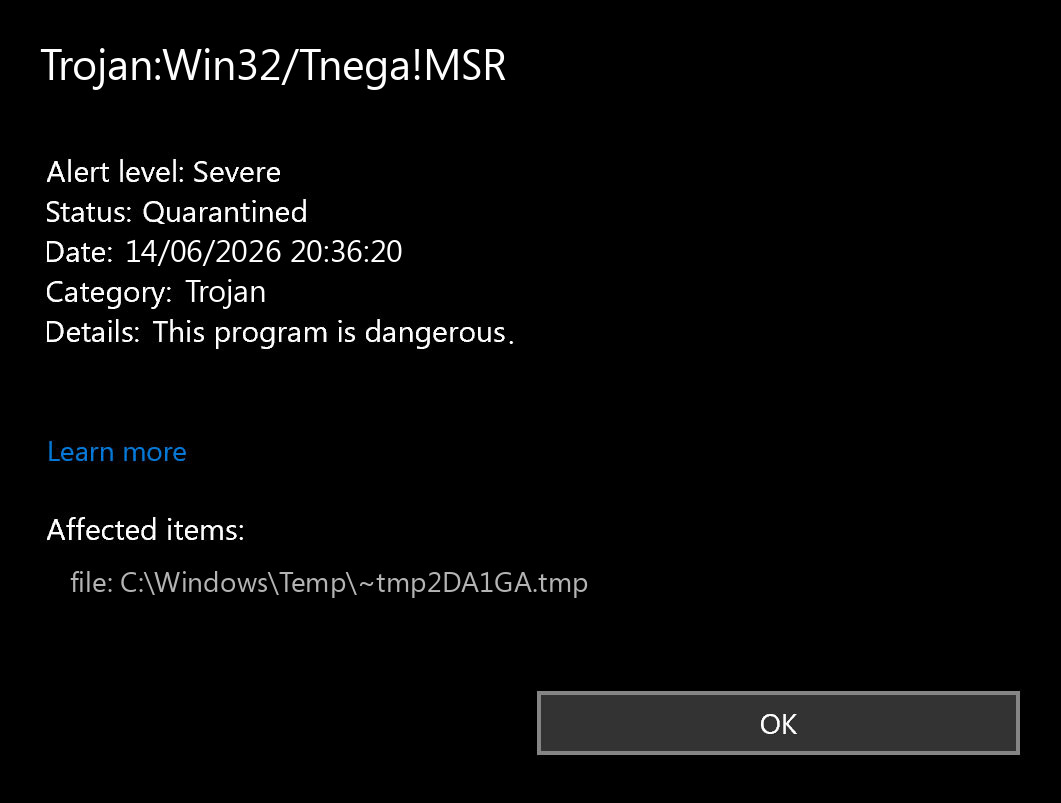
Open Windows Security, review the Protection History entry, and write down the affected item path before taking further action. The path often explains the risk better than the family name.
| Path or source | How to handle it |
%USERPROFILE%\Downloads, %TEMP%, unknown ZIP/RAR/7z archive, crack, trainer, activator, or repack |
Keep quarantine, delete the original package, and scan the PC. Do not restore the file to test it. |
| Official app installer from a known vendor, signed executable, or update package | Verify the publisher signature, hash, and official download source. If everything matches, wait for a Defender intelligence update or ask the vendor/Microsoft to review the file before restoring. |
| Startup folder, Task Scheduler, browser profile, AppData, or a file that returns after reboot | Treat it as active persistence. Remove the source, scan fully, and review startup entries, scheduled tasks, browser extensions, and Defender exclusions. |
Can Tnega!MSR be a false positive?
Yes, but only after evidence supports that decision. A likely false positive usually has a clean chain of custody: the official game, updater package, or vendor installer came from its real publisher, the digital signature is valid, the hash matches a published release, and no suspicious startup entry, network activity, or bundled installer appeared after download. If the file came from a crack, mod menu, keygen, fake update, or random archive, remove it instead of treating the alert as a false positive.
How to remove Trojan:Win32/Tnega!MSR safely
- Leave the Defender action as Quarantine or Remove. Do not restore the file first.
- Copy the affected item path from Protection History so you know which download, folder, or archive caused the alert.
- Delete the original installer, archive, crack, repack, or email attachment that delivered the file.
- Update Microsoft Defender security intelligence, then run a full scan.
- Check Startup Apps, Task Scheduler, browser extensions, and Defender exclusions for entries created around the same time.
- If the alert returns after reboot, scan with a second cleanup tool and remove detections before trying the download again.
- If the file executed, change important passwords from a clean device and sign out suspicious browser, email, gaming, and Microsoft account sessions.
Run a full Gridinsoft Anti-Malware scan if the alert came from an unknown download, the file executed, or the detection keeps returning. Defender can quarantine the visible file while a loader, scheduled task, startup entry, browser change, Defender exclusion, or bundled component remains and recreates the alert.
What if Tnega keeps coming back?
A returning Tnega alert usually means one of three things: the original archive or installer is still present, another component is dropping the same file again, or Defender is repeatedly scanning a cached copy. Remove the source package, empty the browser download cache only after saving the affected path, and check startup locations. If the path changes after each reboot, treat it as persistence rather than a harmless history entry.
FAQ
Why does the name say Trojan, HackTool, or Adware in different places?
Security products and Microsoft detection families can group related behavior differently. For this article, the practical decision is the same: check the affected file path, source, signature, and whether the file executed before deciding to remove or verify it.
Can I restore the file if it belongs to software I trust?
Only after verification. Confirm the official download source, publisher signature, and hash first. If you cannot prove the file is the same trusted release, leave it quarantined.
Should I remove Defender history?
History cleanup does not remove malware. Clear history only after the active file, original source package, and any persistence entries are gone.
Does Adware:Win32/Tnega need the same cleanup?
Yes. The adware variant still means the affected file should be quarantined, the source should be removed, and the system should be scanned if the file ran or came from an unknown installer.
References
- Microsoft Security Intelligence. “Trojan:Win32/Tnega!MSR threat description.” Microsoft, accessed June 14, 2026. https://www.microsoft.com/en-us/wdsi/threats/malware-encyclopedia-description?Name=Trojan%3AWin32%2FTnega%21MSR
- Microsoft Security Intelligence. “Trojan:Win32/Tnega!ml threat description.” Microsoft, accessed June 14, 2026. https://www.microsoft.com/en-us/wdsi/threats/malware-encyclopedia-description?Name=Trojan%3AWin32%2FTnega%21ml&ThreatID=2147763770
- Microsoft Security Intelligence. “Adware:Win32/Tnega threat description.” Microsoft, accessed June 14, 2026. https://www.microsoft.com/en-us/wdsi/threats/malware-encyclopedia-description?Name=Adware%3AWin32%2FTnega&ThreatID=406605