Hurawatch is not one stable, verifiable product that can receive a single permanent “safe” verdict. The same name may appear on different domains, embedded players, mobile apps, APK files, and payment pages operated by unrelated parties. A clean result for one hostname does not certify another domain or anything it asks you to install. If you only visited, the risk is lower; if you allowed notifications, downloaded software, signed in, or paid, follow the matching recovery steps below.
This guide does not list working mirrors or explain how to access unlicensed streams. It focuses on the identity and security decisions the Hurawatch name can hide.
Why the Hurawatch Name Is Not a Safety Certificate
A familiar brand label can survive while its domains, operators, advertising partners, and embedded video hosts change. The address bar is the identity that matters. Even when the first page looks familiar, a Play, Verify, Download, Allow, or Sign in button may open a different hostname with its own permissions, data handling, and download behavior.
That creates several separate questions:
- Does the exact domain have current abuse or reputation warnings?
- Does a player stay on that domain or load content and prompts from a third party?
- Is an app from a recognized store and a clearly identified publisher, or is it an APK from a page or chat link?
- Does the page request notifications, an extension, a codec, an account password, card details, or cryptocurrency?
Do not let a matching name answer all four. Treat every hostname, app package, file, and payment destination as a separate object to verify.
What One Hurawatch Domain Report Can — and Cannot — Prove
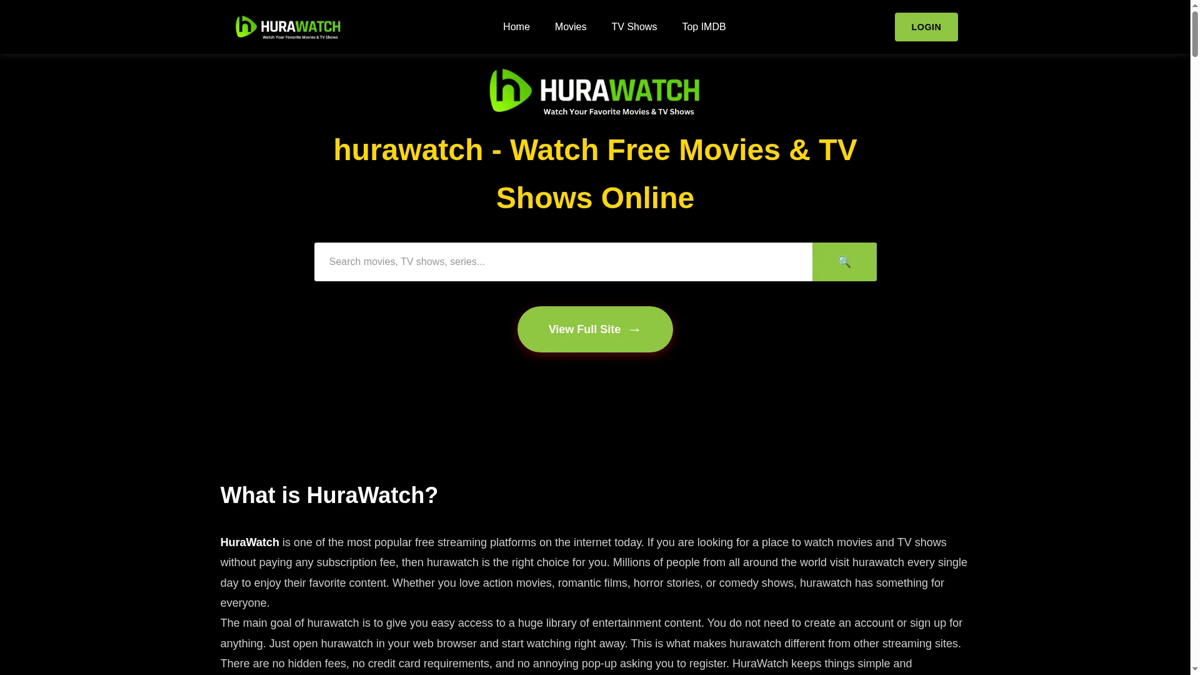
The Hurawatch.sx safety report visible during this review recorded a 3/100 trust score, classified the exact hostname as a scam website, and displayed two external provider warnings. The report was last checked on August 13, 2026. Its stored screenshot also shows familiar Hurawatch branding, navigation, search, and login controls. That combination illustrates why appearance and name recognition are not identity proof. The report applies to the exact hurawatch.sx hostname at the recorded time; it cannot authenticate another Hurawatch domain, an embedded host, an app, an APK, or a payment page.
Website reports are snapshots. Scores, content, redirects, and external warnings can change after a rescan. Always compare the full hostname and report date. A padlock means the connection is encrypted; it does not establish who operates the site or whether a download is safe.
Your Next Step Depends on What Happened
| What happened | Risk and next step |
|---|---|
| You opened the page and closed it | Lower risk than installing anything. Close extra tabs, check Downloads, and do not restore the same browser session if it reopens unwanted pages. |
| A Play or Verify button opened another domain | Judge that destination separately. Close it without accepting notifications, extensions, support calls, downloads, or payment requests. |
| You allowed notifications | The permitted hostname can send fake security alerts or subscription prompts after the tab closes. Remove permission from the exact sender domain. |
| A file downloaded but you did not open it | Keep it closed, show the complete extension, and delete or scan it. Do not launch it just to identify it. |
| You installed an app, APK, extension, codec, or player | Treat this as software execution. Remove the item, review device and browser changes, run a full scan, reboot, and check whether symptoms return. |
| You entered a password | If software ran, clean the device first. Then change the exposed password from a clean device, replace reused passwords, and sign out other sessions. |
| You entered card or crypto details | Contact the bank, card issuer, exchange, or wallet provider through its official app or website. Preserve the hostname, descriptor, receipts, and transaction IDs. |
Check the Domain and the Embedded Player Separately
Free-streaming pages often contain several clickable layers. The first Play button may be an advertisement; the next tab may host a player; a later prompt may come from a notification or download domain. If the address changes, the original page’s reputation no longer describes the destination.
- Read the whole hostname. Ignore the logo and page title until the address is clear. Look for added words, changed endings, misspellings, or an entirely unrelated host.
- Stop at permission or software requests. A movie page does not need notification access, a browser extension, remote-support software, a “security update,” or administrator rights.
- Do not test payment claims. A small card check can become a recurring subscription, an unrelated merchant charge, or a route to a fake support conversation.
- Do not assume a clean first page covers the chain. Scan or research the exact destination if you need to investigate it, without submitting credentials or installing anything.
The broader free movie streaming site scam guide explains fake Play buttons, notification prompts, subscription traps, and redirect chains without providing access routes.
Stop Pop-Ups and Hurawatch Notification Spam
A pop-up that disappears with the tab is different from a browser notification permission. Once permission is granted, the sender can display alerts later, even when Hurawatch is closed. The notification may imitate antivirus, browser, delivery, account, or prize messages to push another click.
- Do not click inside the alert, including its close-looking buttons. Close the notification or browser tab through the operating system or browser controls.
- Open browser site settings and remove notification permission from the exact hostname shown as the sender.
- Review pop-up/redirect permission, camera, microphone, clipboard, and downloads for domains used in the same session.
- Remove extensions added at the same time and check whether the homepage, search engine, startup tabs, or proxy changed.
Google’s Chrome guidance recommends removing unwanted programs and restoring affected browser settings when pop-ups, redirects, or unfamiliar pages persist [1]. Blocking pop-ups alone does not revoke a notification permission already granted.
If hurawatch keeps showing unwanted pop-ups, you likely granted it permission to send notifications. To stop them, you need to revoke that permission in your browser settings.
- Copy and paste this into the address bar:
chrome://settings/content/notifications - Scroll down to the Allowed to send notifications list.
- Find hurawatch.
- Click the three dots (...) next to it and select Remove (or Block).
- Open Safari and go to Settings (or Preferences).
- Click the Websites tab and select Notifications on the left.
- Find hurawatch in the list on the right.
- Select it and click Remove (or change "Allow" to "Deny").
- Copy and paste this into the address bar:
about:preferences#privacy - Scroll down to Permissions and click Settings... next to Notifications.
- Type hurawatch in the search bar or find it in the list.
- Select the site and click Remove Website.
- Copy and paste this into the address bar:
edge://settings/content/notifications - Look under the Allow section.
- Find hurawatch.
- Click the three dots (...) next to it and select Remove (or Block).
- Copy and paste this into the address bar:
brave://settings/content/notifications - Scroll to the Allowed to send notifications list.
- Find hurawatch.
- Click the three dots (...) and select Remove (or Block).
- Copy and paste this into the address bar:
opera://settings/content/notifications - Check the Allowed to send notifications list.
- Find hurawatch.
- Click the three dots next to it and select Remove.
- Launch Chrome.
- Click the three dots (...) in the top right corner.
- Select Extensions > Manage Extensions.
- Click Remove next to the extension you want to delete.
Quick Access: Type chrome://extensions/ in the address bar.
- Open Safari.
- In the menu bar, click Safari and select Settings (or Preferences).
- Click on the Extensions tab.
- Select the extension and click Uninstall.
- Click the menu button, select Add-ons and themes.
- Go to the Extensions tab.
- Click the three dots (...) next to the extension and select Remove.
Quick Access: Type about:addons in the address bar.
- Launch Microsoft Edge.
- Click the three dots (...) in the top right corner.
- Select Extensions.
- Find the extension and click Remove.
Quick Access: Type edge://extensions/ in the address bar.
- Launch Brave browser.
- Click the menu icon > Extensions.
- Find the extension and click Remove.
Quick Access: Type brave://extensions/ in the address bar.
- Launch Opera.
- Click the Opera logo in the top left corner.
- Select Extensions > Extensions.
- Click the X or Remove button next to the extension.
Quick Access: Type opera://extensions/ in the address bar.
Open Extensions/Add-ons again and remove any entry linked to hurawatch or clearly out of place.
- Tap on the three dots (...) in the top right corner and Choose Settings.
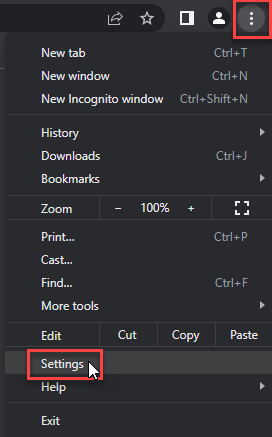
- Choose Reset and Clean up and Restore settings to their original defaults.
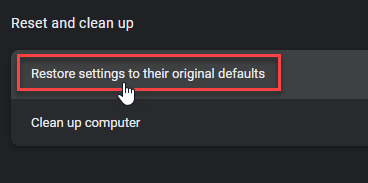
- Tap Reset settings.
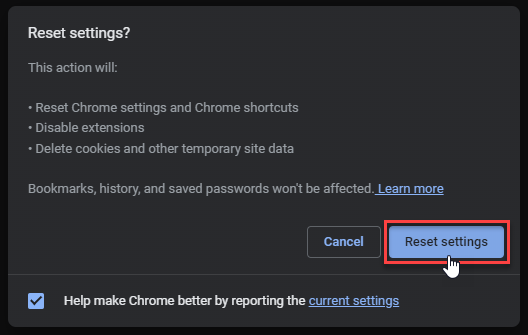
Quick Access: Type chrome://settings/reset in the address bar.
- Open Safari.
- In the menu bar, click Safari > Clear History.
- Select all history and click Clear History.
- Go to Safari > Settings (or Preferences).
- Click the Privacy tab and select Manage Website Data... > Remove All.
- In the Advanced tab, check Show features for web developers.
- In the menu bar, select Develop > Empty Caches.
- Launch Brave browser.
- Click the menu icon in the top right corner and select Settings.
- Click Additional settings > Reset settings.
- Tap Restore settings to their original defaults.
- Confirm by clicking Reset settings.
Quick Access: Type brave://settings/reset in the address bar.
- In the upper right corner tap the three-line icon and Choose Help.
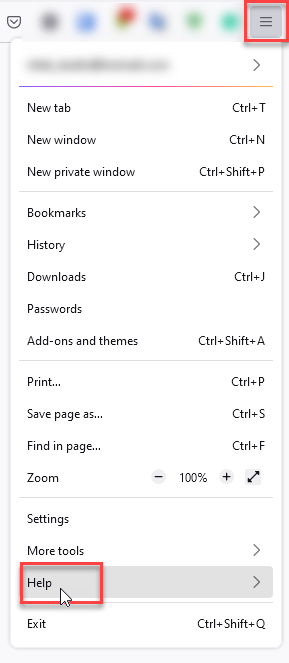
- Choose More Troubleshooting Information.
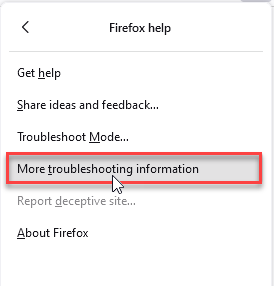
- Choose Refresh Firefox... then Refresh Firefox.
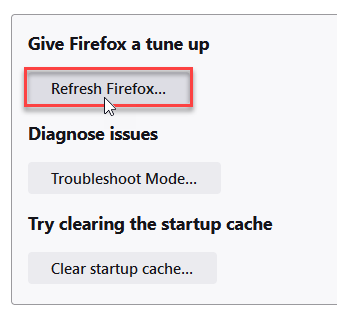
Quick Access: Type about:support and click Refresh Firefox.
- Tap the three dots.
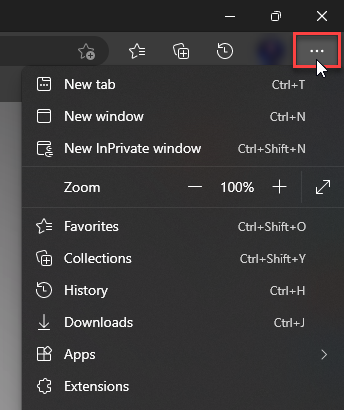
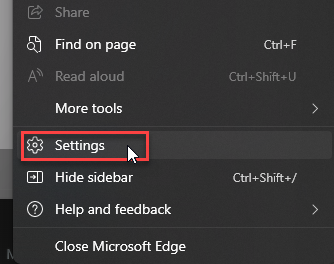
- Choose Settings.
- Tap Reset Settings, then Click Restore settings to their default values.
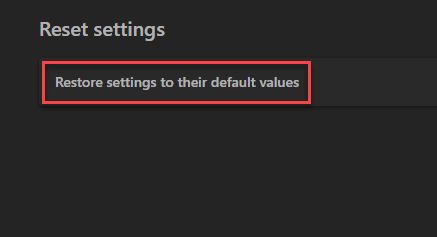
Quick Access: Type edge://settings/reset in the address bar.
- Launch the Opera browser.
- Click the Opera menu button in the top left corner and select Settings.
- Scroll down to the Advanced section in the left sidebar and click Reset and clean up.
- Click Restore settings to their original defaults.
- Click Reset settings to confirm.
Quick Access: Type opera://settings/reset in the address bar.
After reset, verify that hurawatch is no longer set as your default search engine or homepage.
Is a Hurawatch App or APK Safe?
The name on an app icon is not enough to establish who built it. An app-store listing may be a trailer guide, browser wrapper, or unrelated product rather than an official client. A directly downloaded APK has even less store-level review. Do not install it merely because a website, pop-up, social post, or video says it is the “official” Hurawatch app.
Before keeping any app, verify the exact store, developer identity, package name, requested permissions, update source, and whether the listing clearly explains what the app does. A streaming wrapper should not need accessibility control, device administration, SMS access, contact access, notification reading, or permission to install other packages. Google says Play Protect checks apps from Google Play and can also warn about potentially harmful apps from other sources [2]; that is a safety layer, not proof that every undetected app is harmless.
If an APK came from a browser download or private message, keep it closed. The APK safety and cleanup guide explains package-source checks, risky permissions, and what to review after sideloading.
If a File Downloaded but You Did Not Open It
- Keep it closed. Do not approve SmartScreen, Gatekeeper, Android installation, or administrator prompts just to see what happens.
- Show the complete filename. An
.apk,.exe,.msi,.dmg,.pkg,.scr,.js, or.lnkfile is software or a script, not a movie. - Treat archives as containers. ZIP, RAR, 7z, and ISO files can hide executables, scripts, shortcuts, or fake codecs.
- Delete or scan before further action. If the file was unexpected, deletion is safer than testing it on the main device.
The unopened suspicious download checklist explains how to check a download without launching it. Simply seeing a file in Downloads does not mean it executed, but previewing or opening an archive can lead to the next risky step.
If You Installed an App, APK, Extension, or Player
- Disconnect from the prompt chain. Close the original and redirected pages. Do not follow instructions to disable security tools or add exclusions.
- Remove what was added. Uninstall the app, APK, extension, codec, downloader, VPN, player, or remote-support tool installed during the session.
- Review Windows persistence. On Windows, check browser policies and extensions, startup apps, scheduled tasks, new services, proxy settings, notification permissions, and security exclusions.
- Run a full security scan. Deleting the visible installer is not enough after it has run.
- Reboot and recheck. Returning pop-ups, redirects, blocked connections, high resource use, or security alerts suggest that another component remains.
If you see hurawatch or other suspicious applications that you don't remember installing, you should remove them as well.
- Right-click the Start button and select Installed Apps (or Apps & Features).
- Scroll through the list to find hurawatch or any other unfamiliar program.
- Click the three dots (...) next to it and select Uninstall.
- Open Finder and go to the Applications folder.
- Locate hurawatch or any app you don't recognize.
- Drag it to the Trash.
- Empty the trash to remove it permanently.
- Go to Settings > Apps > See all apps.
- Find hurawatch or any suspicious app in the list.
- Tap on it and select Uninstall.
A Hurawatch-branded Android app is a separate risk from the streaming page. If you installed it, scan with Trojan Scanner for Android, inspect the app findings, and confirm unwanted-app removal. Keep browser notification cleanup separate.
On Windows, an installer can leave bundled apps, browser changes, hidden files, startup entries, scheduled tasks, or other persistence after the original download is removed. Gridinsoft Anti-Malware can check those areas and remove detected threats. It cannot recover a stolen password, reverse a payment, or prove that no information was exposed.
If you ran a Hurawatch player or installer on Windows, deleting the download may leave unwanted software behind. Scan the PC to review what remains, especially if redirects return after browser cleanup.
Scan this Windows PCIf You Signed In or Entered Payment Details
If you entered a password on a Hurawatch-branded or redirected page, do not reuse that password. When software also ran, clean the device before changing important credentials. Then use a clean device to change the exposed password, replace it anywhere it was reused, sign out other sessions, and enable multi-factor authentication. Start with the email account that can reset other accounts.
For a card or bank account, contact the issuer through the number on the card or the official banking app. Ask about blocking or replacing the card and disputing unauthorized charges. The FTC advises contacting the payment company and reporting the transaction promptly, with the response depending on how the money was sent [3]. Preserve the exact hostname, transaction descriptor, date, receipts, and screenshots.
For cryptocurrency, contact the exchange or wallet provider immediately and preserve the transaction ID and destination address. Do not pay a “recovery agent” who promises a guaranteed reversal. The scam recovery checklist covers payment, account, identity, and evidence steps.
A Safer Decision Rule
- Verify the exact hostname and current report date; never transfer a verdict between similarly named domains.
- Treat every embedded player or redirect destination as a separate site.
- Reject notification, extension, codec, app, APK, remote-support, or payment requirements attached to a free stream.
- Update browsers, media players, and mobile apps through their built-in stores or update menus, not a streaming-page prompt.
- Use legal streaming services whose operator, app publisher, billing terms, and support channel can be independently verified.
FAQ
Is Hurawatch itself a virus?
Hurawatch is a reused brand name, not one file that can be labeled a virus. The risk depends on the exact domain, embedded host, prompt, app, APK, or download and on what the user allowed or ran.
Does a good score for one Hurawatch domain make other domains safe?
No. A report applies to the exact hostname and check time. It does not authenticate a similarly named domain, third-party player, app package, download, or payment destination.
Can Hurawatch notifications infect a device?
A browser notification is not automatically an infection, but it can repeatedly deliver deceptive alerts and links. Remove permission from the sender domain. Escalate to a full cleanup if an app, extension, script, or installer also ran or browser changes return.
Should I scan after downloading a Hurawatch APK but not installing it?
Keep the APK closed and delete it if its source or publisher cannot be verified. A file or Downloads-folder scan adds confidence. A full system scan is more important after installation, permission approval, or any recurring device symptom.
References
- Google. “Remove unwanted ads, pop-ups & malware — Computer.” Google Chrome Help, accessed August 18, 2026. support.google.com/chrome/answer/2765944
- Google. “Use Google Play Protect to help keep your apps safe & your data private.” Google Play Help, accessed August 18, 2026. support.google.com/googleplay/answer/2812853
- Federal Trade Commission. “What To Do if You Were Scammed.” FTC Consumer Advice, July 2022; accessed August 18, 2026. consumer.ftc.gov/articles/what-do-if-you-were-scammed