The “SharePoint Document Added To Your Workspace” email is a phishing scam. The observed message names Document_INV86545.pdf, uses a View Document button, and leads to a fake sign-in page on miracle411 [dot] github [dot] io rather than a Microsoft or organization-owned SharePoint host. Do not enter a password, MFA code, or recovery detail through that email. Verify the document by opening Microsoft 365 yourself or contacting the sender through a known channel.
What to do first
- Do not use the email button. Open Microsoft 365 or your company SharePoint portal from a bookmark or known address.
- Check the real destination. A page under
github.iois hosted through GitHub Pages; it is not a Microsoft login domain. - If you entered a password, change it from the real account page. Then end active sessions and review MFA methods, mailbox rules, and connected apps.
- If anything downloaded, stop using the file. Disconnect the affected device from sensitive work until it has been checked.
What is the SharePoint Document Added email scam?
This campaign imitates a routine SharePoint workspace notice. It claims that a PDF was added for the recipient, wraps the action in phrases such as “securely encrypted session” and “Protected Connection,” and asks the reader to open the document. The button does not prove that a file exists. Its job is to move the recipient from email to a page that collects Microsoft 365 or mailbox credentials.
The filename Document_INV86545.pdf is part of the lure, not proof of an invoice, contract, or SharePoint item. Attackers can change the numbers, sender name, button text, or hosting account while preserving the same workflow.
What the fake SharePoint email looks like
The example below reconstructs the observed wording in an unbranded mail client. It contains no real victim data or live phishing link.
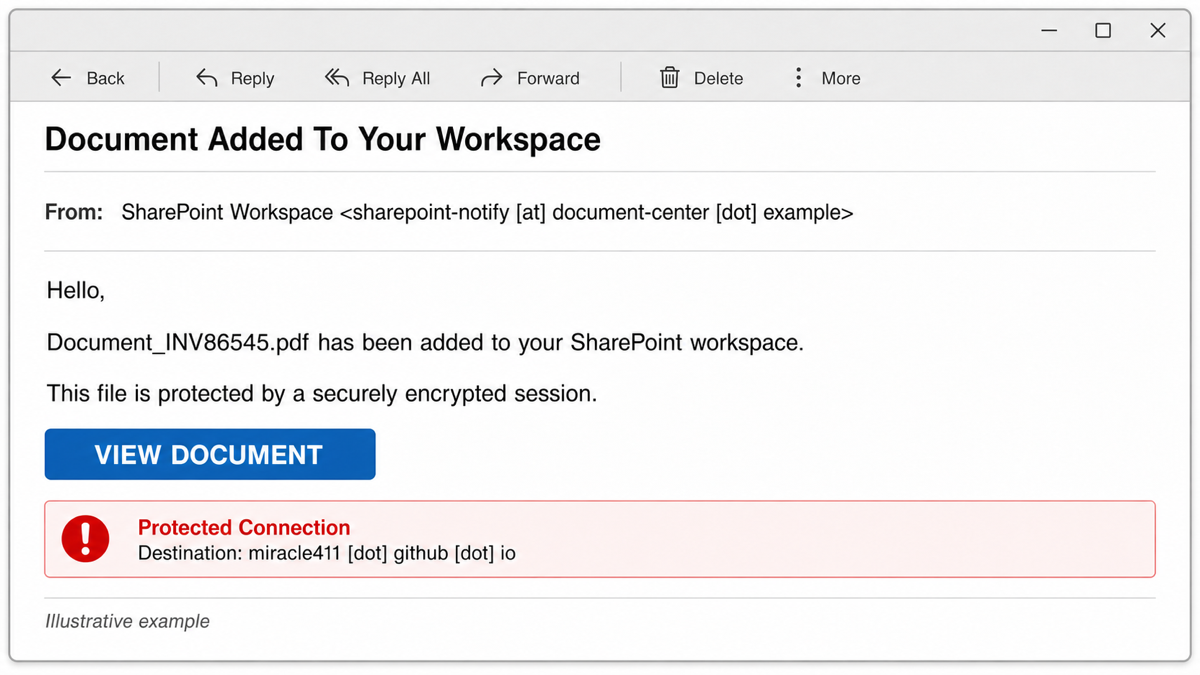
Subject: Document Added To Your Workspace
From: SharePoint Workspace <sharepoint-notify [at] document-center [dot] example>
Hello,
Document_INV86545.pdf has been added to your SharePoint workspace.
This file is protected by a securely encrypted session.
Button: VIEW DOCUMENT
Phrase: Protected Connection
Destination: miracle411 [dot] github [dot] io
Deadline: No deadline was stated in the observed sample.
Island Plantation “Sign Here” DocuSign / SharePoint variant
Another observed message used the subject “Island Plantation Sign Here : Docusign. Document 19022024pdf”, but its body switched to Microsoft 365 and SharePoint branding. It claimed that a confidential folder had been shared and should be reviewed within seven days. No promised PDF or other document attachment was present; the message contained only HTML and inline images.
Subject: Island Plantation Sign Here : Docusign. Document 19022024pdf
Subject brand: DocuSign
Body brand: Microsoft 365 / SharePoint
Claim: A confidential folder is waiting for review within seven days
Attachment: No PDF or shared document
Final host: xw724ijfoz [dot] scalablebizsolutions [dot] de
- DocuSign subject, SharePoint body: A legitimate workflow should not unexpectedly switch services and identities without clear, verifiable context.
- Promised PDF is missing: The document name creates urgency, but the message provides no actual PDF or recognizable SharePoint item to verify.
- Google redirect before the final page: A familiar redirect host is only an intermediate step. It does not make the unrelated final destination safe or Microsoft-owned.
- Original authentication failed: The observed headers recorded DMARC failure for the claimed DocuSign domain and SPF failure for the original message path.
- Later forwarded SPF passed: The pass covered the SRS-forwarded hop into the receiving mailbox. It did not authenticate the original sender or reverse the earlier failure.
Do not click a redirect to discover where it ends. Hover or inspect the destination through approved mail-security tools, then verify the supposed folder from the real Microsoft 365 tenant or through a known contact. If a DocuSign-branded message delivers an HTML file, archive, or other attachment instead of a sign-in lure, use the separate DocuSign document malware guide.
QuickBooks Payment Overdue email with a SharePoint login
A QuickBooks-branded overdue-payment email is not validated by an invoice logo, an amount, or a spreadsheet preview. In the reported pattern, the message leads to a copied SharePoint-style page that asks for the recipient’s email password. That platform switch is the key warning: verify a QuickBooks or vendor invoice in the known accounting portal or with the vendor through saved contact details, not by signing into email on a page reached from the message.
Example
Subject: QuickBooks – Payment Overdue
Display name: QuickBooks / vendor billing
Claim: An invoice is overdue
Preview: Spreadsheet or invoice preview
Button: View Invoice
Final request: Enter your email password on a SharePoint-style page
Do not use the email button to test whether the invoice exists. Open QuickBooks or your normal accounting system independently and look for the invoice there. If it supposedly came from a vendor, call or message that vendor using a number or address already in your records. Intuit’s current guidance says official Intuit sites end in intuit.com, recommends signing in directly instead of using an unexpected email link, and asks recipients to forward Intuit-brand phishing to security [at] intuit [dot] com.
If you only opened the page, use the clicked-only checks below. If you entered an email or Microsoft 365 password, follow the password, session, MFA, mailbox-rule, and sharing review steps. A file that downloaded or ran needs the separate device-check path; changing a cloud password does not remove a local payload.
Real SharePoint invitation or phishing?
- Expected document and known sender: A real share should match a project, person, or tenant you can verify outside the email. An unexpected generic workspace notice needs confirmation.
- Destination host: A legitimate sign-in should remain on a Microsoft or organization-controlled route.
miracle411.github.iois a GitHub Pages host, not a Microsoft 365 tenant. - Account prompt: A page that asks for an email and password before showing any recognizable tenant, file owner, or sharing context is a credential-phishing warning.
- Message wording: Reassurance phrases such as securely encrypted session and Protected Connection do not establish who owns the page.
- Independent verification: Open SharePoint or Microsoft 365 yourself and look for the document. If it is absent, ask the supposed sender through a known phone, chat, or email thread.
Why a github.io page is not a Microsoft login page
GitHub Pages lets users publish websites under addresses such as username.github.io. That hosting can be used for legitimate projects, documentation, and portfolios, so github.io is not automatically malicious. It also does not make a page Microsoft-owned. A page asking for a Microsoft 365 password on an unrelated GitHub Pages account fails the ownership check even if its design copies SharePoint.
HTTPS and a padlock only protect the connection between the browser and that host. They do not prove that the host is authorized to collect Microsoft credentials.
How to verify a SharePoint document safely
- Leave the email closed or unclicked. Do not test the link with a spare password or work account.
- Open Microsoft 365 from a bookmark or manually typed address. Navigate to SharePoint or OneDrive from inside the authenticated account.
- Check the tenant and file context. Look for a recognizable organization name, document library, sender, and sharing activity.
- Contact the sender separately. Use an existing conversation, company directory, or known phone number rather than replying to the suspicious message.
- Report the message. In Outlook, use the phishing-report action; for a work account, also notify the security or IT team.
What if you clicked View Document?
If you clicked but did not type, approve, download, or install anything, the account-theft risk is lower. Close the page, report the message, clear any download it started, and check the browser’s download list and extension prompts. Do not return to the page to investigate it.
If the page received only your public email address, expect follow-up phishing and MFA prompts. The address alone does not give the attacker account access, but it confirms a likely target.
What if you entered a Microsoft 365 password?
Treat a submitted password as exposed even if the fake page showed an error. Recover the account through the real Microsoft or organization portal, preferably from a trusted device and network.
- Change the password immediately. Change reused passwords on other accounts too, but use a different unique password for each service.
- End active sessions. Use Microsoft’s account-security controls or ask the Microsoft 365 administrator to revoke sessions and refresh tokens.
- Review sign-in activity and devices. Investigate unfamiliar locations, browsers, apps, and successful sign-ins.
- Review MFA and recovery information. Remove unknown authenticator registrations, phone numbers, recovery email addresses, app passwords, and backup methods.
- Check Outlook rules and forwarding. Remove rules that delete, hide, archive, or forward messages without your approval.
- Check OneDrive and SharePoint activity. Look for unauthorized shares, uploaded lures, deleted files, and access changes.
- Warn contacts and administrators. A compromised mailbox may send more document lures from a real account.
What if you approved MFA or an app?
Deny unexpected MFA prompts. If you approved one, tell the administrator that the attacker may already have completed a sign-in. A password change is important, but session revocation and sign-in review are also required.
If the page showed a real Microsoft permission screen and you approved access to mail, files, profile data, or offline access, follow the OAuth consent phishing cleanup guide. The app grant must be removed directly. If the lure supplied a code for a real Microsoft device-login page, use the separate device code phishing response.
What if a file downloaded or ran?
Do not open a PDF, archive, browser extension, “secure viewer,” or remote-support app delivered by the phishing page. If a file ran, disconnect the device from sensitive work, preserve the message details for IT, and complete account recovery from another trusted device.
A visible download can be only one part of the incident. A loader, browser change, scheduled task, startup entry, or bundled module may remain after the file is deleted. Gridinsoft Anti-Malware can check for detections, hidden files, suspicious startup entries, scheduled tasks, bundled apps, browser changes, and persistence, but it cannot restore a stolen password or prove that no account access occurred.
If the page or email made you download an invoice, coupon, tracking app, browser extension, or support tool, scan the PC before opening it again or logging into sensitive accounts.
Scan a download from this messageChecks for Microsoft 365 administrators
- Search mail telemetry for the subject, filename, sender identity, button URL, and related GitHub Pages host.
- Remove the message from other mailboxes and block the observed indicators according to organization policy.
- Review the user’s sign-ins, session tokens, MFA registrations, consent grants, inbox rules, forwarding, and SharePoint/OneDrive sharing activity.
- Check whether the compromised mailbox sent new document shares or phishing to internal and external contacts.
- Preserve headers, screenshots, timestamps, and sign-in events for incident response without circulating the live link.
Related checks
For broader brand and sender checks, use the Microsoft email scam guide. The phishing email checklist explains sender, link, request, and urgency checks that apply across document-sharing lures. If the email used an invoice or signature request rather than a workspace notification, compare the DocuSign-style invoice phishing warning. If the SharePoint-style page downloads a ZIP instead of asking for Microsoft credentials, use the Tax Summary email virus response guide for the VBS execution and cleanup branch.
FAQ
Is an email from SharePoint always legitimate?
No. Attackers can spoof the brand, abuse a real mailbox, or copy SharePoint styling. Verify the document inside Microsoft 365 and check the final destination rather than trusting the display name.
Is Document_INV86545.pdf malware?
The observed campaign uses the filename as bait for a credential page. The name alone cannot identify a file as safe or malicious. Do not download a file from the lure; verify whether the document exists in the real SharePoint tenant.
Does opening the email steal my password?
Opening the message alone normally does not submit a password. The larger risk begins when you follow the link, enter credentials, approve MFA or app permissions, or download and run content.
Is github.io a Microsoft domain?
No. It is the default hosting domain for GitHub Pages sites. A GitHub Pages address can host legitimate content, but it is not a Microsoft 365 or SharePoint sign-in domain.
Is changing the password enough after phishing?
Not always. Also end active sessions, review recent sign-ins, MFA methods, recovery details, mailbox rules, connected apps, and SharePoint or OneDrive activity. Work and school accounts should be reported to the administrator.
References
- Microsoft Support. “Protect yourself from phishing.” Microsoft, accessed July 13, 2026. https://support.microsoft.com/en-US/security/protect-yourself-from-phishing
- Microsoft Support. “How to sign out of your Microsoft account everywhere.” Microsoft, accessed July 13, 2026. https://support.microsoft.com/en-us/accounts-billing/manage/how-to-sign-out-of-your-microsoft-account-everywhere
- GitHub Docs. “About custom domains and GitHub Pages.” GitHub, accessed July 13, 2026. https://docs.github.com/en/pages/configuring-a-custom-domain-for-your-github-pages-site/about-custom-domains-and-github-pages
- Intuit. Identify suspicious activity and phishing scams. QuickBooks Help, updated August 5, 2026; accessed August 21, 2026. https://quickbooks.intuit.com/learn-support/en-us/help-article/fraud/identify-suspicious-activity-phishing-scams-fraud/L2NzZQnZu_US_en_US