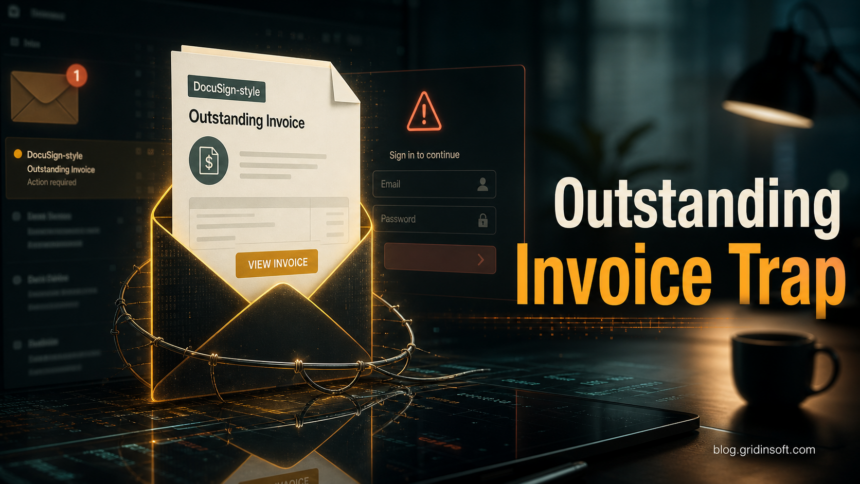
An Outstanding Invoice email scam is a phishing message that imitates a document-signing notification and pushes the recipient to open a fake invoice. In the current DocuSign-style version, the message says an invoice is ready for review and signature, then sends the user to a fake webmail login page instead of a real document. Do not use the button in the email. Verify the request from a known vendor portal or a saved contact, and change the mailbox password if credentials were entered.
This scam is different from a malware attachment campaign. The main risk is email account takeover: once attackers get the mailbox password, they can read invoices, reset other accounts, create forwarding rules, and send more phishing messages from a trusted address. If the email also downloaded a file, opened a browser extension, or asked you to run a tool, treat the computer as exposed and scan it before continuing account recovery.
What the Outstanding Invoice email looks like
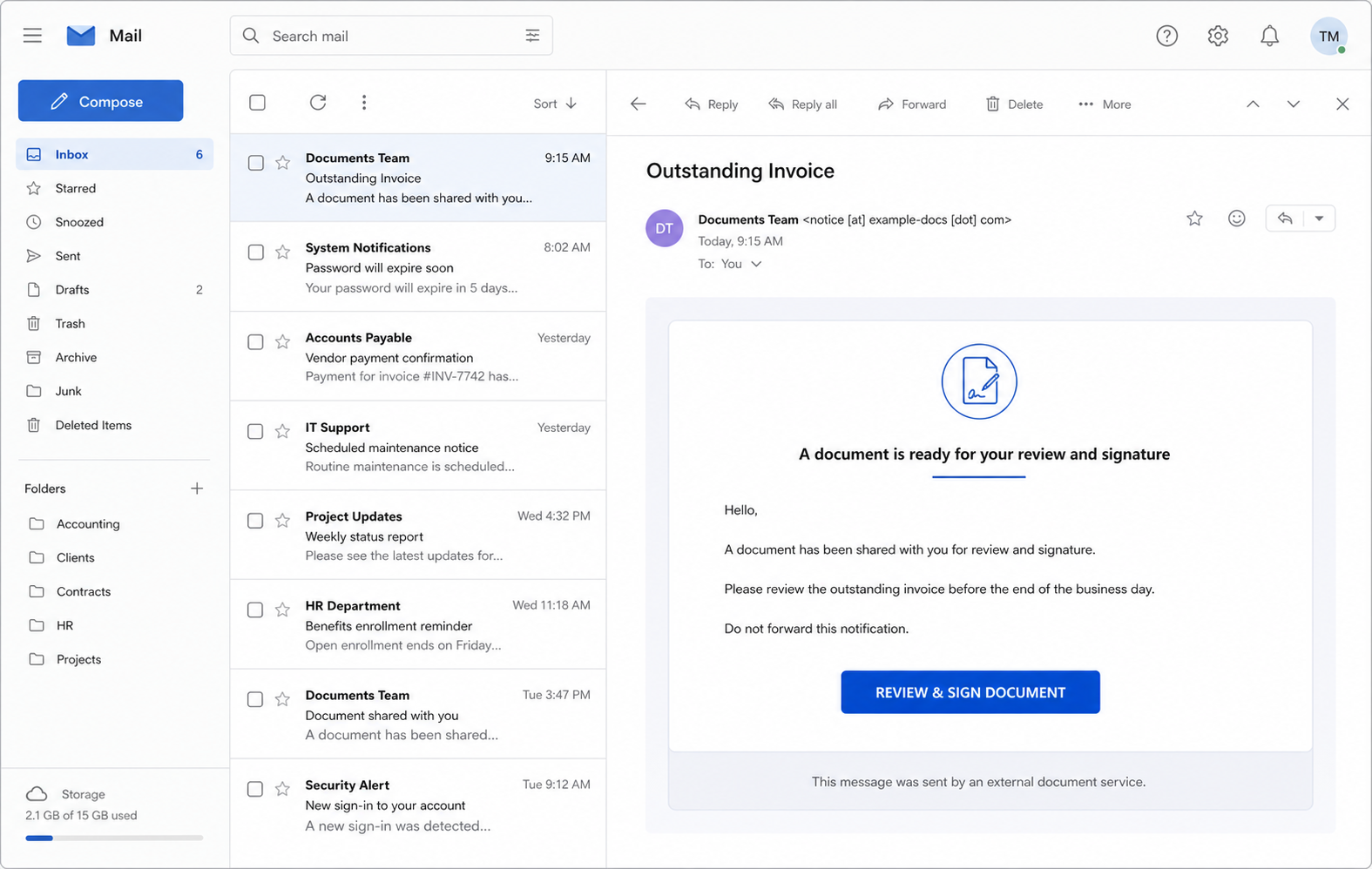
The lure usually borrows the style of a document-signing service. It may use a subject such as Outstanding Invoice, a display name like Documents Team, and a large button labeled REVIEW & SIGN DOCUMENT. The text is short on purpose: it creates just enough urgency to make a finance, sales, or operations user click without checking the sender.
A safe document request should let you verify the sender, the envelope or document ID, the signing service domain, and the business reason for the invoice. The scam version usually hides those details. It may mention an overdue invoice, an audit notice, a payment deadline, or possible legal action, but it does not name a real purchase order, contract, vendor contact, or internal approver.
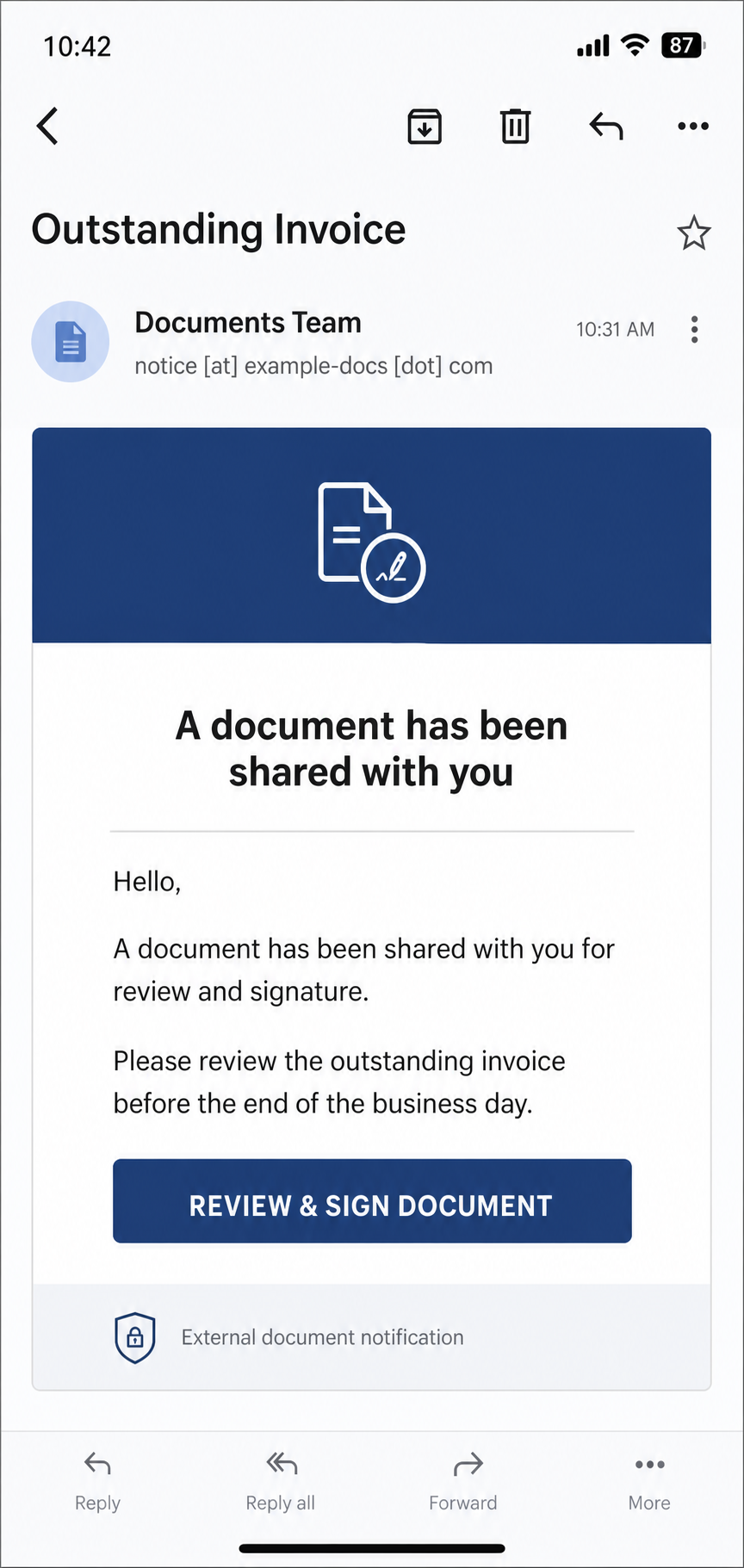
Example
Subject: Outstanding Invoice
From: Documents Team <notice [at] example-docs [dot] com>
Hello,
A document has been shared with you for review and signature. Please review the outstanding invoice before the end of the business day.
Button: REVIEW & SIGN DOCUMENT
This message was sent by an external document service.
Real attacks can swap in a different sender name, a compromised business address, a cloud storage link, or a fake webmail page that copies cPanel, Microsoft 365, or a corporate login screen. The key pattern is the same: an invoice or signature request is used to collect credentials.
DocuSign and DocSend document-review variants
Document-phishing messages often keep the same fake-login path while changing the subject, document name, or button. The wording below can appear in a scam, but it is not proof by itself: legitimate DocuSign and DocSend notifications also exist. Check whether you expected the document, whether the sender is known, and where the link actually goes.
- Document For Review And Signature: the message may call the file Invoice.pdf, use a timestamped subject such as Action Required: DocuSign Received Document, and show a REVIEW AND SIGN DOCUMENT button. An unrelated cloud-storage address that opens a provider-styled mailbox login is a phishing sign.
- Document Added To Your Account: the email says a new DocuSign document was added, then asks for an email password to view it. Verify the supposed envelope from the real service instead of signing in through the message.
- SWIFT Payment (MT103) Receipt: a payment-receipt story is used to make the document feel urgent. Confirm the transaction with the bank or accounting contact through a saved number or internal system; do not treat a DocuSign logo or an MT103 label as payment proof.
- Document Is Waiting For Your Approval: the message pushes an approval button and then copies a Gmail, Microsoft 365, or other webmail login. Approval wording alone does not make the request fraudulent, but a mailbox form on an unrelated domain does.
- DocSend shared document available for review: confirm that the named sender actually intended to share the file. Do not enter your mailbox password on a lookalike page merely because the email uses DocSend branding.
If you used one of these buttons but submitted nothing, follow the click-only branch below. If you entered a password, MFA code, or recovery detail, use the mailbox-recovery steps; there is no need to repeat the response for each subject line.
DocuSign, Adobe and Microsoft: check which window you are trusting
In a September 8, 2026 report, Barracuda described a DocuSign-themed document request that passed through a CAPTCHA and an Adobe-styled prompt before displaying a fake Microsoft sign-in window. The final window, including its convincing address bar, was drawn inside the phishing page. This was direct credential harvesting; the brand sequence alone does not establish device-code theft, an app-consent grant, or a malware download. [4]
If you already have an unexpected sign-in page open, do not enter anything to test it. Compare these two places:
- The browser’s own address bar: use the address field belonging to your actual browser window. A Microsoft-looking address drawn below it can be ordinary page content. For example, if an inner panel displays a Microsoft login address while the enclosing browser remains on an unfamiliar site, that inner text does not verify where your password will go.
- The apparent popup: on a desktop, a simulated window may stop at the webpage boundary when you try to move it outside the page. That exposes a fake frame. A window that moves independently still needs its real destination and the document request verified; movement is not an authenticity test that can clear a suspicious request.
- An unclear result: on a phone, in full screen, or whenever you cannot identify the browser-controlled address field, stop inspecting the lure. Close it and use the independent document-verification steps below. A familiar logo, personalized greeting, or completed CAPTCHA does not replace that check.
If you submitted a password, go directly to the mailbox-recovery steps. If you only clicked and entered nothing, use the existing click-only branch; do not return to the page to repeat this test.
Invoice Is Past Due and payment-reversal variants
The same credential-phishing decision can arrive with different business stories. Two current examples replace the generic signing notice with either a past-due invoice or a supposed bank payment reversal. The company or bank name is not proof that the sender is genuine; verify the request through contact details and portals you already trust.
Invoice Is Past Due
One observed email borrows the name Wil-Mar Hydraulics & Machine Inc and claims that $4,855.00 is overdue. It threatens an $85.00 late fee if payment is not received within seven days, mentions collections, and uses a View Invoice button. The pressure and specific amount can make the request feel like an accounting problem, but the link leads to a fake mailbox login. Do not use that page. Check the invoice number, purchase order, and vendor contact in your own accounting records, then call or message the vendor through a known channel.
Misdirected Payment and Request for Payment Reversal
Another lure uses the subject URGENT: Request for Payment Reversal and impersonates a Union Bank branch manager. It says a transaction was sent to the wrong beneficiary and places the transaction reference in an attached PDF. The PDF then becomes an intermediate step: a link inside it opens the credential-phishing page. An attachment and a transaction reference do not make the request authentic. Contact the bank or payment owner through an official number or saved business contact instead of replying to the message or following the PDF link.
Choose the response that matches what happened
- You only read the email: do not open the button or attachment. Report the message, preserve it for your security team if needed, and delete it after they confirm.
- You opened the PDF but did not click its link: close it and do not return to the embedded link. Opening an ordinary PDF does not by itself prove the device was compromised, but update the PDF reader and tell IT if the file requested active content, launched another app, or caused unusual behavior.
- You clicked the login page but submitted nothing: close the page, report the URL, and remove any browser notification permission you granted. If a password manager or browser filled and sent credentials, use the next response branch.
- You submitted a password, MFA code, or recovery detail: change the mailbox password from the real service, revoke sessions, review MFA methods and forwarding rules, check recent sign-ins, and alert finance or the bank through a known channel. Also reset any other account that reused the same password.
Red flags to check before clicking
- The sender is not the vendor you expected. A display name can say DocuSign or Documents Team while the actual address uses an unrelated domain.
- The message asks you to sign in after the button. A fake invoice page that immediately requests your mailbox password is a stronger warning than a normal document preview.
- The invoice details are vague. Real invoice workflows usually include a vendor, account, purchase order, amount, or internal contact.
- The message creates pressure. Phrases about an overdue deadline, audit compliance, or legal action are used to reduce verification.
- The link destination is hidden or unfamiliar. Hover on desktop, long-press carefully on mobile, or open the message headers in a safe way. Do not log in through an unsolicited link.
- The request conflicts with normal process. If your company uses a procurement portal, accounting queue, or saved vendor contact, use that route instead of the email button.
How to verify it safely
- Do not click the button again. If you already opened the page, close it and do not enter a password.
- Open the signing or vendor service manually. For DocuSign, type docusign.com yourself and use Access Documents with the Security Code from the bottom of the notification; do not copy the button URL. For DocSend, confirm the expected sender through a known contact before opening the shared link.
- Check the sender out of band. Contact the vendor, customer, or internal requester using a known phone number or address from previous records.
- Look for the document in the official portal. A legitimate signing request should be visible from the service account or envelope history.
- Forward the suspicious message to your IT/security team. Keep the original headers if possible so they can inspect the sender path and linked domain.
- Report DocuSign impersonation to DocuSign. Their trust guidance explains how to send suspicious messages for review.
For a broader checklist of sender, link, attachment, and wording clues, see our guide on how to spot a phishing email. If a QuickBooks or payment notice opens a copied SharePoint-style email-password page, use the SharePoint document phishing response for the Microsoft 365 session, MFA, mailbox-rule, and sharing checks. If the same message claimed to include a legal document or pushed an ISO/EXE file, compare it with the separate DocuSign Legal Department Document email virus case, which is a malware-delivery lane rather than a login-theft lane.
What to do if you entered your email password
Act from a clean browser session or a different trusted device. Do not keep using the phishing page.
- Change the mailbox password immediately. Use a unique password that was not reused on other services.
- Sign out of all sessions. Most webmail and Microsoft 365/Google Workspace accounts let you revoke active sessions or force reauthentication.
- Turn on MFA or reset MFA methods. If MFA was already enabled, verify that no new authenticator app, phone number, or backup method was added.
- Check forwarding rules and inbox filters. Attackers often create rules that hide security alerts, delete replies, or forward invoices to an external address.
- Review recent sign-ins. Look for unfamiliar countries, devices, user agents, impossible travel, or repeated failed attempts.
- Warn finance and contacts if the account sent mail. A compromised mailbox can be used for invoice fraud or follow-up phishing from a trusted thread.
- Reset linked accounts if needed. Email access can be used to reset banking, SaaS, cloud storage, and social accounts tied to the mailbox.
If the lure made you download a document, install a viewer, add a browser extension, or run a support tool, account cleanup is not enough. Save the suspicious file or URL for your security team, then scan the computer for leftovers. Gridinsoft tools can help with that triage: use the Gridinsoft Email Scam Checker for suspicious message text and links, and run Gridinsoft Anti-Malware if anything was downloaded or executed. A scan can look for detections, hidden files, startup entries, scheduled tasks, bundled apps, browser changes, and persistence; it cannot recover a stolen password or prove that no account was accessed.
Why invoice and signing lures work
Another current invoice-themed variant uses a Revised Invoice email and fake protected PDF sign-in instead of a DocuSign-style review button. A separate SecureDocs Document Delivery email scam uses a fake secure-PDF notice and webmail login, so check the exact wording before deciding which recovery steps fit.
Invoice requests are effective because they fit normal business routines. A real invoice may arrive unexpectedly, a document may require signature, and mobile email hides important sender and link details. Attackers combine that normal workflow with urgency: payment deadline, audit notice, legal action, or a manager asking why the invoice is not handled.
The safest habit is process-based verification. Treat an invoice email as a notification, not as the source of truth. Open the known vendor system, procurement queue, or signing service manually. If the document is real, it should still be there. If it only exists behind the email button, the request needs independent confirmation.
Prevention for finance and small-business teams
- Require out-of-band confirmation for new payment instructions. Never approve a bank detail change from an email thread alone.
- Keep a saved vendor contact list. Finance users should not have to trust a phone number or reply address from a suspicious invoice.
- Use mailbox rules monitoring. Alert on new external forwarding, hidden inbox rules, and mass deletion of security notices.
- Train around exact workflows. Show users examples of invoice, DocuSign-style, QR, and webmail-login lures, not only generic phishing definitions.
- Route suspicious mail to one review process. Users are more likely to report if they know exactly where to send a suspicious invoice.
FAQ
Is the Outstanding Invoice email real?
Treat it as suspicious unless you can verify the request from a known vendor portal, a saved contact, or your official signing-service account. Do not use the email button as proof.
Does this scam install malware?
The common DocuSign-style Outstanding Invoice version is mainly credential phishing. However, some invoice lures also attach files or push downloads. If you opened a file, installed anything, or ran a tool, scan the device and tell your security team.
What if I only clicked the link?
If you clicked but did not enter credentials or download anything, close the page, report the message, and avoid using the link again. If the page asked for notification permissions or installed an extension, remove that permission or extension and scan the browser profile.
What if I entered my email password?
Change the password from a clean session, revoke active sessions, review MFA methods, check forwarding rules, and inspect recent sign-ins. Warn your organization if the mailbox can send invoices or payment instructions.
Can I report the fake DocuSign message?
Yes. Preserve the original message and forward it according to DocuSign’s abuse-reporting instructions or your organization’s security process. Reporting helps the provider investigate spoofed campaigns and malicious links.
References
- Docusign. “Report security incidents.” Docusign Trust Center, accessed June 23, 2026. https://www.docusign.com/trust/security/incident-reporting
- Docusign. “Safety alerts and updates.” Docusign Trust Center, accessed August 12, 2026. https://www.docusign.com/trust/safety-alerts
- Federal Trade Commission. “How to recognize and avoid phishing scams.” FTC Consumer Advice, accessed June 23, 2026. https://consumer.ftc.gov/articles/how-recognize-and-avoid-phishing-scams
- Suraj Talekar. “Anatomy of a layered, multi-brand phishing campaign.” Barracuda Networks, September 8, 2026, accessed September 12, 2026. Campaign analysis