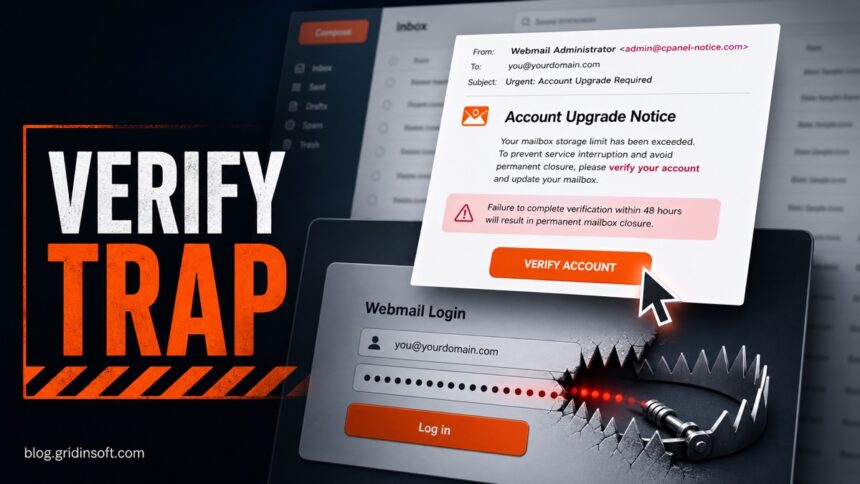
The “cPanel Email Quota Limit,” “Final Account Upgrade State,” “Routine Update Of User Database,” “Roundcube Security Patches,” “Employee Account Maintenance Notice,” “Administrator Update / Keep My Password,” and newer “AI Detected That Your Email Account Requires,” “Two-step Verification Was Enabled,” “Action Required: Confirm Active Account Status,” and “Set Your Password To Avoid Database Loss” emails are Webmail phishing scams, not safe cPanel, Roundcube, Zoho, registrar, or company support notices. They use storage pressure, account-upgrade, password-expiration, database-maintenance, security-patch, mail-server-upgrade, or mailbox-closure wording to push you toward a fake login page. Do not use the button in the email. Open Webmail, cPanel, Zoho Mail, or your hosting provider’s portal from a saved bookmark or typed address and check the warning there.
This lure matters because a stolen mailbox password can expose hosting invoices, password-reset messages, client conversations, website admin alerts, and sometimes the hosting control panel itself. If you entered a password or one-time code, change it from the real portal, sign out unknown sessions, review forwarding and filter rules, and check whether the same password protects hosting, CMS, FTP, or billing access.
What Is the cPanel Final Account Upgrade State Email Scam?
The scam is an account-verification email dressed up as a cPanel Webmail notice. It typically claims that the mailbox has reached a “final upgrade state,” needs immediate verification, or will be closed if the recipient does not confirm the account. The wording may include awkward phrases such as “Requirment,” generic “Webmail Administrator” sender names, or placeholders that were not filled correctly.
Real cPanel/WHM installations can send mailbox and account quota notifications, and cPanel documentation shows that quota warnings are configured in server notification settings and checked from the email-account interface [1][2]. That makes quota wording plausible enough for scammers to copy, but it still should not send you through an arbitrary email button to re-enter a Webmail or cPanel password. The “Final Account Upgrade State” wording fits that same mailbox-pressure pattern.
cPanel Email Quota Limit and Service Monitor Variants
The newer cPanel Email Quota Limit version uses the same pressure tactic with different labels. One message claims the mailbox quota has reached 98% and says the account may be permanently disabled unless the user clicks Click to Upgrade. Another poses as a cPanel Service Monitor or disk manager alert, claiming hosting storage has reached a critical threshold and mail delivery may fail.
Both versions should be handled like the Final Account Upgrade State lure: do not click the email button, do not sign in through the linked page, and verify the mailbox or hosting quota only inside the real portal. If the link opens a Firebase-hosted page, a random subdomain, or a generic Webmail login that does not match your host, treat the page as credential theft.
-
Final Account Upgrade State says Webmail will close unless the account is verified.
What to check before acting: Open the real Webmail or hosting dashboard manually and check for any account-verification notice there.
-
Email Quota Limit says storage is 98% full and pushes an upgrade button.
What to check before acting: Check the mailbox quota inside cPanel or your host’s portal. A real quota warning should not require a password through a link in email.
-
cPanel Service Monitor says disk storage is critical and asks you to access Disk Manager.
What to check before acting: Verify server or mailbox storage in WHM/cPanel directly. Compare the sender headers and URL before trusting any automated alert.
-
Routine Update Of User Database says a Webmail database or Terms of Service update requires action.
What to check before acting: Check notices only inside the real Webmail, cPanel, or hosting portal. A database update should not ask for your mailbox password through an email link.
-
Roundcube Security Patches says mandatory security patches or authentication protocol updates require action within 24 hours.
What to check before acting: Open the known Webmail or hosting portal yourself. Roundcube branding on a linked page does not prove the login belongs to your provider.
-
Employee Account Maintenance Notice says a company mail-server upgrade is complete and asks you to re-sign in.
What to check before acting: Verify with the company IT or mail admin through a known channel. Do not enter credentials on an unrelated Zoho-styled login page reached from the email.
-
Administrator Update / Keep My Password says the company domain has pending messages or that the mailbox password will expire soon.
What to check before acting: Check the sender authentication, the real link destination, and the mailbox notice inside the genuine provider portal. A link that appends the recipient after a
#fragment is a personalization trick, not proof of legitimacy.
Migration, Security Review, Invoice, and Delayed-Message Lures
Messages with subjects such as System Migration & Security Notice, Security Review Requested, Tax Invoice, or Undelivered Message can look unrelated, but the phishing path is often identical: the email invents a business reason to open a provider-styled Webmail page and asks for the mailbox password. The subject alone does not prove a message is fake. The decisive warning is a login form reached from the email on a domain that is not the portal you normally use.
-
System Migration & Security Notice / Migration Authorization Required says a scheduled migration, configuration change, or security review needs approval within 24 or 48 hours. It may offer Review Migration or Authorize before a generic Webmail login.
What to verify instead: Check migration status in the provider dashboard or ask your known IT or hosting contact. A legitimate migration should not require the current mailbox password through an unsolicited email button.
-
Security Review Requested / Account Security Review claims that a recent event, policy check, or suspicious sign-in requires identity confirmation.
What to verify instead: Open the real account security log from a bookmark. If an unfamiliar sign-in is actually listed there, change the password, revoke sessions, and review MFA and recovery methods from that portal.
-
Tax Invoice / Routine Invoice presents an ordinary invoice or payment document, but the review button ends at a Webmail sign-in instead of the known vendor or accounting portal.
What to verify instead: Open the vendor or accounting service independently and confirm the invoice through a known contact. If the message also supplied a file and you opened or ran it, follow the download and device-scan path later on this page.
-
Undelivered Message / Delayed Messages / Mail Release says incoming mail is queued, rejected, or waiting for release and pushes View Messages or Release Mail.
What to verify instead: Check the real mail quarantine, delivery log, or hosting dashboard. Do not re-enter a password on the page opened by the email, even when it lists believable sender names or message counts.
-
Verify Your Email Server Account says sending, reading, backup, or upload access will stop unless the address is activated or verified. The fake form may prefill the address and request the current password twice.
What to verify instead: Use the known provider portal. For a generic verification message without cPanel, Roundcube, or hosting context, use the separate account-verification checklist linked below instead of treating every service notice as a cPanel lure.
-
Mandatory Verification Update Process / System Update / Inactive Mailbox Deletion combines a required update with a closure or data-loss deadline.
What to verify instead: Look for the same notice after signing in normally. Software, database, and mailbox-status changes should be managed in the provider or organization portal, not on a third-party login reached from email.
-
Password Update Alert / Password Expiry / Suspicious Sign-in gives a short deadline or asks you to keep the current password to avoid interruption.
What to verify instead: Do not preserve, renew, or confirm a password through the message. Open the real password or security page and contact IT through a known channel if an organization policy may apply.
-
COSCO Shipping Package Notification / Account Activation / Account Details Expiry uses a shipment, activation, account-size, or expiry pretext, then sends the reader to a provider-looking Webmail form.
What to verify instead: Verify a shipment through the carrier or vendor channel you already know, and check mailbox status separately in the real mail portal. A shipping notice has no legitimate reason to collect a Webmail password.
Roundcube Account Errors, Deletion, and Cleanup Lures
Some messages replace the usual quota or upgrade warning with an error report, a deletion request, or a cleanup task. The wording changes, but the decisive check stays the same: an unexpected email should not send you to an unrelated Webmail login to enter the mailbox password.
- Roundcube Account Errors claims that errors are blocking messages or that the mailbox must be repaired. Open the Webmail or hosting portal you normally use and check its real status page; do not use the email’s repair or review button.
- Request To Permanently Delete Your Account or a mailbox-termination notice asks you to approve or cancel deletion through a linked login. Check account status and support tickets in the known provider portal. A deletion warning is not proof that Roundcube, cPanel, or the hosting provider sent the message.
- Cleanup Of Pre-2021 Report Files says old reports or server files must be reviewed before storage cleanup. File-retention work should be managed in the real document, hosting, or organization system; it should not require a mailbox password on a page opened from the message.
- cPanel Blocked Sign-In Attempt claims that a login was stopped and asks you to verify the account. Type the provider address or use a bookmark to inspect the real security log. If an unknown attempt appears there, change the password and revoke sessions from that portal.
- Server Password Expired gives a short deadline to keep, renew, or restore the password. Use the known account page or contact IT through a separate channel. Never preserve or replace a password through an unsolicited email button.
If you already submitted a password or one-time code, use a known-clean device to change the mailbox password, sign out other sessions, revoke app passwords and connected mail clients, remove unknown forwarding or filter rules, and review MFA plus recovery settings. Do not return to the phishing page to test the old password.
Keep the response proportional to what happened. If you only saw the message, report it. If the linked page opened but you entered nothing, close it and clear that site’s data. If you submitted a password or MFA code, use the mailbox recovery steps below. If an attachment, extension, remote-support tool, or other file ran, add device isolation and a trusted security scan; a credential page by itself does not prove that malware executed.
More Webmail, DNS, SSL, and Account-Upgrade Variants
These campaigns change the subject, button, and provider skin, but the decision stays the same: a notice about DNS, SSL, password policy, mailbox software, or an account upgrade is unsafe when the email button opens a login form outside the portal you normally use. Cloud storage, Railway, Firebase, EdgeOne, or another recognizable hosting platform does not make that form official.
-
Your Domain Has Incorrect DNS Settings may use the subject Action Required Immediately, claim incorrect MX records disconnected Webmail, and offer Here or Restore Automatic Activity links.
What to verify instead: Check DNS and MX records only in the registrar, DNS host, or hosting dashboard you open yourself. Do not change records because an unexpected email says incoming mail will fail “as from today.”
-
Policy Violation Detected / Account Termination Notice may cite an unspecified violation or fake closure request, threaten lost access, and use Review Activity, CANCEL ACCOUNT CLOSURE, or Log in via cPanelID. The fake login may sit on EdgeOne or Wix and change its provider skin.
What to verify instead: Open the real mail-admin or hosting portal yourself and check support tickets there. cPanel wording, a provider-looking login, or a familiar cloud host does not authenticate the sender.
-
Account Recovered Successfully / Security Verification Needed may call itself a “Trusted Message,” urge Login now to secure your account, or use WEBMAIL LOGIN PORTAL and Secure Email Address. The landing page can select a Gmail, Microsoft, Yahoo, or corporate skin from the recipient address.
What to verify instead: Use a saved provider bookmark and inspect real security notices and sessions there. A page that knows your address or copies the right provider branding is still untrusted when its domain is unrelated.
-
Complete The Required Mailbox Update / Email Software Update may use the subject [account]: Please confirm to continue, claim to come from a “Technical Support Department,” set a deadline, and threaten permanent deactivation. Update Mailbox or Confirm Update can open a prefilled cPanel-style form on IPFS or cloud storage.
What to verify instead: Mail software and mailbox settings are managed in the provider portal, admin console, or installed client. Do not confirm an update by re-entering a password on an IPFS gateway or storage-object URL.
-
Migration Action Required / Unresolved Inbound Items / Confidential Messages Queued may use Panel Migration Review, Domain restoration needed urgently, or Action Required – Final Warning!. Buttons such as Review Migration Status, Inspect Messages, and Review Messages can lead to a provider-themed login; visible template placeholders or a Gmail background with a Roundcube overlay are strong warning signs.
What to verify instead: Review migrations, held messages, and domain status only from the bookmarked provider dashboard or a known administrator channel. Mixed provider branding and “secure/encrypted” wording do not make a login form official.
-
A Critical Virus Has Been Detected On Your Device may use the subject Email is at Risk!!!, invent a
Trojan.Win32.Genericresult or “System Antivirus Scan,” and offer Scan Now and Remove Virus before a Roundcube-style login on Firebase.What to verify instead: Do not run the email’s scan or enter Webmail credentials. Check mailbox notices in the real portal; if the message caused a download or extension install, scan that device from the security app you open locally.
-
24-Hour Password Expiration Notice uses Keep Password Now, a “Suspension Grace Period,” and a fake Gmail portal on an unrelated EdgeOne address.
What to verify instead: A real password policy may exist, but verify it from the known account page or with IT. Never preserve or renew a password through an unsolicited email button.
-
Roundcube Domain Registration Email Verification invokes ICANN compliance, gives a three-day deadline, and sends Verify Email Address to a fake Roundcube login.
What to verify instead: Roundcube branding identifies Webmail software, not your registrar. Check domain-contact or ICANN-related requests in the registrar account you normally use.
-
Final Warning: Email Deactivation Pending may claim to come from “cPanel Admin” and offer Keep Service Active or a confirm-deactivation choice.
What to verify instead: Do not let the email make the choice for you. Open the hosting account directly and ask the provider whether any mailbox or domain service is actually pending deactivation.
-
AI Powered Webmail promises instant AI replies, spam protection, predictive search, or calendar sync and uses Continue To AI Webmail. The fake cPanel form can prefill the address and show “Invalid password” after capture.
What to verify instead: Check product announcements inside the genuine provider account. If a password was submitted before an error appeared, change it anyway; the error can be part of the theft flow.
-
SSL Certificate Expiration may arrive as Server error message., pretend to be “Hosting.ssl,” claim expiry in under 24 hours, and use Renew SSL Now before a fake Roundcube login on Firebase.
What to verify instead: Inspect certificate status in the hosting or certificate-provider dashboard. A real renewal workflow should not turn into an unrelated Webmail password prompt.
-
Mail Server Administration may use the subject RE-EMAIL SERVER NOTICE, personalize the email address/domain, and offer LEARN MORE before a fake cPanel-style login.
What to verify instead: Contact the real mail administrator separately. Personalization can come from the original message or URL and does not authenticate the sender.
-
Required System Upgrade may use Important Email System Update 2026, say the account is in pre-deactivation status, give a 48-hour deadline, and open a prefilled “Secure Access” page on IONOS storage.
What to verify instead: Check upgrade notices in the normal provider or organization portal. Prefilled identity fields and encryption claims on a third-party page do not make it a legitimate verification flow.
-
AI Detected That Your Email Account Requires / Email Address Re-verification may invoke an “AI server,” a 24-hour verification deadline, a dormant address, cPanel branding, or a prefilled mailbox on an IPFS or unrelated cloud-hosted form.
What to verify instead: Open the known provider portal and check account notices there. “AI” wording, a familiar cPanel skin, or a form that already knows the address does not authenticate the link.
-
Two-step Verification Was Enabled / Security Settings Changed / New Device Detected may claim that 2FA, a recovery option, or a device was added and push Review Activity or Verify Account.
What to verify instead: Use the real portal’s security log. If the change is genuine but unauthorized, change the password, revoke sessions, remove unknown MFA or recovery methods, and contact the provider through a known channel.
-
Action Required: Confirm Active Account Status may come from “Webmail SupportTeam,” use Confirm Here, call the address inactive, and threaten permanent disablement or data loss.
What to verify instead: Check mailbox status from a bookmark or typed provider address. Recent mailbox use, a generic support signature, and an urgent button do not prove that the message came from the host.
-
Set Your Password To Avoid Database Loss / Configuration or Migration Notice may demand a password update, re-verification, or configuration confirmation to prevent message or database deletion.
What to verify instead: Change passwords and review migration or client settings only inside the genuine provider portal or with IT. A real server migration does not require re-entering a mailbox password on a third-party page.
For a generic “verify ownership” message that does not use cPanel or Webmail wording, compare the sender and destination with the Account Verification Alert email scam checklist. If credentials were entered in any of the variants above, use the mailbox, session, forwarding-rule, MFA, hosting, CMS, and contact-recovery steps later on this page; do not test the phishing form again.
Account Maintenance Notification and Keep Account Active Variant
The Account Maintenance Notification version is the same Webmail credential-phishing pattern with a more routine-sounding subject. Instead of saying the mailbox is full, it claims the mail platform is under maintenance, the account must be confirmed to remain active, or the server upgrade requires a fresh Webmail sign-in. Some samples leave template placeholders such as {Domain} in the body, which is a strong sign that the message was mass-generated.
Do not treat “maintenance” wording as safer than a quota or closure warning. A legitimate host may announce maintenance, but it should not require you to submit the mailbox password through a button in the message. Open the real Webmail, cPanel, or hosting dashboard manually and check notices there.
Subject: Account Maintenance Notification
Displayed sender: Webmail Support <support [at] {Domain}>
Dear user,
We are currently performing routine platform maintenance on the mail server for {Domain}. To keep your account active and avoid interruption, confirm your Webmail account now.
Failure to verify may restrict incoming messages until the maintenance process is complete.
Button text: Keep Account Active
Why this wording is suspicious: it uses a routine maintenance claim to push a password entry, includes an unfilled domain placeholder, and sends the reader to a linked login page instead of the known hosting portal.
-
The subject says Account Maintenance Notification or server maintenance.
Safer interpretation: Verify maintenance notices from the host’s real dashboard or status page, not from the email button.
-
The body says you must keep account active or avoid interruption.
Safer interpretation: Treat it like account-verification phishing if it asks for a Webmail password, MFA code, or recovery details.
-
The message contains
{Domain}, mismatched branding, or a sender domain unrelated to your host.Safer interpretation: Assume the template was not sent by the provider until the host confirms it through a known support channel.
Administrator Update / Keep My Password Variant
The Administrator Update version is a password-expiration and pending-message lure that can be customized for any company domain. In one observed sample, the subject claimed that {company-domain} had 17 pending messages, while the body said the mailbox password was about to expire and urged the user to click Keep My Password. Another version uses Mailbox restriction alert, the typo Veriify my account, an unrelated “Biz Analyst” footer, and a prefilled Webmail login on an appwrite.network host. Neither is a normal mailbox-maintenance workflow; both are credential-theft prompts.
This sample also shows why Gmail’s yellow “Be careful with this message” warning matters. The visible sender looked like an administrator update, but the message failed DMARC alignment for the displayed sender domain. SPF can still appear to pass for a forwarding server or envelope sender, so recipients should not treat spf=pass as proof that the visible From: identity is safe.
Observed variation: Administrator Update / Keep My Password
Displayed sender: Administrator Update for {company-domain} <user [at] unrelated-domain [dot] tld>
Administrator Update {company-domain}
Your password is set to expire Soon.
recipient [at] company-domain [dot] com
We advise you to take the time now to keep your mailbox password and avoid login interruptions or account lockouts.
Button text: Keep My Password
Footer pressure: You are liable for any loss due to skipped validation prompts.
Extra warning signs: the message personalizes the company domain and recipient address, uses pressure about password expiry and pending messages, and sends the button to a hosted page such as doc-cloudflare.edgeone.dev#<base64-recipient> or an unrelated appwrite.network project. The # fragment can carry the recipient address to client-side JavaScript so a fake login page can be prefilled or personalized.
Look closely at the wording too. Some samples replace normal Latin letters with Cyrillic lookalikes in words such as tіme, yоur, pаssword, Kееp My Раssword, and Nоtе. Those homoglyphs make the email look readable to a person while changing the underlying characters that filters and search tools see.
Routine Update Of User Database and Roundcube Variant
The Routine Update Of User Database version uses database-maintenance language instead of quota pressure. It may claim that a new Terms of Service or user-database update is required and that account access will be disrupted unless the recipient signs in through a linked Roundcube Webmail page. That does not make the message safer; it is still a Webmail credential prompt delivered by email.
Treat this variant like the other cPanel and Webmail lures on this page. Open the known hosting portal or Webmail URL yourself, check whether your provider posted a real maintenance notice, and never enter a mailbox password on a random domain such as 7w2n9zpx5k.websecure365i0mqflow0o.com or any lookalike login page reached from the message.
Subject: Routine Update Of User Database
Displayed sender: Webmail Admin Service <admin [at] webmail-support [dot] example>
Hello user,
We are updating the Webmail user database and applying our new Terms of Service. To avoid disrupted account access, confirm your mailbox details through Roundcube Webmail.
Failure to complete this routine update may restrict incoming and outgoing messages.
Button text: Review Update
Why this wording is suspicious: it turns a vague database update into a password request, uses generic Webmail/Roundcube branding, and sends the recipient to a linked login page instead of the known provider portal.
-
The message says user database, Terms of Service, or routine update.
What it usually means: Scammers are using maintenance language to make a password prompt feel administrative and low-risk.
-
The login page says Roundcube Webmail but the domain is unrelated to your host.
What it usually means: Roundcube is common webmail software; its name on a page does not prove the page belongs to your provider.
-
The warning says access will be disrupted unless you act from the email.
What it usually means: Use the real portal or a known support channel. Do not verify mailbox access through the message button.
Roundcube Security Patches and Employee Account Maintenance Notice Variants
The Roundcube Security Patches version uses a security-update pretext instead of quota wording. It may say that mandatory patches and authentication protocol updates are being rolled out, then give the recipient 24 hours to use a Review Email Settings button. Treat that as a credential prompt, not as a real Roundcube update notice. Real Roundcube access is provided by your host or organization, so the safe check is still the known Webmail or hosting portal.
Subject: Urgent Action Needed
Displayed sender: Roundcube Webmail <admin [at] roundcube-security [dot] example>
Hello,
We are rolling out mandatory security patches and authentication protocol updates to better protect your account from unauthorized access.
Please review the new settings associated with your account within the next 24 hours to avoid disruption to email access.
Button text: Review Email Settings
Why this wording is suspicious: it turns a vague security update into an urgent login demand. If the button opens an unrelated domain such as habitatcyprus.com or any page outside your normal provider, assume it is a password trap.
The Employee Account Maintenance Notice version looks more like an internal IT message. It says the company mail server was upgraded, asks the employee to re-sign in to finalize the service update, and may show a fake Zoho Mail login. Zoho is a legitimate mail and business-app provider, but a Zoho-styled page reached from an unexpected maintenance email is not proof that the request is real.
Subject: Employee Account Maintenance Notice
Displayed sender: Security Team <support [at] company-mail [dot] example>
Dear user,
There has been a recent upgrade on our mail server. Management has successfully completed an upgrade to your services on our server.
To finalize the upgrade, kindly follow the update link below and re-sign in to complete the process.
Button text: Update Here
Why this wording is suspicious: it asks for a fresh sign-in from an email button, often on a domain unrelated to Zoho or the employer, such as address.selecters.vu. Confirm with IT or open the real Zoho Mail/admin portal manually.
-
The message says Roundcube Security Patches, authentication protocol updates, or Review Email Settings.
Safe response: Do not use the button. Open the known Webmail URL or hosting dashboard and check provider notices there.
-
The message says Employee Account Maintenance Notice, mail-server upgrade, or re-sign in.
Safe response: Ask IT or the mail admin through a separate channel. A real server upgrade should not require a password on a linked page.
-
The linked page imitates Roundcube, Webmail, or Zoho Mail on an unrelated domain.
Safe response: Close the page, report the message, and change passwords only from the real provider portal if credentials were entered.
Example
The exact layout changes between campaigns, but the useful recognition clues are the subject line, the forced verification language, the mailbox-closure threat, and the fake Webmail sender. Below are illustrative desktop and mobile examples of how this lure can look when opened in a mail client.
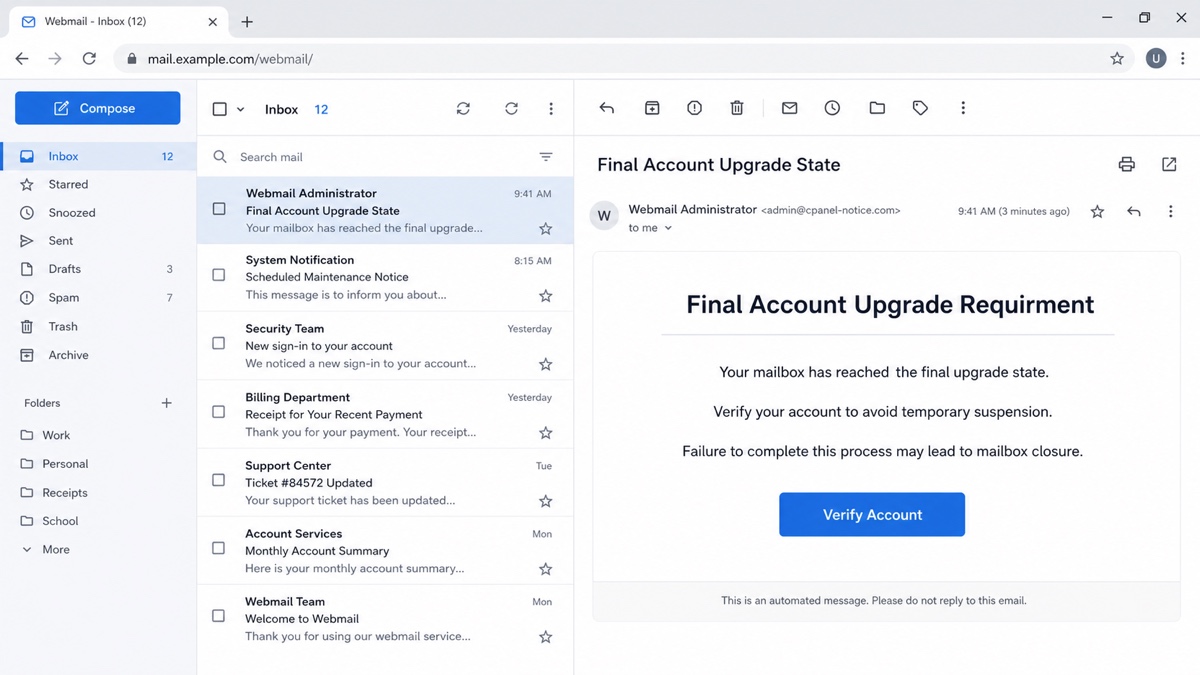
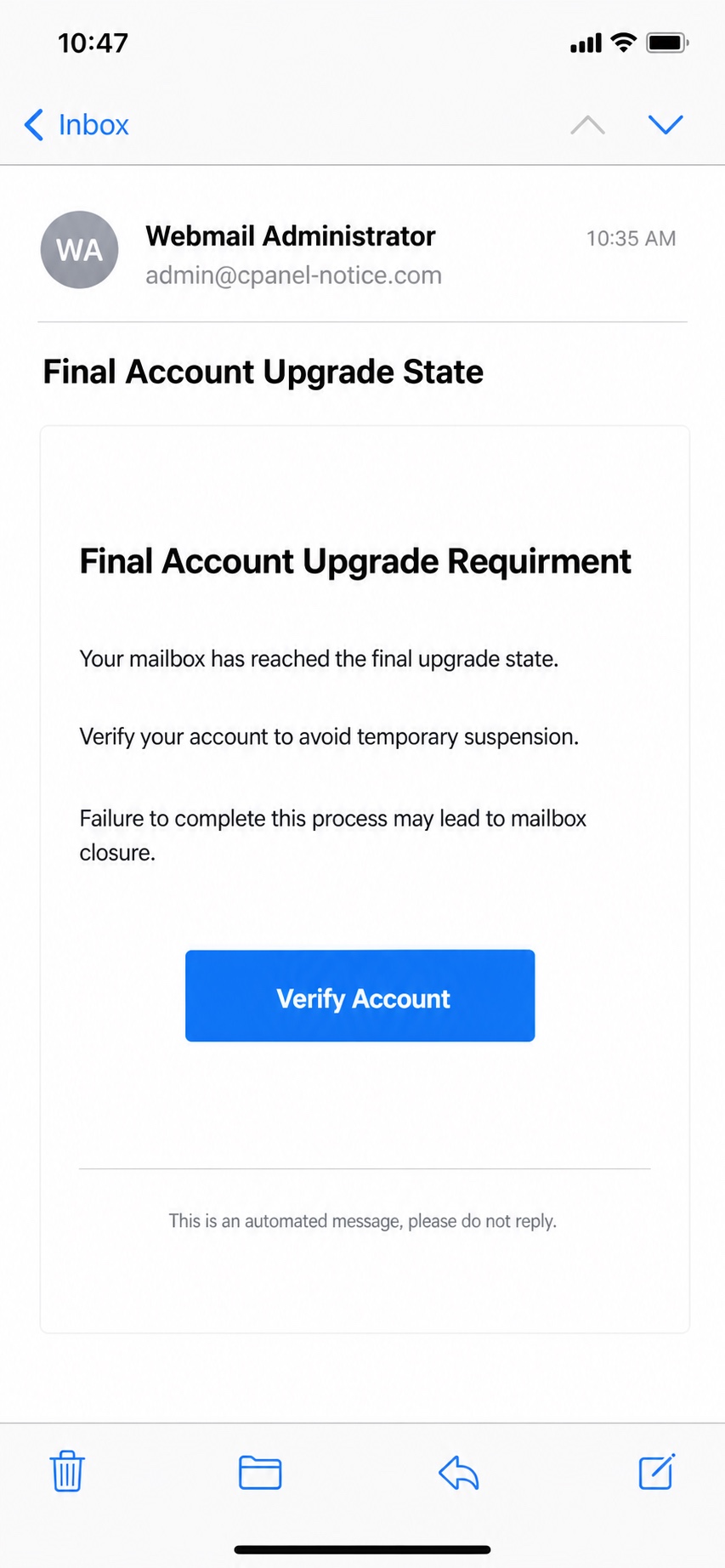
Subject: Final Account Upgrade State
From: Webmail Administrator <admin [at] cpanel-notice [dot] com>
Final Account Upgrade Requirment
Your mailbox has reached the final upgrade state. To keep receiving messages and avoid temporary suspension, verify your account immediately.
Failure to complete this process may lead to mailbox closure. Click the verification button below and sign in with your Webmail account details.
Button text: Verify Account
Why this wording is suspicious: it mixes account-upgrade, storage, verification, and closure pressure into one login demand. A real mailbox or hosting notice should be checked inside the provider portal, not through a button in the email.
Observed variation: Final Reminder: Email Verification Required
Displayed sender: gridinsoft.com <evie [at] adascooters [dot] com>
Dear legal [at] gridinsoft [dot] com,
This is a reminder that we are currently upgrading our server, your email account requires confirmation to remain active on the cPanel server.
Please complete the verification process below to maintain uninterrupted access to your mailbox.
Button text: Verify Login
Footer claim: This message is automatically generated from the email security server. Any reply sent to this email cannot be delivered.
Extra warning signs: the visible brand name does not match the sender domain, the message fails DKIM/DMARC checks, and the button points to an IPFS gateway URL such as ipfs.inbrowser.link with the recipient address appended after a # fragment. That pattern can prefill or personalize a fake login page without proving the email is legitimate.
Red Flags in the Message
- Urgent closure threat. The email says the mailbox will be suspended, closed, or unable to receive messages unless you verify right away.
- Mixed upgrade and verification wording. Real providers usually separate storage, billing, and password changes. Scam emails blend them into one rushed login request.
- Generic Webmail branding. “cPanel Webmail,” “Webmail Administrator,” or “Server Admin” can be written into any phishing email. The display name alone proves nothing.
- Typo or template mistake. Phrases like “Requirment,” mismatched domains, or empty variables are strong clues that the message is not a normal provider notice.
- Button-first instructions. The message pushes a “Verify,” “Upgrade,” or “Keep Account Active” button instead of telling you to check settings in the real portal.
- Database-update pretext. Phrases such as “Routine Update Of User Database,” “Terms of Service,” or “Roundcube Webmail update” are suspicious when they lead to a password form from the email.
- Security-patch pretext. A message that says Roundcube security patches or authentication updates require action in 24 hours is unsafe when it routes through an email login button.
- Fake Zoho sign-in after a server-upgrade email. An Employee Account Maintenance Notice that asks you to re-sign in through an unrelated Zoho-styled page should be treated as mailbox credential phishing.
- Gmail authentication warning. A banner that says the message is not authenticated or the sender cannot be verified means Gmail could not confidently tie the message to the visible sender identity. Treat that as a stop-and-verify signal.
- Recipient encoded after a
#sign. A URL fragment such as#<base64-recipient>is not a secure mailbox token. It is often used by phishing pages to personalize the fake login in the browser. - Homoglyph letters. Words that look normal but contain Cyrillic lookalikes, such as
pаsswordorNоtе, are a filtering-evasion clue. - Suspicious destination. The link may use an unrelated domain, a compromised website, a form builder, or a login page that only imitates Webmail.
- IPFS gateway link. A public IPFS gateway domain such as
ipfs.inbrowser.linkis not a trust signal. The page can still be a credential-stealing Webmail copy, especially when the recipient address appears after a#fragment.
How to Check It Without Using the Email Link
- Do not click the verification button. Close the preview if the message tries to load remote images or scripts.
- Open your real portal manually. Type your hosting provider’s address, use a saved bookmark, or open the official app your organization normally uses.
- Check mailbox storage inside Webmail or the admin panel. A real quota or password warning should appear in the provider’s actual interface, not only in the email.
- Compare sender and link domains. Expand the full sender, reply-to, return-path, and link destination. A brand name in the path or subdomain does not make the site official.
- Ask the hosting provider or IT team through a known channel. Do not reply to the suspicious email.
- Scan the URL before opening it. Use the Gridinsoft URL Scanner from a separate tab if you need a risk check for the destination domain.
If the message resembles a generic mailbox quota warning, compare it with our Insufficient Email Capacity scam guide. If you are checking the message structure rather than a specific cPanel lure, use our broader phishing email red flags checklist.
What to Do If You Clicked the Link
The next step depends on what happened after the click. A visit alone is less serious than entering credentials, approving MFA, downloading a file, or installing a browser extension.
-
You opened the page but entered nothing
Risk and next action: Close it, do not download anything, clear site data for that domain, and report the message as phishing.
-
You typed a mailbox password
Risk and next action: Change the password from a clean device, revoke sessions where possible, and check forwarding, filters, recovery details, and connected mail clients.
-
You entered a one-time code or approved MFA
Risk and next action: Treat the mailbox as compromised. Change the password, reset MFA methods, sign out other sessions, and alert your host or IT team.
-
You used the same password for hosting, WordPress, FTP, billing, or domain registrar access
Risk and next action: Change those passwords too, starting with the most sensitive accounts. Reused credentials are the attacker’s easiest path from mailbox access to website compromise.
-
You downloaded or ran a file
Risk and next action: Disconnect from sensitive accounts and scan the device. Gridinsoft Anti-Malware can check for hidden files, startup entries, browser changes, and persistence left by a phishing download.
If You Entered Your Webmail or cPanel Password
- Change the password from the real portal. Use a typed URL, a bookmark, or your hosting provider’s official dashboard.
- Sign out active sessions. Where your provider allows it, revoke existing webmail sessions, app passwords, mail clients, and connected devices.
- Review forwarding and filter rules. Attackers often add hidden forwarding, delete rules, or keyword filters so they can keep reading messages or hide password-reset emails.
- Check recovery details and MFA. Remove unknown recovery addresses, phone numbers, authenticator apps, backup codes, and security keys.
- Audit recent messages. Look in Sent, Deleted, Trash, Archive, and rule-moved folders for invoice fraud, password-reset attempts, client replies, or hosting notices.
- Check hosting-panel access. If the same password or mailbox controls cPanel, WordPress, FTP/SFTP, domain DNS, or billing, change those credentials and review recent logins.
- Warn affected contacts. If mail was sent from the account, notify recipients through a clean channel and tell them not to open links or attachments from the compromised period.
The FTC’s phishing guidance gives the same core safety rule: do not click links in unexpected messages that ask for personal or account information, and use a known website or phone number instead [3]. For a business mailbox, this should also become an internal incident report, not just a password change.
Why This Scam Can Lead Beyond Email
A Webmail password is often more valuable than it looks. Attackers can use the mailbox to reset WordPress, billing, domain registrar, cloud storage, CRM, or payment accounts. In hosting environments, they may also search for cPanel notices, FTP credentials, database exports, plugin update emails, client invoices, and security alerts. If the message is framed as ICANN or domain-contact verification instead of Webmail quota, use our Authenticate Your Domain Account email scam checklist before touching the button.
If the message asks for payment because the domain itself is expiring, suspended, or overdue, use the fake domain renewal email verification guide to compare the sender, registrar, and registry record.
That does not mean every clicked link infected the computer. The main risk is credential theft. Malware scanning becomes important when the email included an attachment, a “mailbox repair” download, a browser extension, a remote-support tool, or any file that ran locally. If the warning is about a SaaS subscription or billing card instead of mailbox quota, compare it with the Zoho Workplace payment method update scam before entering payment details.
How to Report and Block the Scam
- Use your mail provider’s built-in “Report phishing” or “Report spam” control.
- Forward the message to your hosting provider or IT team with full headers if they request them.
- Block the sender only after reporting; sender-only blocking may miss future messages from new lookalike domains.
- Add a rule for the exact lure only if it will not hide legitimate hosting messages. Do not create broad rules that delete every cPanel or Webmail message.
- For repeated attacks against a business domain, review SPF, DKIM, DMARC, mailbox MFA, admin roles, and user training.
How to Avoid cPanel/Webmail Phishing
- Use a password manager so the real Webmail/cPanel domain is auto-filled and lookalike domains are not.
- Enable MFA for mailbox, hosting, WordPress, billing, and registrar accounts where available.
- Teach users to check quota and account notices inside the real portal, not through email buttons.
- Keep separate passwords for mailbox, hosting panel, CMS admin, FTP/SFTP, and billing access.
- Review forwarding and filter rules after any suspicious login, even if the password has already been changed.
- Scan suspicious domains with Gridinsoft before opening them from a normal browser session.
FAQ
Is the System Migration & Security Notice email real?
Treat it as phishing when its button opens a provider-styled login on an unrelated domain and asks for the mailbox password. Check migration or security notices from the provider dashboard or a known IT contact instead of using the email link.
Why would a shipping, invoice, or delayed-message notice ask for my Webmail password?
It should not. Verify the shipment or invoice through the known vendor channel and check delayed mail inside the real provider portal. If the message ends at a Webmail password form, protect the mailbox first; scan the device as well only if a file, extension, or remote-support tool was downloaded or ran.
Is the Roundcube Security Patches email real?
Treat it as phishing if the message asks you to review settings or apply security patches through an email button. Open the Webmail or hosting portal you normally use; Roundcube branding on a linked login page is not enough.
Is the Employee Account Maintenance Notice email real?
Treat it as phishing if it says a mail-server upgrade requires you to re-sign in through a link. Confirm with IT or open the real Zoho Mail, Webmail, or hosting admin portal manually.
Is the Routine Update Of User Database email real?
Treat it as phishing if it asks you to confirm Webmail or Roundcube credentials through an email button. A real provider database or terms update should be visible after you open the known hosting or Webmail portal yourself.
Is the cPanel Final Account Upgrade State email real?
Treat it as phishing unless the same warning appears after you open your real Webmail, cPanel, or hosting-provider portal manually. The email button is not a safe way to verify the account.
Is the cPanel Email Quota Limit warning real?
It can be a real hosting or mailbox condition, but the email itself is unsafe if it sends you to a linked login page. Type your host’s portal address yourself, then check the mailbox quota, disk usage, and notification settings from inside the real account.
Does cPanel send mailbox closure emails?
Your hosting provider or server may send legitimate quota notices, but scammers also spoof those themes. Verify inside the real portal and check the sender, headers, and link destination before trusting any closure warning.
What if I entered my password but changed it quickly?
Changing the password is necessary, but it may not be enough. Revoke sessions, check forwarding and filter rules, review MFA and recovery details, and check related hosting or website accounts that used the same password.
Can this scam compromise my website?
It can if the mailbox controls password resets, hosting billing, cPanel, WordPress, FTP, DNS, or domain registrar access. Audit those accounts if the mailbox password was entered on the fake page.
Do I need to scan my computer?
Scan if you downloaded or ran a file, installed an extension, accepted a remote-support tool, or saw new pop-ups after the email. If you only read the email or typed a password into a web page, account recovery is the first priority.
References
- cPanel Documentation. “Tweak Settings — Notifications.” cPanel & WHM Documentation, accessed June 25, 2026. https://docs.cpanel.net/whm/server-configuration/tweak-settings/notifications/
- cPanel Documentation. “Manage Email Accounts.” cPanel & WHM Documentation, accessed June 25, 2026. https://docs.cpanel.net/cpanel/email/manage-email-accounts/108/
- Federal Trade Commission. “Phishing Scams.” FTC Consumer Advice, accessed June 25, 2026. https://www.ftc.gov/news-events/topics/identity-theft/phishing-scams