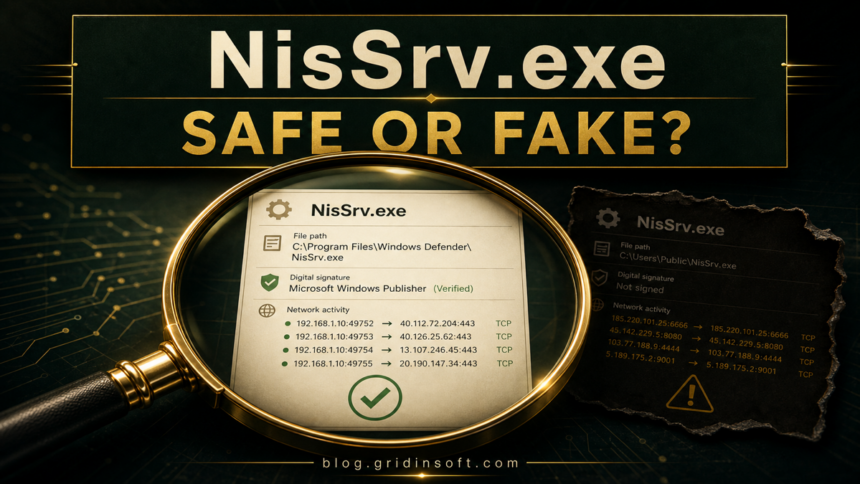
NisSrv.exe is normally a legitimate Microsoft Defender process, not a virus. It powers the Microsoft Defender Antivirus Network Inspection Service, while WdNisSvc is the service name Windows uses behind the scenes. Keep it enabled when the file is Microsoft-signed and runs from a Defender folder. Investigate it when the path, signature, startup behavior, or sustained resource use does not match that pattern.
A brief CPU or GPU spike can happen while Defender inspects active network traffic, updates its protection components, or processes a busy download. A spike that never settles needs diagnosis, but deleting NisSrv.exe or permanently disabling its service is not the safe first fix.
What is NisSrv.exe?
Microsoft lists NisSrv.exe as the process behind Microsoft Network Realtime Inspection Service in Task Manager. On the Services tab, the same component appears as Microsoft Defender Antivirus Network Inspection Service with the service name WdNisSvc.[1]
Its job is different from the main Defender antivirus engine. MsMpEng.exe handles broad antimalware scanning, while NisSrv.exe focuses on inspecting network traffic for patterns associated with attacks against network protocols. It is also separate from MpDefenderCoreService.exe, which supports Defender configuration and platform services.
NisSrv.exe: the executable shown on Task Manager’s Details tab.- Microsoft Network Realtime Inspection Service: the friendly process name on Task Manager’s Processes tab.
WdNisSvc: the service name used by Windows and PowerShell.WdNisDrv: the related Network Inspection System driver, not another copy of NisSrv.exe.
Where should NisSrv.exe be located?
On current Windows 10 and Windows 11 systems, the active copy commonly lives inside a versioned Defender Platform folder:
C:\ProgramData\Microsoft\Windows Defender\Platform\{platform-version}\NisSrv.exe
Microsoft’s current repair documentation uses that versioned Platform directory and falls back to %ProgramFiles%\Windows Defender when the Platform path does not exist.[2] Older Microsoft Security Essentials or System Center Endpoint Protection installations can instead use:
C:\Program Files\Microsoft Security Client\NisSrv.exe
C:\Program Files\Windows Defender\NisSrv.exe
The filename alone is not proof. A copy under AppData, Temp, a Downloads folder, a random program directory, or an unfamiliar Startup location does not match the normal Defender layout. Do not delete it on sight; first record the path and verify its signature.
How to verify NisSrv.exe
- Open its file location. In Task Manager, choose the Details tab, right-click
NisSrv.exe, and select Open file location. A current Defender Platform path is the strongest first clue. - Check the digital signature. Open Properties, select Digital Signatures, and confirm a valid Microsoft signer. A Company column or familiar icon is not a substitute for signature validation.
- Match it to the service. Open the Services tab in Task Manager or
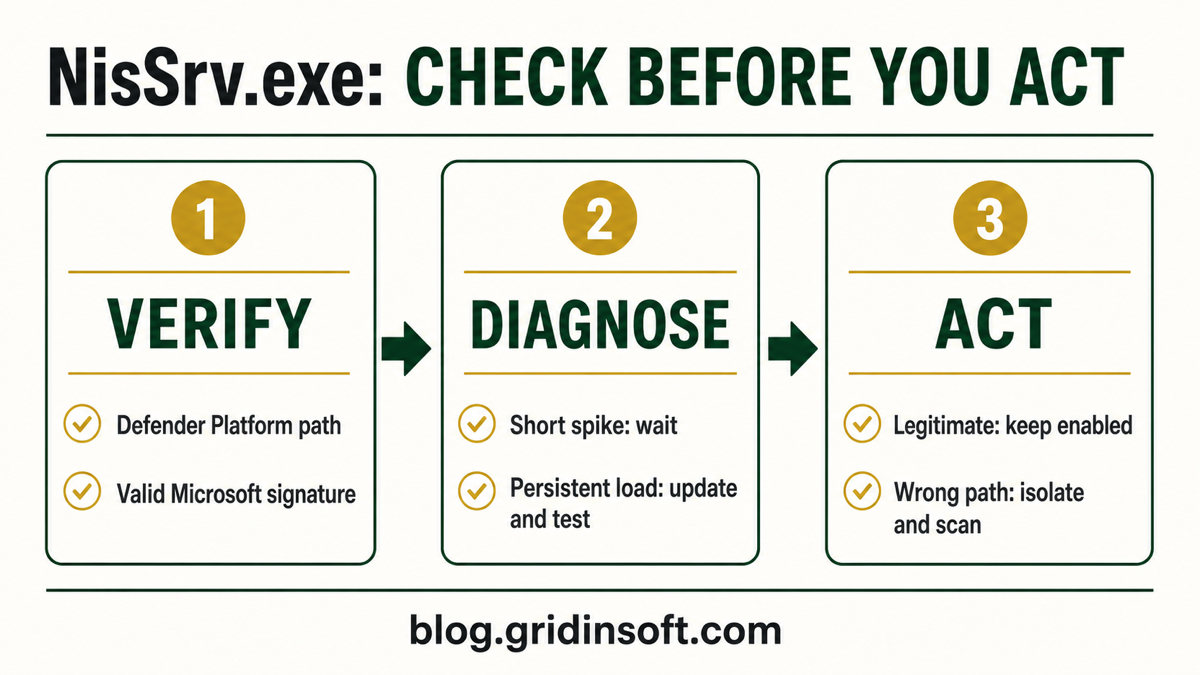
services.mscand locateWdNisSvc. The service should correspond to Microsoft Defender Antivirus Network Inspection Service. - Consider the context. A Microsoft-signed copy that starts with Defender and briefly becomes busy during network activity fits normal behavior. A wrong-path copy that appears after an untrusted installer, crack, script, or fake update needs containment.
PowerShell can retrieve the file’s Authenticode result. Replace the placeholder with the exact path you opened in Task Manager:
Get-AuthenticodeSignature -LiteralPath 'C:\ProgramData\Microsoft\Windows Defender\Platform\{platform-version}\NisSrv.exe' |
    Format-List Status, StatusMessage, SignerCertificate
A Valid status and a Microsoft signer support legitimacy. PowerShell’s Get-AuthenticodeSignature reports embedded or catalog signatures; an unsigned file returns blank signature fields rather than becoming trustworthy by default.[3] For a more general checklist, use the EXE file safety guide.
Why is NisSrv.exe using high CPU or GPU?
NisSrv.exe inspects network activity, so short bursts can coincide with a large download, many simultaneous connections, a Defender platform or security-intelligence update, a VPN/proxy/tunneling app, or another network-heavy workload. The duration and repeatability matter more than one Task Manager screenshot.
- Observe for 10 to 15 minutes. Note whether the spike ends when the download, game update, browser session, or other network-heavy task finishes.
- Pause one likely trigger. Temporarily close a VPN, proxy, tunneling client, or bulk downloader and watch Task Manager again. This is a test, not a recommendation to leave needed protection or work software disabled.
- Update Windows and Defender. Open Windows Security, go to Virus & threat protection, and check for protection updates. Install pending Windows updates, then restart once.
- Check the service state. Run the following command in an elevated PowerShell window:
Get-Service WinDefend, WdNisSvc, WdNisDrv, SecurityHealthService, wscsvc |
    Format-Table -Auto DisplayName, Name, StartType, Status
When Microsoft Defender is the active antivirus, Microsoft’s current service table expects WdNisSvc to use Manual start and be Running. The related WdNisDrv driver is also Manual/Running, while WinDefend is Automatic/Running.[2]
- Look for a repeatable conflict. If the load starts only with one network tool, update that tool and Defender before changing exclusions. Do not exclude the entire Defender folder.
- Escalate persistent cases. If the process stays busy after updates and a clean restart, capture the time, process ID, and triggering app. On a managed PC, give that evidence to IT; advanced Defender tracing is more useful than guessing at service registry values.
If the heavy process is MsMpEng.exe rather than NisSrv.exe, follow the separate Antimalware Service Executable high-CPU steps linked above. The two processes belong to Defender but diagnose different workloads.
What if WdNisSvc is stopped or NisSrv.exe is missing?
A stopped WdNisSvc does not automatically mean malware. Defender can enter passive mode when a supported non-Microsoft antivirus is active, and a managed device can receive security policy from an administrator. Check Windows Security > Settings > Manage providers before forcing a service state.
If Microsoft Defender is your active antivirus and Windows Security reports Threat service has stopped, update Windows, restart, and check the full Defender service set rather than downloading a replacement EXE. Microsoft’s current repair sequence also checks for antivirus conflicts, damaged protection intelligence, policy problems, and Tamper Protection.[2] The Virus & threat protection repair guide walks through those broader causes.
Do not copy NisSrv.exe from another PC. Defender Platform builds change over time, and the replacement may not match your installed engine, catalog signature, or service configuration.
Can you disable NisSrv.exe?
You should not permanently disable or delete NisSrv.exe on a PC where Microsoft Defender is the active antivirus. Network inspection is a protection layer, and changing Defender service startup values directly is unsupported. Old guides that recommend sc delete, registry ownership changes, blanket folder exclusions, or renaming the executable can break platform updates and leave protection incomplete.
For a short troubleshooting test, stop the network-heavy app you suspect, update it, and retest. On an organization-managed device, let the administrator change policy. If another antivirus is intentionally installed, use Windows Security’s provider view to confirm which product is active rather than trying to keep two real-time products in conflicting states.
What to do if NisSrv.exe is in the wrong folder
- Disconnect the PC from untrusted networks if the file is actively making unexplained connections.
- Record the full path, signature status, process ID, and parent process. Do not upload private documents or an unknown executable to a public forum.
- Do not whitelist, rename, or manually launch the file. End it only if Windows allows this safely; a protected legitimate service may refuse termination.
- Run a full security scan. A same-name copy can be only the visible component while a scheduled task, service, startup entry, or bundled module recreates it after reboot.
Gridinsoft Anti-Malware can check the suspicious copy and look for related startup entries, scheduled tasks, services, hidden files, and bundled components. This scan does not label the legitimate Microsoft-signed Defender file as malicious, and it cannot prove that no exposure occurred.
If the process path is wrong, the name imitates a Windows component, or high CPU started after an unknown installer, scan for hidden miners, services, startup entries, and bundled components.
Scan a suspicious NisSrv.exe copyAfter removing confirmed detections, reboot and repeat the path/signature check. If the suspicious file returns, preserve the new path and startup evidence before making more changes.
FAQ
Is NisSrv.exe a virus?
The normal NisSrv.exe is a Microsoft Defender component. Treat it as suspicious only when its path, signature, service relationship, or behavior does not match the legitimate Defender copy.
What is the difference between NisSrv.exe and WdNisSvc?
NisSrv.exe is the executable you see in Task Manager. WdNisSvc is the Windows service name for Microsoft Defender Antivirus Network Inspection Service.
Why does NisSrv.exe use CPU or GPU?
Short bursts can happen while it inspects busy network traffic or after protection updates. Sustained load that makes the PC hot or unusable should be tested against downloads, VPN/proxy tools, updates, and the Defender service state.
Should I end or disable Microsoft Network Realtime Inspection Service?
Not permanently. Wait for short spikes, test the network-heavy app, update Windows and Defender, and repair the service stack if needed. Do not delete the executable or change protected service startup values.
References
- Microsoft. “Microsoft Defender Antivirus in Windows Overview.” Microsoft Learn, accessed August 6, 2026. learn.microsoft.com
- Microsoft. “Troubleshoot Microsoft Defender Antivirus Service Startup Problems.” Microsoft Learn, updated May 14, 2026; accessed August 6, 2026. learn.microsoft.com
- Microsoft. “Get-AuthenticodeSignature.” PowerShell documentation, Microsoft Learn, accessed August 6, 2026. learn.microsoft.com