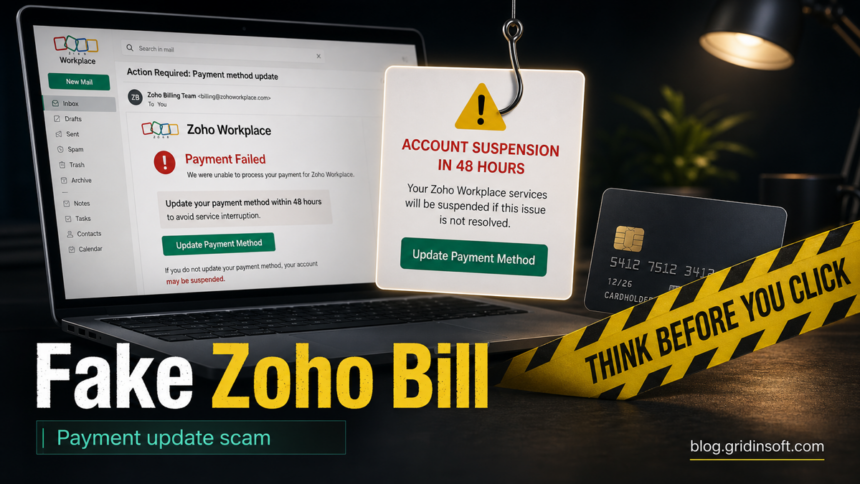
A Zoho Workplace Payment Method Update email that says your subscription payment failed should be treated as suspicious until you verify it from your Zoho account directly. This lure uses billing pressure, an “Update Now” or “Update Payment Method” button, and a service-suspension deadline to push users into entering account credentials or card details on a phishing page.
Do not use the button in the message. Open Zoho by typing the official address yourself or using a saved bookmark, check billing from the admin console, and report the message if it came from a look-alike sender or an unexpected domain.
What This Zoho Payment Email Scam Looks Like
The message usually impersonates the Zoho Mail Team or Zoho Workplace Billing Team and claims that the payment method for a Zoho Workplace or Zoho Mail subscription could not be charged. The pressure point is simple: update billing details quickly or your workplace email service will be suspended.
Common signs include:
- a subject such as Zoho Workplace – Payment Method Update Required or Action Required: Payment method update;
- a sender that looks close to Zoho but is not a normal Zoho domain;
- urgent wording about suspension, reactivation, or a 24-48 hour deadline;
- a green billing button that asks you to update a card or payment method;
- small misspellings, odd characters, or homoglyphs that can bypass filters;
- a destination page that asks for Zoho login details, card data, or both.
A real billing notice can exist, but the safe route is never to trust the email button. Zoho’s own subscription guidance tells admins to manage payment details after signing in to the Zoho Mail Admin Console and opening the subscription management area [1].
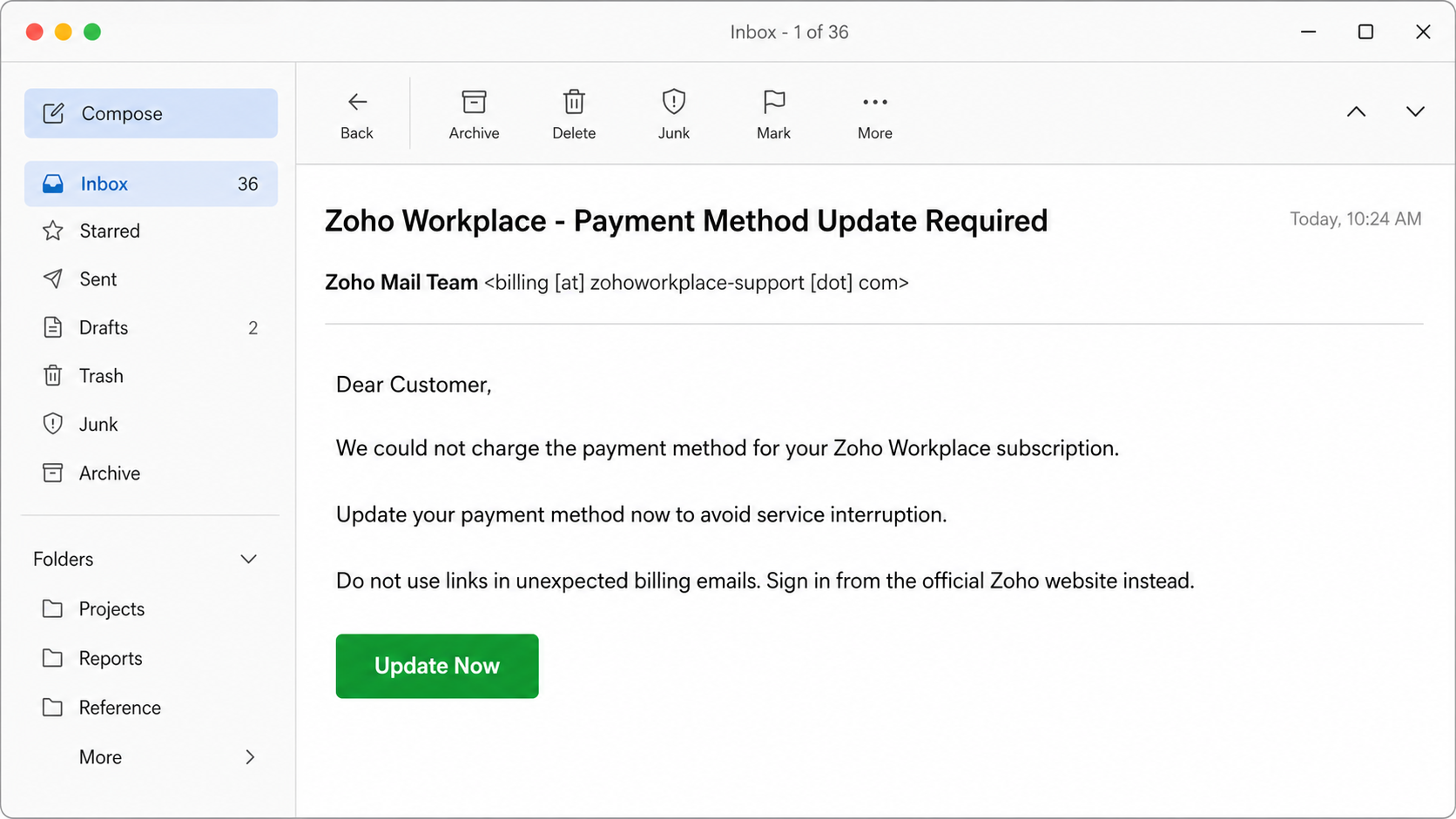
Example
Subject: Zoho Workplace - Payment Method Update Required
Sender: Zoho Mail Team <billing [at] zohoworkplace-support [dot] com>

Dear Customer,

We could not charge the payment method for your Zoho Workplace subscription.
Update your payment method now to avoid service interruption.

Button: Update Now

If you do not update your payment method, your account may be suspended.
How To Check Zoho Billing Safely
- Do not click the email button. Even if the message has familiar colors or a Zoho-style footer, the link can lead to a cloned payment page.
- Open Zoho directly. Type the address in your browser or use your existing bookmark. Do not copy a link from the email.
- Check the Admin Console. If you manage Zoho Mail or Workplace for an organization, review subscription and payment status from the admin area, not from the message.
- Compare the sender domain. Look for subtle misspellings, extra words, hyphens, or domains that only resemble Zoho.
- Ask your admin or finance owner. Many business phishing emails target shared billing anxiety. Confirm internally before entering payment details.
- Report abuse. Zoho provides a public abuse reporting page, and Zoho community guidance also points users to abuse reporting for suspicious messages [2].
What To Do If You Clicked
Your next step depends on what happened after the click.
- You only opened the page: close it, do not enter information, and clear the tab. If you downloaded anything, scan it before opening.
- You entered a Zoho password: change the password from the official Zoho site, enable or reset MFA, and review recent account activity and admin users.
- You entered card details: contact the card issuer, watch for unauthorized charges, and replace the card if the bank recommends it.
- You entered both password and billing data: treat it as an account takeover and payment-fraud incident. Secure the Zoho account first, then the card.
- You installed a file or browser extension: disconnect from the lure, remove the app or extension, and run a malware scan before using the device for admin work again.
If the email led you to a suspicious file, attachment, or browser prompt, scan the file with Gridinsoft’s Online Virus Scanner. If you ran an installer, remote-support tool, or browser extension after following the email, run a full Gridinsoft Anti-Malware scan to check for hidden files, startup entries, bundled apps, and browser changes.
Why This Lure Works
Business email services are high-value targets. If a phishing page gets a Zoho admin password, the attacker may try to read mailbox data, reset recovery options, create forwarding rules, or use the account to send more convincing internal scams. If the lure also collects payment details, the incident becomes both an account-security and card-fraud problem.
The scam also borrows real administrative language. Zoho has legitimate subscription and payment-management screens, so users are more likely to believe a message that mentions a failed billing method. That is why the decision should be based on how you reached the billing page, not only on whether the topic sounds plausible.
Red Flags In A Fake Zoho Billing Email
- The sender domain is not a normal Zoho-owned domain, or it uses a subtle look-alike spelling.
- The message claims a second failed payment or imminent service suspension but gives no safe path to verify from your account.
- The button destination does not match the domain shown in your browser after you hover or inspect it.
- The email asks for a full card number, password, recovery code, or MFA code after you followed a message link.
- The page looks like Zoho but appears on a newly registered, unrelated, or typo-squatted domain.
- The message bypasses your usual admin contact, invoice process, or finance workflow.
Zoho’s own phishing guidance explains that spoofed senders, malicious URLs, credential phishing, and account monitoring are part of the threat model organizations should train users to recognize [3].
How To Prevent Repeat Attempts
- Require MFA for all Zoho admins and mailbox owners.
- Limit who can change billing and subscription settings.
- Tell finance and IT staff to verify SaaS billing alerts from the vendor portal, not from email links.
- Add mailbox rules or security controls for look-alike domains when your mail platform supports them.
- Keep a short internal list of official billing portals for major services such as Zoho, Microsoft 365, Google Workspace, and payment processors.
- Use Gridinsoft Website Reputation Checker for suspicious domains before anyone enters credentials or payment details.
For broader mailbox warning signs, compare this lure with our guide on how to spot a phishing email. If the email was about a storage or webmail quota instead of Zoho billing, the cPanel account upgrade scam and insufficient email capacity scam show similar pressure tactics.
FAQ
Is the Zoho Workplace Payment Method Update email real?
Assume it is fake until you verify billing from Zoho directly. A real payment issue should be visible after you sign in through the official Zoho website, not only through a button in an unexpected email.
Can I click the Update Now button if the email looks branded?
No. Branding, colors, and logos can be copied. Open Zoho yourself, check the admin console, and ignore the email link.
What if I entered my Zoho password on the page?
Change the password from the official Zoho site, reset MFA if needed, review admin users and mailbox forwarding rules, and tell your organization owner or IT team.
What if I entered credit card details?
Contact the card issuer immediately, explain that the card was entered on a suspected phishing page, and monitor or replace the card according to the bank’s guidance.
Should I scan my computer after this email?
Scan if you downloaded a file, installed a browser extension, ran a support tool, or saw unusual redirects after clicking. If you only viewed the email and did not open links or attachments, account and billing checks are the higher priority.
References
- Zoho Mail. “Upgrade plan and renew subscriptions.” Zoho Help, accessed June 19, 2026. https://www.zoho.com/mail/help/adminconsole/manage-subscription.html
- Zoho. “Report Abuse.” Zoho, accessed June 19, 2026. https://www.zoho.com/report-abuse/
- Zoho Workplace. “Phishing scams.” Zoho Workplace, accessed June 19, 2026. https://www.zoho.com/workplace/articles/navigating-phishing-emails.html