

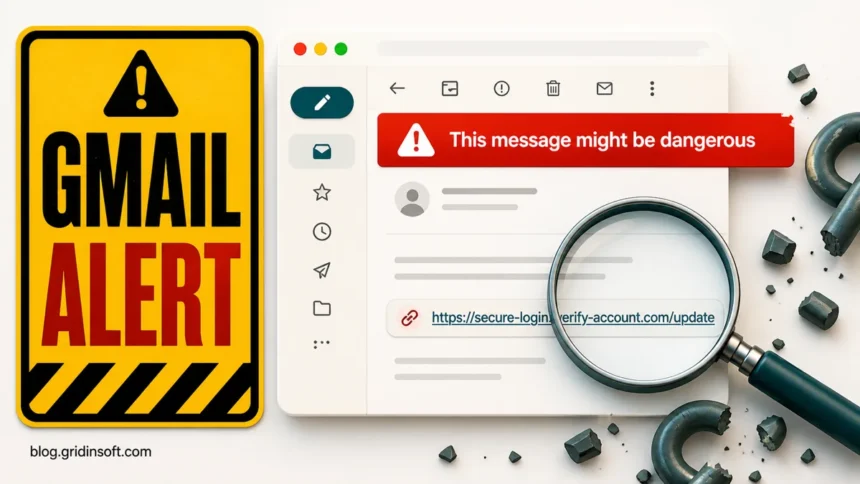
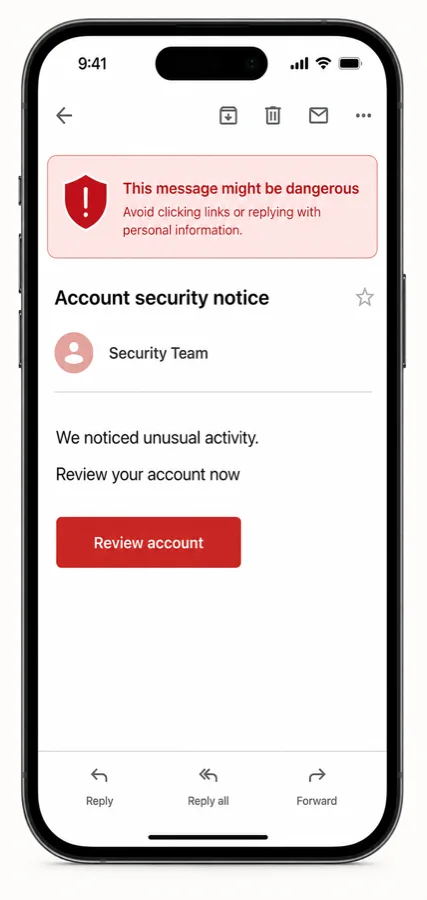
If Gmail says “This message might be dangerous”, or shows the older “This message seems dangerous” wording, treat the email as unsafe until you verify it outside the message. The warning usually means Gmail saw a suspicious link, phishing-like content, weak sender authentication, or reports from other users. Do not click links, download attachments, reply with passwords, approve MFA prompts, or use phone numbers from the email. Verify the sender through another channel, inspect the real destination of any link, and report phishing if the message pushes you to sign in, pay, or install software. If you already clicked or ran a file, change affected passwords from a clean session and scan the device for malware.
What the Gmail Warning Means
Gmail uses several warning banners. They are easy to confuse, but each one points to a slightly different safety problem. The exact wording can change, so focus on the risk signal and the safest next action.
| Warning wording | Likely meaning and safest action |
|---|---|
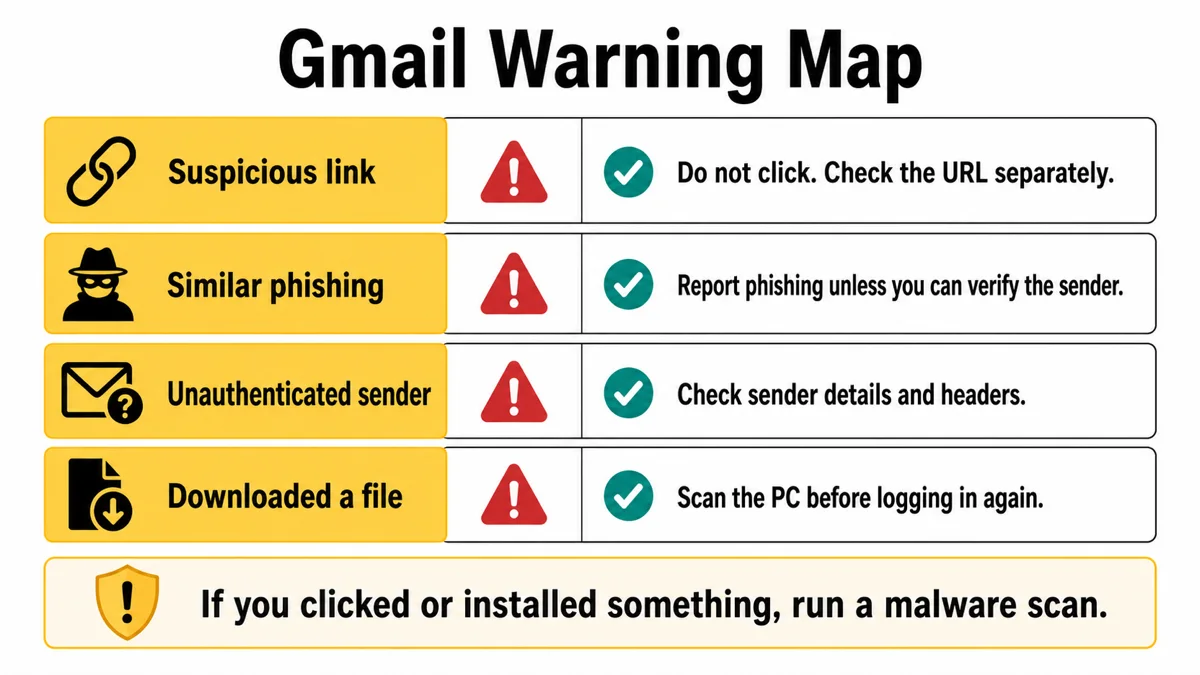
| “This message might be dangerous. It contains a suspicious link…” | Gmail has risk signals around one or more links in the email. Do not click the button or link. Type the known website address manually in a new tab, or check the domain with a reputation tool first. |
| “Messages like this one were used to steal personal information” | The content resembles known phishing patterns. Treat login, payment, document, invoice, delivery, or account-verification requests as suspicious until confirmed outside email. |
| “Many people marked similar messages as phishing scams” | Other Gmail users reported similar messages. If you cannot verify the sender independently, use Report phishing and do not interact with links or attachments. |
| “Be careful with this message. This message isn’t authenticated and the sender can’t be verified.” | Gmail cannot confidently authenticate who sent the message. Expand sender details, check mailed-by/signed-by information, and avoid links, attachments, replies, or personal information until the sender is confirmed. |
| “This message could be a scam” | The email may come from a contact or compromised account but still ask for something risky. Do not reply inside the same thread; contact the person another way. |
What Does “This Message Isn’t Authenticated” Mean?
When Gmail says “Be careful with this message. This message isn’t authenticated and the sender can’t be verified”, it means Gmail cannot confidently prove that the message came from the person or domain shown in the sender line. This is a sender-identity warning, not a verdict that every part of the email is malware.
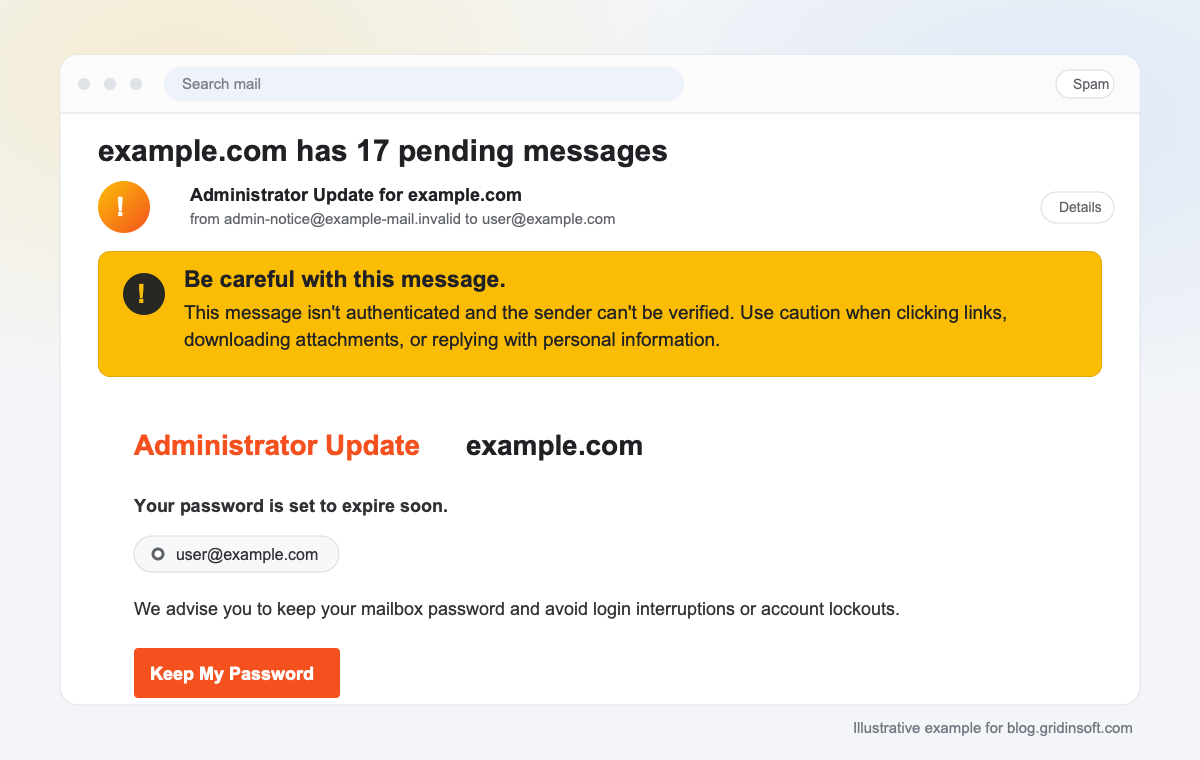
Google’s Gmail Help explains that unauthenticated messages are not always spam; authentication can break for legitimate bulk senders, mailing lists, or forwarding paths [2]. But the warning is still important because spoofed and phishing emails often rely on the same weakness: the display name looks familiar, while the technical authentication does not prove the visible sender.
| What you see | What it means |
|---|---|
| No reliable mailed-by or signed-by domain | Gmail does not have enough trusted sender-authentication evidence for the visible sender. |
spf=pass in headers, but the visible sender still looks wrong |
SPF may authenticate the envelope sender or forwarding server, not necessarily the domain shown in the From: line. DMARC alignment is the part that connects authentication to the visible sender domain. |
| Sender asks for a password, payment, MFA code, download, document review, or mailbox validation | Treat the message as unsafe until you verify through the real website, app, IT desk, or another known contact channel. |
If you receive this banner, do not click the email button, download an attachment, or reply with personal information. Open the sender details in Gmail, compare the real address, mailed-by, signed-by, and reply-to fields, then verify the request outside the email. For business senders, the fix is not asking recipients to click Looks safe; it is configuring SPF, DKIM, and DMARC correctly for the sending domain and keeping message content away from phishing-like patterns [3].
What to Do If You Received This Warning
- Pause before opening anything. A Gmail warning is not proof that the email is malicious, but it is enough reason to stop and verify before clicking.
- Read the banner text. A suspicious-link warning is different from an unauthenticated-sender warning. The first points to a risky destination; the second points to sender identity or mail setup.
- Expand the sender details. In Gmail, use the sender drop-down to check the real address, mailed-by domain, signed-by domain, and reply-to address. If the display name says one company but the email or reply-to domain points elsewhere, treat it as suspicious.
- Do not trust the button label. A button can say “View invoice”, “Review account”, or “Download document” while pointing to a different domain. Hover on desktop or long-press carefully on mobile only to inspect, not to open.
- Open the real site manually. If the email claims to be from a bank, store, courier, workplace, or subscription service, type the known website address yourself or use the official app.
- Check the email content. Urgency, password requests, payment pressure, unexpected attachments, QR codes, and login buttons are common phishing signals. For a broader checklist, see our guide on how to spot a phishing email.
- Ask through another channel. If the email seems to come from a coworker, client, friend, or vendor, confirm by phone, chat, ticket system, or a known address. Do not reply to the suspicious message to verify it.
- Report phishing when the message asks for sensitive action. Gmail’s phishing report helps classify similar messages, and it is safer than trying to train Gmail around a message you cannot verify.
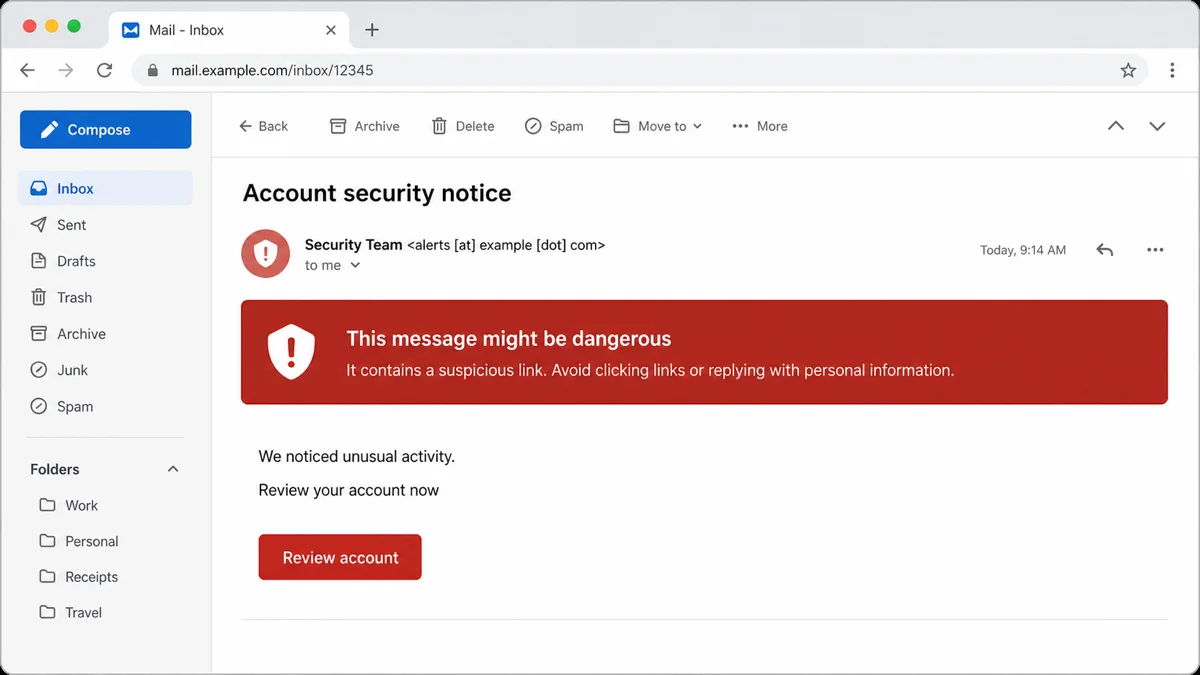
Example:
Subject: Account security notice
Sender: Security Team <alerts [at] example [dot] com>
We noticed unusual activity. Review your account now.
Button: Review account
Nothing in that wording proves the email is real. The safety decision depends on the sender domain, authentication, link destination, and whether the request makes sense for an action you actually started.
If You Clicked the Link or Downloaded a File
If you only opened the email and did not click, reply, approve a prompt, scan a QR code, download a file, or enter information, the risk is usually much lower. If you did interact with the message, act from a clean browser tab or another trusted device.
- Close the suspicious page and do not continue entering information.
- If you entered a password, change it on the real site immediately and enable two-factor authentication.
- Sign out of other sessions for the affected account, especially email, banking, shopping, cloud storage, and work accounts.
- If you downloaded or opened a file, do not keep testing it. Delete it or quarantine it, then scan the device.
- If the page asked you to install a browser extension, remote-support app, “security update”, PDF viewer, or invoice viewer, treat the device as potentially compromised.
- Check Gmail filters, forwarding rules, recovery email, and recent account activity if your Google account may have been exposed.
Gridinsoft Anti-Malware is useful at this stage because a phishing email can lead to more than a stolen password. A fake document, installer, extension, or support tool can leave hidden files, scheduled tasks, startup entries, browser changes, bundled apps, or persistence that recreates symptoms after reboot. Run a full scan, remove detections, restart Windows, and scan again if pop-ups, redirects, login prompts, or security warnings return.
If the page or email made you download an invoice, coupon, tracking app, browser extension, or support tool, scan the PC before opening it again or logging into sensitive accounts.
Scan downloads from this scamIf you still have the suspicious file but have not opened it, upload it to the Gridinsoft Online Virus Scanner before running it. If the email contains a link you have not opened, check the domain with the Gridinsoft Website Reputation Checker. For the message itself, you can also paste the sender, subject, visible text, and visible links into the Gridinsoft Email Scam Checker. Do not paste passwords, one-time codes, card numbers, private documents, or full personal records.
Why Gmail Flags Some Messages as Dangerous
Gmail does not publish every signal it uses, because that would help attackers bypass filters. In practice, these warnings often come from a combination of sender reputation, link reputation, message content, authentication, and user feedback.
- Suspicious links or redirects. A link may point to a newly registered domain, a compromised website, a lookalike login page, or a tracking domain abused in previous phishing campaigns.
- Shared sending or tracking infrastructure. A legitimate sender can be affected when a shared email platform or click-tracking domain is abused by other customers.
- Authentication problems. Gmail may not be able to confirm the message came from the displayed sender if SPF, DKIM, or DMARC alignment is missing or broken.
- Phishing-like content. Password reset lures, invoice links, account suspension threats, fake delivery notices, QR-code sign-ins, and urgent payment requests resemble common attacks.
- Recipient reports. If many users report similar messages as phishing, Gmail can warn other recipients.
- Compromised senders. A real contact can send a dangerous message if their account was taken over. That is why “I know this person” is not enough by itself.
Google’s own Gmail help says that phishing messages may ask for personal or financial information, push you to click links or download software, impersonate trusted organizations, or look exactly like messages from people you trust. When Gmail shows a warning, the safest answer is to verify before interacting, not to guess.
How to Verify the Sender Safely
Start with the sender details, not the logo, subject line, or signature. Gmail can show whether a message was mailed by and signed by a domain. If the message is unauthenticated, Google warns that Gmail does not know whether it came from the person who appears to be sending it.
- Check whether the visible sender domain matches the organization.
- Check whether the reply-to address changes to an unrelated domain.
- Look for
viaor sender-detail clues that suggest the message came through an unexpected service. - Compare the link destination with the real domain.
example-security-login.comis not the same asexample.com. - For workplace or customer messages, confirm in the official portal, CRM, ticketing system, or known contact thread.
For more background on sender impersonation, read our guide on how to prevent email spoofing. If you are unsure whether the whole message is phishing, the Gridinsoft Email Scam Checker guide explains what evidence to copy safely and what not to paste.
If Gmail Labels Your Own Emails as Dangerous
If you send newsletters, invoices, account notifications, appointment reminders, or transactional emails and Gmail shows this warning to recipients, do not try to bypass it with filters or by asking everyone to click “Looks safe”. Fix the signals that made the message look unsafe.
| Area to check | What to fix |
|---|---|
| Authentication | Set up SPF or DKIM for all sending domains. Bulk senders should use SPF, DKIM, and DMARC, with From-domain alignment. |
| Domain and IP reputation | Use valid forward and reverse DNS records, avoid sudden sending spikes, and monitor spam rate and reputation in Google Postmaster Tools. |
| Links | Use visible, understandable links. Avoid broken links, long redirect chains, lookalike domains, and shared tracking domains with poor reputation. |
| Message design | Do not hide content with HTML or CSS. Keep the message purpose clear and do not mix account notices with promotions. |
| List quality | Send only to people who opted in, remove inactive or bouncing addresses, and include a clear unsubscribe path. |
| Sender identity | Use a consistent From address and display name. Do not imitate a thread, a verified badge, or another brand. |
Google’s sender guidelines require all senders to authenticate mail and require stricter controls for senders who send more than 5,000 messages per day to Gmail accounts. For large-volume senders, that includes SPF, DKIM, DMARC, one-click unsubscribe for marketing/subscribed mail, and keeping the spam rate reported in Postmaster Tools below 0.3%.
When Should You Click “Looks Safe”?
Click “Looks safe” only after you have verified the sender and the link destination outside the suspicious email. That button is a training signal, not a security scan. It does not prove that the site is safe, remove malware, validate attachments, or protect an account if you already entered credentials.
Sometimes Gmail does not show a “Looks safe” option and only offers actions such as Report spam, Report phishing, or Delete. Treat that as a stronger warning. If a legitimate business email is repeatedly flagged, the sender needs to fix authentication, link reputation, template, or sending behavior. The recipient should not be the workaround.
FAQ
Is “This message might be dangerous” the same as “This message seems dangerous”?
They are closely related Gmail warnings. The newer wording often says “might be dangerous”, while older screenshots and forum posts often say “seems dangerous”. In both cases, verify before clicking, replying, downloading, or entering personal information.
Does the Gmail warning always mean the email is malware?
No. Gmail can warn about phishing links, spoofing, suspicious content, user reports, or weak authentication. A legitimate sender can trigger the warning, but you should still treat the message as unsafe until you verify it.
What does “This message isn’t authenticated and the sender can’t be verified” mean?
It means Gmail cannot confidently prove that the message came from the sender shown in the email. It may be a misconfigured legitimate sender, a forwarded message, a mailing-list issue, or spoofing. Do not click links, open attachments, or reply with personal information until you verify the sender through a separate trusted channel.
Can I open the email itself?
Reading the email is usually less risky than clicking links, opening attachments, scanning QR codes, approving prompts, or downloading files. Still, avoid loading external content or interacting with anything inside the message until you know it is real.
What should I do if I clicked a link from the warning email?
If you did not enter information, close the page and check the domain reputation. If you entered a password, change it on the real site from a clean session, enable two-factor authentication, sign out of other sessions, and scan your device if you downloaded or installed anything. Our post-click phishing link guide has a fuller recovery checklist.
How do I stop Gmail from warning recipients about emails I send?
Fix authentication first: SPF, DKIM, and DMARC for your sending domain. Then review link domains, redirect chains, hidden HTML/CSS, list quality, unsubscribe, sending volume, and spam reports. Gmail does not provide a simple allowlist button that makes unsafe-looking messages trusted.
References
- Google. “Avoid & report phishing emails.” Gmail Help, accessed July 6, 2026. https://support.google.com/mail/answer/8253?hl=en
- Google. “Check if your Gmail message is authenticated.” Gmail Help, accessed July 7, 2026. https://support.google.com/mail/answer/180707?hl=en
- Google. “Email sender guidelines.” Gmail Help, updated for 2024 sender requirements, accessed July 7, 2026. https://support.google.com/a/answer/81126?hl=en

It is in point of fact a nice and useful piece of info. I am happy that you just shared this helpful information with us. Please keep us informed like this. Thank you for sharing.