
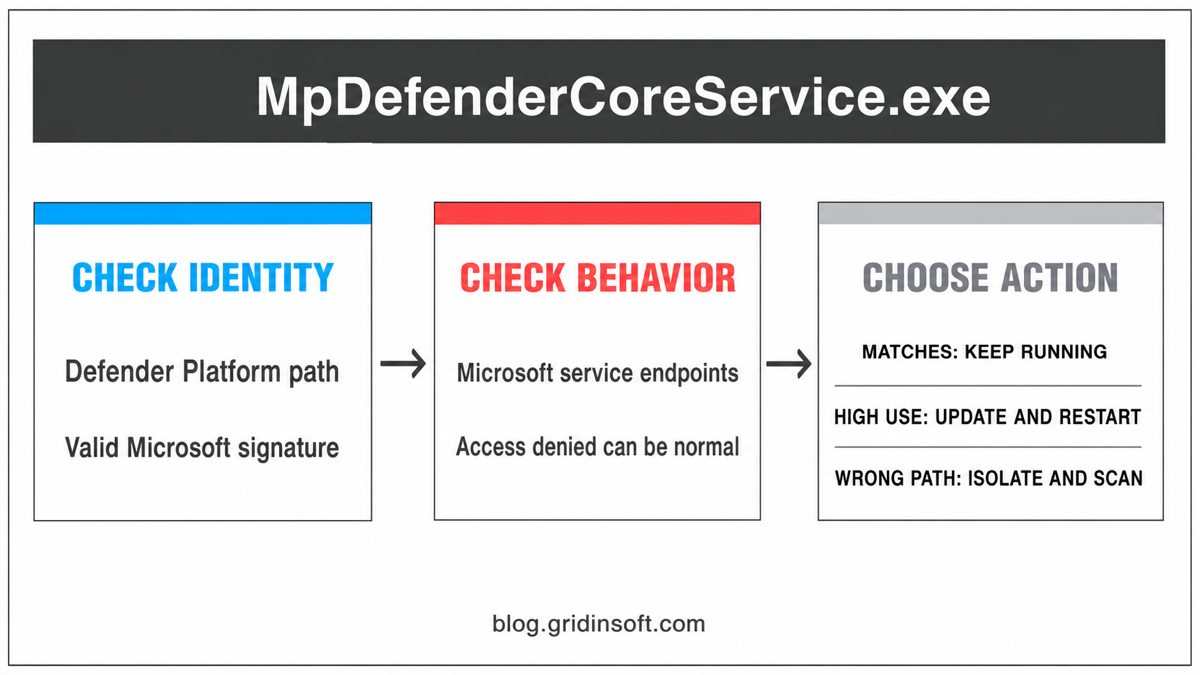
MpDefenderCoreService.exe is normally the legitimate Microsoft Defender Core Service, not a sign of infection. Microsoft introduced it to support the stability and performance of Defender Antivirus, and the service can connect to Microsoft endpoints for configuration and operational data. An Access denied message when you try to end it is not, by itself, suspicious. Keep the service running when the file is in the versioned Defender Platform folder and carries a valid Microsoft signature. Investigate a same-name file in AppData, Temp, Downloads, Startup, or another unrelated folder.
What Is MpDefenderCoreService.exe?
MpDefenderCoreService.exe runs the Microsoft Defender Core Service. Its service name is MdCoreSvc, and Task Manager may label it Antimalware Core Service. Microsoft says the component helps Defender Antivirus remain stable and responsive. It is separate from MsMpEng.exe, the Antimalware Service Executable that performs much of Defender’s scanning work.
| Check | What to expect from the legitimate service |
|---|---|
| Service name | MdCoreSvc / Microsoft Defender Core Service |
| Process | MpDefenderCoreService.exe |
| Normal parent folder | C:\ProgramData\Microsoft\Windows Defender\Platform\{version}\ |
| Signer | Microsoft Windows Publisher with a valid signature status |
| Default action | Keep it running and allow normal Defender communications |
The version-number folder changes as Microsoft updates the Defender platform. A different version string is therefore not automatically suspicious. The folder family and signature matter more than copying a version number from another computer.
Why Does MpDefenderCoreService.exe Connect to the Internet?
Network access is expected for the real service. Microsoft’s documentation says Defender Core Service communicates with its configuration service to receive configuration payloads, staged feature rollouts, and urgent corrections. Microsoft lists service domains under events.data.microsoft.com, endpoint.security.microsoft.com, and ecs.office.com for supported environments.
That does not mean every connection made by any file named MpDefenderCoreService.exe is safe. A firewall alert shows a process name, not proof of the file’s identity. Check the executable’s full path and signature before allowing a rule permanently. On a managed work or school PC, ask the administrator before changing endpoint or firewall policy.
Is Access Denied in Task Manager Normal?
It can be. Windows protects Defender settings and services against casual or malicious changes, so Task Manager may refuse an attempt to end the service even from an administrator account. This behavior does not prove that the process is malware, and forcing ownership changes on the Defender folder can damage protection or make platform updates fail.
Do not use an Access denied message as your only safety test. A malicious copy can also resist termination, while a legitimate protected service can produce the same message. Use the path, signature, service name, and surrounding behavior together.
How to Verify MpDefenderCoreService.exe
- Open the file location. In Task Manager, open the Details tab, right-click
MpDefenderCoreService.exe, and choose Open file location. The legitimate copy normally belongs under the versioned Defender Platform directory. - Check the signature. Open Properties, select Digital Signatures, and confirm a valid Microsoft Windows Publisher signature. A blank Company field is not enough to convict a file; verify the signature status itself.
- Confirm the service. Open Services and look for Microsoft Defender Core Service /
MdCoreSvc. The executable path should point to the same Defender Platform folder. - Compare behavior with context. A Microsoft-signed copy that starts with Defender and contacts documented Microsoft service domains fits normal behavior. A copy launched by an unknown download, scheduled task, or user-profile startup item does not.
You can also inspect versioned copies and verify a selected file in PowerShell:
Get-ChildItem "$env:ProgramData\Microsoft\Windows Defender\Platform\*\MpDefenderCoreService.exe" |
  Sort-Object LastWriteTime -Descending |
  Select-Object -First 3 FullName, Length, LastWriteTime

Get-AuthenticodeSignature -FilePath "C:\ProgramData\Microsoft\Windows Defender\Platform\{version}\MpDefenderCoreService.exe" |
  Format-List Status, StatusMessage, SignerCertificate
A valid result should show Status : Valid and a Microsoft signer. If PowerShell cannot read the file, use the Properties dialog rather than weakening Defender permissions.
What If CPU or Network Use Looks Too High?
A brief increase during a Defender platform update or configuration refresh is different from hours of sustained load. Before disabling anything:
- Restart Windows once and see whether the resource use settles.
- Open Windows Security and install current security intelligence and platform updates through Windows Update.
- Confirm that the busy process is the Microsoft-signed file in the Defender Platform folder.
- Check whether
MsMpEng.exeis doing the actual scanning. If that process is the resource user, follow the separate MsMpEng.exe high CPU troubleshooting guide. - On a managed device, let the security administrator inspect Defender health and network policy. Do not block documented service endpoints one by one.
If the system is healthy after a restart and update, leave MdCoreSvc at its default configuration. Microsoft recommends keeping Defender Core Service running and reporting. If you temporarily need to pause protection for a trusted task, use the supported Windows Security controls and the boundaries in our Windows Defender disable guide rather than deleting the service executable.
When Is a Copy Suspicious?
Treat the process as suspicious until verified when one or more of these conditions applies:
- the file runs from
%LOCALAPPDATA%,%APPDATA%,%TEMP%, Downloads, Startup, or an unrelated application folder; - the Authenticode status is invalid, unknown, or signed by an unrelated publisher;
- the file remains after Defender is disabled by an approved management policy or after the real service stops;
- an unknown installer, crack, game cheat, email attachment, or script created the process;
- a scheduled task or startup entry launches it from a user-writable folder;
- the copy connects to unrelated destinations and the path/signature checks do not match Microsoft Defender.
The filename alone is easy to copy. Follow the same source, path, signature, and behavior checks used for any unfamiliar EXE file.
What to Do If the Copy Is Suspicious
- Disconnect the PC from untrusted networks if the file is making unexplained connections.
- Do not delete the legitimate Defender Platform folder. Record the suspicious file’s full path and signature result first.
- Quarantine the wrong-path copy with the active security product, then check Startup, Task Scheduler, Services, and recently installed apps for the launcher.
- Reboot and scan again. If the process returns from the same user-writable path, preserve the task/service name for cleanup.
If a wrong-path copy already ran, removing that visible executable may not remove a scheduled task, service, startup entry, or bundled module that recreates it. A Gridinsoft Anti-Malware scan can check for those related files and persistence points; it should not be used to remove the healthy Microsoft-signed Defender service.
If the process path is wrong, the name imitates a Windows component, or high CPU started after an unknown installer, scan for hidden miners, services, startup entries, and bundled components.
Scan a suspicious Defender lookalikeKeep, Troubleshoot, or Scan?
FAQ
Is MpDefenderCoreService.exe a virus?
The Microsoft-signed file inside the versioned Defender Platform folder is legitimate. A same-name copy in a user-writable or unrelated folder needs separate verification and may be malicious.
Can I block MpDefenderCoreService.exe in the firewall?
Do not block the legitimate service by default. Microsoft documents network access for Defender configuration and operational services. Verify the path, signature, and destination before changing a firewall rule, especially on managed devices.
Can I disable or delete MpDefenderCoreService.exe?
Deleting it is not a safe troubleshooting step. Microsoft recommends keeping Defender Core Service at its default running configuration. Use supported Windows Security or administrator controls when a temporary change is genuinely required.
Why is the file inside a folder with numbers?
The numbers identify the installed Defender platform version. Windows updates can add a new versioned directory, so compare the parent path and Microsoft signature rather than expecting one permanent version number.
Does Access denied mean the process is infected?
No. A protected Defender service can reject termination attempts. Access denied is not a safety verdict; path, signature, service identity, and behavior provide stronger evidence.
References
- Microsoft. “Microsoft Defender Core service overview.” Microsoft Learn, updated January 9, 2026. Accessed August 6, 2026. learn.microsoft.com.
- Microsoft. “Microsoft Defender Core service configurations and experimentation.” Microsoft Learn, updated July 19, 2024. Accessed August 6, 2026. learn.microsoft.com.
- Microsoft. “Get-AuthenticodeSignature.” Microsoft Learn, accessed August 6, 2026. learn.microsoft.com.