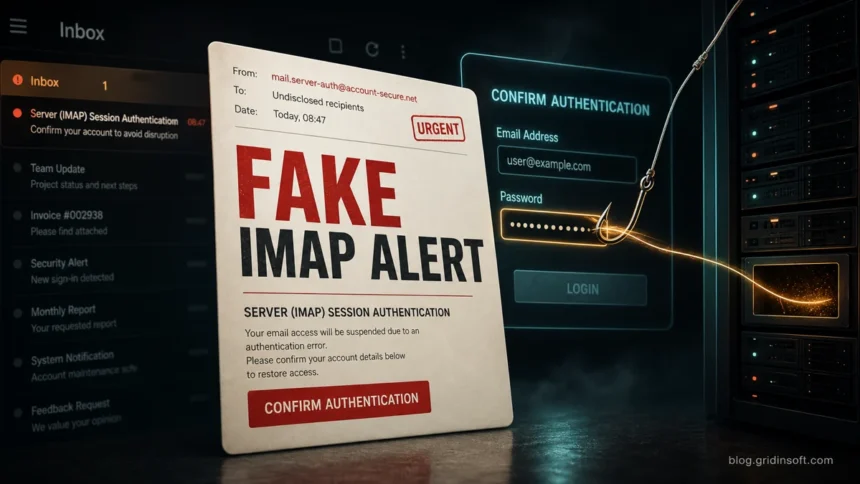
The “Server (IMAP) Session Authentication” email is a phishing message, not a real IMAP security notice. It claims that your mailbox was restricted after “irregular activity” and pushes you to click a CONFIRM AUTHENTICATION button. The button leads to a fake webmail sign-in page, where the attacker collects your email address and password. Do not use the button, do not reply, and do not enter your password there.
If you only opened the email, delete or report it. If you clicked the button, close the page and open your mail provider by typing the address yourself. If you entered your password, change it from the real website or app, sign out other sessions, enable multifactor authentication, and check mailbox forwarding rules because attackers often use a stolen inbox to reset other accounts.
What the fake IMAP authentication email looks like
The scam pretends to be a technical mail-server notification. Typical wording includes a subject such as “Delivery Issue: Your incoming Emails Are on Hold – Action Required”, a heading that says “Server (IMAP) Session Authentication”, and a warning that your account cannot send messages until you confirm authentication.
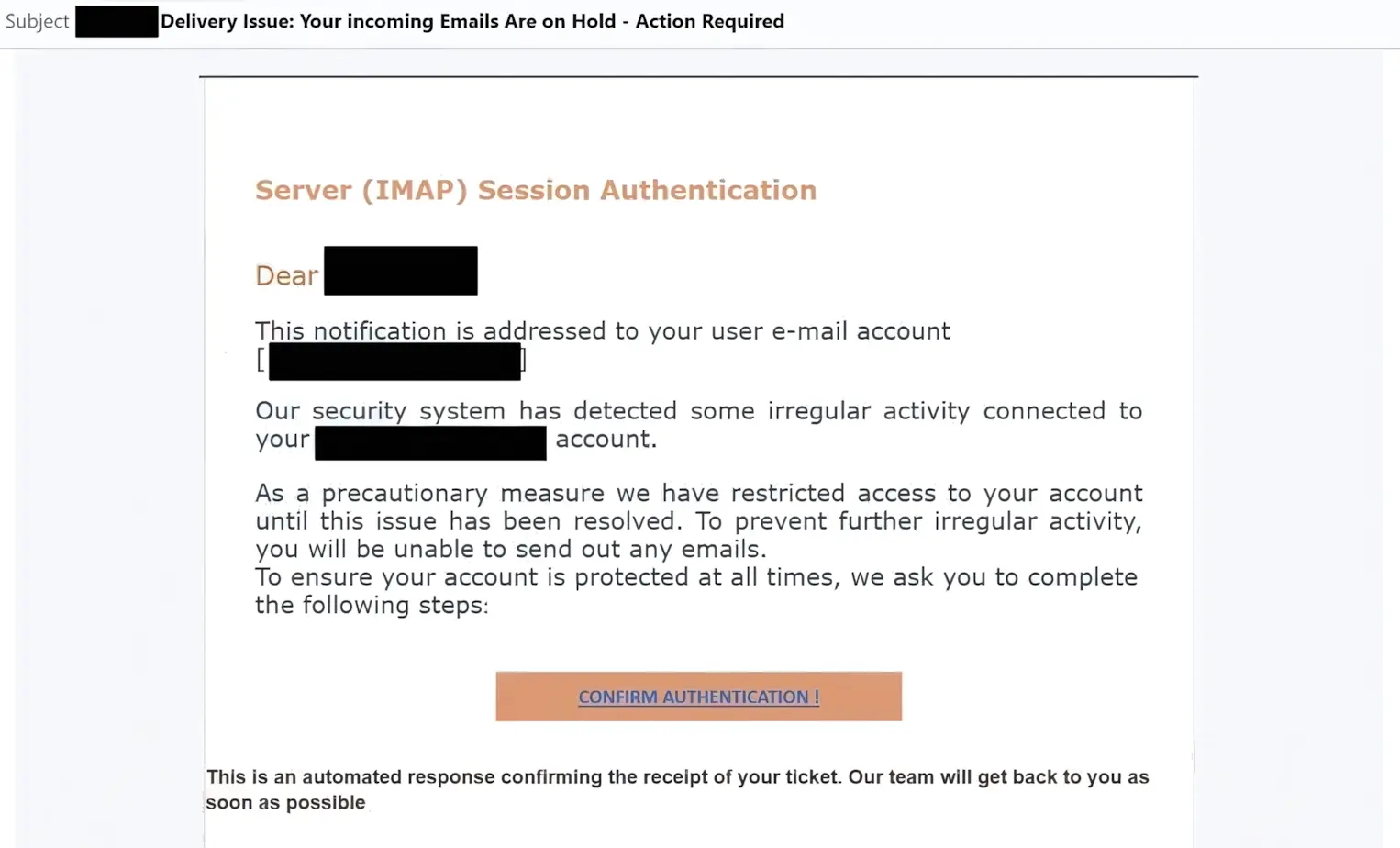
The wording sounds technical because IMAP is a real email protocol. That does not make the message legitimate. A real provider security alert will not ask you to restore access through a random button that opens an unfamiliar hosted page. The safe check is to open your mailbox directly in a browser or app and review security alerts from there.
Why this message is phishing
| Signal in the email | What it usually means |
|---|---|
| Urgent “incoming emails are on hold” or “access restricted” claim | The sender is trying to make you act before checking the account normally. |
| Generic greeting or masked email address | The message was likely sent in bulk and is not tied to a real support case. |
| CONFIRM AUTHENTICATION button | The button is the main trap. It sends you to a fake login page. |
| Unfamiliar destination such as a free-hosting subdomain | A real mail provider should not authenticate your account on an unrelated domain. |
| Request to enter your mailbox password | The attacker wants control of your inbox and any accounts connected to it. |
One observed landing page in this campaign used grandiose-dandy-actress.glitch[.]me. The Gridinsoft Website Reputation Checker report marks that domain in the danger zone and highlights phishing-style impersonation signals. Treat similar free-hosted webmail login pages the same way: do not enter credentials.
How the scam steals an email account
The attack is simple, which is why it works. The email creates a fake outage, the button opens a fake webmail page, and the login form records whatever the victim enters. Once attackers have the mailbox password, they can read messages, search for saved account notices, reset passwords on other services, send more phishing from the trusted address, and hide their activity with forwarding or filter rules.
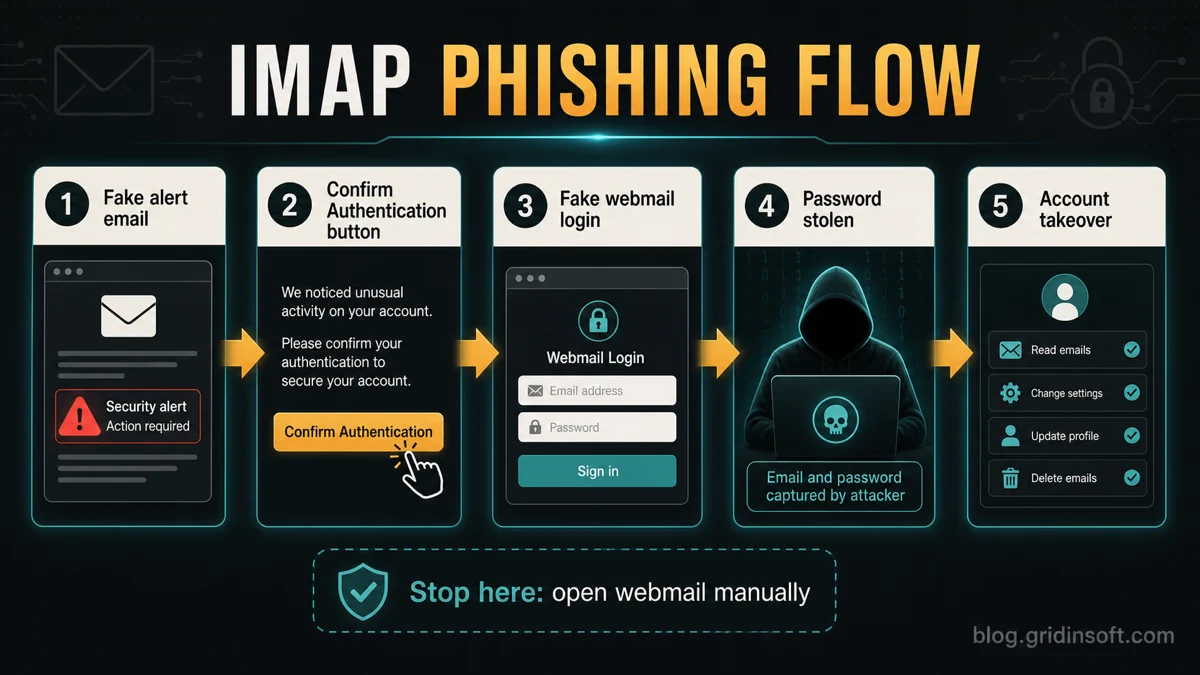
This is different from normal IMAP configuration. IMAP settings are used by mail apps to sync messages. They do not require a surprise “session authentication” email with a public button. If your provider really needs you to review sign-ins, that alert should be visible inside the account security panel after you sign in through the official website or app.
What to do if you received, clicked, or submitted the form
| Your situation | Best next step |
|---|---|
| You only received the email | Do not click. Mark it as phishing or spam in your mail app and delete it. |
| You clicked the button but did not type a password | Close the page. Open your mail account manually and check recent sign-in activity. |
| You entered your password | Change the password from the real provider website, sign out other sessions, enable MFA, and review recovery email, phone, forwarding, filters, and connected apps. |
| You used the same password elsewhere | Change it on every reused account, starting with banking, shopping, cloud storage, and social accounts. |
| You downloaded a file or browser extension from the page | Do not run it. Scan the device and remove suspicious extensions before signing in again. |
After a submitted password, assume the mailbox may already be exposed. Check sent mail, deleted mail, forwarding addresses, rules/filters, OAuth app access, recovery options, and recent login locations. Warn contacts if the account sent unexpected messages. If you are protecting a work mailbox, tell your IT or security team immediately so they can revoke sessions and inspect mail rules.
If the phishing page offered a download, “verification tool”, browser add-on, or attachment, scan the device before using the account again. Gridinsoft Anti-Malware can help check for suspicious files, browser changes, and recurring activity after a phishing click. For domain checks, use the Gridinsoft Online Virus Scanner before opening unknown links.
How to verify a real email security alert
- Do not use links, buttons, phone numbers, or attachments from the message itself.
- Open the official mail service website or app manually.
- Check account security, recent activity, forwarding rules, and connected apps.
- Use your provider’s report-phishing button so the message can help train abuse detection.
- Enable multifactor authentication, preferably a phishing-resistant option such as a passkey or security key when available.
Sender addresses are useful clues, but they are not enough by themselves. Attackers can spoof display names, abuse lookalike domains, and sometimes route messages through compromised accounts. The destination of the button and the request for your password are stronger warning signs than a familiar-looking sender name.
How this differs from legitimate IMAP settings
Legitimate IMAP setup happens inside an email client, mailbox settings page, or administrator panel. It may involve a server name, port, encryption setting, app password, or OAuth sign-in flow. A fake “Server (IMAP) Session Authentication” email uses the protocol name as decoration. Its real purpose is to make a normal password prompt feel like a required server repair.
For a regular user, the rule is simple: if an email says your mailbox will be restricted, verify it from the mailbox itself. For an administrator, review server logs, user sign-in logs, and mail gateway detections instead of trusting the message. The alert should match an event in your provider console; if it does not, treat it as phishing.
Related phishing examples
This campaign belongs to the broader family of account-access phishing emails. Compare it with the Account Verification Alert email scam, the phishing email red flags guide, and the Gmail, Yahoo, and Outlook spam settings guide. If you are seeing many forged messages from your own domain, also review how to prevent email spoofing.
FAQ
Is Server (IMAP) Session Authentication a real email provider alert?
No. In this campaign, the phrase is used as phishing bait. IMAP is real, but the email’s button and fake login page are designed to steal credentials.
Should I click Confirm Authentication to see where it goes?
No. If you need to check your account, open the real mail provider website or app manually. Do not use the button from the message.
What if I entered my email password on the fake page?
Change the password immediately from the real provider website, sign out other sessions, enable MFA, and check forwarding rules, filters, recovery options, and connected apps.
Can MFA stop this scam?
MFA greatly reduces the risk from a stolen password, especially phishing-resistant MFA such as passkeys or security keys. You should still change the password and revoke unknown sessions if you submitted credentials.
References
- Federal Trade Commission. “How To Recognize and Avoid Phishing Scams.” FTC Consumer Advice, accessed June 11, 2026. https://consumer.ftc.gov/articles/how-recognize-avoid-phishing-scams
- Microsoft Support. “Phishing and suspicious behavior in Outlook.” Microsoft, accessed June 11, 2026. https://support.microsoft.com/en-us/office/phishing-and-suspicious-behavior-in-outlook-0d882ea5-eedc-4bed-aebc-079ffa1105a3
- Cybersecurity and Infrastructure Security Agency. “Turn On MFA.” Secure Our World, accessed June 11, 2026. https://www.cisa.gov/secure-our-world/turn-mfa