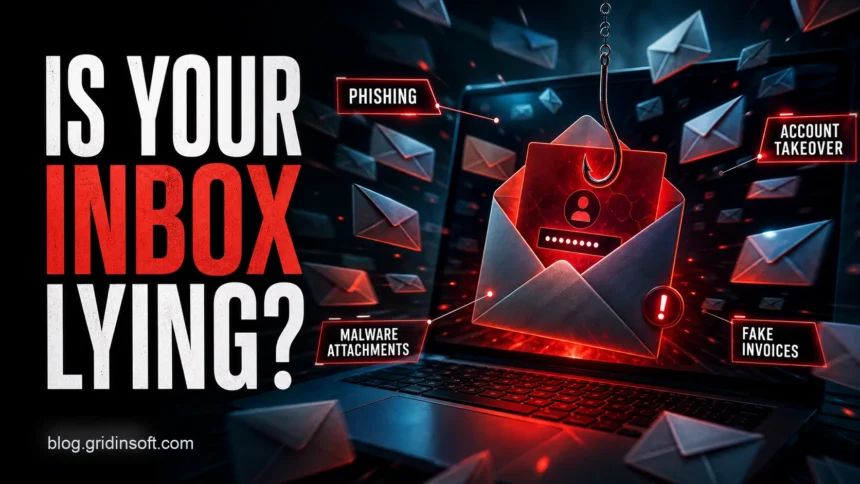
Email security in 2026 is no longer just about avoiding obviously misspelled spam. A convincing email can come from a real-looking sender, a compromised mailbox, a file-sharing notification, a QR code, a fake invoice, or a message that pressures you to approve a login. The safest approach is to protect the mailbox first, verify risky messages outside the email thread, and treat any downloaded file or login page as untrusted until you have checked it.
What should you do to stay safe using email?
- Protect the mailbox with a unique password and multi-factor authentication.
- Verify payment, password, document-sharing, and account-warning emails through a separate trusted channel.
- Inspect sender domains, links, attachments, QR codes, and unexpected login prompts before acting.
- Report phishing or spam instead of replying, unsubscribing from suspicious mail, or arguing with the sender.
- If you clicked or downloaded something, change passwords from a clean device, review mailbox rules, and scan the file/device.
Payment-confirmation emails need extra care. If a message claims to include a SWIFT Confirmation Copy, verify the transaction outside the email thread before opening files or signing in.
Why email security matters now
Email remains the reset key for many accounts. If attackers control your inbox, they can reset passwords, read invoices, impersonate you, hide forwarding rules, and watch for banking or cloud-service messages. The FBI’s 2025 Internet Crime Report says IC3 received more than 1 million complaints with reported losses exceeding $20 billion, while Verizon’s 2026 DBIR still lists the human element, including social engineering, phishing, and stolen credentials, among the most frequent breach causes.[1][2]
This is why a useful email security checklist needs to cover both prevention and recovery. A mailbox can be abused before you notice, and a single risky click can turn into credential theft, malware, a fake payment, or a quiet rule that forwards future mail to the attacker.
Email security checklist
| Risk | What to do first |
| Phishing login page | Open the service manually in a browser, use a password manager, and never enter MFA codes on a page reached from a suspicious email. |
| Malicious attachment | Verify the sender, avoid enabling macros, and scan the file before opening it on your main device. |
| Mailbox takeover | Change the password from a clean device, reset MFA, sign out all sessions, and remove unknown forwarding or inbox rules. |
| Fake invoice or bank-change request | Call a known phone number from your records, not the number in the email, before sending money or changing payment details. |
| Spam flood | Use filters and reporting, but also check whether the flood is hiding account alerts or purchase confirmations. |
How to check a suspicious email
- Pause on urgency. Messages that threaten account closure, payroll delays, delivery problems, legal action, or security lockouts are designed to rush you.
- Check the real sender domain. Look past the display name. Similar-looking domains, free-mail senders, and unexpected subdomains are common phishing signals. For more examples, use the phishing email red flags guide.
- Open links manually. If the message claims to be from a bank, Microsoft, Amazon, PayPal, a courier, or a cloud service, type the official site yourself or use a saved bookmark.
- Treat QR codes like links. A QR code in an email can bypass normal link previews. Do not scan it unless you can verify the sender and destination.
- Be careful with attachments. Fake invoices, resumes, voicemail notices, delivery slips, password-protected archives, HTML files, ISO images, and Office documents are common lures.
- Report, then delete. Microsoft recommends using the built-in report option for phishing and avoiding links or attachments in suspicious messages.[3]
If you clicked, opened, or entered data
The next step depends on what happened. If you only opened an email, risk is usually lower than if you clicked a link, downloaded a file, entered a password, approved MFA, or sent payment details. Use this triage:
- You clicked a link but did not enter data: close the page, do not download anything, and check the real account by opening the service manually.
- You entered a password: change that password immediately from a clean device, reset MFA, and change the same password anywhere else it was reused.
- You approved an MFA prompt: treat the account as compromised. Revoke sessions, review connected apps, and notify the service or workplace security team.
- You opened an attachment: do not keep testing the file. Scan it and the device. Gridinsoft’s online virus scanner can check a suspicious file, and a full anti-malware scan is safer if the file was executed.
- You are receiving a spam flood: read the spam email risk guide and check whether important account alerts are being buried.
If you opened a suspicious file or installer from email, run a full scan to catch hidden startup entries, bundled malware, and files that arrived with the attachment.
Hacked email account check
If your mailbox may already be compromised, do not stop after changing the password. Attackers often leave persistence behind.
- Review recent sign-ins, devices, IP locations, and failed login bursts.
- Remove unknown forwarding addresses, inbox rules, filters, delegates, recovery contacts, and connected apps.
- Check sent mail, deleted mail, drafts, and archived folders for scam messages sent from your account.
- Tell contacts if scam messages were sent from your mailbox.
- Review accounts that use this inbox for password recovery, especially banking, shopping, cloud storage, and social media.
If the alert involves Microsoft account sign-ins, compare it with the examples in our Microsoft unusual sign-in email guide before trusting links inside the message.
Business email security checklist
For a business inbox, the biggest danger is often not one infected file but a believable request that changes money movement, vendor access, or executive approval. Combine user habits with domain and mailbox controls:
- Require MFA for every mailbox, especially admin, finance, HR, sales, and executive accounts.
- Use SPF, DKIM, and DMARC to reduce spoofing of your domain. Start with our email spoofing prevention guide.
- Block or alert on external auto-forwarding unless there is a documented business reason.
- Require out-of-band approval for vendor bank changes, gift cards, payroll changes, and urgent wire transfers.
- Train with real examples: fake invoices, shared-document lures, QR-code phishing, recruiter attachments, and brand impersonation.
- Keep mail clients, browsers, document readers, endpoint protection, and operating systems updated.
Where this fits in the email safety cluster
Use this page as the long-term email safety checklist. For a specific problem, use the more focused Gridinsoft guide:
- How to stop spam emails for spam causes, filters, unsubscribe decisions, and mailbox cleanup.
- Gmail, Yahoo, and Outlook spam settings for provider-specific controls.
- Amazon phishing email checks for fake order, refund, and account-warning messages.
- How to spot a phishing email for sender, link, attachment, and message red flags.
FAQ
What is the most important email security step?
Protect the mailbox itself: use a unique password, turn on MFA, and review recovery settings. Email controls password resets for many other accounts.
Is it safe to open an email if I do not click anything?
Usually the bigger risk is clicking a link, opening an attachment, scanning a QR code, or replying with data. Still, do not load remote content or interact with a suspicious message if you can report and delete it.
What should I check after my email was hacked?
Check recent sign-ins, sessions, recovery contacts, forwarding rules, inbox filters, connected apps, sent messages, deleted messages, and important accounts that use the mailbox for recovery.
Should I unsubscribe from spam emails?
Only unsubscribe from companies you recognize and trust. For suspicious spam, use the provider’s report or block controls instead. The spam email cleanup guide explains the difference.
References
- Federal Bureau of Investigation. “2025 Internet Crime Report.” Internet Crime Complaint Center, accessed June 7, 2026. https://www.fbi.gov/file-repository/2025_ic3report.pdf/view
- Verizon. “2026 Data Breach Investigations Report.” Verizon Business, accessed June 7, 2026. https://www.verizon.com/business/resources/reports/dbir/
- Microsoft Support. “Protect yourself from phishing.” Microsoft, accessed June 7, 2026. https://support.microsoft.com/en-us/security/protect-yourself-from-phishing