A Meta Security email can be real, spoofed, or completely fake. If the message warns about an Instagram password reset, Facebook account restrictions, Meta Business Suite verification, copyright violation, ad account problem, partner request, or an urgent appeal, do not use the email button as your first step. Open Instagram, Facebook, or Meta Business Suite yourself and check whether the same alert appears inside the account.
Is a Meta Security email real or a scam?
Treat the email as a notification, not proof. Real Meta or Instagram security messages should match an event in Instagram’s recent-email screen, Facebook account security, Account Quality, Business Support Home, or Business Suite settings. Phishing emails copy the same words, such as Meta Security, Meta for Business, copyright violation, account disabled, and appeal now, but send you to a look-alike page that steals passwords, two-factor codes, backup codes, business-admin access, or ad-account payment details.
If your exact sender is security@mail.instagram.com, it can be a real Instagram security sender, but the safe rule is still the same: verify from the app or by typing the official site yourself before you enter a password, 2FA code, or recovery code. If the message is not visible in the account security screens, treat it as phishing.
Which Meta security email did you receive?
| Email or warning | Safest check |
|---|---|
Instagram password reset or login alert, including security@mail.instagram.com |
Open Instagram directly, review recent emails from Instagram, login activity, and account changes. Do not sign in from the email button. |
| Meta for Business or Meta Business Suite account-disabled warning | Open Business Suite, Account Quality, or Business Support Home yourself. Be suspicious if the email asks for a password, ID upload, 2FA code, or appeal through a non-Meta domain. |
| Facebook Page copyright, trademark, or policy-violation appeal | Check the Page support inbox and Account Quality. Fake appeals often use urgent deadlines and a link to a copied login page. |
| Partner request, ad account access, or admin invitation | Open Business Settings and review people, partners, apps, payment methods, and active ads. Do not approve a request or share backup codes from an email link. |
| Generic sender line such as Meta Security, Facebookmail, or account support | Do not rely on the display name. Sender names can be spoofed, and the link destination matters more than the label in your inbox. |
Email phishing scams from Meta Security
Researchers observed a wave of phishing scams targeting Facebook and Instagram users, with cybercriminals crafting convincing emails disguised as account security alerts [3]. Despite the tactic being typical email phishing, the Meta Security disguise tricks users into believing the warning is real.
These emails aim to steal credentials, personal information, and sometimes two-factor authentication codes. This is another example of fraudsters exploiting a well-known brand name for malicious purposes. Meta and Facebook are used by scammers often, so readers should also review our separate post about Facebook scams and the broader Instagram scams checklist.
How does the Meta Security scam work?
The scheme is straightforward and relies on human factor. Fraudsters pose as Meta, sending emails that replicate the company’s corporate style and tone. These emails include warnings like “suspicious activity,” “account suspension,” “copyright violation,” or “unauthorized login attempts,” paired with urgent requests for immediate action.
When the receiver clicks the link, they are redirected to a fake login page that looks similar to Meta’s official site. The goal is to trick users into entering credentials, which are then captured by attackers. Some pages show an “incorrect login and password” message after the first attempt so the victim retries and gives the same credentials twice.
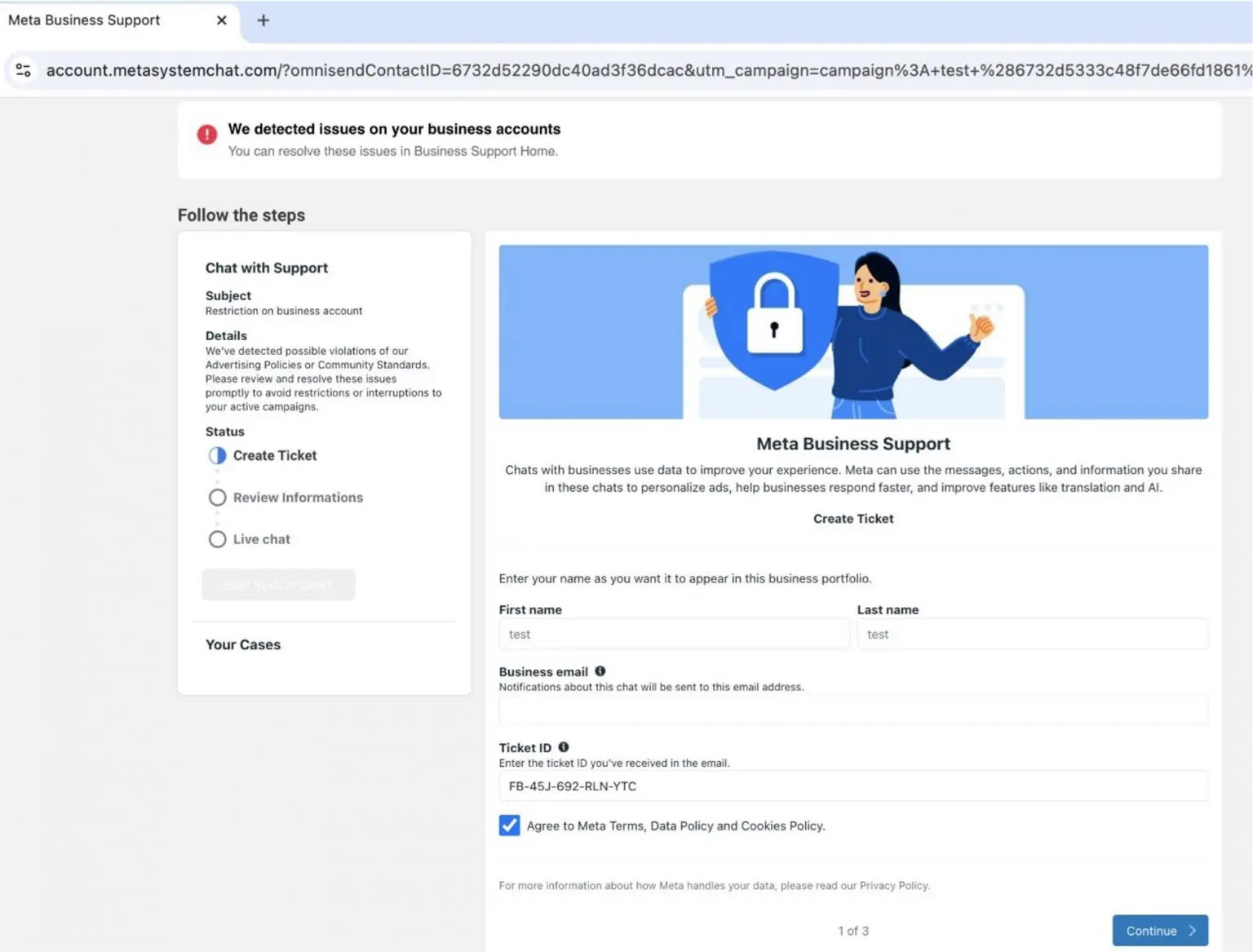
Both the phishing site and the email route may contain clues. A fake message may come from a random domain, a recently created domain, a compromised mailbox, or a domain that looks close to Meta but is not the same. A real-looking sender is still not enough because the dangerous part is usually the link and the data requested after the click.
What to check before you click
- Open Instagram directly. Use the Instagram app or type
instagram.com; do not start from an unexpected email button. - Check recent emails from Instagram. If the alert is not listed in the official recent-email area, treat it as suspicious.
- Review login activity and devices. Log out of devices or locations you do not recognize.
- Check the destination domain. Do not enter credentials on shortened links, file-sharing pages, forms, or domains that only imitate Instagram, Facebook, or Meta.
- Never share 2FA or backup codes. Instagram support does not need your one-time code to prove ownership.
2026 update: reset emails and support-chat takeovers
In January 2026, many Instagram users reported unsolicited password-reset emails. Instagram said there was no breach and that it fixed an issue that let an external party request reset emails for some users [4]. If you receive a reset email you did not request, you usually do not need to click anything in that email. Open Instagram directly, verify recent emails and login activity, change the password from the app if you want to be cautious, and enable two-factor authentication with an authenticator app where possible.
In June 2026, Instagram also warned users who were targeted after attackers abused a flaw in Meta’s AI support flow to obtain account-recovery links [5]. That matters for Meta Security email scams because attackers may mix real account-recovery mechanics with fake follow-up emails, fake support chats, or stolen-session tactics. The safer habit is to verify every account action from inside Instagram, Facebook, or Business Suite, not from the message that scared you.
If you already clicked or entered details
- Change the Instagram password from the app or by typing the official site manually. Do this from a clean device if you installed anything or saw suspicious browser behavior.
- Enable or reset two-factor authentication. Remove unknown 2FA methods, backup codes, phone numbers, or email addresses.
- Log out of unknown sessions. Review connected accounts and devices across Instagram, Facebook, and WhatsApp if they share the same Meta account setup.
- Check profile, email, phone, and payout settings. Attackers often change recovery details before posting scams or sending DMs.
- For business accounts, review Business Suite and ad settings. Remove unfamiliar admins, partners, apps, payment methods, and active ads before the attacker can spend money or lock you out.
- Scan the device only when local risk exists. Use Gridinsoft Anti-Malware if the email led to a downloaded file, browser extension, remote-access prompt, fake support tool, or recurring redirect.
For generic account-verification lures, see our account verification alert email scam guide. It covers the same pressure tactics attackers use across Instagram, Facebook, banking, and mailbox warnings.
Advanced version of the scam
Researchers have also found a more advanced version of this scam. Victims are prompted to take additional steps, such as generating a two-factor authentication code from account settings. This tactic allows fraudsters to gain access not only to the login and password, but also to the multi-factor authentication code, which can be enough to get into accounts that otherwise look well protected.
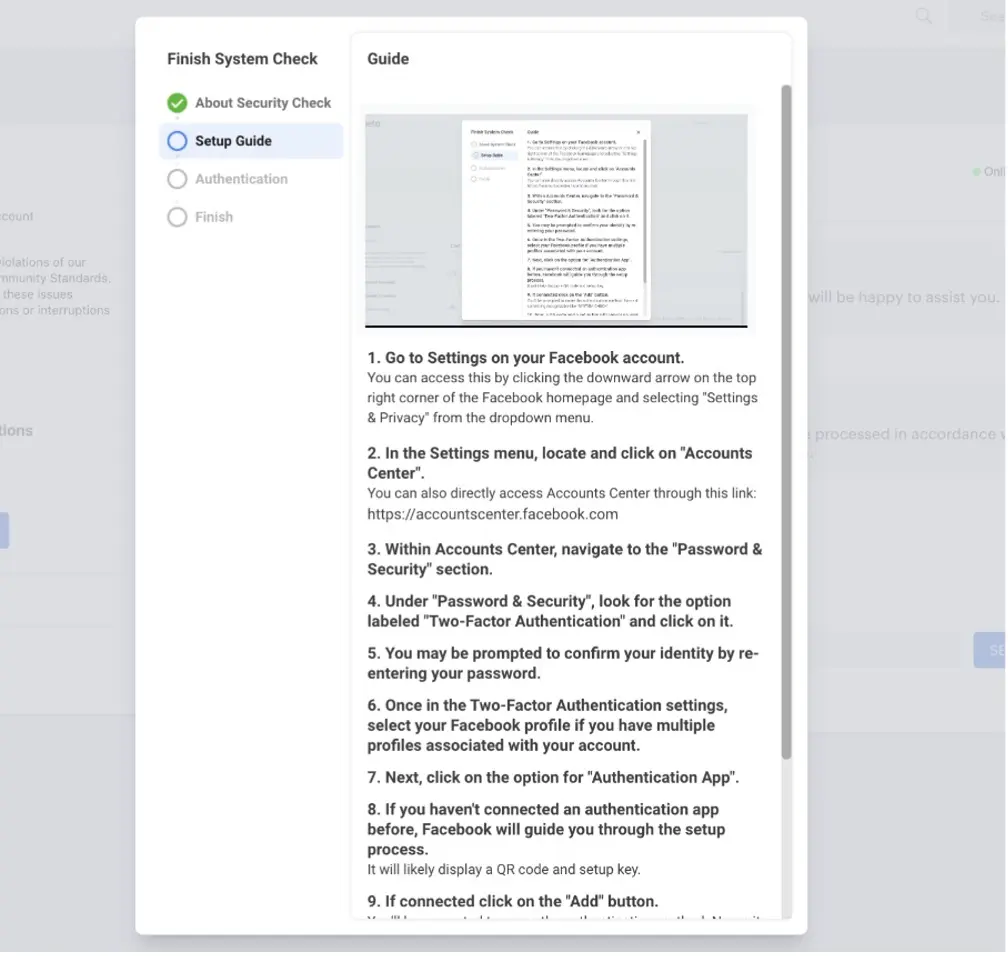
Such advanced scams often use a different email text as well. In one version, scammers impersonated Meta security officers and claimed the recipient’s account had been suspended for inappropriate behavior. The email directed the victim to resolve the issue by visiting a linked “security check” webpage, where users were asked to provide sensitive information, including 2FA codes, under the guise of account restoration.
How to avoid Meta email phishing scams
Although we detail the signs of scams in nearly every post, judging by the number of incidents, this information bears repeating.
First, pay attention to the sender address, but do not stop there. Sender addresses can be spoofed, and smaller scammers often use random addresses with an official-looking display name. For Instagram messages, a real domain may include @mail.instagram.com, but the safest check is whether the same event appears inside Instagram’s own security screens.
The second point is the writing style and request. Genuine notices usually describe a specific account event; phishing messages push urgency, generic greetings, threats, appeals, or a request for a password, 2FA code, backup code, or identity document through an email link.
Finally, use a reliable security solution that can block phishing pages before they open on your device. Gridinsoft Anti-Malware can help detect malicious downloads and web threats after a suspicious email click. Download it by clicking the banner below and try its full power during the 6-day free trial period.
FAQ
Is the Instagram security sender always safe?
No. The address can be used for real Instagram alerts, but a sender line alone is not enough. Verify the same event inside Instagram before clicking links or entering credentials.
Should I click a password reset link if I did not request it?
No. Open Instagram directly instead. If you want to change the password, do it from the app or by typing the official site manually.
Do I need a malware scan after receiving the email?
Not just from receiving it. Scan the device if you downloaded a file, installed an extension or app, allowed remote access, or see redirects and suspicious local activity after clicking.
References
- Meta. “Review recent emails sent from Instagram.” Facebook Help Centre, accessed June 2, 2026. https://www.facebook.com/help/760602221058803?locale=en_GB
- Meta. “Why you received an Instagram password reset email that you didn’t request.” Facebook Help Centre, accessed June 2, 2026. https://www.facebook.com/help/231141655544451?locale=en_GB
- Trend Micro. “Meta Security Phishing Email Scam.” Trend Micro News, November 17, 2024, accessed June 2, 2026. https://news.trendmicro.com/2024/11/17/meta-security-phishing-email-scam/
- Anthony Ha. “Instagram says there’s been ‘no breach’ despite password reset requests.” TechCrunch, January 11, 2026, accessed June 2, 2026. https://techcrunch.com/2026/01/11/instagram-says-theres-been-no-breach-despite-password-reset-requests/
- Sarah Perez. “Instagram is alerting users who were targeted by hackers during AI chatbot attacks.” TechCrunch, June 3, 2026, accessed June 7, 2026. https://techcrunch.com/2026/06/03/instagram-is-alerting-users-who-were-targeted-by-hackers-during-ai-chatbot-attacks/