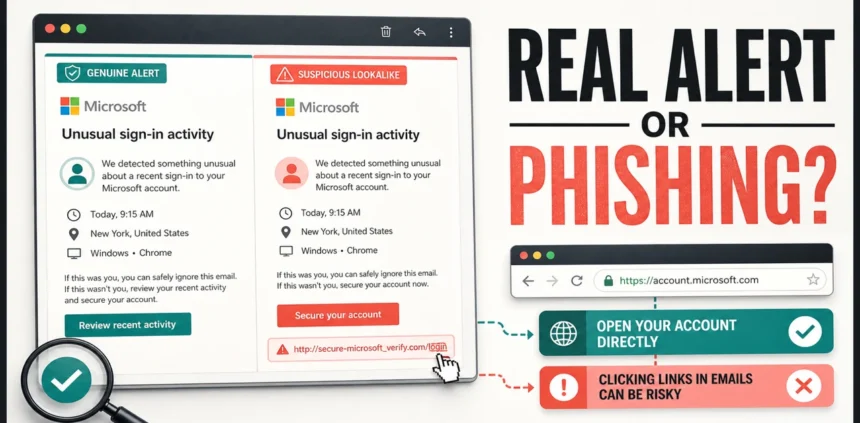
Yes. Microsoft uses the @accountprotection.microsoft.com domain for Microsoft account notifications, so account-security-noreply@accountprotection.microsoft.com can be a legitimate sender. But a matching From line alone does not authenticate the specific email. A scam can copy the sender name and Microsoft design, while some mail apps hide the routing details that reveal spoofing.
Do not use the message button to decide. Open a new browser tab, type account.microsoft.com, and check Security > Recent activity. Review the event inside your account; a matching event is useful evidence, not authentication of the email itself. If it does not match, do not reply, call a phone number, enter a password, or approve an MFA request from the email.
Quick verdict
- Official domain: Microsoft confirms that it sends account notices from
@accountprotection.microsoft.com. - Not proof by itself: verify the full sender and message headers, not only the display name.
- Safest check: open
account.microsoft.comyourself and compare the alert with Recent activity. - If the sign-in is not yours: secure the account from the Microsoft account page, not from the email.
- If you entered a password or installed a file: use the recovery steps below immediately.
Is account-security-noreply @ accountprotection.microsoft.com legitimate?
The domain is legitimate. Microsoft Support states that messages from the Microsoft account team can use @accountprotection.microsoft.com for security codes, password-change notices, and other account updates. The exact address commonly shown for unusual sign-in alerts is account-security-noreply@accountprotection.microsoft.com.
That answers who owns the domain, but it does not settle whether every message displaying the address is genuine. Check the complete address, the email headers, and the event inside your Microsoft account. A display name such as “Microsoft account team” is easy to copy.
| What you find | What it most likely means | What to do |
|---|---|---|
| The alert matches a sign-in you recognize | The account event is familiar; this alone does not authenticate the email | Review or confirm it inside Recent activity |
| The alert matches activity you do not recognize | The notification may be real and the account may be at risk | Mark the activity as not yours and secure the account directly |
| No matching activity appears and the link leads elsewhere | Likely phishing or a message for another account | Do not use the link; delete or report the message |
| You received a code you did not request | Someone may be trying your account, or another person entered your address by mistake | Do not share the code; review security activity |
A real sender is not the same as a successful break-in
Read the activity description, not just the country. Microsoft distinguishes an incorrect-password attempt that was blocked from a successful sign-in or an account change. Its activity list does not include every event, and a mobile network can make the location look unfamiliar.
- Incorrect password, sign-in not allowed: this record does not prove that anyone got in. Do not share codes; review the rest of the account activity.
- Successful sign-in or a security change you did not make: secure the account directly and review sessions and recovery methods.
- No matching record: confirm the account and event type. Do not trust the email button, but do not classify the message solely from an absent entry.
What does the email look like?
A genuine Microsoft alert is usually short. It names the account event and sends you to review recent activity. A polished design is not proof of authenticity, because a phishing email can reproduce the same logo, colors, and button.
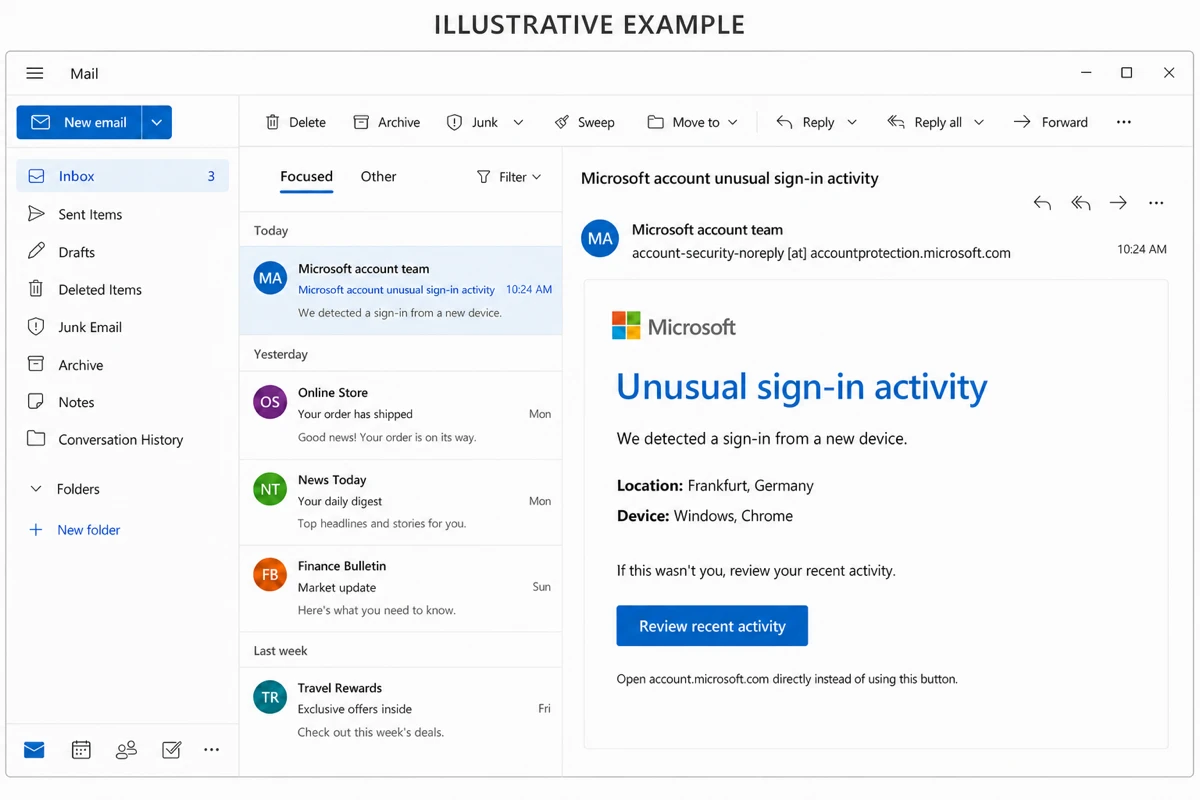
Illustrative body-text example
Subject: Microsoft account unusual sign-in activity
Display name: Microsoft account team
Sender: account-security-noreply [at] accountprotection [dot] microsoft [dot] com
Unusual sign-in activity
We detected a sign-in from a new device.
Location: Frankfurt, Germany
Device: Windows, Chrome
If this wasn’t you, review your recent activity.
Button: Review recent activity
Attachment: none expected
Deadline: none expected. Artificial countdowns or immediate-payment pressure are warning signs.
Typos: none expected. Misspelled Microsoft domains are warning signs.
How to verify the alert without clicking the email
- Open Microsoft yourself. Start a new tab and type
account.microsoft.com. Do not copy the address from the email. - Open Recent activity. Go to Security and review the recent sign-in list.
- Compare the event. Check the time, country or region, device, browser, and activity type. Location can be approximate, especially with mobile networks or a VPN.
- Check which account received the alert. People with several Outlook, Hotmail, Xbox, Skype, or Microsoft 365 identities sometimes inspect the wrong account.
- Inspect the full sender. Expand the From details. The domain must end exactly in
accountprotection.microsoft.com, without extra words, hyphens, or misspellings. - Inspect headers when doubt remains. Look for the
Return-PathandAuthentication-Resultsfields. SPF and DKIM passing for a Microsoft-controlled domain is stronger evidence than the visible From line alone.
If you need a broader checklist for sender names, link targets, attachments, and urgent wording, use our guide to spotting phishing emails. Our phishing vs. spoofing guide explains why a familiar From field can still be misleading.
Real Microsoft alert or phishing?
| Check | More consistent with a real alert | More consistent with phishing |
|---|---|---|
| Account evidence | A matching event appears in Recent activity | No matching event plus suspicious links or requests; absence alone is inconclusive |
| Sender | The full address ends in @accountprotection.microsoft.com |
A lookalike domain, free mailbox, or hidden reply-to address |
| Request | Review an account event | Send a password, MFA code, payment, or recovery code |
| Link | A Microsoft-controlled destination | A shortened, misspelled, unrelated, or redirecting domain |
| Attachment or phone number | Usually absent from a normal sign-in alert | An unexpected file, remote-support app, or number to call urgently |
Do not rely on the logo, grammar, or urgency alone. Modern phishing templates can look polished. The strongest practical test is whether the same event exists in the account you opened independently.
Can “App passwords need to be updated” be real?
Yes, the wording can describe a real Microsoft account change, but it can also be copied into a phishing email. A genuine notice is contextually plausible when you intentionally changed the Microsoft account password and already use two-step verification. In that situation, an older app or device may need a newly generated app password. If you did not make the password change, do not treat the familiar wording as proof.
Example
Subject: App passwords need to be updated
Claim: You recently changed your password, so apps or devices that do not support two-step verification need new app passwords.
Button: Get a new app password
Microsoft app passwords are only for older apps and devices that cannot use the normal two-step-verification flow, such as Xbox 360, Outlook 2010 or earlier, or some older mail apps and mail-sending devices. A current Outlook app or a browser sign-in normally does not need one.
- You changed the password and use a legacy app: type
account.microsoft.com/securityin a new tab, open Advanced security options, and create an app password there only if the app actually requires it. - You did not change the password: open the Microsoft account directly, review Recent activity, and change the account password if the activity is not yours.
- You clicked but entered nothing: close the page. Check the destination domain and your account directly; a click alone does not automatically require a password reset.
- You entered the normal Microsoft password or an MFA code: treat those credentials as exposed. Change the password from a trusted tab, sign out unfamiliar sessions, review security methods and Outlook rules, and reject unexpected approval prompts.
A third-party cloud-storage login, a prefilled email address followed by a password-only form, unexpected timing, a mismatched sender or destination, and pressure to act immediately are phishing signals. Never paste your normal Microsoft password, MFA code, recovery code, or session information into a page reached from this email.
What to do if the sign-in was not yours
- Use Recent activity to mark the event as not yours when Microsoft offers that option.
- Change the Microsoft account password from the account page you opened directly.
- Sign out of sessions you do not recognize and review connected devices.
- Check recovery email addresses, phone numbers, aliases, and security information for changes.
- Enable Microsoft Authenticator, a passkey, or another phishing-resistant MFA method.
- For Outlook, review inbox rules and forwarding settings so an intruder cannot silently copy or hide mail.
An unfamiliar alert does not automatically mean the password was stolen; Microsoft can flag a new device, network, or location. But an event you do not recognize should be handled as an account-security incident until you have reviewed it.
What if you clicked the link or entered a password?
- If you only opened the link and entered nothing, close it and review your account directly; a click alone does not establish credential theft. If you entered a password or code, continue below and reject unexpected MFA prompts.
- From a clean browser tab or another trusted device, change the Microsoft password.
- Sign out everywhere, then inspect recovery methods, aliases, devices, app access, and Outlook rules.
- Change the same password on any other account where you reused it.
- If this is a work or school account, notify your IT or security team.
If the email made you download an attachment, install a browser extension, run a remote-support tool, or launch a file, account recovery alone is not enough. Check the device for the downloaded file and related persistence before using it for more password changes. Our Microsoft account compromise guide covers the malware-first recovery order. You can also scan the affected Windows device with Gridinsoft Anti-Malware.
If the page or email made you download an invoice, coupon, tracking app, browser extension, or support tool, scan the PC before opening it again or logging into sensitive accounts.
Scan if the email made you download or install anythingWhat about msonlineservicesteam @ microsoftonline.com?
msonlineservicesteam@microsoftonline.com is a different sender used in some Microsoft Online Services flows. Reports in May 2026 described scammers abusing Microsoft notification infrastructure to send spam through that channel. Treat it as a separate verification case: open the relevant Microsoft 365 or work/school portal directly, and do not trust payment requests, phone numbers, or private-message links because the sender appears Microsoft-owned.
For broad Microsoft password-expiry, mailbox, subscription, storage, and payment lures, use the Microsoft email scam guide. For this sender, verify the message separately from the account event and handle any unfamiliar activity from your account security page.
FAQ
Can account-security-noreply @ accountprotection.microsoft.com be spoofed?
A scammer can copy the display name or visible From address. Expand the sender details, inspect headers when needed, and verify the event in Recent activity from a tab you opened yourself.
What if Recent activity shows no matching sign-in?
Confirm that you checked the correct Microsoft account. If no matching event exists, do not use the email link. Microsoft does not show every activity, so an absent entry alone does not prove phishing; also check the event type, account, and sender details.
Why did Microsoft send a code I did not request?
Someone may be trying to access the account, or another person may have entered your address by mistake. Do not share the code and review account security directly.
Should I reply to the alert?
No. Use the Microsoft account security page or official support channels instead of replying to an automated sender.
References
- Microsoft Support. “Can I trust email from the Microsoft account team?” Microsoft, accessed July 21, 2026. https://support.microsoft.com/en-us/accounts-billing/security/can-i-trust-email-from-the-microsoft-account-team
- Microsoft Support. “What is the Recent activity page?” Microsoft, accessed July 21, 2026. https://support.microsoft.com/en-us/accounts-billing/security/what-is-the-recent-activity-page
- Zack Whittaker. “Scammers are abusing an internal Microsoft account to send spam links.” TechCrunch, May 21, 2026. https://techcrunch.com/2026/05/21/scammers-are-abusing-an-internal-microsoft-account-to-send-spam/
- Microsoft Support. “How to get and use app passwords.” Microsoft, accessed August 5, 2026. https://support.microsoft.com/en-US/accounts-billing/manage/how-to-get-and-use-app-passwords