Spam settings work best when you use the right control for the right problem. In Gmail, Yahoo Mail, and Outlook, report suspicious mail first, block only repeat senders, create filters or rules for repeat patterns, and review account security if the spam arrives as a sudden flood. If you clicked a link, opened an attachment, or entered a password, handle that as a security incident before tuning mailbox settings.
Fast routing:
- Need provider steps? Use the Gmail, Yahoo Mail, and Outlook sections below.
- Want the broader anti-spam strategy? Read How to Stop Spam Emails.
- Clicked, opened, replied, downloaded, or entered data? Use Is Spam Email Dangerous? first.
What should you click first?
Do not start by deleting everything. Pick the action that matches the message.
| What you see | Best first action | Why |
|---|---|---|
| Fake invoice, delivery alert, crypto offer, adult blackmail, or login warning | Report spam or phishing | Reporting trains the mailbox and moves the message out of your inbox. |
| The same sender keeps emailing from one stable address | Block sender | Blocking is useful when the sender address does not rotate. |
| The sender changes, but the subject or wording repeats | Create a filter or rule | Filters catch patterns that sender blocking misses. |
| A real newsletter or store you recognize | Use the trusted unsubscribe option | Legitimate unsubscribe is cleaner than marking mail you requested as spam. |
| Hundreds of messages arrive in a short time | Search for hidden alerts before deleting | Email bombing can hide a real order, password reset, bank alert, or account takeover notice. |
Gmail spam settings
Gmail gives you three useful layers: report spam or phishing, block a repeat sender, and create filters for patterns. Use them in that order.
Report spam or phishing in Gmail
- Select the unwanted message in Gmail. You do not have to click every link or open every attachment to report it.
- Use Report spam for junk, fake offers, and unwanted campaigns.
- Use Report phishing from the message menu when the email impersonates a company, asks for passwords, asks for verification codes, or sends you to a login page.
- If the message was incorrectly marked as spam, open the Spam folder and mark it as not spam so Gmail learns the difference.
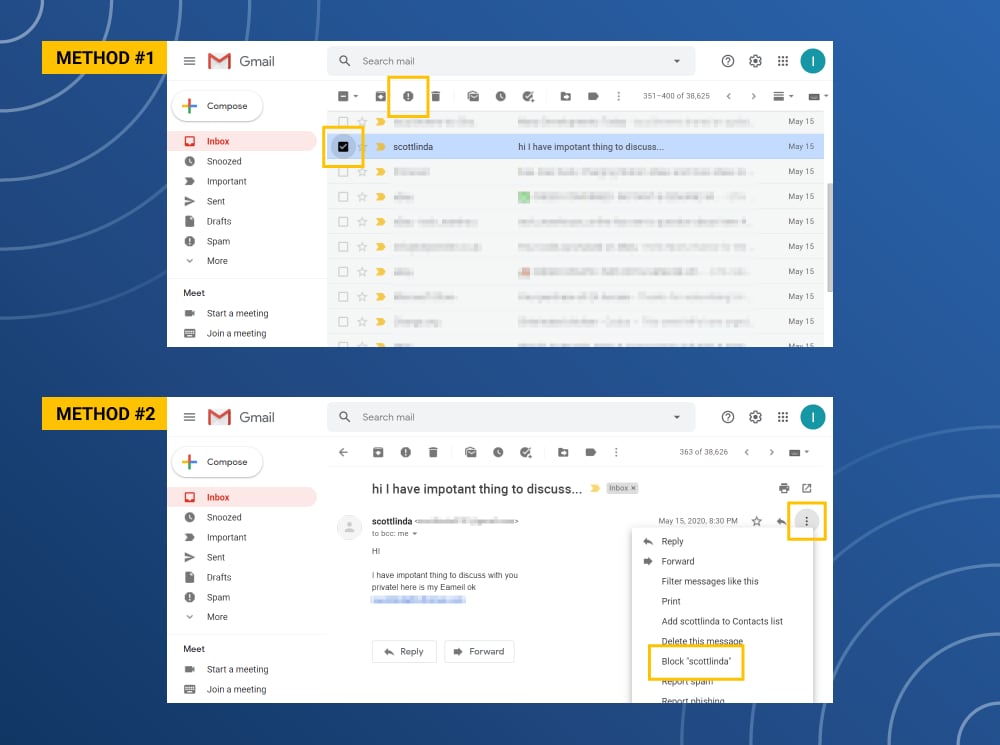
Block a sender in Gmail
- Open one message from the repeat sender.
- Use the message menu near the reply button.
- Choose Block for that sender.
Blocking is not magic. If the campaign uses a new address each time, block one sample and then create a filter for the repeated wording, fake brand name, domain pattern, or subject line.
Create a Gmail filter for repeat spam
- Click the search-options icon in Gmail’s search bar.
- Enter a repeated sender domain, subject phrase, or exact wording from the spam.
- Click Create filter.
- Choose an action: archive, label, delete, or forward to a review label.
Avoid filters that auto-delete broad words like security, payment, order, invoice, or password. Those words also appear in real alerts.
Check Gmail security after a spam flood
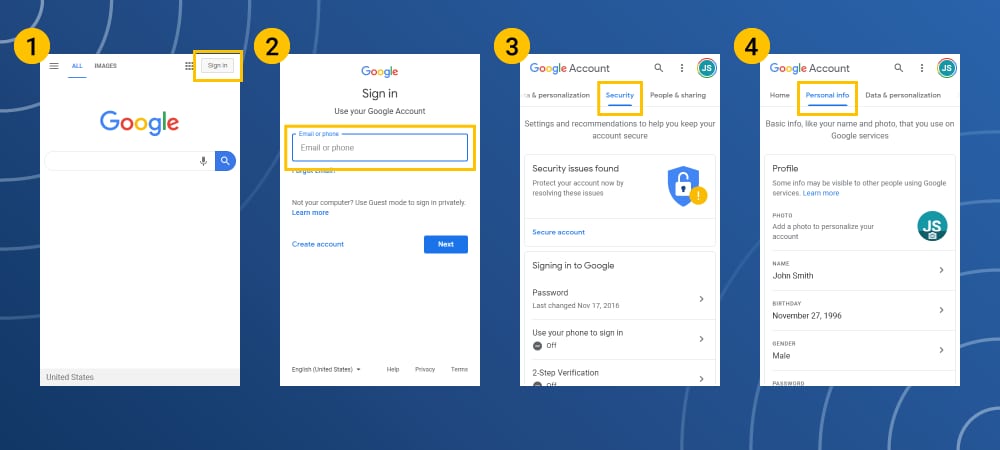
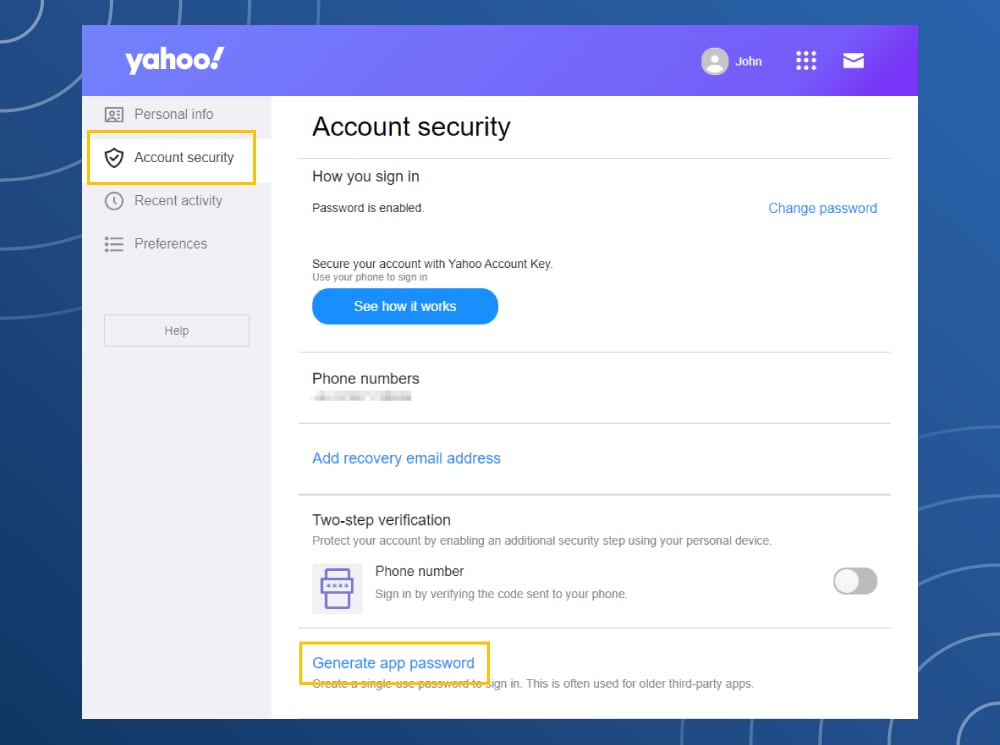
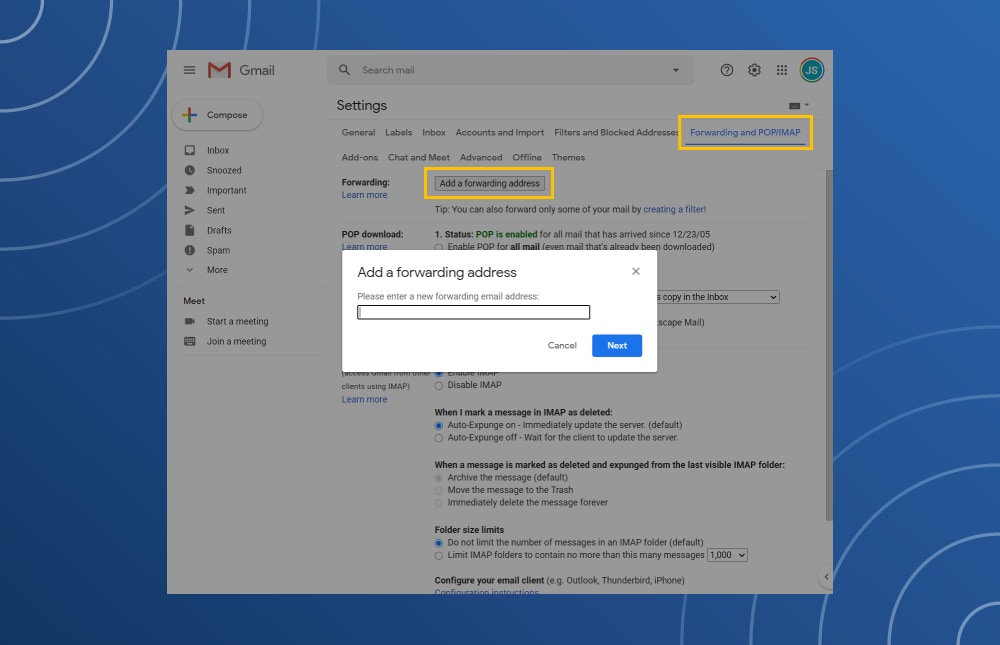
If your inbox suddenly fills with hundreds of messages, search for real alerts first: password, reset, order, bank, security, payment, verification, and names of services you use. Then review Google Account security, recent devices, recovery email and phone, forwarding settings, app passwords, and third-party access.
Yahoo Mail spam settings
Yahoo Mail has spam reporting, blocked addresses, filters, and alias-style address options. Use reporting for suspicious messages and filters for repeated patterns.
Report spam in Yahoo Mail
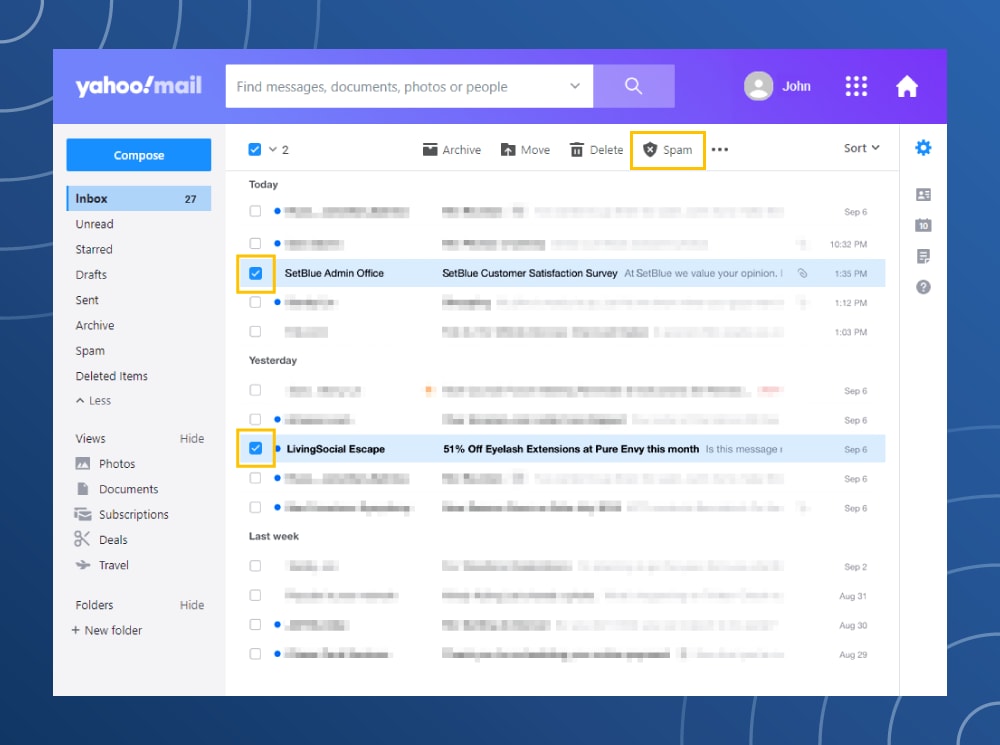
- Select one or more unwanted emails in the message list.
- Click Spam or Report spam.
- Review the Spam folder before emptying it if you are worried about false positives.
Block senders in Yahoo Mail
- Open Yahoo Mail settings.
- Go to More Settings, then Security and Privacy.
- Add the sender address under blocked addresses.
Yahoo’s blocked-address list helps with repeat senders. If every message comes from a new mailbox, build filters around repeated subjects, phrases, or sender domains instead.
Use Yahoo filters and aliases
Create filters for repeat patterns and use separate addresses for shopping, forums, coupons, and one-time signups. If one address starts receiving junk, retire that address instead of exposing your main mailbox everywhere.
Outlook spam settings
Outlook and Outlook.com separate junk reporting, phishing reporting, blocked senders, safe senders, and rules. The labels vary between new Outlook, classic Outlook, and Outlook on the web, but the cleanup order is the same.
Mark email as junk or phishing in Outlook
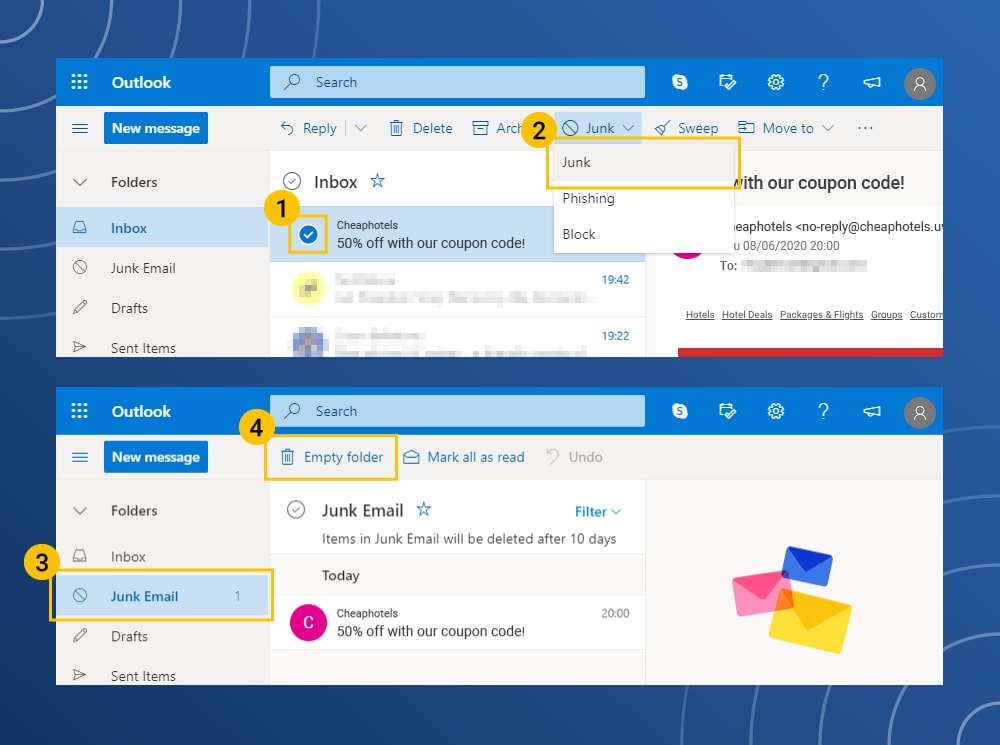
- Select the suspicious message.
- Use Report, Junk, or Report phishing, depending on your Outlook version.
- Choose phishing for messages that impersonate Microsoft, banks, PayPal, delivery companies, cloud storage, or password-reset pages.
Block senders in Outlook
- Right-click a message from the repeat sender.
- Choose Block or Block sender.
- Review blocked and safe senders in mail settings if legitimate mail starts going to Junk.
Create Outlook rules for repeat spam
- Open Outlook mail settings and go to Rules.
- Create a rule based on a repeated subject, sender domain, phrase, or recipient alias.
- Move matching messages to Junk, delete them, or place them in a review folder.
Be careful with auto-delete rules. A rule that deletes every message containing “invoice” or “security” can hide real receipts, bank notices, account alerts, and password reset emails.
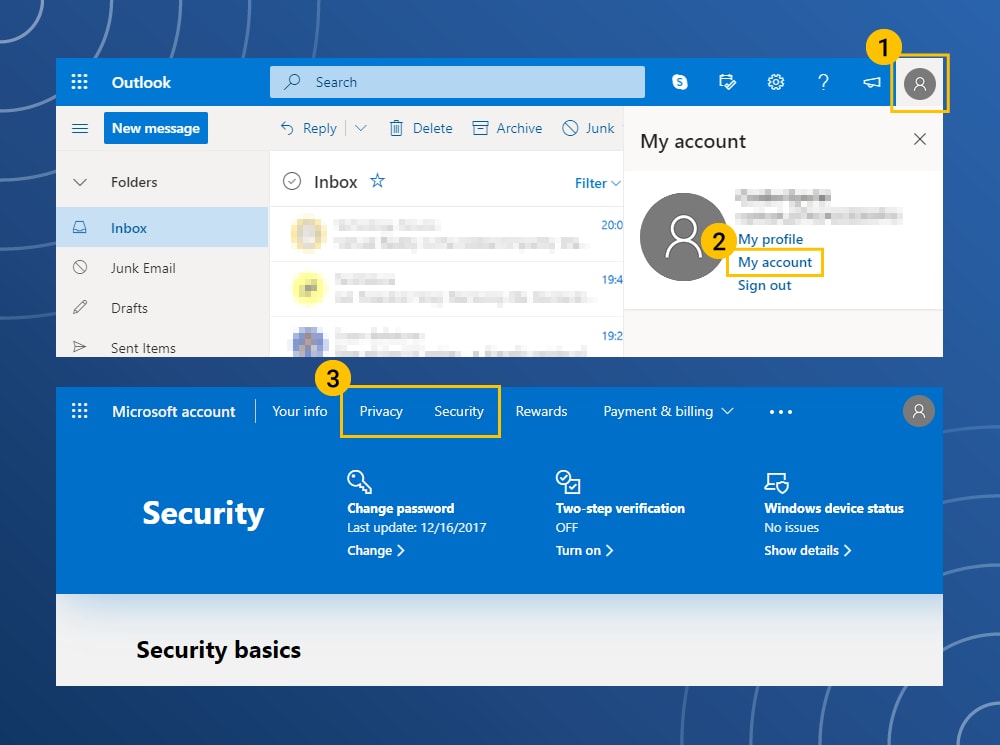
Check Outlook forwarding and sign-in security
After a spam flood or suspicious click, review forwarding, inbox rules, connected apps, recent sign-ins, recovery details, and two-factor authentication. A hidden forwarding rule can leak future password resets even after the obvious spam is gone.
If hundreds of emails arrive suddenly
A sudden flood can be ordinary spam, harassment, or an attempt to bury one important message. Do not mass-delete the flood until you check for real account activity.
- Search for password, reset, security, verification, payment, withdrawal, order, receipt, and shipping.
- Check bank, marketplace, PayPal, crypto, Microsoft, Google, Apple, and shopping accounts from official sites or apps.
- Look for new forwarding rules, unknown filters, connected apps, recovery email changes, and recent sign-ins.
- Keep a few sample messages with headers if you need provider support or fraud reporting.
- Create filters after you confirm there is no hidden transaction or login alert.
What not to do inside mailbox settings
- Do not reply to spam. A reply confirms the mailbox is active.
- Do not click unsubscribe in unknown messages. Use unsubscribe only for legitimate newsletters or services you recognize.
- Do not open attachments to identify them. Fake invoices, voicemail files, shipping labels, and archives are common malware bait.
- Do not create broad auto-delete rules. They can hide real security and payment alerts.
- Do not forward all old mail into a new inbox. If you create a new address, migrate trusted accounts carefully instead of moving the spam problem with you.
If you clicked, opened, or entered data
Mailbox settings will not fix a phishing click or malware attachment by themselves. Use this quick split:
| What happened | What to do next |
|---|---|
| You only opened the email | Close it, report it, and avoid links or attachments. |
| You clicked a link but entered nothing | Close the page, check for downloads, and watch for sign-in alerts. |
| You entered a password or code | Change the password from the official site, sign out other sessions, and enable MFA. |
| You opened an attachment or ran a file | Scan the device before changing passwords on that same device. |
| You paid money or shared card details | Contact the bank or payment provider and preserve the message as evidence. |
For a full action-based checklist, continue with Is Spam Email Dangerous? Risks and What to Do After a Click. If the spam involved an attachment or download, run a full scan with a trusted security tool; Gridinsoft Anti-Malware can check for malicious files, startup entries, browser changes, and unwanted apps left behind by email malware.
Long-term prevention for Gmail, Yahoo, and Outlook
- Use aliases or separate addresses for shopping, forums, coupons, and downloads.
- Keep your main address off public profiles and scraped contact pages.
- Use a password manager so every account has a unique password.
- Turn on two-factor authentication for your email before less important accounts.
- Review forwarding rules, filters, connected apps, and recovery details every few months.
- Move false positives out of Spam so the mailbox learns which messages are legitimate.
- Check suspicious links or attachments with the Gridinsoft Online Virus Scanner before opening them.
FAQ
Should I report spam or block the sender?
Report suspicious mail first. Block the sender when the same stable address keeps contacting you. If the sender changes every time, use filters or rules for repeated wording and subjects.
Why do Gmail, Yahoo, or Outlook filters miss spam?
Spammers rotate sender names, domains, subjects, and message wording. Mailbox filters need patterns, and some spam must be reported repeatedly before the provider classifies it well.
Is unsubscribe safe?
Use unsubscribe for real newsletters or services you knowingly joined. For fake invoices, crypto offers, adult blackmail, suspicious delivery notices, and fake login alerts, report the message instead.
Can a mailbox rule make spam worse?
Yes. A broad rule can hide important security, payment, order, and password-reset alerts. Use narrow rules and review them after any spam flood.
Does blocking stop spoofed spam?
Not reliably. Spoofed or rotating senders can use another address. Reporting, filters, aliases, and account-security checks are stronger than a block list alone.
Should I create a new email address?
Create a new address only when the old one is badly exposed or tied to constant spam. Migrate important accounts carefully, and do not automatically forward all old mail into the new inbox because that can bring the same spam with it.
References
- Google Help, “Report spam in Gmail.” Gmail Help
- Google Help, “Block or unblock an email address in Gmail.” Gmail Help
- Yahoo Help, “Block and unblock email addresses in Yahoo Mail.” Yahoo Help
- Microsoft Support, “Block or unblock senders in Outlook.” Microsoft Support