

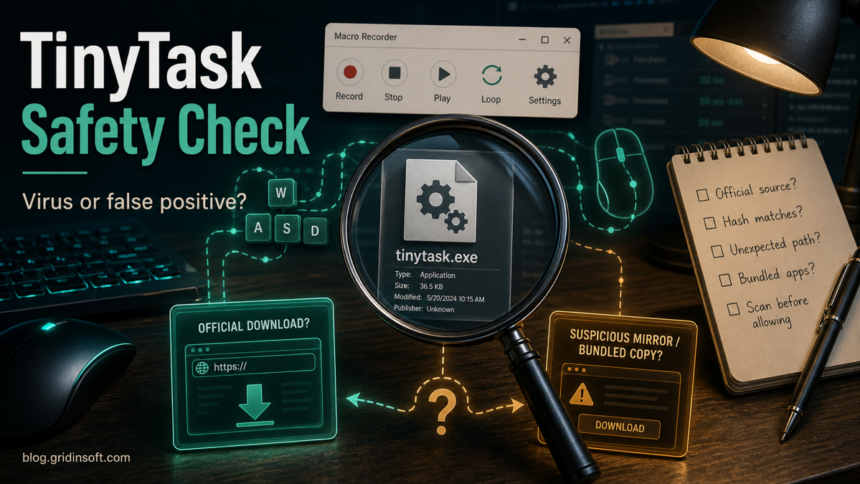
TinyTask is not automatically a virus, but you should not allow every tinytask.exe warning blindly. The legitimate TinyTask utility is a tiny Windows macro recorder: it records keyboard and mouse actions, then replays them. That behavior can resemble keylogging or automation malware to some security tools, especially when the file is unsigned, old, packed, compiled into another EXE, or downloaded from a mirror. If the worry is not TinyTask itself but whether keyboard input is being captured elsewhere, use the keyboard tracking and keylogger checklist before changing passwords on that PC. Treat the alert as a safety decision: verify the source, check the file reputation, and quarantine suspicious copies instead of forcing an allow rule.
What TinyTask Does
TinyTask is built for simple PC automation. A user records clicks and keystrokes, saves the recording, and plays it back later. That makes it useful for repetitive desktop work, but it also explains why antivirus engines may be cautious: a program that watches input, replays input, or compiles automation into an executable has behavior that overlaps with tools attackers abuse.
The important distinction is intent and provenance. A copy from the real project page that matches the expected file, has a long public reputation, and behaves only as a macro recorder is a different risk from a tinytask.exe pulled from a game cheat video, Discord link, ad-heavy mirror, bundle installer, or cracked-software page.
Use This Decision Table
| What you see | What to do |
|---|---|
| You downloaded TinyTask directly from the official project page and only one or two weaker engines complain. | Keep it quarantined while you verify the file. A false positive is plausible, but restore only after source, hash/reputation, and behavior checks make sense. |
| The file came from Softonic-style wrappers, mirror pages, YouTube/Discord game-macro links, or a tiny downloader. | Treat it as suspicious. Delete the installer, inspect newly installed apps and browser changes, and run a full system scan. |
The file runs from %TEMP%, %APPDATA%, %LOCALAPPDATA%, Startup, or a random folder with a misleading name. |
Do not allow it. Legitimate portable tools usually run where you placed them, not from hidden persistence paths. |
Security alerts return after reboot or another process recreates tinytask.exe. |
Assume there is a loader, scheduled task, startup item, or bundled app restoring it. Remove the persistence, not only the visible file. |
| You used it for game automation and then saw account logins, browser pop-ups, or password prompts. | Separate the macro question from account risk. Stop using the file, scan the PC, and change passwords from a clean device if suspicious behavior appeared. |
The same false-positive logic applies to other small utilities. For example, the Rainmeter safety guide shows how to separate an official installer from fake mirrors, suspicious add-ons, and wrong-path executable copies.
Why TinyTask Can Trigger Antivirus Alerts
Macro recorders sit in a gray area for heuristic engines. They may monitor keyboard and mouse input, replay actions, store automation files, or build a small executable. Malware families can also log input, automate clicks, or hide behind a harmless-looking tool name, so some engines flag by behavior or reputation instead of a confirmed malicious payload.
That does not mean every TinyTask alert is fake. It means the detection name matters. Generic labels such as Suspicious, RiskTool, HackTool, PUA, or Keylogger need context. Stronger trojan, loader, stealer, or backdoor detections from several reputable engines deserve a stricter response, especially when the file source is not the official project.
If you are comparing mixed scanner results, use the same approach as our VirusTotal and Hybrid Analysis false-positive checklist: one signal is not enough. Look at source, age, names of detections, sandbox behavior, and whether the file tried to persist or contact unusual hosts.
How To Check If Your tinytask.exe Is Safe
For a general source, signature, scan, and privacy workflow that applies to any downloaded executable, keep the EXE file safety checklist open while you verify the TinyTask copy.
- Confirm where it came from. Prefer the official TinyTask site. If the download passed through a wrapper, mirror, torrent page, Discord attachment, game-macro tutorial, or “download manager,” assume the file may not be the original utility.
- Check the file location. A portable tool should be in a folder you recognize, such as
%USERPROFILE%\Downloadsor a tools folder you created. Be suspicious of copies under%TEMP%,%APPDATA%,%LOCALAPPDATA%, Startup, or a folder pretending to be a Windows component. - Scan before restoring. Upload the file to a reputation service, scan it locally, and compare detection names. Do not restore from quarantine just because a forum says “TinyTask is safe.”
- Read the detection family. A few generic heuristic detections are different from many engines agreeing on a stealer, loader, RAT, backdoor, or downloader family.
- Watch behavior after launch. TinyTask should record and replay your actions. It should not install extensions, add startup tasks, create Defender exclusions, drop files into hidden folders, open PowerShell, or change browser search settings.
- Check timestamps and nearby installs. If the alert appeared after installing a bundle, compare the time with new apps, browser extensions, scheduled tasks, and files created in the same minute.
For another macro-tool example, compare the safety logic with our AutoHotkey malware or false-positive guide. The question is similar: the base tool can be legitimate, but scripts, compiled copies, and third-party downloads can be unsafe.
When To Treat TinyTask As Suspicious
Remove or keep quarantined any tinytask.exe copy that has one or more of these signs:
- downloaded from a mirror, shortened link, YouTube description, Discord/Telegram post, cheat page, or repack bundle;
- installed through a downloader wrapper rather than a direct TinyTask file;
- appears under
%TEMP%,%APPDATA%,%LOCALAPPDATA%, Startup, or a randomly named subfolder; - comes with extra apps, browser extensions, notification prompts, search changes, or a new “managed by organization” browser policy;
- creates scheduled tasks, services, Defender exclusions, or startup entries;
- triggers multiple strong detections for trojan, stealer, loader, backdoor, RAT, or downloader behavior;
- reappears after you delete it or after Windows Security quarantines it.
If the suspicious file was part of a game automation or cracked-software flow, do not focus only on TinyTask. That ecosystem often mixes safe tools with unsafe installers. Use the safer mirror-checking mindset from our FitGirl fake-mirror and repack safety guide and treat the original download path as evidence.
How To Remove a Fake or Bundled TinyTask Copy
- Leave the detection quarantined. Do not click “Allow on device” or restore the file until you have a reason stronger than “I wanted to use it.”
- Uninstall recent unknown apps. In Windows Settings, sort installed apps by date. Remove wrappers, download managers, “helper” apps, toolbars, and anything installed at the same time.
- Delete suspicious download leftovers. Remove the original archive or installer from
%USERPROFILE%\Downloads, but keep a copy quarantined if you need to submit it to a vendor for false-positive review. - Check browser changes. Review extensions, homepage, search engine, notification permissions, and browser sync. If redirects or pop-ups appeared, use our browser hijacker removal checklist.
- Check startup and scheduled tasks. Open Task Manager Startup Apps and Task Scheduler. Remove entries that point to TinyTask, random folders, wrappers, or unknown scripts.
- Run a full malware scan. A visible macro recorder may be only the file you noticed. Scan for hidden files, startup entries, scheduled tasks, bundled apps, browser changes, and persistence.
- Reboot and scan again if it returns. A repeated alert means another component is recreating the file or relaunching the unwanted task.
If TinyTask or a lookalike file already ran from a suspicious source, use Gridinsoft Anti-Malware as a concrete cleanup check: download it from the official Gridinsoft site, run a full scan, remove detections, reboot, and scan again if the file or alert comes back. A scan can help find hidden files, startup entries, scheduled tasks, bundled apps, browser changes, and persistence; it cannot prove that no account was ever exposed.
Should You Restore TinyTask From Quarantine?
Restore only when the case is boring in the right way: official source, expected filename, expected location, no bundled installer, no browser changes, no startup persistence, and scanner results that look like a limited heuristic dispute rather than a broad malware consensus. If Microsoft Defender specifically blocked the file and you believe the official copy is incorrectly classified, submit the file to Microsoft for analysis instead of creating a permanent allow rule immediately.
Do not restore the file if it came from a mirror, if you no longer trust the download path, or if the alert appears alongside unrelated symptoms. In those cases, deleting the file and downloading a fresh copy from the official project page is safer than trying to rescue the suspicious one.
FAQ
Is TinyTask a keylogger?
TinyTask records keyboard and mouse actions for macro playback, so security tools may describe the behavior in keylogger-like terms. That does not automatically make the official utility malware, but a fake copy can still be a real keylogger or trojan.
Why does VirusTotal show detections for TinyTask?
VirusTotal aggregates many engine labels. A small macro recorder can collect generic or heuristic detections because of its input-recording and automation behavior. Judge the report by source, file age, detection names, engine quality, and behavior, not by the count alone.
Can I allow TinyTask in Windows Security?
Only after you verify the file source and behavior. If the file came from the official project and every other signal is clean, a false-positive review may be reasonable. If it came from a mirror, wrapper, game link, or suspicious folder, do not allow it.
What if TinyTask keeps coming back after I delete it?
That is no longer a normal portable-utility situation. Look for a scheduled task, startup item, bundled app, browser extension, or loader that recreates it, then scan the PC after reboot.
Should I change passwords after running TinyTask?
If you used the official utility and saw no suspicious behavior, password changes are usually unnecessary. If the file came from an untrusted source, triggered strong malware detections, or ran with other account/browser symptoms, change important passwords from a clean device and revoke active sessions.
References
- TinyTask. “TinyTask.” TinyTask project site, accessed July 7, 2026. https://tinytask.net/
- Microsoft Security Intelligence. “Submit a file for malware analysis.” Microsoft, accessed July 7, 2026. https://www.microsoft.com/en-us/wdsi/filesubmission
- VirusTotal. “How it works.” VirusTotal Documentation, accessed July 7, 2026. https://docs.virustotal.com/docs/how-it-works


Hi Brendan
I just wanted to add some context because there are now multiple projects using the TinyTask name.
I am the developer behind TinyTask.org. Our software is an independent project and is not affiliated with or a mirror of TinyTask.net. It has been developed separately with its own codebase, website, documentation, and ongoing improvements.
Security has always been one of our top priorities. We encourage anyone to download the software only from the official TinyTask.org website, scan it with their preferred antivirus solution, upload it to VirusTotal, or even analyze it in a sandbox if they wish. Transparency is important to us, and we’re confident users will find the software to be clean and safe.
Unlike older projects that receive limited updates, our application is actively maintained. We regularly fix bugs, improve compatibility with newer Windows versions, and continue adding features based on user feedback.
We also provide 24/7 support, so if anyone has questions, encounters an issue, or has security concerns, they can contact us directly and we’ll be happy to help.
I completely understand why articles like this focus on safety, as malware often disguises itself as legitimate software. However, it’s also important to distinguish between unrelated projects that simply share a similar name. I hope readers evaluate each project on its own merits rather than assuming they are all the same.
If the GridinSoft team is interested, I’d also welcome an independent review of TinyTask.org. We believe independent testing by security researchers is the best way to build trust with users.