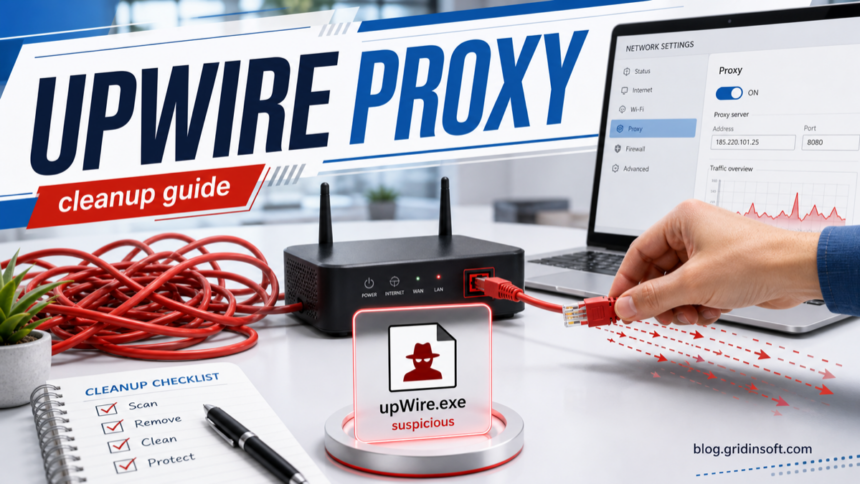
upWire.exe Trojan.Proxy is a warning sign that Windows may have been enrolled into proxyware: software that routes other people’s traffic through your home IP address. Do not treat upWire.exe, wire.exe, or a fake “Wire VPN” entry as a normal VPN until you verify where it came from. Record the file path, disconnect if outbound traffic is active, remove the unwanted app and persistence entries, reset proxy/firewall changes, then scan Windows before signing back in to important accounts.
If the proxyware appeared as Infatica after installing K-Lite Codec Pack, use the K-Lite Codec Pack Infatica removal guide; it keeps the legitimate codec bundle separate from the unwanted proxy component.
This guide is for users who found upWire.exe after a cracked installer, fake utility download, suspicious VPN bundle, or security alert for Trojan.Proxy. If the file is locked while you try to delete it, use the process check in our file is open in another program malware guide before forcing anything.
For the broader tactic behind this alert, see our proxyjacking explainer: it covers how stolen bandwidth, residential proxy abuse, and router-level compromise fit together.
What Is upWire.exe Trojan.Proxy?
upWire.exe is not a standard Windows file. Gridinsoft ThreatInfo currently groups recent upwire.exe samples under the upWire product/company metadata and detects them as PUP.Gen.[1] The important point is not the product string alone: attackers and unwanted bundles can copy or forge metadata, so the path, signature, hash, parent installer, network activity, and detection name all matter.
Public research around the related upStage Proxy campaign describes fake software installers that turn infected Windows systems into residential proxy nodes. Those reports name related binaries such as upHola.exe, upTiktok, upWhatsapp, and upWire, with shared behavior including SysWOW64 deployment, service persistence, firewall-rule manipulation, and encrypted proxy traffic.[2] Luke Acha’s earlier analysis also tied the family to WireVPN/iSharkVPN-themed strings and firewall changes, which is why a “VPN” label should not be trusted by itself.[3]
When You Should Treat It As High Risk
| What you found | Why it matters |
|---|---|
C:\Windows\SysWOW64\wire\upWire.exe, C:\Windows\System32\wire\upWire.exe, or another system-looking folder |
Unexpected user software in system folders is suspicious, especially when it appeared after a fake installer or cracked download. |
Trojan.Proxy, PUP.Gen, or riskware detections on upWire.exe |
The file may be part of proxyware or a bundled unwanted program rather than a normal networking tool. |
Unknown services, scheduled tasks, startup entries, or firewall rules containing wire, upWire, hero, vpn, or random names |
Proxyware needs persistence and network access. Removing only the visible EXE may leave it able to return. |
| Proxy settings, browser redirects, blocked outbound alerts, or non-standard connections after installation | The system may be routing traffic or loading configuration from remote infrastructure. |
| Account alerts after the same installer ran | The proxy component is the visible symptom, but the bundle that installed it may also have exposed browser sessions, cookies, or saved credentials. |
Immediate Containment Steps
- Stop running the installer. Do not open the same setup file again, even if it looks like a VPN, archiver, game mod, video downloader, or “fix” utility.
- Write down the evidence. Keep the exact file name, folder path, detection name, publisher/signature if present, and the time it appeared. This helps separate the payload from unrelated files.
- Disconnect if traffic is active. Use airplane mode or unplug Ethernet if your firewall, router, or security tool shows active suspicious outbound traffic.
- Do not delete random system files. Remove the unwanted app and its persistence chain. Blindly deleting one EXE can leave services, tasks, firewall rules, or proxy settings behind.
- Use a clean device for urgent accounts. If you saw new sign-ins or session warnings, change passwords and revoke sessions from a phone or another trusted computer, not from the suspected machine.
Remove upWire.exe And Its Persistence
- Uninstall suspicious software first. Open Windows Settings, Apps, and remove unknown VPNs, fake utilities, cracked-tool helpers, or apps installed at the same time as
upWire.exe. - Check Startup and Services. Open Task Manager’s Startup apps tab and Services. Look for entries whose publisher is missing, whose path points to
wire,upWire,hero, Temp, AppData, or a fake utility folder. - Inspect scheduled tasks. In Task Scheduler, review recently created tasks that launch EXE, PowerShell, CMD, BAT, JS, VBS, or updater files from user-writable folders. If the task is named
RuntimesHost_useror launches a bundlednode.exe, use the RuntimesHost.exe scheduled-task cleanup guide. - Use Autoruns for deeper persistence. Microsoft’s Sysinternals Autoruns can show startup folders, Run keys, services, browser helper objects, shell extensions, Winlogon entries, and other auto-start locations. Use its option to hide signed Microsoft entries so third-party additions are easier to see.[4]
- Reset unwanted proxy settings. In Windows, go to Network & internet, Proxy, and remove manual proxy servers or scripts you did not configure. Microsoft documents that manual proxy setup requires a server name or IP address and port; unknown values there are a strong clue after a Trojan.Proxy alert.[5]
- Review firewall rules. Proxyware often needs firewall permission. Windows firewall rules can be managed through the Windows Defender Firewall interface or the
netsh advfirewallcommand. Remove rules that clearly point to the unwanted file path, but do not reset all firewall policy on a work-managed computer without IT approval. - Run a full malware scan. Use Gridinsoft Anti-Malware to scan the full system, quarantine detected components, and reboot when asked. Run a second scan after reboot to catch services or tasks that only expose themselves after the first cleanup.
After uninstalling the suspicious app or deleting the visible threat, use Gridinsoft Anti-Malware to check hidden files, startup entries, scheduled tasks, bundled apps, browser changes, and other persistence points that can restore malware.
Download Anti-MalwareCheck Whether The Proxy Is Gone
- The file stays removed.
upWire.exeorwire.exeshould not reappear after reboot. - No matching service or task remains. Startup, Services, Task Scheduler, and Autoruns should not launch the old path.
- Proxy settings are clean. Manual proxy values should be off unless you intentionally use a workplace proxy.
- Firewall rules no longer allow the payload. Remove only the suspicious rules connected to the unwanted app path.
- Network activity calms down. Your router, firewall, or security tool should stop showing repeated unknown outbound traffic tied to the same process family.
Passwords, Browsers, And Sessions
A proxyware detection does not automatically prove that passwords were stolen. Still, the same bundle that installed upWire.exe may have included other unwanted components. If the incident involved a cracked installer, fake download site, or unknown archive, take the account side seriously.
- From a clean device, change passwords for email, password manager, banking, Discord, Steam, Microsoft, Google, and other high-value accounts used on the PC.
- Sign out of other sessions where the account provider offers that option.
- Remove suspicious browser extensions and reset browser notification permissions if pop-ups or redirects started at the same time.
- Check Downloads, Desktop, and Recycle Bin for backup codes, recovery phrases, or text files containing passwords.
- Keep an eye on login alerts for the next few days because residential proxy abuse can make unwanted traffic appear to come from your own IP address.
If the infection came from a fake video downloader or fake utility prompt, also review the YouTube video downloader virus cleanup guide for browser notification, extension, and scheduled-task checks. For broader network-abuse context, see the botnet signs checklist.
Should You Reinstall Windows?
A clean reinstall is the strongest assurance when the machine handled business data, finance, crypto wallets, password vaults, or sensitive accounts. For a normal home PC, a careful cleanup can be reasonable if all of these are true: the malware scan is clean after reboot, the file does not return, proxy settings are normal, suspicious firewall rules are gone, and accounts were secured from a clean device.
Do not keep using the PC normally if upWire.exe returns, if unknown services keep recreating themselves, if outbound alerts continue, or if you cannot tell which installer introduced the file. In those cases, back up only personal documents that you can scan later and consider a clean Windows install from trusted media.
FAQ
Is upWire.exe a virus?
upWire.exe is not a Windows component. In this context it is better treated as proxyware or a Trojan.Proxy-related unwanted program until a trusted scan and file reputation check prove otherwise.
Can I just delete upWire.exe?
Deleting the file alone is not enough if a service, scheduled task, firewall rule, or updater restores it. Remove the unwanted app, persistence entries, proxy settings, and suspicious firewall rules, then scan and reboot.
Why does it look like a VPN?
Some proxyware families use VPN-like names or strings because users expect network tools to create connections. A VPN label is not proof of legitimacy when the file came from a fake installer or appears in a suspicious system folder.
Does Trojan.Proxy steal passwords?
The proxy component mainly suggests traffic routing through your device. However, the installer that dropped it may have bundled other malware, so secure important accounts from a clean device if the source was a crack, fake utility, or suspicious download.
What if my antivirus says the file is quarantined?
Leave it quarantined until cleanup is finished and the system is stable after reboot. Do not restore the file unless you submitted it for analysis and received a clear false-positive result.
Related update: the Dutch 17 million-device botnet takedown shows why proxyware and residential proxy abuse should be treated as a network-risk issue, not only as a suspicious file.
References
- GridinSoft ThreatInfo. “upWire Malware File Reports.” ThreatInfo by GridinSoft, accessed May 31, 2026. https://threatinfo.net/companies/upWire
- Stefan Dasic. “Fake 7-Zip downloads are turning home PCs into proxy nodes.” Malwarebytes Labs, February 9, 2026, accessed May 31, 2026. https://www.malwarebytes.com/blog/threat-intel/2026/02/fake-7-zip-downloads-are-turning-home-pcs-into-proxy-nodes
- Luke Acha. “Beware of Fake 7zip Installer: upStage Proxy.” Medium, January 24, 2026, accessed May 31, 2026. https://medium.com/@luke92881/beware-of-fake-7zip-installer-upstage-proxy-dda22a442235
- Mark Russinovich. “Autoruns v14.11.” Microsoft Sysinternals, Microsoft Learn, February 6, 2024, accessed May 31, 2026. https://learn.microsoft.com/en-us/sysinternals/downloads/autoruns
- Microsoft Support. “Use a proxy server in Windows.” Microsoft, accessed May 31, 2026. https://support.microsoft.com/en-us/windows/use-a-proxy-server-in-windows-03096c53-0554-4ffe-b6ab-8b1deee8dae1