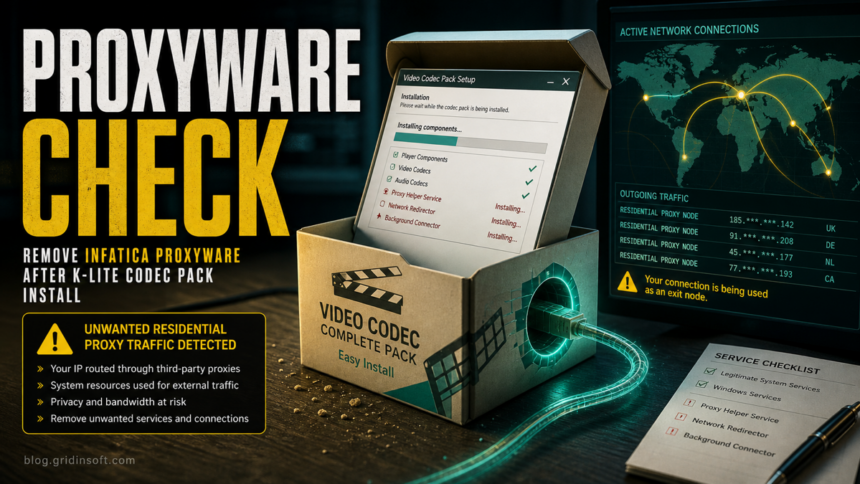
If Infatica appeared after installing K-Lite Codec Pack, treat it as a separate proxyware or PUA problem, not as proof that the codec pack itself is malware. K-Lite is a legitimate Windows codec bundle when downloaded from its official Codec Guide site, but Infatica is tied to residential proxy sharing. If you did not knowingly agree to share bandwidth or run a proxy service, remove Infatica, verify that no proxy service remains, and scan Windows for bundled leftovers.
If Kaspersky instead flags the current official installer as not-a-virus:Downloader.Win32.Agent.nzon, do not treat that label alone as proof of a Trojan or as permission to restore the file. First compare the source, filename, size, hashes, and digital-signature status with Codec Guide’s current release details. A separate alert on mpc-hc64.exe or another installed file must be reviewed as a different object.
The important distinction is consent. A media codec pack should help Windows play video and audio files. It should not quietly turn your PC into a residential proxy node, create unknown background services, or route third-party traffic through your home IP address. Use the checklist below to separate a normal K-Lite install from an unwanted proxy component.
If the same cleanup problem points to Microleaves instead of Infatica, use the Microleaves removal guide to check Windows proxy settings, scheduled tasks, browser leftovers, and PUP detections.
What Happened?
K-Lite Codec Pack is a free software bundle for Windows media playback, and its official download pages describe codec and player components rather than a security threat. The problem users report is different: after a full or third-party install, they find Infatica, Digital Pulse, or an Infatica-related service running in the background.
Infatica P2B uses a peer-to-business proxy model in which an app can share bandwidth, while Sophos documents it as a potentially unwanted application when it appears in a non-standard or unclear context. That makes the right safety decision practical: do not panic about the video codecs, but do remove the proxy component if it was unexpected.
Quick Safety Verdict
- Official K-Lite, no Infatica, no odd services: usually low risk. Keep the installer source, update normally, and avoid mirror installers.
- Only
not-a-virus:Downloader.Win32.Agent.nzonon the official 19.8.5 installer, with every published value matching: keep it blocked while you update Kaspersky databases and submit the file or hash for reanalysis. Do not exclude the K-Lite folder. - Filename, size, hash, source, or signature differs, or another object has a high-severity alert: quarantine it. An official installer hash cannot clear a different file; inspect each finding and run a full scan.
- Infatica, Digital Pulse, or a residential proxy service appeared: remove the proxy component, check services and startup, and scan for bundled PUA leftovers.
- Router or security logs show unknown outbound traffic: disconnect, remove the service, reset proxy settings, and review important accounts from a clean device.
- The proxy service returns after uninstall: treat it as persistence. Check scheduled tasks, startup folders, browser extensions, and run a cleanup scan.
Why Kaspersky Can Flag the Official 19.8.5 Installer
Kaspersky uses the not-a-virus prefix for software classes that are not inherently malicious but can be used in risky ways. Its downloader class can retrieve content from network resources, so the classification calls for verification rather than an automatic malware verdict. It is also not an automatic false positive: you still need to identify the exact file that triggered the warning.
As checked on August 2, 2026, Codec Guide lists these values for K-Lite Codec Pack 19.8.5 Full, released July 20, 2026:
- Filename:
K-Lite_Codec_Pack_1985_Full.exe - Size:
56144 KB - SHA-256:
6e4a5a2168034876e663d71bbd1522594eff7045c9646e69b2b0d887f12db40d - MD5:
4b1ee74b738246c5f2ad076f688ab6c6
Open PowerShell in the folder that contains your download and run each command separately:
- SHA-256:
Get-FileHash .\K-Lite_Codec_Pack_1985_Full.exe -Algorithm SHA256 - MD5:
Get-FileHash .\K-Lite_Codec_Pack_1985_Full.exe -Algorithm MD5
A match is strong evidence that the download is byte-for-byte identical to the file currently listed by the publisher. It does not clear a different installed executable, prove that the rest of the PC is clean, or validate an older or future K-Lite release. Always compare against the release page that is current when you download the file.
How to Decide Whether to Restore or Quarantine
- Leave the object blocked while you verify it. Update Kaspersky’s databases and scan the same object again. Do not add the installer or its whole folder to exclusions just to make the warning disappear.
- Confirm the source. Use Codec Guide’s own HTTPS download page. A familiar filename from a mirror, search ad, torrent, repack, or old download folder is not equivalent to the current official file.
- Compare all available identity clues. Match the exact version, filename, size, SHA-256, and MD5, and check Windows Properties > Digital Signatures for a valid signature. A matching hash is stronger evidence than the filename or icon alone.
- Use reanalysis for the narrow low-severity case. If all official values match and the downloader/riskware label is the only finding, check the hash in Kaspersky Threat Intelligence Portal and use Submit to reanalyze if you disagree with the result. Wait for updated analysis instead of overriding protection immediately.
- Quarantine mismatches and companion detections. If the hash differs, the signature is missing or invalid, the source is unclear, or other security tools report separate objects, delete the untrusted installer and run a full scan. Our generic-detection false-positive guide explains how to weigh source, behavior, and multi-engine disagreement without relying on vote count alone.
- Review an
mpc-hc64.exealert separately. The installer hash above does not prove that an installed player file with a different hash is safe. Keep that object quarantined, submit it for reanalysis, and reinstall from a freshly verified official package only after the alert is resolved.
How to Remove Infatica After a K-Lite Install
- Stop using the installer that brought it in. Keep the filename and download URL for reference, but do not run it again. If you downloaded K-Lite from a mirror, delete that installer and use the official Codec Guide source only if you need to reinstall media codecs.
- Uninstall Infatica or Digital Pulse first. Open Settings > Apps > Installed apps, sort by install date, and remove Infatica, Digital Pulse, or any unfamiliar proxy/bandwidth-sharing entry. Restart Windows after the uninstall.
- Check Windows Services. Press Win+R, run
services.msc, and look for entries that reference Infatica, Digital Pulse, proxy, bandwidth, or P2B. Stop and disable only entries you can clearly tie to the unwanted component. Do not disable random Microsoft or driver services. - Review Task Manager startup apps. Disable unknown startup entries that appeared on the same day as the codec install. Right-click each suspicious entry and open its file location before deleting anything.
- Inspect Scheduled Tasks. Open Task Scheduler and check recently created tasks under Task Scheduler Library. Proxyware often survives a normal uninstall by launching from AppData, ProgramData, or a vendor-named folder after reboot.
- Reset proxy settings. Go to Settings > Network & Internet > Proxy and turn off unknown manual proxy settings. In a browser, remove unfamiliar extensions and notification permissions if pop-ups or redirects also started after the install.
- Scan Windows after manual cleanup. Run a security scan if Infatica persists, if the installer came from a mirror, or if you see other symptoms such as browser redirects, blocked outbound traffic, or unexplained CPU/network use. Gridinsoft Anti-Malware can help check for bundled PUA components, proxyware leftovers, and other unwanted apps that arrived with the same installer.
If the installer values do not match, the file came from somewhere else, or a separate high-severity alert returns after reboot, keep the object quarantined and scan before restoring it. A scan can check bundled apps, services, scheduled tasks, and other persistence, but no scanner result by itself proves that a file is safe.
A false positive is possible, but restore only after checking that the system has no companion detections, startup entries, scheduled tasks, or hidden files tied to the same source.
Scan before restoring this installerShould You Remove K-Lite Too?
Remove K-Lite if you do not need it, if it came from a suspicious mirror, or if the same installer clearly bundled unwanted components. If you still need a codec pack, uninstall the current copy, reboot, download only from the official Codec Guide site, choose a custom install, and decline optional offers you do not understand.
If the unexpected installed item is named FreeCodecPack rather than K-Lite or Infatica, use the FreeCodecPack removal guide to group same-day companion apps, clean browser changes, and check startup or scheduled-task leftovers after reboot.
Do not label every K-Lite installation as infected. The safer article rule is narrower: an unexpected Infatica or residential proxy service is the problem. The codec pack may be legitimate, but the bundled proxy component changes your privacy, bandwidth, and abuse-risk picture.
What to Check After Removal
- Network usage: watch Task Manager, Resource Monitor, or your router for outbound traffic that continues when no browser or media app is open.
- File locations: investigate recently created folders in
Program Files,Program Files (x86),ProgramData, and your userAppDatafolders. - Browser state: remove unknown extensions, search providers, homepages, and notification permissions that appeared after the install.
- Security logs: if your router or antivirus reported proxy, PUA, or unusual outbound traffic, keep the event name and time. It helps you verify whether cleanup stopped the behavior.
- Important accounts: if you ran a suspicious installer from a mirror or crack site, change passwords from a clean device and sign out of active sessions for email, banking, and password-manager accounts.
How to Avoid This Next Time
Download media tools from the original publisher, not a search ad, freeware mirror, or repack site. Use custom installation, read every optional component screen, and cancel the setup if it asks to install a proxy, browser extension, search tool, VPN, “web data” component, or bandwidth-sharing service you did not request.
Bright VPN uses a comparable consent decision: the recognized app can arrive as an optional offer and lets a web-data network use the device’s IP address. If that is the product you found rather than Infatica, use the Bright VPN safety and removal guide to verify the file, stop the proxy activity, and clear startup leftovers.
If the broader symptom is that apps, redirects, or proxy settings keep coming back, compare this cleanup with our PUA and browser hijacker removal guide. If you found a specific executable that behaves like proxyware, the upWire.exe Trojan.Proxy guide shows a similar residential-proxy risk pattern. For fake media or downloader installers, see the fake downloader cleanup checklist.
FAQ
Is K-Lite Codec Pack a virus?
No, K-Lite Codec Pack is a legitimate Windows codec bundle when obtained from the official Codec Guide site. The concern is an extra proxyware component such as Infatica that may appear with some full, mirrored, or bundled installer flows.
Is Infatica malware?
Infatica is associated with residential proxy sharing. Security tools may classify unexpected Infatica components as PUA or PUP because they can use bandwidth, run in the background, and route other traffic through your IP address. If you did not clearly agree to that, remove it.
Can a proxy service get my accounts banned?
It can create risk because third-party traffic may appear to come from your home IP address. That can affect reputation, trigger router or security alerts, or create abuse complaints. Remove the service and review important accounts if the installer source was suspicious.
Is uninstalling Infatica enough?
Often yes, if it was installed cleanly and does not return after reboot. If it reappears, keeps network connections open, or arrived with other unwanted apps, check services, scheduled tasks, startup entries, browser settings, and run a security scan.
References
- Codec Guide. “Download K-Lite Codec Pack Full.” Codec Guide, version 19.8.5 published July 20, 2026, accessed August 2, 2026. https://codecguide.com/download_k-lite_codec_pack_full.htm
- Kaspersky. “Downloader.” Kaspersky Threats, published April 19, 2016, accessed August 2, 2026. https://threats.kaspersky.com/en/class/Downloader/
- Kaspersky. “False detections by Kaspersky applications. What to do?” Kaspersky Support, updated November 7, 2025, accessed August 2, 2026. https://support.kaspersky.com/1870
- Sophos Support. “Potentially Unwanted Application detection release for Infatica P2B Application in Non-Standard Location.” Sophos, published 2026, accessed August 2, 2026. https://support.sophos.com/support/s/article/KBA-000043735