A botnet is a network of infected computers, phones, routers, or IoT devices that an attacker can control remotely. If your PC is part of one, it may send spam, proxy someone else’s traffic, mine cryptocurrency, join DDoS attacks, steal data, or download more malware while Windows still looks mostly normal.
The fastest way to approach this is not to panic over one slow day. Look for a cluster of signs: unexplained outbound traffic, security alerts, unknown startup entries, router changes, account spam, and an IP reputation warning. Then disconnect, preserve the evidence, scan, remove persistence, and secure accounts from a clean device.
Most useful botnet checks
- Open Task Manager or Resource Monitor and look for network traffic when the PC should be idle.
- Check Windows Security or your antivirus history for trojans, proxyware, miners, RATs, or blocked outbound connections.
- Review Startup Apps, Task Scheduler, browser extensions, proxy settings, and unknown services.
- Log in to the router and check connected devices, DNS settings, firmware, and remote-management settings.
- Use an IP reputation check as a signal, then verify locally before assuming every device is infected.
Botnet Signs to Check First
- Network traffic while the PC is idle: a hidden process may be beaconing, proxying traffic, sending spam, mining, or downloading another payload.
- High CPU, fan noise, heat, or battery drain: botnet malware may be using resources for cryptomining, scanning, brute-force attempts, or traffic relay.
- Security alerts keep returning: persistence may still exist in startup folders, scheduled tasks, services, browser extensions, or a bundled installer.
- Accounts send messages you did not write: the same compromise may have stolen sessions or credentials.
- CAPTCHAs, account blocks, or IP reputation warnings increase: your public IP may be associated with proxy abuse, credential attacks, scanning, or spam.
- Unknown VPN, proxy, remote access, or optimizer apps appear: residential proxyware and trojans often disguise themselves as networking tools.
- Router DNS, port forwarding, or admin settings change: the infection may be at the network edge, not only on the Windows PC.
- Browser redirects or extensions return after removal: a browser hijacker or updater task may be reinstalling the component that creates suspicious traffic.
No single sign proves a botnet infection. Cloud sync, Windows Update, games, backups, and streaming can all create traffic. The warning level rises when the same device also has malware alerts, unknown startup items, proxy settings, suspicious downloads, or router changes.
How to Check If Your Computer Is Part of a Botnet
- Disconnect if traffic is active. Turn off Wi-Fi or unplug Ethernet when you see unexplained outbound traffic, repeated security alerts, or account abuse.
- Record the evidence first. Save the antivirus detection name, file path, process name, IP reputation result, and router device list. Do this before deleting temporary files.
- Open Task Manager and Resource Monitor. In Windows, sort processes by CPU and network usage. Resource Monitor’s Network tab can show which process owns a connection.
- Check security history. In Windows Security, review Protection history for blocked or quarantined malware, potentially unwanted apps, and repeated detections. Microsoft notes that this page records actions Defender has taken on threats.[4]
- Inspect persistence. Check Startup Apps, Task Scheduler, Services, browser extensions, proxy settings, firewall rules, and recently installed apps.
- Check the router. Look for unknown connected devices, changed DNS servers, unexpected port forwarding, remote admin exposure, and outdated firmware.
- Run a full scan. Use your installed security product and a second-opinion scan. For suspicious downloads, you can also check individual files with Gridinsoft Online Virus Scanner.
Use an IP Reputation Check, But Do Not Stop There
Some botnets and residential proxy networks reveal themselves at the network level. If your home IP appears in an IP reputation tool, it can mean a device on the network is scanning, proxying traffic, or contacting suspicious infrastructure. GreyNoise’s IP Check is one public example of this kind of signal.[3]
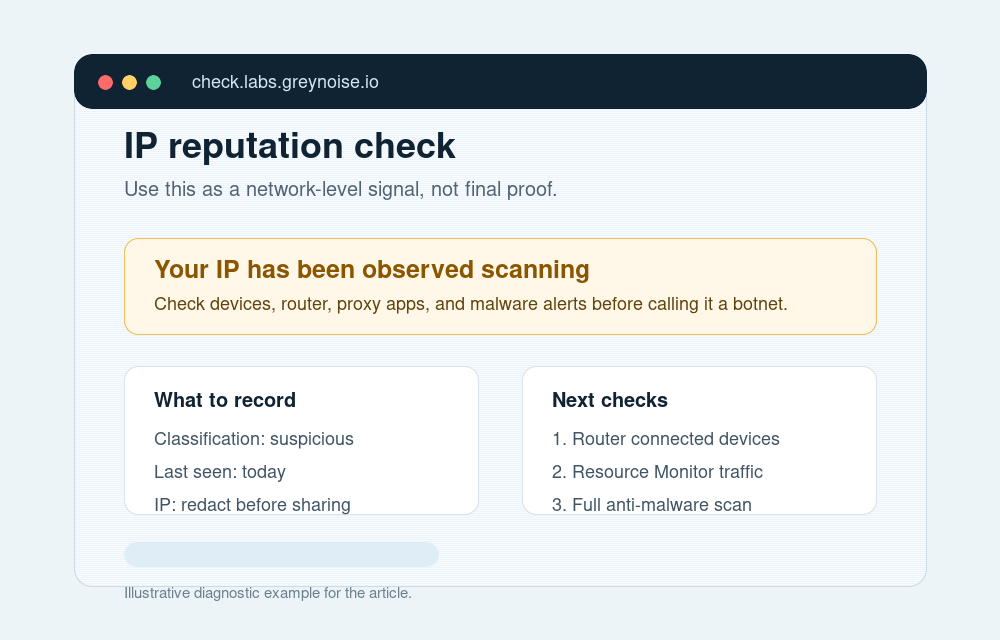
An IP warning does not identify the infected device by itself. It may point to your Windows PC, router, Android TV box, camera, NAS, or another device behind the same public IP. Treat it as a triage clue: check the router’s device list, scan Windows PCs, update IoT firmware, and remove anything that looks like proxyware or a fake VPN.
What to Remove
Botnet infections often arrive through cracked software, fake installers, malicious browser extensions, phishing attachments, outdated remote-access services, and weak router or IoT passwords. One practical example is upWire.exe Trojan.Proxy proxyware, where the visible symptom may be a suspicious executable, VPN-like name, or outbound traffic rather than a classic “botnet” warning.
- Unknown proxy/VPN apps, bandwidth-sharing tools, and “optimizer” utilities you did not intentionally install.
- Suspicious scheduled tasks, services, startup entries, and firewall rules created around the infection time.
- Browser extensions that reappear, change search settings, or create redirects.
- Cracked installers, fake game mods, download managers, and archives that triggered the first alert.
- Router settings that expose admin panels, use weak DNS, or forward ports unexpectedly.
If the infection also caused DNS errors, browser redirects, or network instability, use the cleanup steps in our DNS server isn’t responding after malware guide after removing the suspicious programs.
Cleanup Order That Avoids Reinfection
- Disconnect the suspected device from the network.
- Remove the original installer, archive, extension, or app that introduced the threat.
- Remove persistence: startup entries, scheduled tasks, services, proxy settings, and firewall rules.
- Run a full system scan. If the same malware keeps returning, use an offline scan because persistent malware can hide while Windows is running.[4]
- Reboot and rescan. Do not sign back in to sensitive accounts until scans are clean.
- Reset browser sync carefully if malicious extensions or settings keep returning.
- Change passwords from a clean device, starting with email, banking, cloud, crypto, gaming, and work accounts.
- Update Windows, browsers, router firmware, and IoT firmware. Disable router remote administration unless you truly need it.
After uninstalling the suspicious app or deleting the visible threat, use Gridinsoft Anti-Malware to check hidden files, startup entries, scheduled tasks, bundled apps, browser changes, and other persistence points that can restore malware.
Download Anti-MalwareWhen to Reset the PC or Router
A clean Windows reinstall from official media is reasonable when alerts keep returning after full scans, the device handled sensitive work, a remote access trojan was active, or you cannot identify what changed. Back up personal files only; do not bring back unknown executables, cracked installers, browser extension backups, or suspicious scripts.
Reset the router when DNS settings, admin credentials, port forwarding, or firmware look suspicious. After the reset, update firmware, set a strong admin password, disable remote administration, and reconnect devices one at a time. Recent botnet takedowns are a reminder that routers and IoT devices can be part of the problem, not just Windows PCs; see our 17 million-device botnet takedown coverage for that angle.
FAQ
Can a botnet infection run silently?
Yes. Many botnet infections are designed to stay quiet and wait for commands. The only visible clues may be outbound traffic, heat, account abuse, a security alert, or an IP reputation warning.
Is high internet usage proof of a botnet?
No. Updates, cloud sync, games, backups, and streaming can use bandwidth. Treat high usage as suspicious when it is tied to an unknown process, proxy settings, malware alerts, or traffic while the PC should be idle.
Can my router or TV box be in a botnet instead of my PC?
Yes. Routers, cameras, Android TV boxes, NAS devices, and other IoT devices are common botnet targets. If your public IP is flagged but your PC scans clean, inspect and update the network devices too.
Should I change passwords after a botnet alert?
Yes, if there were malware detections, account spam, suspicious browser activity, or a proxy/RAT component. Change passwords from a clean device and revoke active sessions where the service allows it.
Related Guides
For nearby cleanup problems, read the botnet danger explainer, Trojan malware guide, virus protection tips, and factory reset vs malware.
References
- CISA. “Mitigating DDoS Attacks.” Cybersecurity and Infrastructure Security Agency, June 3, 2020, accessed June 1, 2026. https://www.cisa.gov/news-events/alerts/2020/06/03/mitigating-ddos-attacks
- CISA. “Malware, Phishing, and Ransomware.” Cybersecurity and Infrastructure Security Agency, accessed June 1, 2026. https://www.cisa.gov/topics/cyber-threats-and-advisories/malware-phishing-and-ransomware
- GreyNoise Intelligence. “GreyNoise IP Check.” GreyNoise Labs, accessed June 1, 2026. https://check.labs.greynoise.io/
- Microsoft Support. “Virus and Threat Protection in the Windows Security App.” Microsoft, accessed June 1, 2026. https://support.microsoft.com/en-us/windows/help-protect-my-pc-with-microsoft-defender-offline-9306d528-64bf-4668-5b80-ff533f183d6c