RuntimesHost.exe is not a normal Microsoft Windows runtime host. If you find a RuntimesHost folder in %ProgramFiles(x86)%, a bundled node.exe, or a scheduled task named RuntimesHost_user, treat it as unwanted proxy-malware behavior until proven otherwise. Close sensitive account sessions, save the suspicious path and task name, and scan Windows before signing back in. Use the manual task, process, and folder checks below if the bundle remains or returns.
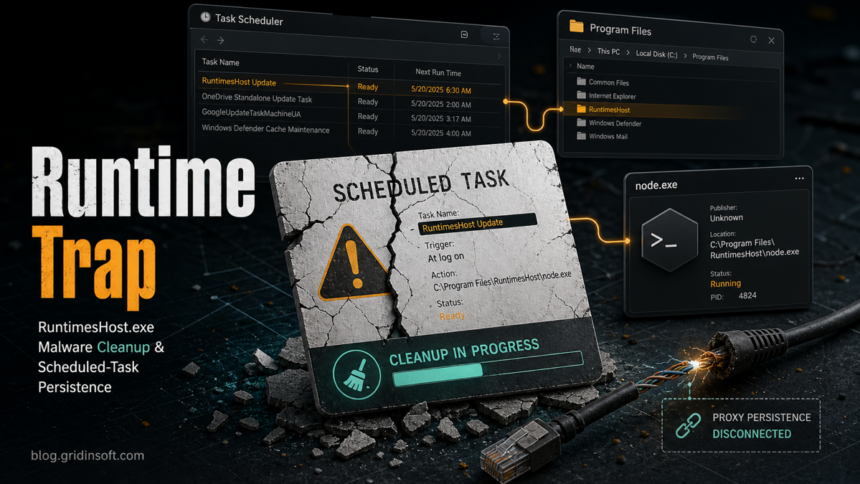
The name is confusing because legitimate runtimes and Node.js can exist on Windows. The suspicious pattern is the combination: %ProgramFiles(x86)%\RuntimesHost\RuntimesHost.exe, %ProgramFiles(x86)%\runtimeshost\node.exe, JavaScript files, proxy-client arguments, and a logon task that brings it back after reboot. Dr.Web added Trojan.MulDrop38.25782 in June 2026 and lists this exact RuntimesHost layout, a Run key, a RuntimesHost_user scheduled task, DNS activity, and a proxyrack-pop-client command line [1].
Quick checks for RuntimesHost.exe
- Suspicious path:
%ProgramFiles(x86)%\RuntimesHost\RuntimesHost.exeor%ProgramFiles(x86)%\runtimeshost\node.exe. - Persistence clue: a task named
RuntimesHost_useror a Run key namedRuntimesHost. - Proxy clue: command-line text such as
proxyrack-pop-client,script.js, or unknown long-lived outbound traffic. - First action: stop network-sensitive work, save the path/task details, then use the full-scan route below; review persistence if the folder returns.
Check Windows before continuing
Save the suspicious path and task name, close sensitive sessions, and stop using the affected PC for account access. If the RuntimesHost folder and logon task match the pattern above, start with a malware scan; the detailed manual checks below help if it still returns. A legitimate Node.js installation by itself is not this case.
Deleting the EXE can leave its launch mechanism behind. Use Gridinsoft Anti-Malware to scan for the RuntimesHost bundle and malicious startup components, then review any remaining task or proxy changes.
Download Anti-Malware for WindowsAfter downloading: install Gridinsoft Anti-Malware, activate the trial if eligible, update its database, and run a Full Scan. Review detections, clean the items you confirm, then restart Windows. If the same symptom returns, use the source and persistence checks below.
What is RuntimesHost.exe?
In this malware context, RuntimesHost.exe is the visible launcher for a bundle that uses Node.js and a scheduled task to keep running. It is not the same as Windows Runtime Broker, Microsoft Visual C++ runtime files, or a normal developer-installed Node.js copy. A legitimate runtime should have a clear vendor, expected install path, signature, and purpose. A random RuntimesHost folder in Program Files with proxy-client arguments is a different risk profile.
| What you see | What it usually means |
|---|---|
RuntimesHost.exe in Program Files (x86) |
Likely unwanted app or malware launcher, especially if unsigned or recently created. |
node.exe inside the same folder |
Node.js is being used as the runtime for bundled scripts; judge it by folder, signature, and command line. |
RuntimesHost_user task |
Logon persistence. The task can recreate the process after you delete files manually. |
proxyrack-pop-client or proxy DNS names |
Your PC may be enrolled into unwanted residential-proxy traffic, not just showing an inert file. |
Why RuntimesHost keeps coming back
Deleting the folder first often fails because the launcher still has persistence. Microsoft documents that schtasks.exe can create, query, run, end, and delete scheduled tasks, and that scheduled tasks can run programs at logon or on a schedule [2]. Malware uses the same Windows mechanism: the task stays registered, and Windows starts the unwanted executable again when the trigger fires.
In the Dr.Web entry, the task action points back to %ProgramFiles(x86)%\RuntimesHost\RuntimesHost.exe and a Run key also names RuntimesHost [1]. That is why a cleanup should start with process and persistence checks, not only file deletion.
Step 1: Contain the session
- Disconnect from high-value accounts. Close banking, email, crypto, work, password manager, Steam, Discord, and browser-sync sessions on the affected PC.
- Save the evidence. Note the exact folder, file names, task name, creation time, publisher/signature, and any security-tool detection names.
- Do not sign in again yet. Proxy malware does not automatically prove password theft, but the same installer may have dropped other components.
- Disconnect from the network if traffic is active. If Task Manager, Resource Monitor, firewall logs, or your router show unexpected outbound traffic from the folder, disconnect while you remove persistence.
Step 2: Stop RuntimesHost and node.exe
Open Task Manager, Details, and look for RuntimesHost.exe and node.exe. Confirm the path before ending anything: right-click the process, open file location, and verify whether it points to the suspicious RuntimesHost folder. End the process only after you have saved the path and command-line clues.
Advanced users can use PowerShell or Process Explorer to inspect command lines, but do not run scripts copied from random forum comments. The important clue is whether node.exe launches script.js from the RuntimesHost folder or uses proxy-client arguments. A normal developer Node.js install in a project directory is a different case.
Step 3: Remove the scheduled task and Run key
Open Task Scheduler and check Task Scheduler Library for RuntimesHost_user or similarly named recent tasks. Review the Actions tab. If the action launches %ProgramFiles(x86)%\RuntimesHost\RuntimesHost.exe, disable the task first, export or screenshot the details if you need evidence, then delete it. For the related fake-audio-driver pattern, see the RealtekHD taskhostw.exe AutoIt cleanup guide.
Also check the current-user Run key:
HKCU\Software\Microsoft\Windows\CurrentVersion\RunRemove only the value that points to the RuntimesHost path. Do not delete the whole Run key. If the task or Run value returns immediately, another process or service is still active, so go back to process and startup checks before deleting files.
Step 4: Delete the folder after persistence is gone
- Confirm the processes are stopped.
- Confirm the
RuntimesHost_usertask is gone or disabled. - Confirm the Run value no longer points to
RuntimesHost.exe. - Delete the folder, usually
%ProgramFiles(x86)%\RuntimesHostor%ProgramFiles(x86)%\runtimeshost. - Reboot and check whether the folder, process, and task stay removed.
If Windows says the folder is in use, something is still running. Do not force-delete random files from Safe Mode until you know what relaunches them; otherwise you may remove the visible executable but leave the task, service, or companion app behind.
Step 5: Scan for leftovers
RuntimesHost-style proxy malware can leave more than one artifact: startup entries, scheduled tasks, hidden scripts, browser changes, bundled apps, firewall rules, and proxy settings. Use the scan route near the start of this guide to run a full Gridinsoft Anti-Malware scan, remove detections, reboot, and scan again if the folder or task returns.
For deeper startup review, Microsoft Sysinternals Autoruns shows startup folders, Run keys, services, browser helper objects, shell extensions, Winlogon entries, and other auto-start locations; its option to hide signed Microsoft entries helps focus on third-party additions [3]. Use it carefully: disable or delete only entries that point to the suspicious folder or an unknown companion app.
Step 6: Check proxy, browser, and firewall changes
- Windows proxy: open Settings, Network & internet, Proxy. Remove manual proxy servers or scripts you did not configure.
- Browser settings: review extensions, homepage, startup pages, search engine, notification permissions, and managed policies.
- Firewall rules: remove rules that allow
RuntimesHost.exe, the bundlednode.exe, or a suspicious helper from the same folder. - Router/IP reputation: if websites block your IP or your ISP reports abusive traffic, compare the incident with our proxyjacking cleanup guide.
Do you need to change passwords?
RuntimesHost proxy behavior does not automatically prove that passwords or browser cookies were stolen. Change passwords from a clean device if the original infection came from a crack, fake installer, Discord/Telegram file, game mod, remote-support session, or if you saw account alerts, browser-token theft signs, new extensions, or other malware detections. Start with email, Microsoft/Google, password manager, banking, crypto, Steam, Discord, and work accounts.
If this started after a game/mod download or fake installer, use the infostealer after downloading a game or mod checklist to decide which sessions to revoke and what can be restored safely.
What not to do
- Do not assume
RuntimesHost.exeis safe because the name sounds like a runtime component. - Do not delete only
node.exeand leave the scheduled task behind. - Do not add antivirus exclusions for the folder to stop alerts.
- Do not download random removal tools from search results that mention the same filename.
- Do not change passwords on the same PC before cleanup if the installer may also have dropped an infostealer.
FAQ
Is RuntimesHost.exe a Windows file?
No, not in the suspicious Program Files pattern described here. Do not confuse it with legitimate Windows runtime components or Runtime Broker. Check the file path, publisher, scheduled task, and command line.
Why is node.exe inside RuntimesHost?
Node.js can be legitimate, but malware and unwanted proxy clients can bundle node.exe to run JavaScript. A Node copy inside %ProgramFiles(x86)%\runtimeshost with proxy-client arguments is suspicious.
Can I just delete the RuntimesHost folder?
Only after stopping the process and removing persistence. If the scheduled task or Run key remains, the folder may come back after reboot or the next logon.
What is RuntimesHost_user?
It is the scheduled-task name observed in the Dr.Web entry for this RuntimesHost malware pattern. If the task launches RuntimesHost.exe, disable/delete that task during cleanup.
Does RuntimesHost mean my accounts were hacked?
Not by itself. Treat account risk as higher if the file ran from a crack, fake installer, mod, message attachment, or if you also see browser/session, password, or account-alert symptoms.
References
- Doctor Web. “Trojan.MulDrop38.25782.” Dr.Web Virus Library, added June 7, 2026, description added June 9, 2026, accessed June 17, 2026. https://vms.drweb.ru/virus/?i=33345360.
- Microsoft Learn. “schtasks commands.” Microsoft, applies to Windows 10/11 and Windows Server, accessed June 17, 2026. https://learn.microsoft.com/en-us/windows-server/administration/windows-commands/schtasks.
- Mark Russinovich. “Autoruns for Windows.” Microsoft Sysinternals, published May 7, 2026, accessed June 17, 2026. https://learn.microsoft.com/en-us/sysinternals/downloads/autoruns.