

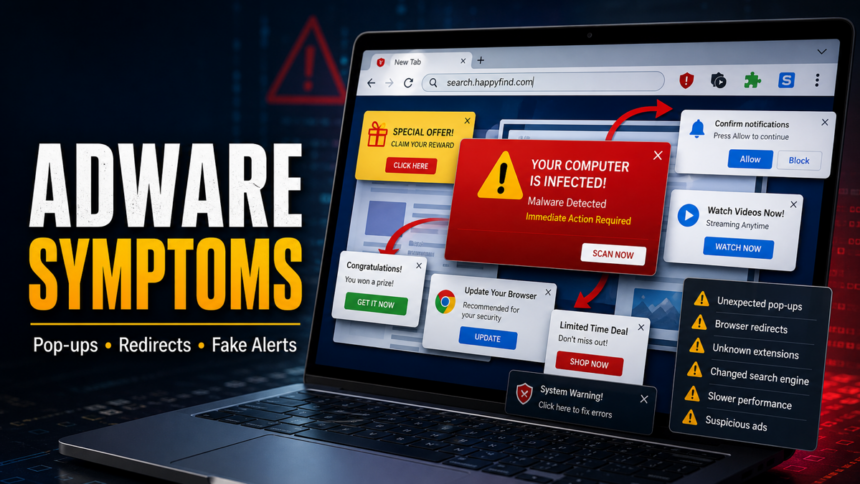
If adware is active on your computer, the first clues usually appear in the browser: pop-ups that do not match the site you are visiting, searches that jump to another engine, fake virus alerts, notification spam, or extensions you do not remember installing. One odd ad is not proof of infection, but repeated symptoms across several websites usually mean the browser, notification permissions, or Windows startup entries need to be checked.
Fast adware symptoms check
- Pop-ups or new tabs open repeatedly, even on trusted websites.
- Your search engine, homepage, or new-tab page changes without permission.
- Fake virus warnings, prize offers, update prompts, or coupon ads keep appearing.
- Unknown browser extensions, toolbars, or “helper” apps show up after a download.
- Browser notifications appear after the browser is closed or minimized.
- The browser becomes slow, crashes, or shows ads on pages that normally have none.
This page is a symptom checklist. For the broader definition, examples, and full background, use the companion What Is Adware? hub.
If the main problem is that ads suddenly appear everywhere and you need to trace the active source, use the Ads Everywhere? Find the Adware Source guide.
Do I have adware? A 60-second check
Open a trusted site you know well, such as your email provider or a major news site, then compare what happens in a clean browser profile if possible. Adware is more likely when the same strange ads, redirects, or fake alerts follow you across unrelated websites. It is less likely when the problem appears only on one aggressive website and stops after you close that tab.
| What you see | Likely source | Check first |
| Pop-ups on many websites | Extension, ad injector, or installed PUA | Extensions and recently installed apps |
| Alerts after the browser is closed | Allowed push notifications or background app | Browser notification permissions |
| Searches always use a different engine | Browser hijacker or policy setting | Search/startup settings and browser policies |
| Fake “PC infected” messages | Scareware page, notification abuse, or adware redirect | Do not call; close the page and scan if it returns |
If the repeating alert uses TotalAV branding, first identify whether it is the real app, a browser notification, or a fake web warning with the TotalAV pop-up removal guide.
8 adware symptoms and what they mean
1. Pop-ups appear on websites that normally do not show them
Adware can inject ads into pages after the site loads, so the ads may look as if they belong to the website. Watch for floating coupons, download buttons, gambling prompts, fake video players, or “limited time” offers that appear on clean pages. If the same ad style follows you from site to site, check browser extensions and installed programs.
2. Searches redirect to an unfamiliar search engine
A common adware symptom is a search query that starts in Google, Bing, or your chosen engine but lands on another search portal. This usually points to a browser hijacker, an unwanted extension, or a policy that changed search and new-tab settings. If settings immediately revert after you fix them, use the PUA and browser hijacker cleanup guide for deeper checks.
3. Your homepage or new-tab page changes by itself
Bundled installers often change the homepage, default search provider, and startup page at the same time. The symptom may look minor, but it matters because the new page can route searches through ads, tracking, or misleading downloads. Check every browser profile, not only the browser you use most often.
4. Unknown extensions or toolbars appear
Extensions with names like “Search,” “Coupons,” “PDF,” “Video,” “Shopping,” “Templates,” or “Assistant” can be adware when they inject ads or redirect traffic. Remove extensions you did not install intentionally, then restart the browser and confirm they do not come back through sync. If an extension returns after removal, pause browser sync and scan Windows for the installer that keeps restoring it.
5. Fake virus alerts or fake update prompts appear
Adware often sends users to pages claiming the computer is infected, the browser is outdated, or a codec/driver update is required. Do not call phone numbers, install the offered “fix,” or enter payment details. If the alert uses a Microsoft, McAfee, Google, or browser-like design but appears inside a web page, treat it as a scam and compare it with the fake virus alert cleanup guide.
6. Notification spam keeps appearing
Some “adware” symptoms are caused by browser push notifications rather than a full program installed on Windows. The giveaway is a small browser-style notification that appears in the corner of the screen and links to prizes, fake antivirus warnings, adult pages, or suspicious downloads. Revoke unknown sites in notification settings; the browser push notification guide has the exact Chrome, Edge, Firefox, and Safari paths.
7. The browser becomes slow, unstable, or ad-heavy
Ad injection, tracking scripts, redirect chains, and overloaded extensions can make pages slow to load or cause crashes. This symptom is not unique to adware, so check CPU/RAM use, disable suspicious extensions, and test a clean browser profile. If performance improves in the clean profile, the problem is likely tied to browser settings, extensions, or synced data.
8. Ads appear after installing free software, cracks, or browser tools
Adware frequently arrives through bundled installers, fake download buttons, cracked apps, browser toolbars, “driver updaters,” and file converters. If symptoms started right after installing something, uninstall that app, check Startup and Task Scheduler, and scan the system for leftovers. A visible extension is often only the front end; the restoring component may be a separate Windows app.
Adware, normal ads, or notification spam?
| Case | How it behaves | What to do |
| Normal website ads | Stay inside one website and stop when you leave it | No cleanup needed unless the site itself is unsafe |
| Notification spam | Small alerts appear from sites you allowed earlier | Remove unknown notification permissions |
| Browser hijacker | Search, homepage, or new tab keeps changing | Remove extensions, restore settings, check policies |
| Installed adware | Ads, redirects, or extensions return after manual cleanup | Uninstall suspicious apps and run a security scan |
What to check first
- Close the suspicious tab without clicking its buttons. If it is full-screen, press Esc or close the browser window.
- Remove unknown extensions. Check Chrome, Edge, Firefox, Safari, and any secondary browser profile.
- Revoke suspicious notifications. Remove unknown sites allowed to send notifications.
- Restore search, homepage, and startup settings. Make sure they stay fixed after a restart.
- Uninstall recent apps. Look for software installed shortly before the symptoms began.
- Check startup persistence. Review Startup apps and Task Scheduler if redirects or extensions return.
- Scan the computer. Use Gridinsoft Adware Remover or a full anti-malware scan when symptoms persist after browser cleanup.
Browser reset can remove visible symptoms, but adware may keep a desktop app, extension source, notification permission, or startup task that brings pop-ups and redirects back.
Run a scan if two or more symptoms matchBrowser cleanup paths
| Browser | Where to check |
| Chrome | Extensions, Search engine, On startup, Site settings → Notifications |
| Edge | Extensions, Start/home/new tabs, Cookies and site permissions → Notifications |
| Firefox | Add-ons, Home, Search, Privacy & Security → Notifications |
| Safari | Extensions, Search, Websites → Notifications |
When a scan is worth it
Run a scan when adware symptoms come back after you remove extensions, when several browsers are affected, when new apps appeared at the same time, or when fake alerts pushed you to download a file. Also scan if you entered passwords or payment details after a redirect, because adware often exposes users to phishing and support-scam pages.
FAQ
Is one pop-up enough to prove adware?
No. One bad website can show aggressive ads without infecting the computer. Adware is more likely when pop-ups, redirects, fake alerts, or changed settings follow you across different websites or return after browser cleanup.
Why do adware pop-ups appear after I close the browser?
They are often browser notifications from a site you allowed earlier, or a background app installed with a bundle. Remove suspicious notification permissions first, then check installed apps if the alerts continue.
Can adware steal passwords?
Some adware only shows ads, but malicious extensions and bundled threats can redirect logins, track browsing, or install additional malware. Treat persistent adware as a security issue, especially after fake alerts or suspicious downloads.
Why does adware come back after I remove an extension?
The extension may be restored by browser sync, a Windows app, a scheduled task, or a browser policy. Pause sync, remove the related app, check startup entries, and run a scan before resetting the browser.
Should I reset my browser?
Reset only after removing suspicious extensions, notification permissions, and installed apps. A reset helps when search, startup, and new-tab settings keep returning, but it will not fix a separate Windows component that reinstalls the adware.



How do I get rid of Adware? McAfee will not go away. I don’t want to just change to a paid for system unless it will work
Is there a simple solution to stop interference to use of the Internet?
I have no website.