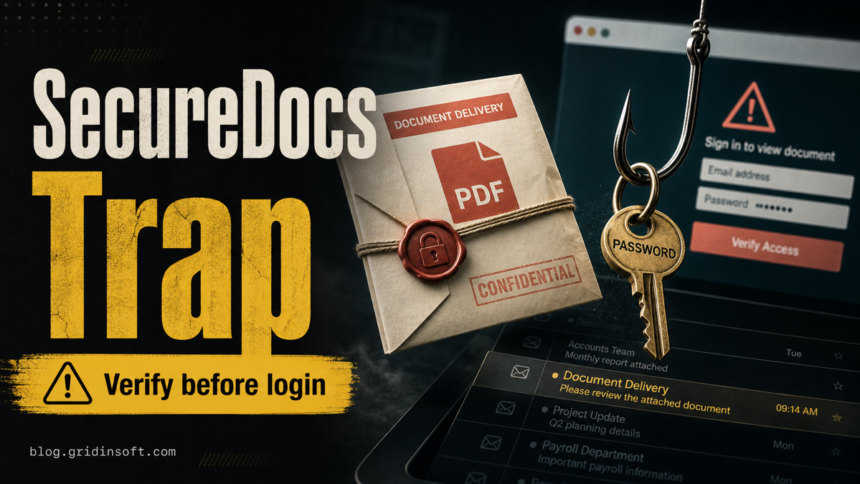
The SecureDocs Document Delivery email is a phishing scam when it arrives unexpectedly and sends you to a fake login page to view Remittance_Advance_.pdf. Do not use the button in the message, especially if it says Reveiw Document or asks for a Gmail, Yahoo, Outlook, webmail, or company mailbox password. Open the real document portal manually or ask the supposed sender through a known contact before entering any credentials.
The current lure pretends to be an encrypted secure-document notification from Canada Cold Chain Inc. and claims that a 12-page remittance PDF is waiting. Its goal is not to deliver a business document; it is to collect mailbox credentials. If you entered a password or one-time code, change it from the real service, sign out other sessions, review forwarding rules, and warn your organization if the mailbox can send invoices or payment requests.
What the SecureDocs email looks like
The message uses a routine business-document pattern: a sender display name like SecureDocs, a subject about account settlement or document delivery, and a PDF card labeled Remittance_Advance_.pdf. The suspicious part is the path after the button. Instead of opening a known secure document portal, the page asks for an email password on a fake login screen.
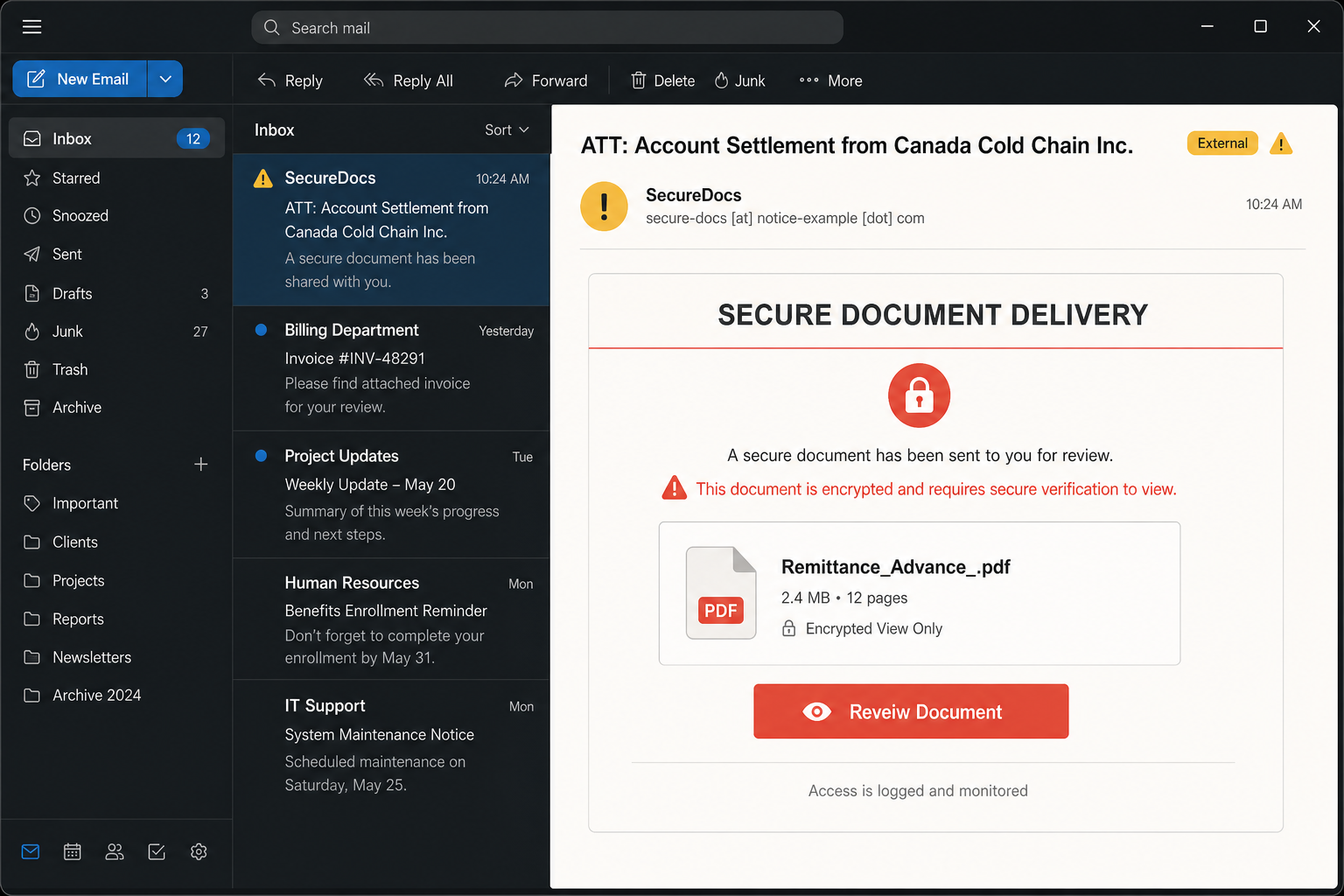
A real secure-document workflow should give you enough context to verify the sender, business reason, portal, and document request. This scam stays vague. It leans on words such as encrypted delivery, confidential document, access logging, or automated secure delivery so the password request feels normal.
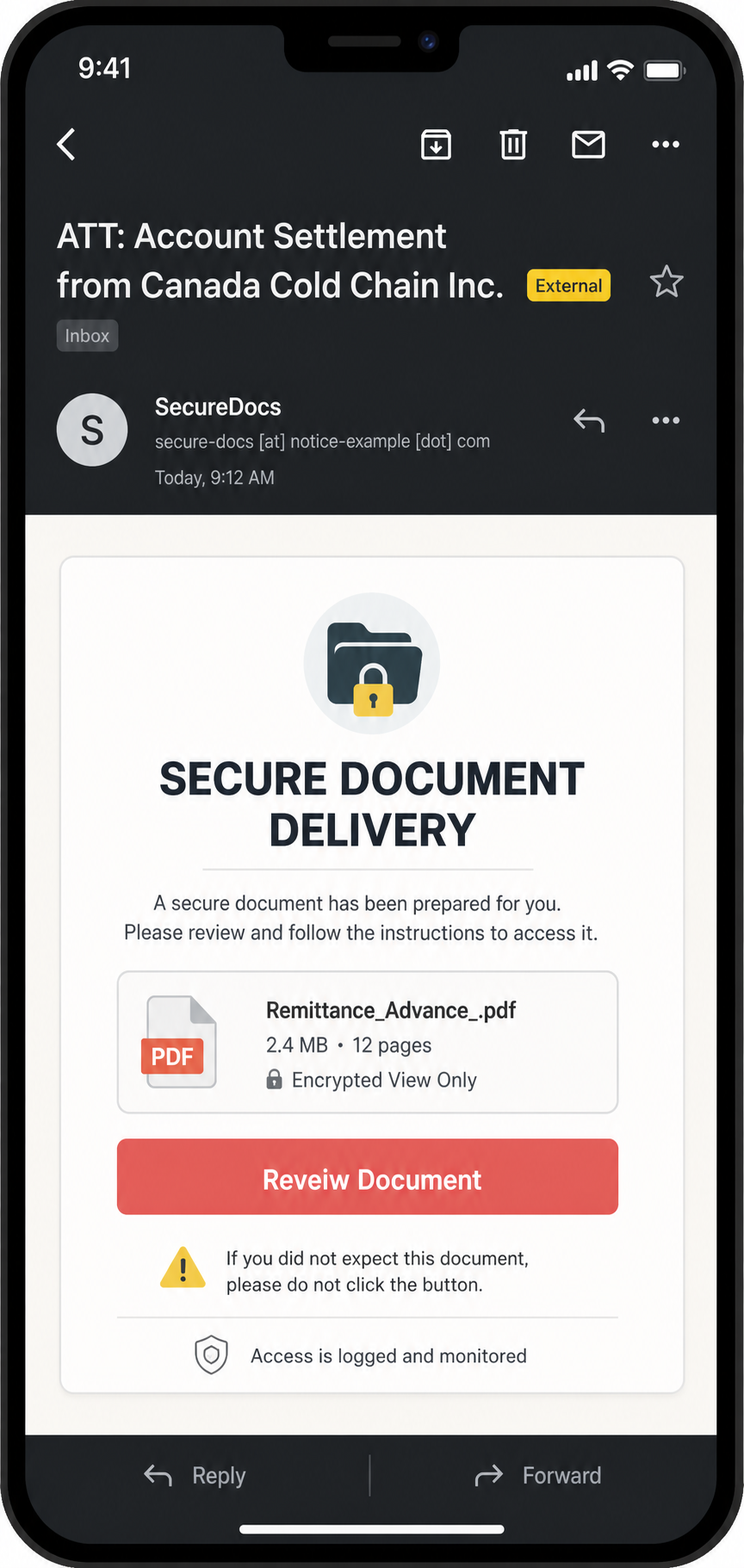
Example
Subject: ATT: Account Settlement from Canada Cold Chain Inc.
From: SecureDocs <secure-docs [at] notice-example [dot] com>
SECURE DOCUMENT DELIVERY
A secure document has been sent to you for review. This document is encrypted and requires secure verification to view.
Attachment card: Remittance_Advance_.pdf, 2.4 MB, 12 pages, encrypted view only
Button: Reveiw Document
Access is logged and monitored.
“We Have Shared A Secure Payment Portal” email variant
The “We Have Shared A Secure Payment Portal” email is a phishing lure when an unexpected message uses the subject D-114698 Payment-Financial Institution and asks you to open D-114698 / Final Tender Document. The Open Portal button does not prove that a payment or procurement portal exists. In this campaign, it leads to a page that copies Microsoft OneDrive branding and asks the visitor to verify an identity with an email address before a password prompt.
| Field | What to check |
|---|---|
| Subject | D-114698 Payment-Financial Institution is a lure label, not proof of a real tender. |
| Sign-off | A generic Financial Institution signature gives no bank, buyer, contact, or procurement record to verify. |
| File | D-114698 / Final Tender Document should match a tender or supplier thread already known to your organization. |
| Button | Open Portal should lead to the portal and tenant your organization already uses, not an unrelated cloud-hosting subdomain. |
| Landing page | A Verify Your Identity heading, Microsoft logo, and email field can be copied. Check the address bar before entering an email, password, or MFA code. |
Example
Subject: D-114698 Payment-Financial Institution
We Have Shared A Secure Payment Portal With You
Document: D-114698 / Final Tender Document
For confidentiality and authorization purposes, verify your identity to access the document.
Button: Open Portal
Financial Institution
The observed destination uses the defanged hostname zingy-dusk-64096c[.]netlify[.]app. Netlify is a website-hosting platform; a page hosted on one of its subdomains is not a Microsoft or OneDrive sign-in page. Do not follow that address. Open Microsoft 365 or the real procurement portal from a saved bookmark, then check whether the tender ID, sender, buyer, and document exist there.
For a tender or payment document, contact the procurement owner or supplier through an existing vendor record, not the phone number or reply address in the email. Confirm the tender ID, expected recipient, and portal tenant before opening anything. If the request includes new bank details, payment changes, or unusual confidentiality instructions, pause the transaction and use the organization’s normal out-of-band approval process.
“Updated SOA” document approval email variant
The “Updated SOA” message is a phishing lure when an unexpected email says that three documents are waiting for approval and sends the Check documents button to a mailbox-login page. The abbreviation SOA can mean different things in different business workflows; the sender must still identify the account, document type, organization, and existing transaction you can verify independently.
| Clue | What it means |
|---|---|
| Subject | Updated SOA for your review and approval creates urgency but does not name a known account, supplier, or portal. |
| Documents | A claim that three new documents, including overdue invoices, are waiting should match a real invoice or vendor thread before you open anything. |
| Button | Check documents should open the portal your organization already uses, not a new host supplied only by the email. |
| Host | usc1.contabostorage[.]com is Contabo’s U.S. Object Storage endpoint [3]. A real storage provider can host customer objects; its hostname does not prove that a bucket belongs to the company named in the message. |
| Login | A page that changes to Gmail, Microsoft, Yahoo, corporate webmail, or another provider after reading the recipient address is adapting the phishing skin, not validating the document. |
Example
Subject: Updated SOA for your review and approval
Documents are waiting for your approval.
Three new documents have been shared with you, including overdue invoices that require review.
Button: Check documents
This communication and any attached information are confidential and intended only for the named recipient.
Do not use the email button. Ask the known account owner or supplier whether an updated statement or invoice set was sent, then open the approved portal from a saved bookmark. General phishing guidance likewise recommends verifying unexpected requests through a trusted route instead of the message link [2]. If you continued to a provider-branded login, use the email-only or password/MFA recovery path below rather than trusting the logo or an error message.
Proposal review and Finance Department file variants
An unexpected “Proposal Evaluation Completed” notice or a “Finance Department (General Manager) Secure File” message can be credential phishing when its review button opens a mailbox sign-in page instead of a known internal portal. The labels, document numbers, and provider logo are not proof. Match the request to an existing procurement or finance workflow before entering an email address, password, or MFA code.
“Proposal Evaluation Completed” management portal notice
This version presents itself as a Management Portal Contract Review Notification and says the evaluation is complete. The exact fields make the message look like an internal approval task:
- Document ID:
PR-2026-07-27-412729 - Revision:
3.0.16 - Status: Pending Response
- Department and button: Strategic Procurement and Open Review
Do not approve the proposal from the email. Open the procurement system from a saved company bookmark and look for the same proposal ID, revision, reviewer, and deadline. If the record is absent, contact the procurement owner through the corporate directory. A page that changes its fake login to match Gmail, Outlook, Yahoo, or your company domain is harvesting mailbox credentials, not authenticating a contract review.
Finance Department (General Manager) secure-file notice
The finance variant may use the subject File has been shared with you – Finance from GM. and the heading General Manager – File Shared With You. It lists Document_Approved_File.pdf, size 94.40 KB, and an Open Document button. Those details can be copied into a fake internal file-sharing alert.
- Confirm that the named General Manager or Finance Department actually sent a file through the organization’s approved document system.
- Open the internal portal or shared drive directly; do not use the email button or reply address.
- Treat overall-brown-uwcc7fcx[.]edgeone[.]dev or any other unrelated cloud hostname as outside the company workflow, even when the page shows a familiar provider logo.
- If the page accepted or requested credentials, stop and use the mailbox-recovery steps below. Report the original message, URL, and recipient to IT so related mail can be searched and blocked.
What if you entered only your email address?
Close the page and do not continue to the password or MFA step. An email address alone is not the same as a stolen password, but it can be used to personalize the next phishing screen or follow-up message. Report the URL and original email to IT, watch for unexpected sign-in prompts, and follow the account-recovery steps below immediately if you also entered a password, approved MFA, or supplied a one-time code.
Red flags before you click
- The document was unexpected. A real settlement, invoice, legal, or remittance document should match an existing business thread or contact.
- The sender display name is not proof. Attackers can show SecureDocs as the display name while using an unrelated sender domain.
- The button text is misspelled. Reveiw Document is a strong clue that the message was assembled from a phishing kit or rushed template.
- The page asks for your mailbox password. A document notification that immediately asks for Gmail, Yahoo, Outlook, cPanel, or corporate webmail credentials is a credential-harvesting sign.
- The PDF details are vague.
Remittance_Advance_.pdfand a page count can look official, but the message still lacks a known sender, invoice number, purchase order, or portal ID. - The link destination is unfamiliar. Hover on desktop or long-press carefully on mobile. Do not sign in through a domain you do not recognize.
How to verify a SecureDocs request safely
- Do not use the email button. Close the message if you already opened the page.
- Check the sender through a separate channel. Use a saved phone number, previous email thread, or known business contact, not the reply address in the suspicious message.
- Open the portal manually. Type the known SecureDocs or company portal address yourself, or use a saved bookmark from your organization.
- Look for a matching document notice inside the real account. SecureDocs’ own help material describes document-upload notifications for folders users can access; a real notice should fit the account and folder context [1].
- Ask what the document is before signing in. A legitimate sender should be able to name the business reason, document title, and expected recipient.
- Forward the original message to IT or your mail provider. Preserve headers and the full link so the destination can be blocked.
For a broader sender, link, attachment, and wording checklist, use our guide on how to spot a phishing email. If you already clicked the link and need a general risk triage, start with what to do after clicking a phishing link.
What to do if you entered your email password
Treat the mailbox as exposed even if the fake page showed an error afterward. Phishing pages can collect typed credentials before the final screen changes.
- Open the real email service manually. Use a trusted device or clean browser session.
- Change the mailbox password. Also change any other account where the same password was reused.
- Sign out of active sessions. Revoke unknown devices, app passwords, and connected apps.
- Reset or verify MFA. Remove unfamiliar authenticator apps, phone numbers, backup codes, or passkeys.
- Check forwarding rules and filters. Attackers often create rules that hide replies, delete security alerts, or forward invoices externally.
- Review recent sign-ins. Look for new countries, devices, user agents, impossible travel, or repeated failed attempts.
- Warn finance, HR, customers, or vendors if the mailbox can send requests. A stolen mailbox can be used for invoice fraud, fake document delivery, and business email compromise from a trusted address.
If the fake page also downloaded a file, asked you to install a viewer, added a browser extension, or requested notification permissions, account recovery is not enough. Save the suspicious URL for review, remove the download or permission, and scan the device for leftovers. You can paste the suspicious message text or URL into the Gridinsoft Email Scam Checker, and if a file or extension ran, use Gridinsoft Anti-Malware to check for detections, hidden files, startup entries, scheduled tasks, browser changes, and persistence. A scan can help find local leftovers; it cannot recover a stolen password or prove no one viewed the mailbox.
How this differs from other document scams
This SecureDocs lure is mainly a login-theft case. It is close to the Outstanding Invoice email scam, where a document-style request leads to a fake webmail login. It is different from the Adobe Acrobat Secure Document email virus, where the risky path can involve a Windows installer, or from the DocuSign Legal Department Document email virus, where an ISO and disguised executable are the main danger.
That distinction matters because the first response changes. If the page only stole credentials, focus on password, sessions, MFA, forwarding rules, and account recovery. If it delivered a file or remote support installer, isolate and scan the computer before continuing to sign in.
Prevention for teams that receive secure documents
- Use a known portal route. Treat document emails as notifications, not as the source of truth.
- Train on exact misspellings and fake-login flow. Show users examples of review-button lures, webmail login pages, and vague PDF cards.
- Require out-of-band checks for payment or remittance documents. Confirm settlement, invoice, and bank-detail changes through a saved contact.
- Monitor mailbox rules. Alert on new external forwarding, auto-delete filters, and rules that hide security messages.
- Verify branded transfer notices separately. If a file-sharing email claims a purchase order, the WeTransfer purchase-order scam guide shows how to check the sender and destination without using the document button.
- Keep MFA resistant to simple credential replay. App-based MFA, passkeys, and session review reduce damage if a password is captured.
FAQ
Is the “We Have Shared A Secure Payment Portal” email real?
Do not trust it from the wording alone. The subject D-114698 Payment-Financial Institution, a generic Financial Institution signature, an Open Portal button, and a OneDrive-style page on an unrelated domain are phishing signs. Verify the tender and portal through an existing procurement record or known contact before entering any account information.
Is the SecureDocs Document Delivery email real?
Treat it as fake unless you can verify the sender, document, and portal from a trusted route outside the email. The misspelled Reveiw Document button and a fake mailbox login page are phishing signs.
Does this scam install malware?
The common SecureDocs Document Delivery version is credential phishing. It tries to steal email passwords. If the page also downloaded a file, installed a viewer, added an extension, or asked for notification permissions, scan the device and remove those changes.
What if I only opened the email?
Opening the message is not the same as entering credentials. Delete or report it, and do not use the link. Check whether any file downloaded automatically or a browser permission prompt appeared.
What if I entered my Gmail, Yahoo, Outlook, or webmail password?
Change the password from the real service, revoke sessions, review MFA, check forwarding rules and filters, and warn your organization if the account can send payment, HR, invoice, or customer messages.
Can I safely open Remittance_Advance_.pdf?
Do not open it through the email button. Ask the sender through a known contact or open the real portal manually. If a PDF or attachment downloaded from the phishing page, treat it as suspicious and do not reopen it.
References
- SecureDocs. “Help Center Documentation & Resources.” SecureDocs, accessed June 24, 2026. https://www.securedocs.com/help
- Federal Trade Commission. “How to recognize and avoid phishing scams.” FTC Consumer Advice, accessed June 24, 2026. https://consumer.ftc.gov/articles/how-recognize-avoid-phishing-scams
- Contabo. “Where Can I Find S3 Connection Setting for Object Storage?” Contabo Help Center, accessed July 25, 2026. https://help.contabo.com/en/support/solutions/articles/103000275473-where-can-i-find-s3-connection-setting-for-object-storage-