The PlayStation PC SDK Runtime is legitimate software when it was installed by a supported PlayStation game and comes from that game’s verified Steam or Epic folder. It provides PlayStation online features and the PlayStation overlay; it is not malware by default. Treat an individual file as suspicious only when its source, publisher, signature, path, or behavior does not match the official runtime. If a game still needs it, repair the bundled copy. If no installed game needs it, uninstall it through Windows and check the result before deleting leftovers.
What to check first
- Why it appeared: a supported PC game may install the runtime as a dependency even when Windows did not show a separate setup window.
- Where it came from: use only the installer bundled with a verified Steam or Epic game installation. Do not download the MSI from a random driver or DLL site.
- Where it is installed: Nixxes identifies
C:\ProgramData\Sony Interactive Entertainment Inc\PSPC_SDK\as the normal runtime folder.[1] - Who signed it: the publisher and digital signature should clearly identify Sony Interactive Entertainment. A missing or unrelated signer needs investigation.
- Whether it is still needed: removing the runtime can disable a dependent game’s PlayStation overlay or online features until the game reinstalls it.
| What you see | Risk and what to do |
|---|---|
| Runtime installed with a supported game, expected Sony path and publisher | Likely legitimate. Keep it if the game uses PlayStation online features or the overlay. |
| “Runtime is missing,” “cannot start,” “version is old,” or initialization error | Repair the game files, remove the broken runtime entry, then run the installer bundled with that game. |
| Runtime remains after you uninstalled one game | Another PlayStation PC game may still depend on it. Check installed games before removing the shared component. |
| Same name in Downloads, Temp, an archive, a crack/repack, or an unrelated folder | Do not run or allow it based on the filename. Verify the source, signer, hash, and security alert; scan the file and PC if the origin is unclear. |
| Runtime returns when a verified game launches | Usually dependency repair, not malware persistence. The game may restore its required runtime. |
Is PlayStation PC SDK Runtime Safe?
Yes, the official PlayStation PC SDK Runtime is a legitimate Sony component for supported Windows games. Nixxes says the SDK is required for PlayStation online services and the PlayStation overlay.[1] Santa Monica Studio also directs players with a missing-runtime error to the MSI packages bundled with God of War Ragnarök.[2]
That product-level answer does not certify every similarly named file. Separate three decisions:
- Is the product real? Yes. Supported PlayStation games legitimately install it.
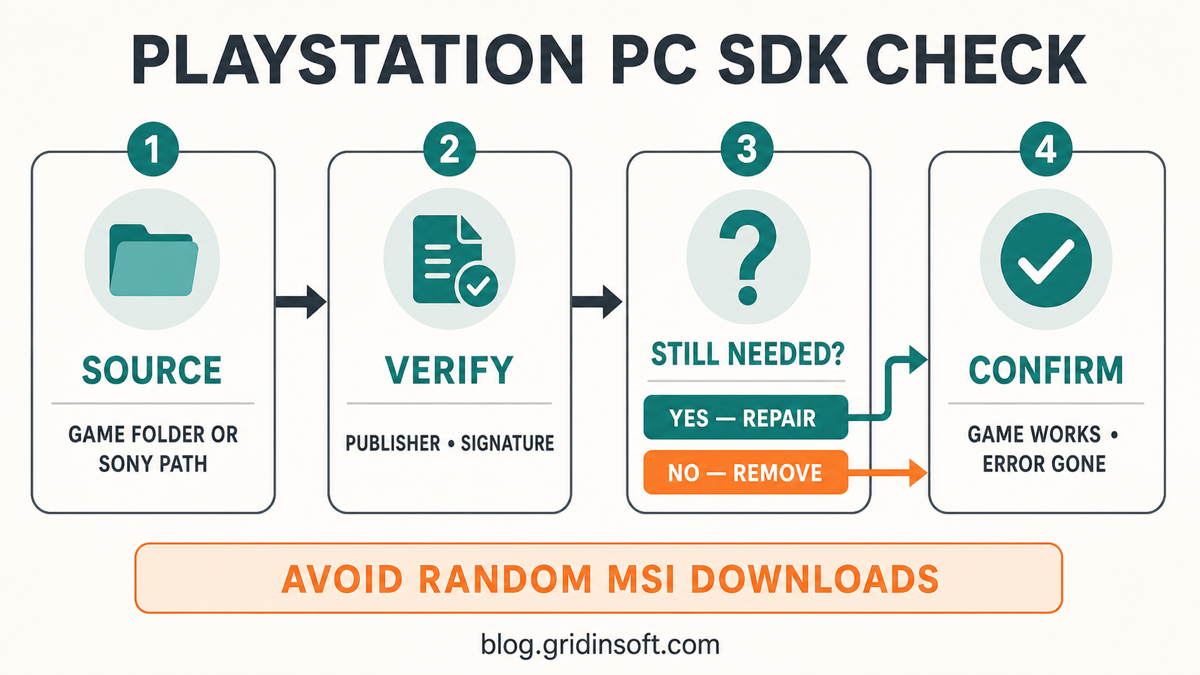
- Is this exact copy authentic? Check the parent game, installation folder, publisher, digital signature, and file hash.
- Do you still need it? Keep or repair it while a dependent game is installed; remove it only when you no longer need those features.
A security report for one pcsdk.dll hash, a copy extracted from a repack, or a file in an unusual folder cannot be generalized to every PlayStation PC SDK installation. File reputation is hash-specific. The official product name and a familiar filename are useful clues, not a substitute for verifying the exact copy.
Why Is It Installed on My PC?
The runtime connects supported PC games to PlayStation services. A game can use it for account-linked online features, multiplayer services, or the PlayStation overlay. Because it is a dependency, it may appear in Settings → Apps → Installed apps as a separate entry even though you only remember installing the game.
This is similar to other shared gaming components such as Visual C++ packages, DirectX components, anti-cheat services, or Vulkan Runtime Libraries. A dependency can be legitimate and still be removable when no installed application needs it. The key is to identify ownership before deleting it.
Do not use installation date alone as a verdict. A runtime installed on the same day as a verified PlayStation game fits the expected story. A PlayStation-named installer downloaded separately from an ad, file mirror, forum attachment, or repack does not.
How to Verify the Runtime Before You Keep or Run It
- Check the parent game. In Steam, open the game’s Properties → Installed Files → Browse. In Epic Games, open Manage and use the folder icon. Nixxes recommends locating the runtime installer through the game library rather than searching the web for it.[1]
- Confirm the Windows entry. Open Settings → Apps → Installed apps and search for PlayStation PC SDK Runtime. Record the version and installation date before changing anything.
- Check the normal folder. The installed runtime should correspond to the Sony Interactive Entertainment folder under
C:\ProgramData\. A copy running fromDownloads,Temp, a browser cache, or an unrelated user folder needs more scrutiny. - Inspect the signature. Right-click the MSI, DLL, or executable, select Properties → Digital Signatures, and open the signature details. Windows should report a valid signature tied to Sony Interactive Entertainment. An unsigned file or unrelated publisher should stay blocked while you investigate.
- Match the exact file. If a security tool names a file, compare its full path and SHA-256 hash. Do not rely on a clean or malicious report for another file with the same name.
- Compare behavior. Installing with the game, starting when the game requests online features, and living under the expected Sony path fit the runtime. PowerShell windows, browser redirects, credential prompts outside the game, startup entries from random folders, or unrelated downloads do not.
For a reusable file-checking workflow, follow the source, publisher, signature, hash, and behavior checks for Windows executables. A valid signature identifies who signed the file, but it does not make a random download trustworthy by itself.
How to Fix a Missing, Old, or Corrupted Runtime
Use the copy bundled with the affected game. Do not solve a runtime error by downloading PsPcSdkRuntimeInstaller.msi, PsPcSdkRuntimeManager.msi, pcsdk.dll, or a “runtime fixer” from a third-party site.
- Close the game and launcher. Exit Steam or Epic only after the game and any PlayStation overlay process have closed.
- Restart Windows once. This clears a locked installer, service, or pending update before you change the runtime.
- Verify the game files. Use the launcher’s verify/repair function so the official runtime installer is restored if it is missing or damaged.
- Remove the broken runtime entry. Open Settings → Apps → Installed apps, find PlayStation PC SDK Runtime, and choose Uninstall.
- Run the bundled installer. Browse the verified game folder and run
install_pspc_sdk_runtime.bator the bundled MSI named by the game’s official support instructions. Nixxes documents the batch-file route, while Santa Monica Studio namesPsPcSdkRuntimeInstaller.msiandPsPcSdkRuntimeManager.msifor its title.[1][2] - Launch the game again. Confirm that the missing/old-version dialog is gone and that the online or overlay feature works.
If security software blocked the installer, review the exact detection, file path, signer, and hash. Do not disable protection globally. Restore or allow the file only when it is the verified copy from the game folder and the alert has been reviewed as a false positive or policy conflict. If the signer or path is wrong, leave it blocked and scan the system.
How to Remove PlayStation PC SDK Runtime Completely
Remove it only when you no longer use a game that depends on the PlayStation overlay or online service. A shared runtime may outlive the first game that installed it.
- List relevant games. Check Steam and Epic for installed PlayStation PC titles. If you are unsure whether one needs the runtime, keep it until you verify the game’s support page.
- Uninstall the games you no longer want. Let each game’s normal uninstaller remove its own files first.
- Remove the runtime through Windows. Open Settings → Apps → Installed apps, search for PlayStation PC SDK Runtime, select the menu, and choose Uninstall.
- Restart the PC. Reboot before judging whether the removal completed.
- Confirm the result. The runtime should no longer appear in Installed apps or Task Manager when no dependent game is running.
- Review the Sony folder cautiously. If no supported game remains, inspect
C:\ProgramData\Sony Interactive Entertainment Inc\PSPC_SDK\. Preserve logs or user data you need, then remove only obvious runtime leftovers. Do not delete unrelated Sony or shared game folders.
Microsoft recommends starting with Installed apps and using its install/uninstall troubleshooting path when a desktop program cannot be removed normally.[3] Avoid automatic registry cleaners and broad folder deletion. The safe leftover-removal guide explains why a remaining cache, log, or shared component is not automatically malicious.
Why Does the Runtime Return After Uninstall?
A verified game can reinstall the runtime during launch, update, or file verification. That is dependency repair. It is not the same as an unknown program recreating a suspicious file after reboot.
Use this distinction:
- Expected return: the runtime comes back immediately after a verified PlayStation game updates or launches, and the source remains the game folder or normal Sony path.
- Needs review: it returns when no relevant game is installed, launches from a random folder, has a different signer, or appears with unrelated pop-ups, redirects, startup entries, or security alerts.
If a dependent game keeps restoring the runtime, choose between keeping the runtime and removing that game. Repeatedly deleting only the shared component creates a repair loop and can leave the game’s online features broken.
When Should You Scan the PC?
A malware scan is justified when the runtime name is attached to an untrusted download, repack, crack, unknown archive, mismatched signer, unusual path, or behavior outside the game. It is also appropriate when the file returns without a dependent game or other suspicious startup activity appears.
Keep the suspicious copy blocked, remove the visible untrusted installer, and run a full Gridinsoft Anti-Malware scan. The scan can check for detections, bundled apps, hidden files, startup entries, scheduled tasks, services, browser changes, and persistence that a normal runtime uninstall does not address. Remove confirmed detections, reboot, and scan again if the activity returns. A clean scan lowers risk but does not certify an unknown download or prove that no code ran earlier.
FAQ
Is PlayStation PC SDK Runtime malware?
No. The official runtime bundled with supported PlayStation PC games is legitimate software. That verdict does not apply to every similarly named file from a mirror, repack, archive, or unknown folder.
Can I uninstall PlayStation PC SDK Runtime?
Yes, but a game that depends on PlayStation online features or the overlay may stop working correctly or reinstall it. Remove the runtime only after checking which installed games still need it.
How do I fix “PlayStation PC SDK Runtime is missing”?
Verify the game files, uninstall the broken runtime entry, and run the installer bundled inside the verified Steam or Epic game folder. Do not download the MSI from a random site.
Why does the runtime say the installed version is old?
The game may bundle a newer runtime than the shared version currently registered in Windows. Update and verify the game, remove the old runtime entry, then run the newly restored bundled installer.
Should I allow the runtime through antivirus?
Only after confirming the exact file came from the verified game folder, has the expected Sony publisher and valid signature, and matches the file named by official support. Leave an unknown or mismatched copy blocked and scan it instead.
References
- Nixxes Software. “How to troubleshoot PlayStation PC SDK errors.” PlayStation Support, updated February 9, 2026, accessed July 26, 2026. Official SDK troubleshooting guidance.
- Santa Monica Studio. “PlayStation SDK Runtime Missing Error.” PlayStation Support, updated September 20, 2024, accessed July 26, 2026. Official missing-runtime installer guidance.
- Microsoft. “Fix problems that block programs from being installed or removed.” Microsoft Support, updated 2026, accessed July 26, 2026. Windows install and uninstall troubleshooting.