Trojan:Win64/Tedy!MTB is a Microsoft Defender detection for 64-bit Windows. Keep the flagged item quarantined. If you ran the suspicious app before the alert or Tedy returns after reboot, check for other files and startup components that may remain.
Use Gridinsoft Anti-Malware for a system scan and cleanup of detected threats. You get a list of findings to review before taking action, without first having to investigate every DLL or scheduled task yourself. If Defender blocked an unopened file or the alert concerns a trusted app cache, follow the source and false-positive checks below before restoring anything.
Use Gridinsoft Anti-Malware to scan for related threats and unwanted components. Review detected files and locations, apply cleanup, then restart and check whether the alert returns.
Free 6-day full trial for eligible new users, including cleanup. Email activation; no credit card required.
Download Gridinsoft Anti-Malware for Windows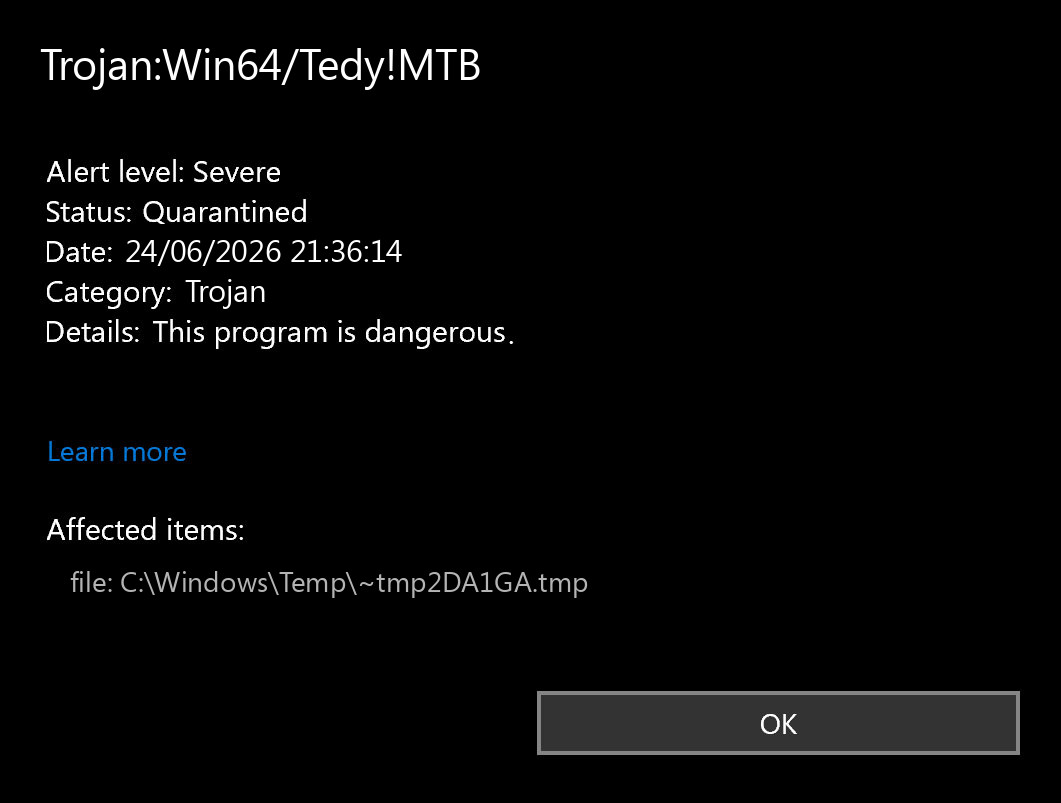
Quick Verdict
| What you see | Risk and next step |
|---|---|
| Defender quarantined Trojan:Win64/Tedy!MTB from a download, Temp, AppData, or archive. | Keep quarantine, delete the original source, and scan for leftovers. |
| The path points to a DLL beside an unexpected app or VPN-looking folder. | Treat it as possible DLL side-loading. Check companion files and startup entries. |
| The alert appears under a trusted app cache, such as a media or streaming app cache. | Update Defender and the app, clear the cache, then scan before restoring anything. |
| The alert returns after reboot or after the same app opens. | Look for persistence: Startup, Task Scheduler, Services, browser extensions, and Defender exclusions. |
What Is Trojan:Win64/Tedy!MTB?
Trojan:Win64/Tedy!MTB is an exact Microsoft Defender detection label. Microsoft’s Security Intelligence release notes list Tedy!MTB variants as severe detections [1]. In search results, the exact label appears beside Microsoft release-note pages, a fresh removal guide, Reddit user reports, videos, and Tedy-family threat encyclopedias. That SERP mix shows the real reader problem: people do not only want a definition; they want to know whether the quarantined path was a real infection, a cache hit, or a leftover from another malicious installer.
The Win64 part means the detection is associated with 64-bit Windows. The !MTB suffix is an internal Microsoft indicator. It does not tell you the full payload by itself, so avoid guessing from the label alone. The affected item path, source download, timestamp, and whether the alert repeats matter more.
Check the Affected Path Before You Restore Anything
Open Protection History, expand the Tedy!MTB entry, and copy the affected item path. Then match it to one of these situations:
- %USERPROFILE%\Downloads or %TEMP%: likely a recent installer, archive, or browser download. Delete the source and scan.
- %APPDATA%, %LOCALAPPDATA%, or %PROGRAMDATA%: higher concern if the file is executable, a DLL, or tied to startup.
- Streaming or media-app cache: update Defender and the app, clear the app cache, and scan. Do not restore from quarantine just to make the cache work.
- Unexpected VPN, remote access, or support-tool folder: inspect companion files and services. A legitimate-looking app folder can be abused for DLL side-loading.
- Game mod, crack, cheat, fake update, or unknown archive: treat the source as unsafe and continue with full cleanup.
If your alert involved a suspicious DLL next to a ProtonVPN-looking executable or an unexpected VPN folder, use the nethost.dll ProtonVPN cleanup guide for the artifact-level path checks. This Tedy!MTB page stays focused on the Defender alert and what to do after it appears.
How to Remove Trojan:Win64/Tedy!MTB
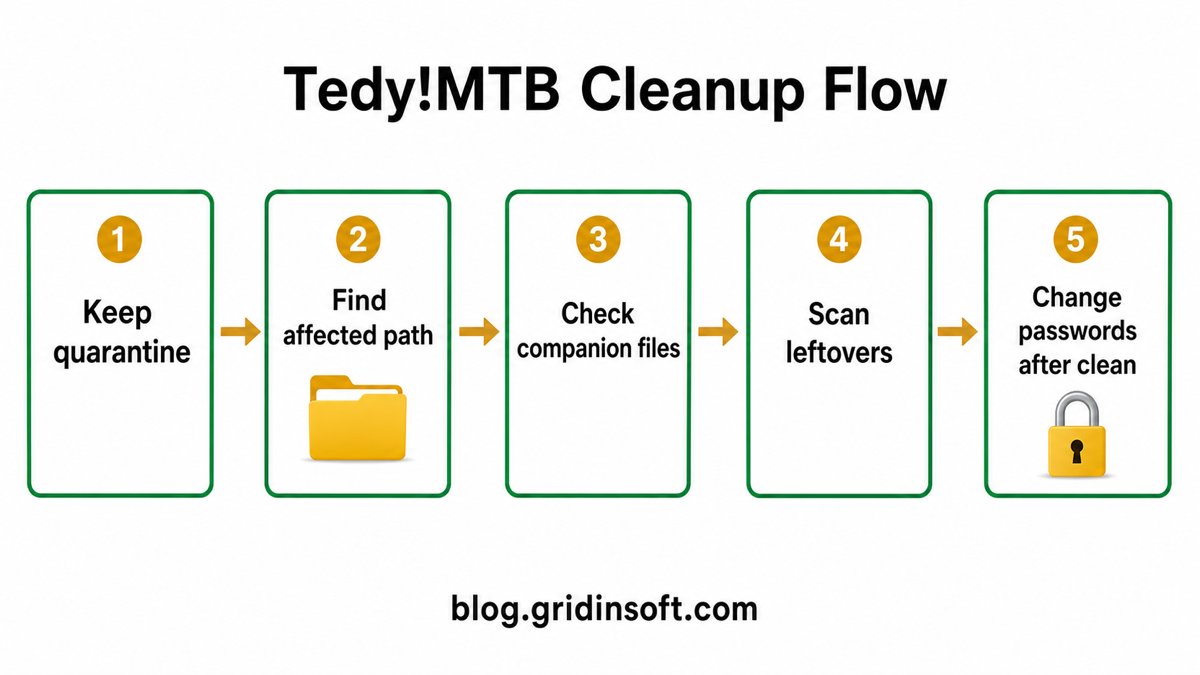
Keep the item quarantined and record the affected path and detection time in Windows Security. If the file ran or the alert returns, follow this scan-and-cleanup route.
- Install Gridinsoft Anti-Malware and update its detection database. Eligible new users can request the trial in the app and activate it with the emailed code.
- Run a Full Scan and review the findings. Check the detected names, locations, and suggested actions before cleanup. Do not restore a quarantined item just to scan it again.
- Apply cleanup to confirmed threats. Quarantine or remove detected unwanted items. Keep Microsoft Defender enabled.
- Restart and verify. Compare the new alert time and path with the original event. Another scanner may name the same threat differently. A clean scan does not guarantee that no compromise occurred. If symptoms persist, use the targeted checks below or contact support from the app.
Optional manual checks for returning alerts
Delete an untrusted source archive or installer so it is not run again. If Tedy returns, inspect companion EXE/DLL/script files created around the same time, Startup Apps, Task Scheduler, Services, Run keys, browser extensions, and unexpected Defender exclusions. Do not delete files merely because they share a folder. Use a clean device for account recovery if the file ran or credentials may have been exposed.
Could Trojan:Win64/Tedy!MTB Be a False Positive?
It is possible for security tools to flag legitimate software when behavior looks suspicious, especially with packed files, app caches, or uncommon installers. But a false-positive decision needs proof. You need a trusted source, a valid signature, matching hash from the vendor, no suspicious companion files, no repeated alert after updates, and no account or browser symptoms.
If the file came from a crack, repack, fake update, unknown archive, or a link sent through a compromised account, do not treat it as a false positive. If it came from a trusted app cache, update Defender, update the app, clear the cache, and scan. Do not restore a quarantined cache file only to preserve a download or stream.
After Cleanup: Account and Device Safety
Only change passwords after the device is clean, or from another trusted device. Start with email, password manager, browser sync, gaming, banking, and crypto accounts. Revoke sessions where available. If you saw remote-control behavior, unknown administrator approval windows, or multiple severe detections, consider a clean Windows reinstall after backing up only documents, photos, and other non-executable personal files.
For broader detection-name context, see the Microsoft Defender detection names guide. For DLL-specific safety decisions, use DLL Files: What They Are and How to Handle Them Safely. If the infection followed a game or mod download, the infostealer after game/mod checklist covers session and account recovery.
FAQ
Is Trojan:Win64/Tedy!MTB dangerous?
Yes, treat it as dangerous until the affected path and source prove otherwise. Microsoft release notes list Tedy!MTB variants as severe detections, and Defender quarantine should stay in place while you investigate.
Can I restore the quarantined Tedy!MTB file?
Do not restore it first. Restore only after you verify the app source, signature, path, and reputation, update Defender, and confirm the alert does not return. Never restore files from cracks, unknown archives, or fake updates.
What if Tedy!MTB was detected in an app cache?
Update Defender and the app, clear the cache, and scan. A cache detection does not always mean the whole app is malicious, but restoring a quarantined cache file is not necessary.
Should I change all passwords immediately?
Change important passwords after cleanup, or from a clean device, if the file executed, came from a risky source, or you saw account symptoms. Changing passwords on an infected PC can expose the new passwords too.
References
- Microsoft Security Intelligence. “Antimalware updates change log.” Microsoft, accessed June 24, 2026. https://www.microsoft.com/en-us/wdsi/definitions/antimalware-definition-release-notes
- Trend Micro. “Trojan.Win64.TEDY.B threat encyclopedia entry.” Trend Micro, accessed June 24, 2026. https://www.trendmicro.com/vinfo/us/threat-encyclopedia/malware/trojan.win64.tedy.b