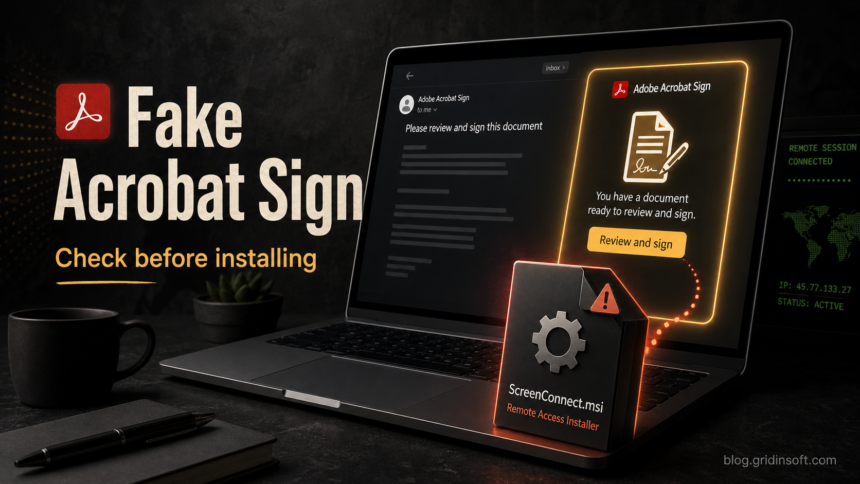
An email titled Adobe Acrobat – Secure Document is being used as a phishing and malware lure, not as a normal Acrobat Sign request. One branch pushes a 48-hour expiry and a Review and sign Document button before delivering a trojanized ScreenConnect installer. A newer Secure Adobe PDF – Credit Card Authorization version instead uses the subject Credit Card Authorization Form Signed, a fake rooming-list PDF, and a 72-hour deadline to send the reader to an unrelated page that asks for an Office email password. The form name does not make that login request legitimate: treat a mailbox-password prompt and a ZIP/MSI download as two different compromise paths.
If you only opened the email, delete it and report it. If you clicked the link but did not run the ZIP or MSI, remove the download and clear the browser download history. If the fake document page asked for an email password instead of downloading software, compare it with the SecureDocs Document Delivery email scam and focus first on mailbox recovery. If you extracted AdobeAcrobatInstaller.zip or ran ScreenConnect.ClientSetup.msi, disconnect the computer from the network, remove the unexpected ScreenConnect client, scan for persistence, and change passwords from a clean device.
What This Fake Acrobat Sign Email Looks Like
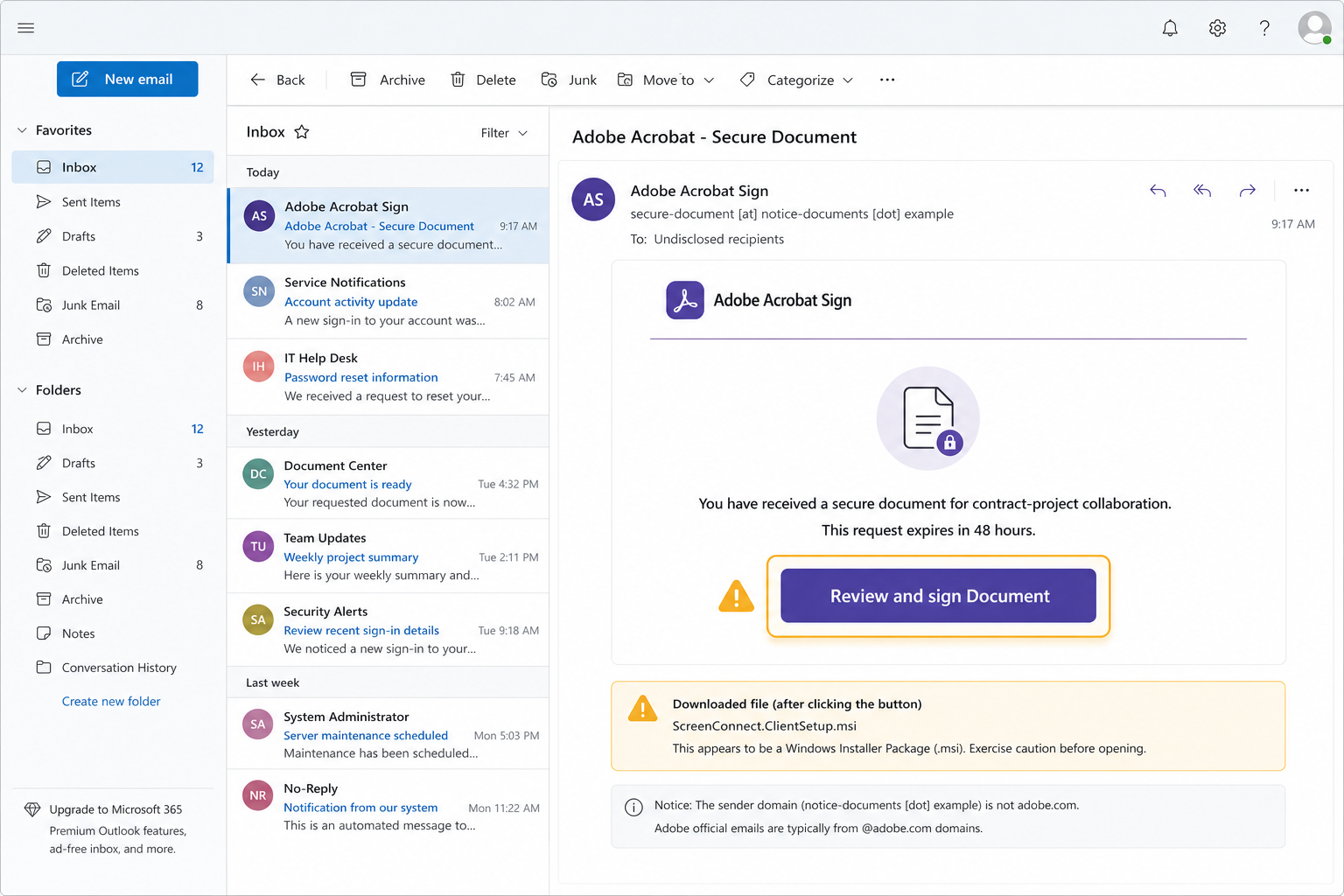
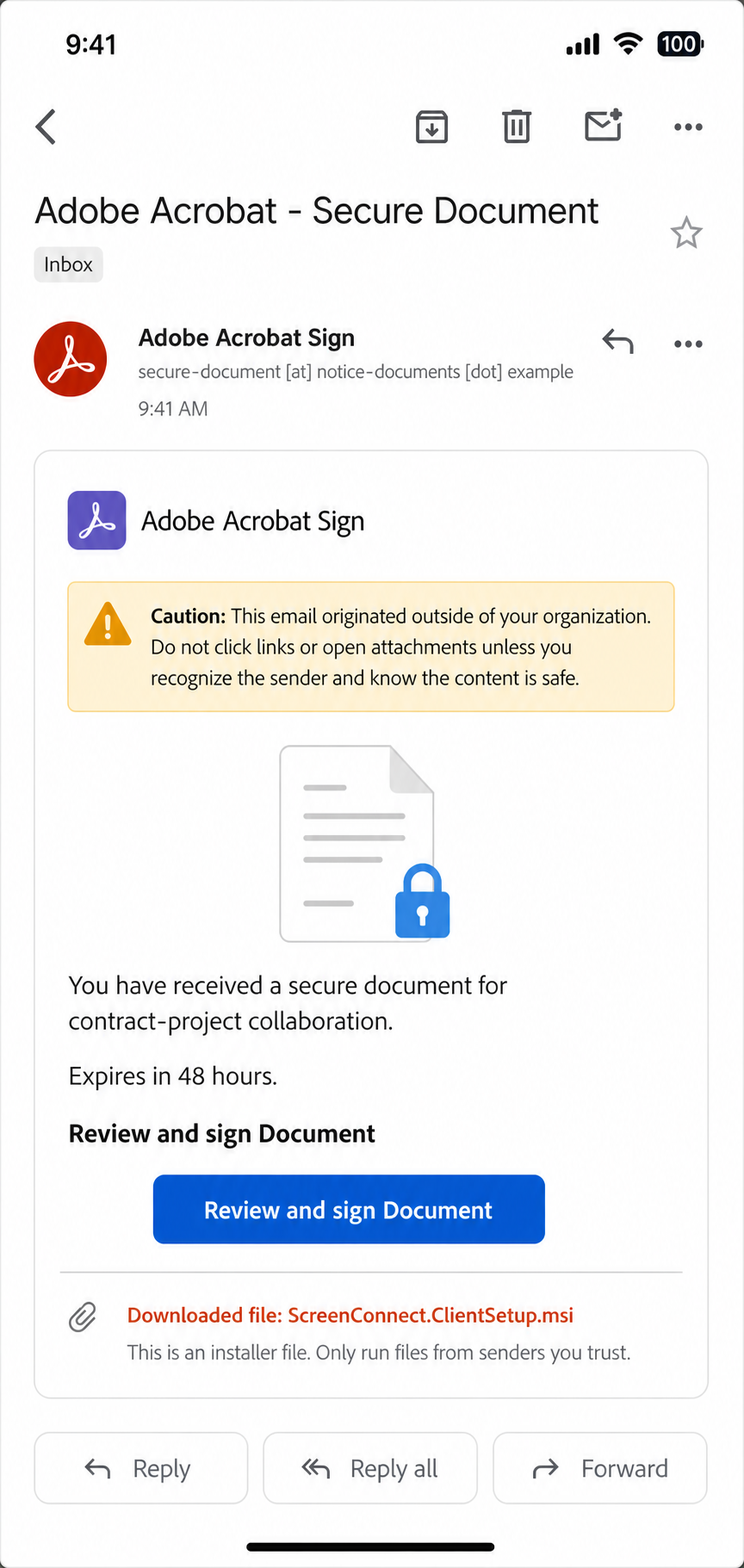
The lure borrows the trust of document-signing workflows. It may use an Adobe Acrobat Sign display name, a secure-document subject, or wording about a contract project, business collaboration, or procurement request. The risky part is not the idea of an e-signature request by itself; it is the chain from the button to a fake viewer, ZIP archive, or software installer.
Example
The exact sender and subject can change, but the campaign pattern is recognizable:
- Subject: Adobe Acrobat – Secure Document
- Sender display: Adobe Acrobat Sign
- Sender address example: secure-document [at] notice-documents [dot] example
- Opening line: You have received a secure document for contract-project collaboration.
- Contract variant: You have received a contract procurement request and must view the shared document.
- Pressure line: This request expires in 48 hours.
- Button: Review and sign Document or VIEW DOCUMENT
- Suspicious follow-up:
AdobeAcrobatInstaller.zip,ScreenConnect.ClientSetup.msi, or another Windows installer presented as a required update.
Secure Adobe PDF – Credit Card Authorization Variant
This version is credential phishing rather than a ScreenConnect download. It presents a hotel or business document as if it were a signed Adobe PDF, then asks for an office email address and password to view it. The observed page used Google-hosted cloud content, but a familiar cloud provider does not make a third-party password form an Adobe or employer login.
Example:
- Subject: Credit Card Authorization Form Signed
- Sender display: Gulf Group
- Document title: Third party CC_Authorization and Rooming list 22.07.2026.pdf
- Buttons or labels: View Pdf Document, CC_Authorization, and Share Download
- Pressure line: The shared document expires in 72 hours.
- Credential request: Use your office email combination to view the PDF.
| What you see | Risk and next step |
|---|---|
| You expected the form from a known hotel, vendor, or colleague | Verify the request through a known phone number or a separate message, then open your organization’s normal Adobe or document portal directly. |
| The button opens an unrelated cloud page asking for an Office mailbox password | Close it. A real card-authorization workflow does not need you to submit a work email password to a third-party page. |
| The page offers a PDF or ZIP download after the login prompt | Do not open it. Delete the download; if a file ran, use the malware and remote-access response below. |
If you submitted only an email address and password, the first priority is the mailbox: from a clean device, change the password, sign out other sessions, review MFA methods, remove unknown forwarding rules and connected apps, and tell your IT team if it is a work account. If you also entered an MFA code or approved a sign-in prompt, treat the account as accessed and revoke sessions immediately. A malware scan does not replace account recovery when the stolen item was a password or session approval.
Contract Procurement Variant: AdobeAcrobatInstaller.zip
A Contract Procurement version of this scam may look less like a generic Adobe notice and more like a business request. The page behind the button can imitate an Acrobat Reader document viewer, show a blurred placeholder document, download AdobeAcrobatInstaller.zip, and then display a fake update prompt that tells you to run the download.
Do not run that ZIP or anything extracted from it. Acrobat Sign documents do not require a random reader update from a third-party domain, and a procurement document should not install remote-access software. If the file is already extracted, check the extracted folder for ScreenConnect or ConnectWise installer names, remove the archive and extracted files, and treat any executed installer as a remote-access incident.
Finance Department / Resursas Secure Document Portal Variant
A Finance Department version says that a confidential disbursement document was shared through a service called Resursas Secure Document Portal. The message can show a PDF preview and an Open Document button. The next page imitates Adobe, claims that Acrobat Reader is outdated, and automatically offers Adobe_Acrobat_Reader_en_Install.zip. That ZIP is not an Adobe update; the reported campaign uses it to deliver an attacker-configured ScreenConnect client.
Example:
- Subject: Confidential Document Shared with You
- Sender display: Finance Department via Resursas Secure Document Portal
- Document:
{recipient}_Disbursement_Agreement.pdf - Button: Open Document
- Suspicious follow-up: an unrelated Adobe-styled page downloads
Adobe_Acrobat_Reader_en_Install.zipafter an outdated-reader warning.
Verify any disbursement request through a known finance contact or your organization’s normal document portal. If the ZIP downloaded but nothing ran, delete the archive and any extracted files. If you opened the installer, disconnect the computer and use the exposure-based response below. On a work device, notify IT promptly so they can check the ScreenConnect service, active remote sessions, other endpoints, mailbox activity, and possible lateral movement.
Why A ScreenConnect MSI Is Dangerous Here
ScreenConnect, now ConnectWise ScreenConnect, is legitimate remote support software when an organization installs and manages it on purpose. Attackers abuse that trust by delivering a configured client through phishing, fake document pages, and fake software-update prompts. Once the attacker-controlled client runs, it can give someone remote visibility and control over the computer.
That is why the file name matters. ScreenConnect.ClientSetup.msi, AdobeAcrobatInstaller.zip, or a similar installer chain is not an Adobe document, not an Acrobat Reader update, and not a normal requirement for signing a PDF. Treat it as a remote-access incident if it came from an unexpected email, unknown domain, or fake update page.
How To Check If The Adobe Request Is Real
Before clicking a signing link, use checks that do not depend on the button inside the message:
- Expand the sender details and check the real address, not only the display name.
- Hover over the button or long-press it on mobile to inspect the destination. A signing request should not send you to an unrelated domain, ZIP archive, or direct MSI download.
- Ask the supposed sender through a separate channel if they actually sent a document.
- Open Acrobat Sign from a known bookmark or your organization’s normal Adobe workflow instead of trusting the email button.
- If the message claims to be Adobe abuse or a false Adobe request, report it to Adobe through the official phishing or Acrobat Sign abuse channels.
Adobe provides reporting paths for suspicious messages that claim to represent Adobe and for abusive Acrobat Sign agreements. Those reports are useful when a fake request uses Adobe branding or tries to abuse the signing workflow.
What To Do If You Clicked The Button
Your next step depends on how far the chain went:
- You only opened the email: delete it, report it, and do not reply.
- You clicked the button but no file ran: close the page, delete any downloaded ZIP or MSI, and avoid returning to the site.
- You entered an email password or MFA code: use a clean device to change the password, sign out other sessions, review forwarding rules and connected apps, reset MFA if needed, and notify your IT team for a work account.
- You downloaded or extracted the ZIP but did not run the installer: remove the archive and extracted files from Downloads, empty the Recycle Bin, and scan the file only through a trusted scanner if you need confirmation.
- You ran the MSI: disconnect from Wi-Fi or Ethernet, remove the unexpected ScreenConnect client, scan the system, and rotate passwords from a different trusted device.
Remove Unexpected ScreenConnect Access
After an unexpected ScreenConnect install, focus on stopping access first, then cleanup:
- Disconnect the computer from the network if you suspect the client is active.
- Open Settings > Apps or Control Panel > Programs and Features and look for ScreenConnect Client or ConnectWise Control.
- Check Services for ScreenConnect-related services if the app entry is unclear.
- Reboot, then confirm the client did not return.
- Review browser sessions, email rules, startup entries, scheduled tasks, and recently created administrator accounts if the installer ran with elevated permissions.
- Change email, banking, work, and password-manager credentials from a clean device if the remote session may have been active.
If the installer ran, the visible ScreenConnect entry may be only part of the problem. A phishing download can also leave a loader, scheduled task, browser change, startup entry, or second payload behind, especially when the file arrived through a fake update prompt or ZIP archive. Run a full Gridinsoft Anti-Malware scan after removing the visible client, remove detections, reboot, and scan again if alerts or remote-access symptoms return.
If the page or email made you download an invoice, coupon, tracking app, browser extension, or support tool, scan the PC before opening it again or logging into sensitive accounts.
Scan after running the fake document installerHow This Differs From Other ScreenConnect Scams
If your message opened a fake PDF viewer and asked for a corporate mailbox password rather than downloading ScreenConnect.ClientSetup.msi, use the Revised Invoice phishing checklist because the immediate response is mailbox credential recovery.
This page is about the Adobe Acrobat – Secure Document and Contract Procurement document-lure chain. If your email mentioned Social Security documents, use our Social Security Statement ScreenConnect scam guide instead. If you found ScreenConnect installed but do not know which email or fake page caused it, start with our broader ScreenConnect Client scam cleanup guide. For background on why remote access tools are dangerous when installed by an attacker, see our remote access trojan explainer.
How To Avoid This Lure Next Time
- Do not install software because a document-signing email says a viewer or reader is outdated.
- Verify unexpected contract, invoice, legal, HR, or procurement requests through a separate channel.
- Block or investigate direct MSI downloads from email links.
- Use browser and email security controls that show the real sender and target URL.
- Monitor for unexpected remote-access tools such as ScreenConnect, AnyDesk, TeamViewer, or similar clients.
FAQ
Is the Adobe Acrobat – Secure Document email real?
Treat it as fake if it came unexpectedly, uses a non-Adobe sender domain, pushes a 48-hour deadline, or leads to a software download. A normal signing request should not require AdobeAcrobatInstaller.zip or ScreenConnect.ClientSetup.msi.
What is the Contract Procurement email virus?
It is a malspam variant that pretends to be a procurement or e-signature request. The dangerous version sends the user to a fake Adobe-style document page and pushes AdobeAcrobatInstaller.zip or a ScreenConnect installer instead of a real document.
Is ScreenConnect always malware?
No. ScreenConnect is legitimate remote support software. It becomes dangerous in this situation because an attacker is trying to make you install a remote-access client from a fake document page.
Am I infected if I only read the email?
No. Reading the message is not enough to install the remote-access client. The risk starts when you click through, download the MSI, and run it.
What if the Secure Adobe PDF page asks for my email password?
Do not enter it. Close the page and verify the document request separately. If you already submitted the password or an MFA code, change the password from a clean device, revoke active sessions, review mailbox rules and recovery methods, and contact IT if the account belongs to an organization.
What if I ran ScreenConnect.ClientSetup.msi?
Disconnect the computer, remove the unexpected client, scan for persistence and other malware, then change important passwords from a clean device. If this happened on a work computer or after a procurement email, notify IT immediately because the sender mailbox or vendor thread may also be compromised.
Should I report the email to Adobe?
Yes, especially if it uses Adobe branding or appears to abuse Acrobat Sign. Reporting helps Adobe review phishing and service-abuse patterns.
References
- Adobe. “Notifying Adobe of Security Issues.” Adobe Help Center, accessed June 18, 2026. https://helpx.adobe.com/security/alertus.html
- Adobe. “Report Abuse Links.” Adobe Acrobat Sign Help, updated August 2025, accessed June 18, 2026. https://helpx.adobe.com/sign/admin/report-abuse-links.html
- Microsoft Threat Intelligence. “Signed Malware Impersonating Workplace Apps Deploys RMM Backdoors.” Microsoft Security Blog, March 3, 2026, accessed June 18, 2026. https://www.microsoft.com/en-us/security/blog/2026/03/03/signed-malware-impersonating-workplace-apps-deploys-rmm-backdoors/