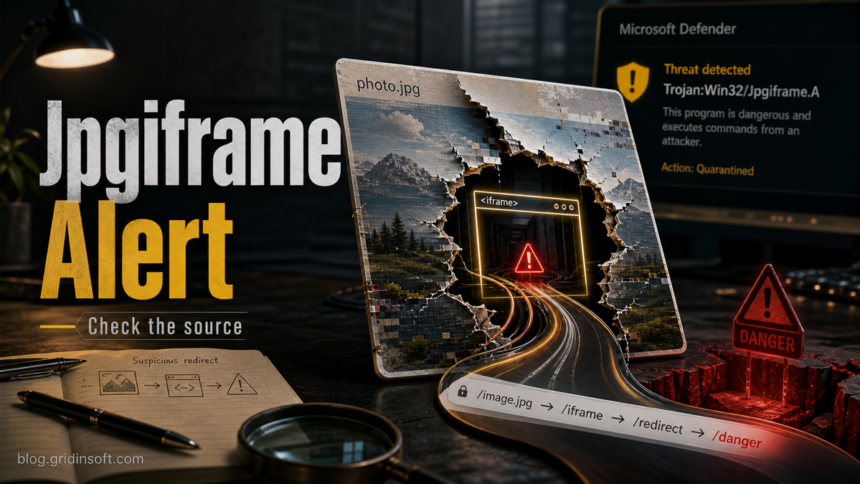
Trojan:Win32/Jpgiframe.A is a Microsoft Defender detection for content that can send the browser toward a malicious or hacked website. Treat it as real until you know where Defender found it: keep the item quarantined, run a full scan, check the affected path, and only consider a false-positive review if the file came from a trusted source and the alert does not return.
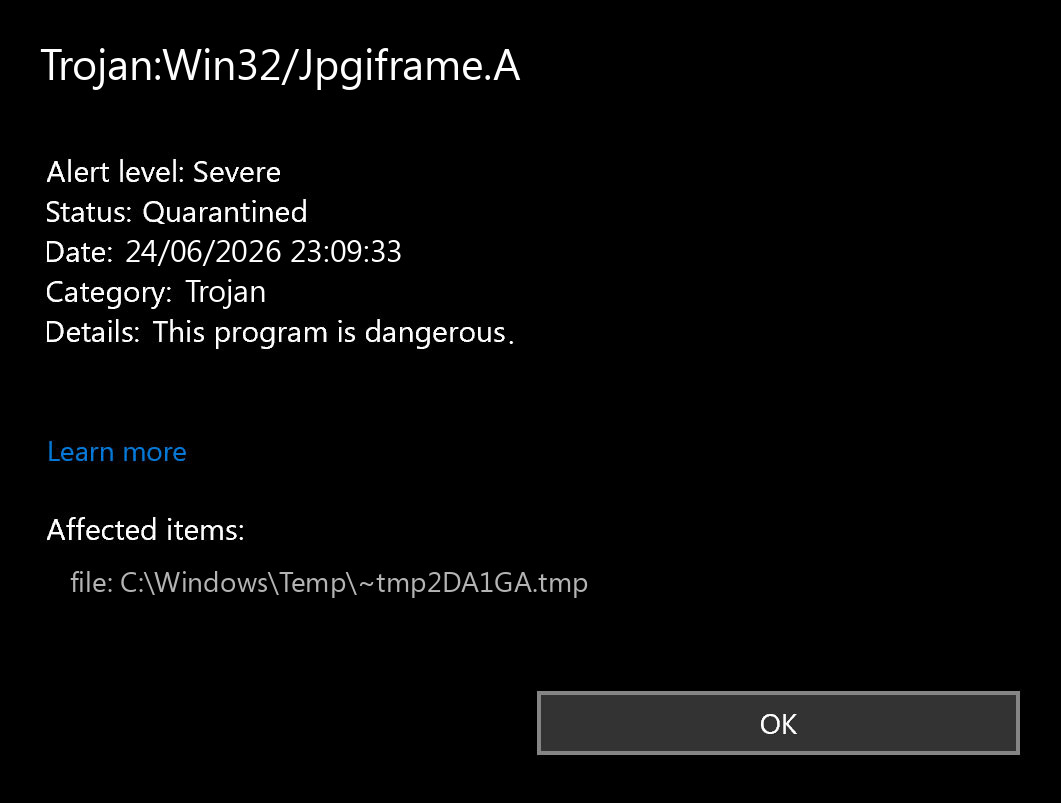
What Trojan:Win32/Jpgiframe.A Means
Microsoft describes this threat as something that can redirect your browser to a malicious or compromised site. In practice, users usually see it after a web page, browser cache item, email attachment, downloaded archive, or suspicious image/HTML file is scanned by Defender. The name does not prove that a full program installed itself, but it does mean the detected content should not be opened again casually.
The important question is not only the detection name. It is the source path. A browser cache hit after visiting a risky page is different from a file you downloaded, extracted, and ran. A recurring alert after reboot is more serious than a one-time quarantine from a temporary web cache folder.
What To Do First
- Open Windows Security and leave the item quarantined. Do not restore it just to inspect it.
- Open Protection history, expand the detection, and note the affected file or container path.
- Run a full Microsoft Defender scan. If the alert came from a download or archive, delete the original source file too.
- Clear the browser cache only after saving the detection path. This helps if the hit came from a temporary web object.
- If you opened a suspicious page, attachment, or fake viewer before the alert, reset the involved browser session and review saved passwords.
If the alert returns after reboot, appears from Downloads, AppData, Temp, Startup, Task Scheduler, or a browser profile folder, assume there may be leftover content or a companion downloader. That is the point where a second cleanup pass is useful.
Defender can quarantine the visible file, but repeated alerts may mean a loader, scheduled task, service, browser change, or bundled component is recreating it. Scan the PC before trusting the cleanup.
Scan if the alert returnsUse The Detection Path To Judge Risk
| Where Defender found it | What it usually means |
|---|---|
| Browser cache or Temporary Internet Files | You likely hit a malicious or compromised page. Quarantine plus cache cleanup may be enough if the alert does not return. |
| Downloads, Desktop, or an extracted archive | Do not open the file again. Delete the source archive or installer and scan the system before restoring anything. |
| Email attachment or document viewer cache | Treat the message as phishing or malspam. Check whether you entered passwords or downloaded a second file. |
| AppData, Startup, Task Scheduler, or repeated alerts | Look for persistence or a companion payload. Run a full cleanup scan and review recently installed apps/extensions. |
Could It Be A False Positive?
It is possible, but restore should be the last step, not the first. A false-positive review is reasonable only when the file is from a known legitimate source, the file path matches the expected app, the alert does not repeat from a suspicious folder, and another trusted check supports the same conclusion. If the file is from a random ad page, attachment, crack, fake update, or unknown archive, keep quarantine.
For a legitimate file that you truly need, submit it to Microsoft for analysis instead of bypassing the alert blindly. If the file has already run, scan for startup entries, scheduled tasks, browser changes, and additional downloads before trusting the system state.
Cleanup Checklist If The File Ran Or Alerts Return
- Disconnect from risky sites and close the browser session that triggered the alert.
- Remove the quarantined item and delete the original download or archive.
- Run a full Defender scan, then run Gridinsoft Anti-Malware if the alert returns or if the file came from an attachment, fake update, or unknown download.
- Review browser extensions, notification permissions, homepage/search settings, and recently installed apps.
- Check Startup Apps and Task Scheduler for new entries created around the detection time.
- Change passwords from a clean browser session if you typed credentials after visiting the suspicious page.
For related browser-script and redirect detections, see our HTML/Redirector guide. For Defender label triage in general, use the Microsoft Defender detection names guide.
How To Avoid Repeat Jpgiframe Alerts
Keep Windows, browsers, and security definitions current. Avoid opening image or document links from unsolicited messages, especially when the page asks for a browser permission, download, extension, or fake verification step. If a site immediately redirects through several pages or opens a file you did not request, leave the site and scan the download before opening it.
FAQ
Is Trojan:Win32/Jpgiframe.A always a full PC infection?
No. It can be a blocked web object or cache item, but you should still keep it quarantined and check the source path. A downloaded or executed file is higher risk than a browser-cache detection.
Should I restore Trojan:Win32/Jpgiframe.A from quarantine?
Do not restore it unless you have a strong reason to trust the file and you are submitting it for review or recovering a confirmed false positive. Random downloads, attachments, and cache detections should stay removed.
Why did Defender find it after browsing the web?
Microsoft says this threat can send the browser to a malicious or hacked website. A compromised page, malicious ad, or redirect chain can leave detectable content in the browser cache.
What if the alert keeps coming back?
Repeated alerts usually mean the source is still present: a download, browser extension, notification permission, startup item, scheduled task, or another page reopening the same content. Scan again and remove the source, not only the quarantine record.
References
- Microsoft Security Intelligence. “Trojan:Win32/Jpgiframe.A threat description.” Microsoft, accessed June 24, 2026. https://www.microsoft.com/en-us/wdsi/threats/malware-encyclopedia-description?name=Trojan%3AWin32%2FJpgiframe.A
- Microsoft Security Intelligence. “Submit files for malware analysis.” Microsoft, accessed June 24, 2026. https://www.microsoft.com/en-us/wdsi/filesubmission