If SmartScreen for Microsoft Edge is grayed out, Windows is usually applying a policy or treating the device as managed. Do not leave protection off and do not delete every Microsoft Edge policy key. First check whether the PC belongs to work or school, then open edge://policy to identify the exact policy and its source. On a personal, unmanaged PC, reverse the change through the tool that made it or remove only the verified leftover value after backing it up.
| What you find | Safest next step |
|---|---|
| The PC is connected to work or school, or Edge says the policy is managed | Do not remove the policy. Contact the organization that manages the device. |
A personal PC shows SmartScreenEnabled after a tweak, cleanup, or debloat tool ran |
Use that tool’s restore option or a pre-change restore point first. Back up and remove only the exact leftover value if you can verify it. |
| No SmartScreen policy appears, but the switch remains unavailable | Update and repair Edge, repair Windows Security, restart, and check the setting again. |
| You ran an unknown script or installer while protection was disabled | Restore protection, scan the PC, and check for persistence instead of assuming the locked switch is the only change. |
Why the SmartScreen setting is grayed out
Microsoft Defender SmartScreen in Edge checks websites and downloads for phishing, malware, and reputation-based risk. Microsoft turns it on by default, but an administrator can enforce the state through policy. When a mandatory policy controls the feature, the normal toggle is unavailable by design.
That does not always mean a company is secretly managing a home PC. A local Group Policy change, a Registry-based tweak, a security-hardening utility, or a cleanup script can write the same policy location. The important question is not merely whether a policy exists, but who put it there and whether the device is supposed to be managed.
Also keep the settings distinct. SmartScreen for Microsoft Edge checks sites and Edge downloads. Check apps and files applies reputation checks in Windows. A tool may change both, but repairing one control does not prove that every Windows security setting has been restored.
Step 1: Check whether the PC is legitimately managed
- Open Settings > Accounts > Access work or school.
- Look for a connected organization, device-management enrollment, or a work/school account that manages security settings.
- In Edge, open
edge://management. Read any management message shown there. - If the computer belongs to an employer, school, or another person, stop and contact its administrator.
Do not disconnect a real work or school account simply to unlock the switch. That can remove access to organizational resources or leave the device out of compliance. A policy enforced by an organization may also return automatically after you remove a local value.
Step 2: Identify the policy in Edge
Open a new Edge tab and enter edge://policy. Use the filter box to search for SmartScreen. Pay attention to these fields:
- Policy Name: the setting being controlled, such as
SmartScreenEnabled. - Policy Value: whether the policy forces the feature on or off.
- Source: where Edge received the policy.
- Applies To: whether it affects the current user or the device.
- Level: a mandatory policy locks the choice; a recommended policy can allow an override.
- Status: whether Edge accepted the policy or reports an error.
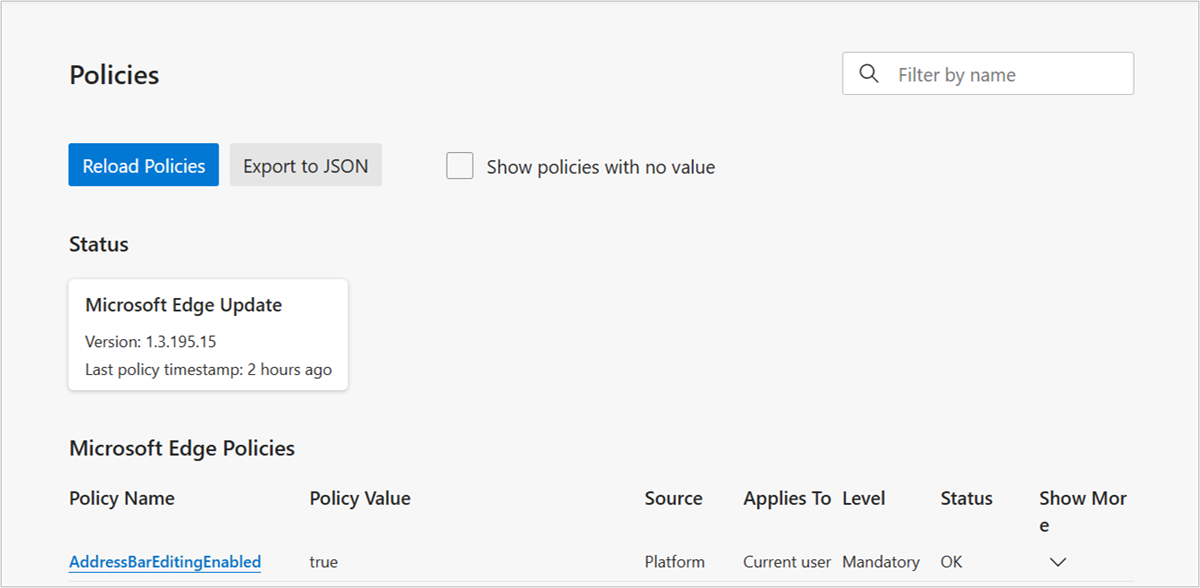
Select the policy name to read its documentation. Microsoft’s SmartScreenEnabled reference maps the mandatory Windows value to SOFTWARE\Policies\Microsoft\Edge and the recommended value to the Recommended subkey. If the policy is absent, do not invent a Registry fix; skip to the repair section.
Step 3: Restore SmartScreen on a personal PC
Use the least destructive method that matches what changed the setting.
- Use the original undo path. If a hardening, debloat, privacy, or cleanup tool changed Windows security settings, open its documentation and use its restore/default option. Do not rerun a random command from a forum.
- Use a known restore point when appropriate. A restore point created immediately before the change is safer than guessing across many policies. Review what Windows will restore before confirming.
- Check Local Group Policy on supported editions. Open
gpedit.msc, find Microsoft Edge > SmartScreen settings > Configure Microsoft Defender SmartScreen, and set a leftover local rule to Not configured. Do this only on your own unmanaged PC. - Inspect the exact Registry value only if the policy remains. Export the relevant Edge policy key before changing it. Remove only the verified
SmartScreenEnabledvalue that you know was added locally; do not delete the entireMicrosoft,Edge, orPoliciesbranch. - Reload and restart. Return to
edge://policy, select Reload Policies, close Edge, restart Windows, and check the toggle again.
The two machine/user locations you may need to inspect are:
HKEY_LOCAL_MACHINE\SOFTWARE\Policies\Microsoft\Edge
HKEY_CURRENT_USER\SOFTWARE\Policies\Microsoft\Edge
A value under one of these paths is not automatically malicious. Group Policy and device-management systems legitimately use policy-backed Registry locations. The value becomes a cleanup candidate only when the PC is personal and unmanaged, you can tie the change to a known local action, and no administrator is supposed to enforce it.
What to do when no SmartScreen policy appears
If edge://policy shows no SmartScreen policy, the disabled-looking control may reflect a damaged app state, an incomplete update, another security provider, or a broader Windows Security problem.
- In Edge, open Settings > About Microsoft Edge and install any available update.
- Restart Windows and check both Edge’s security settings and Windows Security > App & browser control > Reputation-based protection settings.
- Open Settings > Apps > Installed apps > Microsoft Edge, choose Modify, and use Repair if the option is available. Repair should preserve browser data.
- Open the advanced options for the Windows Security app and try Repair before Reset. Menu wording can vary by Windows build.
- If another antivirus is registered as the active security provider, update or repair that product before removing it. Do not run two real-time antivirus engines at the same time.
If Edge or Windows says the device is managed even though no organization should control it, return to the account and policy checks. The broader browser security settings guide explains how unwanted browser policies differ from ordinary extension or notification problems.
If policy looks normal but Chrome and Edge block every download while Firefox works, check Protection History and the active antivirus provider before changing SmartScreen or browser policy.
If the setting is available but the smartscreen.exe process keeps crashing or using high CPU, follow the process troubleshooting guide. Changing an Edge policy is not the same as repairing a Windows component error.
If the problem started after a script or blocked download
A script asking you to disable real-time protection, Check apps and files, and Edge SmartScreen deserves extra verification. That request does not prove the script was malware, but it removes several layers that would normally inspect the download and its behavior. Do not rerun the script until you know why it needed those protections disabled.
- Restore SmartScreen and Microsoft Defender protections.
- Check the downloaded file’s source, publisher, signature, and hash. Use the safe executable-checking guide for installers or executable files.
- Run a Microsoft Defender Full scan. If the scan ends immediately or behaves abnormally, investigate that separately instead of treating it as a clean result.
- Run a full Gridinsoft Anti-Malware scan if the script executed or the setting returns after reboot. The scan can check for scheduled tasks, startup entries, hidden files, bundled apps, browser changes, exclusions, and other persistence; it cannot prove that no exposure occurred.
- If you entered passwords or opened sensitive accounts after running an untrusted tool, change those passwords from a known-clean device and review active sessions.
If SmartScreen blocked one specific app, the safer question is whether the file is trustworthy, not how to turn every protection off. Use the Windows protected your PC decision guide before allowing an unfamiliar download. If you intentionally paused Microsoft Defender, follow the existing temporary-disable and restore guidance and turn the protection back on immediately afterward.
How to verify that SmartScreen is restored
edge://policyno longer shows an unexpected mandatorySmartScreenEnabledpolicy, or it shows the legitimate value required by your organization.- In Edge, Settings > Privacy, search, and services > Security shows Microsoft Defender SmartScreen enabled when the setting is user-controlled.
- In Windows Security, App & browser control > Reputation-based protection settings shows SmartScreen for Microsoft Edge on.
- Check apps and files is also on unless a legitimate administrator controls it.
- The state remains correct after a full restart.
You do not need to visit a dangerous site or download a suspicious file to test the fix. The policy page, enabled controls, and stable post-restart state are enough to confirm that the setting is available and applied.
FAQ
Why does Windows say this setting is managed by an administrator on my home PC?
A local Group Policy, Registry tweak, security utility, or script can use the same policy mechanism as an organization. Check edge://policy and the work-or-school account page before changing anything.
Should I delete the entire Edge policy Registry key?
No. Other valid Edge policies may share that key. Back it up and remove only the exact value you verified as an unwanted local leftover.
Can third-party antivirus gray out Edge SmartScreen?
A security product can change provider or protection state, but an enforced Edge policy should still appear on edge://policy. Update or repair the active provider and avoid running two real-time engines together.
Is a cleanup or debloat script that disables SmartScreen malware?
Not necessarily. The request is a risk signal, not a verdict. Verify the script’s source and changes, restore protection, and scan if it ran while defenses were disabled.
References
- Microsoft Support. “How can SmartScreen help protect me in Microsoft Edge?” Microsoft, accessed August 15, 2026. Microsoft Support.
- Microsoft Learn. “Microsoft Edge Browser Policy Documentation: SmartScreenEnabled.” Microsoft, updated May 22, 2026, accessed August 15, 2026. Microsoft Learn.
- Microsoft Learn. “Configure Microsoft Edge for Windows with policy settings.” Microsoft, updated August 5, 2024, accessed August 15, 2026. Microsoft Learn.