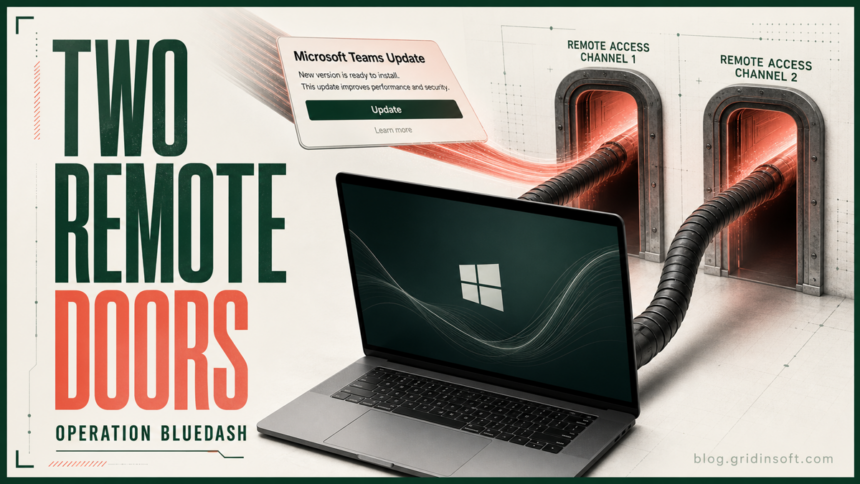
Operation BlueDash is a phishing and remote-access campaign that turns a “secure document” email into a counterfeit Microsoft Teams update. ZeroBEC’s July 21 investigation found that the downloaded supportdev.exe installer could silently enroll a Windows PC in attacker-controlled Level RMM and try to install ScreenConnect in parallel. The research reached a broader security-news audience on July 27.
The practical boundary is important: reading the email or viewing the fake page is not the reported endpoint compromise. The high-risk state begins when the downloaded installer is run. Because the operators attempted to create two remote-access paths, finding and removing one RMM agent does not prove that access is gone.
Check your Operation BlueDash exposure state
| What happened | Risk and next step |
|---|---|
| You only read the email | The report does not show email preview alone installing the RMM tools. Report the message and do not use its button. |
| You opened the link but downloaded nothing | Close the page, preserve the URL for your security team, and clear the download prompt. Check browser downloads to confirm no file arrived. |
| You downloaded the claimed update but did not run it | Do not open it. Quarantine or delete the file and scan it. Record its original name, path, and download time. |
You ran supportdev.exe or another claimed Teams/Zoom update |
Treat the PC as a remote-access incident. Disconnect it, preserve evidence, and inventory every unapproved RMM agent before reconnecting. |
This is not a flaw in Teams, Level RMM, or ScreenConnect. The campaign abuses familiar brands and legitimate administrative software. A company-managed PC may have approved remote-support software, so the decisive question is whether the product, tenant, service, and enrollment were authorized by the organization.
How the secure-document lure reaches a fake Teams update
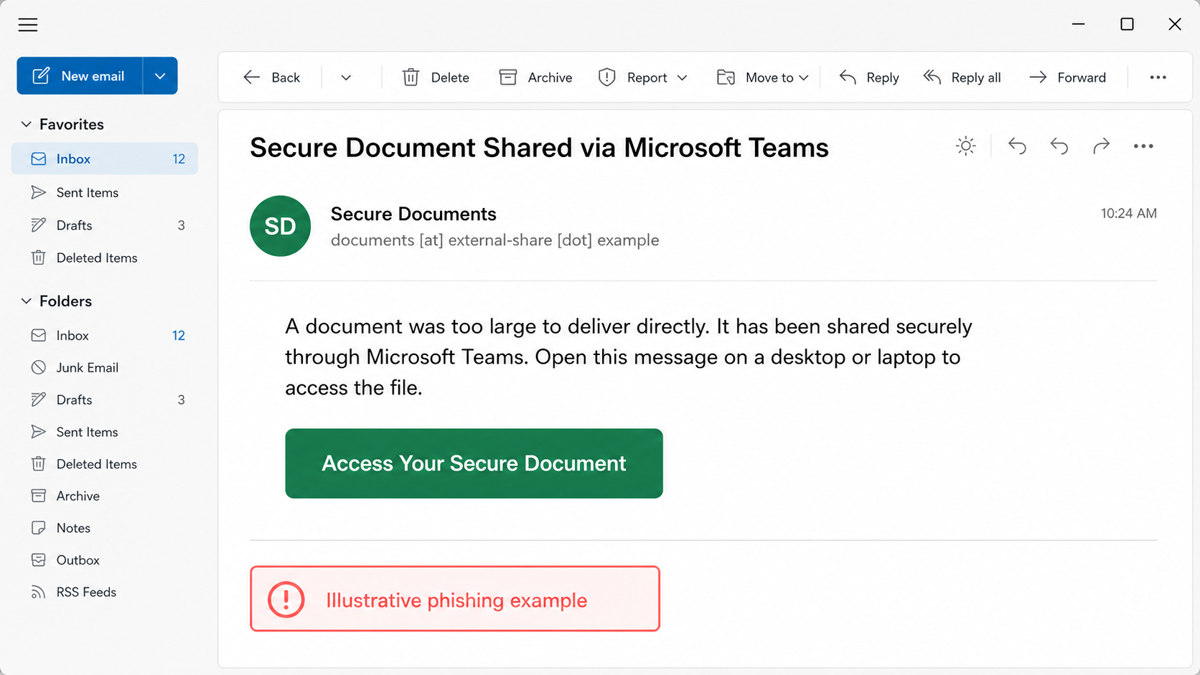
The observed email said that a document was too large to deliver directly and had been shared securely through Microsoft Teams. It recommended opening the message from a desktop or laptop and used an Access Your Secure Document button. A safe recognition example is:
Subject: Secure Document Shared via Microsoft Teams
Sender: Secure Documents
A document was too large to deliver directly. It has been shared securely through Microsoft Teams. Open this message on a desktop or laptop to access the file.
Button: Access Your Secure Document
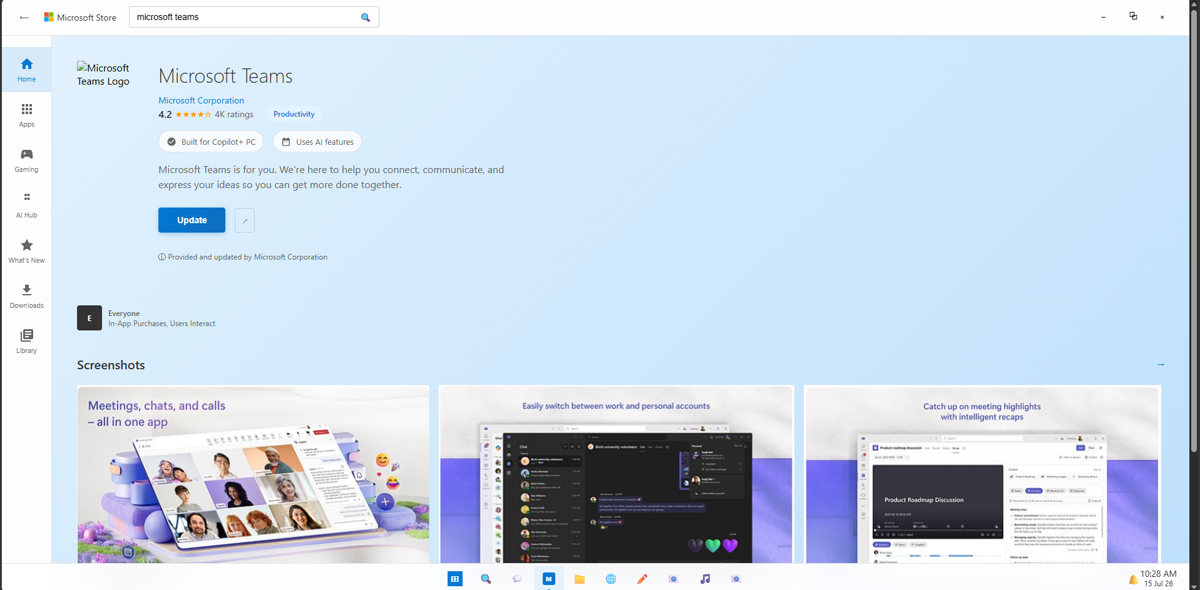
The link first passed through compromised web infrastructure. ZeroBEC recovered a counterfeit Microsoft Store page that copied Teams branding, product details, screenshots, and an Update button. Microsoft software updates should come through the installed application, Windows, Microsoft Store, or an organization’s managed deployment—not through a document-sharing email that blocks access until an executable is installed.
What the fake update installs
- The lure delivers
supportdev.exe. ZeroBEC identified it as an Inno Setup package rather than a legitimate Teams installer. - Hidden PowerShell retrieves an official Level installer. The command silently supplies an attacker-controlled enrollment value, so the endpoint joins the operator’s RMM environment without a normal support approval flow.
- ScreenConnect is attempted in parallel. This creates a second remote-access channel if one deployment succeeds and the other is noticed or removed.
- Operators inspect the host. The captured follow-on activity checked reboot state, BitLocker, firewall profiles, and local Administrators membership—evidence of interactive assessment after enrollment.
Repository history also connected the Teams branch to a Zoom-themed branch that later used JScript to deploy Tactical RMM. That does not mean every fake meeting page is Operation BlueDash, but it shows why blocking one domain or removing one product is not a complete response.
Warning signs to correlate
supportdev.exeor a claimed Teams/Zoom update launched from Downloads or a temporary folder.- Hidden
powershell.exeactivity immediately after an unexpected Inno Setup installer. - A new Level agent, ScreenConnect client, Tactical RMM service, or other remote-management tool that IT cannot match to an approved tenant and deployment.
level.msi, ScreenConnect client setup files, or remote-support services appearing at the same time as the suspicious download.- RMM-originated commands that query BitLocker, firewall state, reboot status, or local Administrators membership.
None of these product names alone proves a compromise. The useful signal is the sequence: deceptive workplace lure, unexpected installer, silent enrollment, new service, and remote commands outside an approved IT workflow.
What to do if the fake update ran
- Disconnect the Windows PC from the network. Do not keep browsing for removal instructions on the suspected endpoint if an operator may still have interactive access.
- Contact workplace IT or the security team. A managed device may contain approved RMM software, and responders need the email, downloaded file, time, user, and service inventory before evidence is removed.
- Inventory every remote-access path. Check installed applications, Windows services, startup items, scheduled tasks, recent MSI installations, and remote-support agents. Compare the tenant/server information with the organization’s approved list.
- Remove unapproved agents and the delivery chain. Do not stop after uninstalling ScreenConnect if Level or another RMM service remains. Preserve logs first when the device belongs to a business.
- Run a full malware scan. Security software may remove the visible installer while a service, task, script, exclusion, or another remote agent remains. Reboot only when the response plan allows it, then scan again if alerts or services return.
- Review what happened through remote access. Inspect RMM, PowerShell, process, account, firewall, and endpoint logs. Look for new administrators, security changes, transferred files, persistence, and lateral movement.
- Protect accounts from a clean device. Secure primary email and work identity, terminate sessions, rotate exposed credentials, review MFA methods, and revoke unknown apps or tokens. Removal alone cannot reverse actions already performed remotely.
If the file ran, use the broader Windows security audit after malware after containment. The unexpected ScreenConnect cleanup guide explains product-specific checks, while the remote-access malware guide covers signs that interactive control continued.
Gridinsoft Anti-Malware can scan the Windows endpoint for detected loaders, scripts, services, startup entries, scheduled tasks, and related malware. It cannot prove that no remote session occurred or restore credentials that an operator may already have seen.
If the page or email made you download an invoice, coupon, tracking app, browser extension, or support tool, scan the PC before opening it again or logging into sensitive accounts.
Scan this PC for the fake update loaderFalse assumptions to avoid
- “The RMM installer was signed, so it was safe.” A legitimate installer can still enroll the PC into an attacker-controlled tenant.
- “I removed ScreenConnect, so the incident is over.” Operation BlueDash attempted Level and ScreenConnect in parallel; connected branches used other RMM tools.
- “The email passed normal authentication checks.” Compromised sites and legitimate cloud services can still lead to a malicious final download.
- “Changing the password cleans the PC.” Account recovery and endpoint cleanup are separate tasks, and both may be necessary.
A related help-desk lure now uses a SynkLoader fake Windows lock screen to steal a Windows password before enabling remote access.
Another counterfeit-software warning: a tampered Exodus installer can run a mostly genuine wallet invisibly while a modular RAT steals browser data and enables remote access. If an installer appears to do nothing, isolate the PC and inspect its persistence instead of retrying it.
References
- ZeroBEC Team. “Operation BlueDash: Multi-RMM Workplace Phishing.” ZeroBEC, July 21, 2026, accessed July 28, 2026. Operation BlueDash research.
- Microsoft Defender Security Research Team. “Signed malware impersonating workplace apps deploys RMM backdoors.” Microsoft Security Blog, March 3, 2026, accessed July 28, 2026. Microsoft RMM-abuse analysis.