No Windows setting can make a PC completely scam-proof, and a standard user account by itself does not stop every portable or per-user remote-control app. The safer approach is layered: keep the administrator password with a trusted caregiver, use a standard account for daily work, turn on download and reputation controls, restrict app sources where practical, and test an AppLocker allow policy before enforcing it. Pair those controls with one family rule: an unexpected caller never gets a support code, download, password, or payment.
What each protection layer does
| Layer | What it prevents — and what it does not |
|---|---|
| Family verification rule | Stops the social-engineering step when followed. It still depends on the person pausing and calling a trusted number. |
| Standard daily account | Blocks many system-wide changes without an administrator password. It does not automatically block portable apps or software that installs only for one user. |
| SmartScreen and PUA blocking | Warns about suspicious downloads and potentially unwanted apps. Legitimate remote-support tools can still be allowed because they also have lawful uses. |
| Microsoft Store-only apps | Stops many traditional installers. It can also block software the family genuinely needs and is not a complete control for scripts or built-in remote-help tools. |
| AppLocker allow policy | Can prevent unapproved executables, installers, and scripts from running. A poorly tested policy can also block browsers, updaters, accessibility tools, or other legitimate software. |
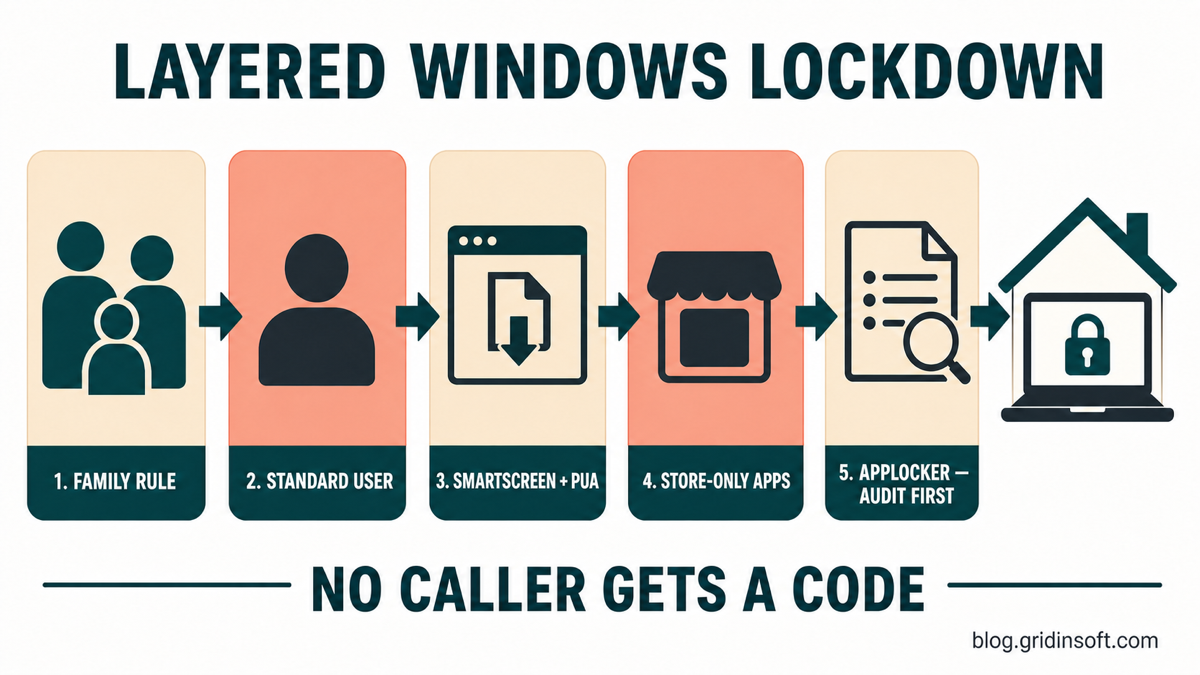
Start with a family rule that works when settings fail
Microsoft says unsolicited technical support, browser warnings with phone numbers, and requests for remote access are common tech-support-scam patterns [1]. Put a short rule beside the computer and repeat it before changing settings:
No caller gets a code. Do not install an app, open Quick Assist, read a connection code, share a password, move money, or buy gift cards for an unexpected caller. Hang up and call a family member or the organization using a saved number.
This rule also applies when the caller claims to be Microsoft, a bank, Amazon, a security company, a refund department, police, or a government agency. If a browser warning supplies the phone number, close it; our Microsoft pop-up scam guide shows how to distinguish that browser trap from a real account lock. Families supporting older adults should also review the multi-stage impersonation pattern in the Phantom Hacker scam guide.
Use separate administrator and daily accounts
- Sign in with the current administrator account and create a separate administrator account for the trusted caregiver. Give it a unique password that the daily user does not know.
- Create or change the family member’s normal Windows account to Standard user under Settings > Accounts > Other users.
- Sign in to the standard account and confirm that email, printing, accessibility tools, browser profiles, video calls, and required apps still work.
- Keep the caregiver administrator account documented and recoverable. Do not make a remote-support app the only way to administer the PC.
This removes casual administrator approval from the scam conversation, but it is not the finish line. Some apps install under the user’s profile, and some portable tools can run directly from Downloads, Desktop, AppData, or Temp without changing system-wide files.
Turn on built-in download and app protections
Enable SmartScreen and PUA blocking
Open Windows Security > App & browser control > Reputation-based protection settings. Turn on the available SmartScreen checks and Potentially unwanted app blocking, including both app and download blocking. Microsoft notes that download blocking is tied to Microsoft Edge, while app blocking can detect unwanted software already downloaded through another browser [2].
Keep the browser updated and do not teach the daily user to click through reputation warnings. A scammer may describe the warning as a normal obstacle; the right response is to stop and call the trusted family contact.
Consider Microsoft Store-only apps
On a PC with a small, stable app list, open Settings > Apps > Advanced app settings and set Choose where to get apps to The Microsoft Store only. Test every required application first. This can be too restrictive for specialist software, printers, older accessibility tools, or vendor updaters, so use the warning-only option when Store-only mode breaks essential work.
Do not treat this setting as universal application control. It is useful friction for installers, but it does not replace the next layer when the real goal is to stop unapproved code from user-writable folders.
Use AppLocker only after an audit-first test
AppLocker is an advanced Windows application-control feature. It organizes policies into executable, Windows Installer, script, packaged-app, and optional DLL rule collections. Microsoft warns that once a collection contains rules, only files matched by an allow rule and not matched by a deny rule can run. Microsoft also recommends Audit only to discover what a policy would affect before enforcement [3].
If the PC does not expose the AppLocker or Local Security Policy management console, do not download registry files, copied XML policies, or third-party “unlock” scripts from a forum. Keep the safer layers above, or ask a Windows administrator to build and test the policy locally.
- Create a recovery path first. Confirm the separate administrator account works, save a current backup, and know how to reach Windows recovery options without the daily account.
- Inventory required apps. List browsers, printer utilities, password managers, communication apps, accessibility tools, cloud-sync clients, and updaters. Note which ones run from the user profile rather than
Program Files. - Start with default allow rules. In Local Security Policy, open Application Control Policies > AppLocker. Create the default rules for Executable, Windows Installer, Script, and Packaged app collections. These are a starting template, not a finished family policy.
- Add narrow exceptions for required software. Prefer signed publisher rules when they remain valid across trusted updates. Do not create a broad allow path for
Downloads,Desktop,AppData,Temp, or another folder the standard user can write to; malware or a portable remote tool could be copied there and inherit the permission. - Set every configured collection to Audit only. Use the PC normally for several days and review AppLocker events for legitimate files that would be blocked.
- Fix the allow list, then test again. Verify Windows Update, browser updates, printing, video calls, document opening, accessibility features, and the family’s normal workflow.
- Enforce one collection at a time. Start with Executable rules, verify the standard account, then move to installer and script collections. Keep the administrator recovery account outside the restricted user group.
A simple allow policy is safer than a growing list of brand-specific deny rules. Scammers can change the remote tool, rename the file, use a portable build, or switch to a built-in service. The policy should define what the daily user may run, not attempt to predict every product name.
A September 2026 CHOSEN BRICK investigation shows why the verification rule must cover every device: fake helpers tried to move targets from protected work computers to personal PCs. Do not treat a request to try a blocked download on another machine as a harmless workaround.
Remove remote-help tools the family does not use
Check Settings > Apps > Installed apps, browser extensions, and the browser’s app list for remote-support software. AnyDesk, TeamViewer, UltraViewer, RustDesk, Supremo, ScreenConnect, and Chrome Remote Desktop can all be legitimate, but an unexpected install needs verification. Remove unused tools and disable unattended-access settings on tools that must remain. If RustDesk appeared without explanation or sends unknown requests, use our RustDesk access and removal checklist before deleting its logs.
Quick Assist is built into or distributed with Windows and may be useful for trusted support. Removing or disabling it can reduce one route, but it cannot stop a caller from switching to another tool. If the family keeps Quick Assist, the rule remains the same: the user opens it only after calling a known helper through a saved number, and never reads a code supplied by an unsolicited caller.
Test the lockdown from the daily account
- Confirm a known installer copied to
Downloadscannot run without the intended approval path. - Confirm an approved browser and its updater still work.
- Confirm Windows Update, printing, scanning, accessibility tools, meetings, and document handlers work.
- Confirm the daily user cannot switch the account back to administrator or change AppLocker policy.
- Confirm the trusted caregiver can still sign in locally and reverse a broken rule.
- Write down the date, allowed apps, policy backup location, and recovery account. Re-test after adding or replacing software.
Do not deliberately download a remote-access tool from a search ad or an unknown mirror to test the policy. Use an already trusted installer or ask an administrator to perform the validation.
If someone already had remote access
Lockdown settings are prevention, not incident cleanup. Disconnect the PC from the internet, end the call, and use a different trusted device to contact the bank and change email, Microsoft, and financial passwords. Remove the remote-control client only after recording its name, and review what accounts were open during the session.
Deleting the visible installer may leave a service, scheduled task, startup entry, browser change, security exclusion, or second payload behind. The unexpected ScreenConnect cleanup guide shows that distinction for one common remote-support client, while the RemoteAdmin detection guide explains why legitimate remote-control files become risky when their installation was not authorized.
After the manual checks, Gridinsoft Anti-Malware can scan for detections, hidden files, startup entries, scheduled tasks, bundled apps, browser changes, and persistence. A scan cannot recover money, prove no data was viewed, or replace password and bank response from a clean device.
If the process path is wrong, the name imitates a Windows component, or high CPU started after an unknown installer, scan for hidden miners, services, startup entries, and bundled components.
Scan for remote-access leftoversFAQ
Is a standard Windows account enough to stop a remote-access scam?
No. It blocks many administrator-level changes, but portable and per-user apps may still run. Combine it with reputation controls, app-source restrictions, tested application control, and a family verification rule.
Does disabling Remote Desktop block AnyDesk or TeamViewer?
No. Windows Remote Desktop is only one remote-access method. Third-party tools and Quick Assist use their own services and outbound connections, so disabling RDP does not create a universal block.
Can AppLocker make a computer scam-proof?
No. AppLocker can stop unapproved code, but it cannot prevent a user from sharing a password, payment, screen, or support code through an allowed application. It also needs careful maintenance as legitimate apps change.
Should a family remove Quick Assist?
Remove or disable it when nobody legitimately uses it. If it is needed, keep a strict rule: the family member starts a session only after contacting the trusted helper through a saved number.
References
- Microsoft. “Protect yourself from tech support scams.” Microsoft Support, accessed July 15, 2026. support.microsoft.com.
- Microsoft. “Protect your PC from potentially unwanted applications.” Microsoft Support, accessed July 15, 2026. support.microsoft.com.
- Microsoft. “Working with AppLocker rules.” Microsoft Learn, updated October 1, 2024; accessed July 15, 2026. learn.microsoft.com.