
Yahoo Search is a legitimate search engine, but it should not become Chrome’s default search engine without permission. If Chrome keeps switching searches to Yahoo, opens Yahoo after restart, or shows “Your settings were changed by an unknown app”, treat the problem as browser-setting tampering. The usual source is not Yahoo itself; it is an extension, bundled app, Chrome policy, shortcut/startup entry, sync residue, or adware component that keeps rewriting Chrome.
If the browser briefly shows newtab.art before Yahoo results, clean that redirect layer first with the Newtab.art redirect removal guide, then return here to finish the Yahoo search reset.
If the URL flashes mobility-search.com or mobilisearch.com before the Yahoo page, use the Mobility-search.com redirect removal guide first; that variant often lives in Chrome Site Search, sync, or policy settings rather than in the visible Yahoo row.
If Chrome also shows Managed by your organization, clean the forced policy with the Managed by your organization removal guide before changing Yahoo again. If the redirect chain names Nextgeeker.com, use the Nextgeeker.com redirect removal guide first, because the same local source can recreate the Yahoo route.
If the URL flashes bestfreemaps.com or s1search.co, remove the Get Maps & Driving Directions browser hijacker and its site-search route before re-enabling sync or resetting Chrome.
Remove Yahoo Search from Chrome When It Keeps Coming Back
Start by removing the source that controls Chrome, then reset the browser. Open Settings > Search engine, remove suspicious Yahoo-like entries, disable unknown extensions, check chrome://policy, uninstall recently added apps, and inspect startup items or shortcut targets. If Yahoo returns after those checks, scan Windows for adware before resetting Chrome again.
Chrome “Unknown App” Warning for Yahoo Search
Chrome may show this warning after it detects that another program changed the default search engine, homepage, startup pages, pinned tabs, or extensions. In that case, Chrome can reset the affected setting for safety. The warning does not prove that Yahoo itself is malware; it means something else tried to change Chrome from outside the browser.
- If the message appears once after a browser reset or profile cleanup, review your settings and continue monitoring.
- If Yahoo returns after every restart, check extensions, installed apps, Chrome policies, startup entries, and shortcuts before resetting Chrome again.
- If the same redirect affects several browsers or comes back after cleanup, run a full anti-malware scan because a browser hijacker or adware component may still be active.
What is the Yahoo Search Engine?
Yahoo is one of the first search engines that appeared on the Internet. In 1995, it was initially introduced as a search mechanism for cataloging the websites recommended by Yahoo. Further, they applied for a partnership with Inktomi and then Google. That allowed Yahoo to become much more popular. In 2003, they added a full-fledged web crawling service that extended the search results. However, in 2004 Google managed to outpace Yahoo by market share. Now it is just a part of niche services offered by Yahoo.
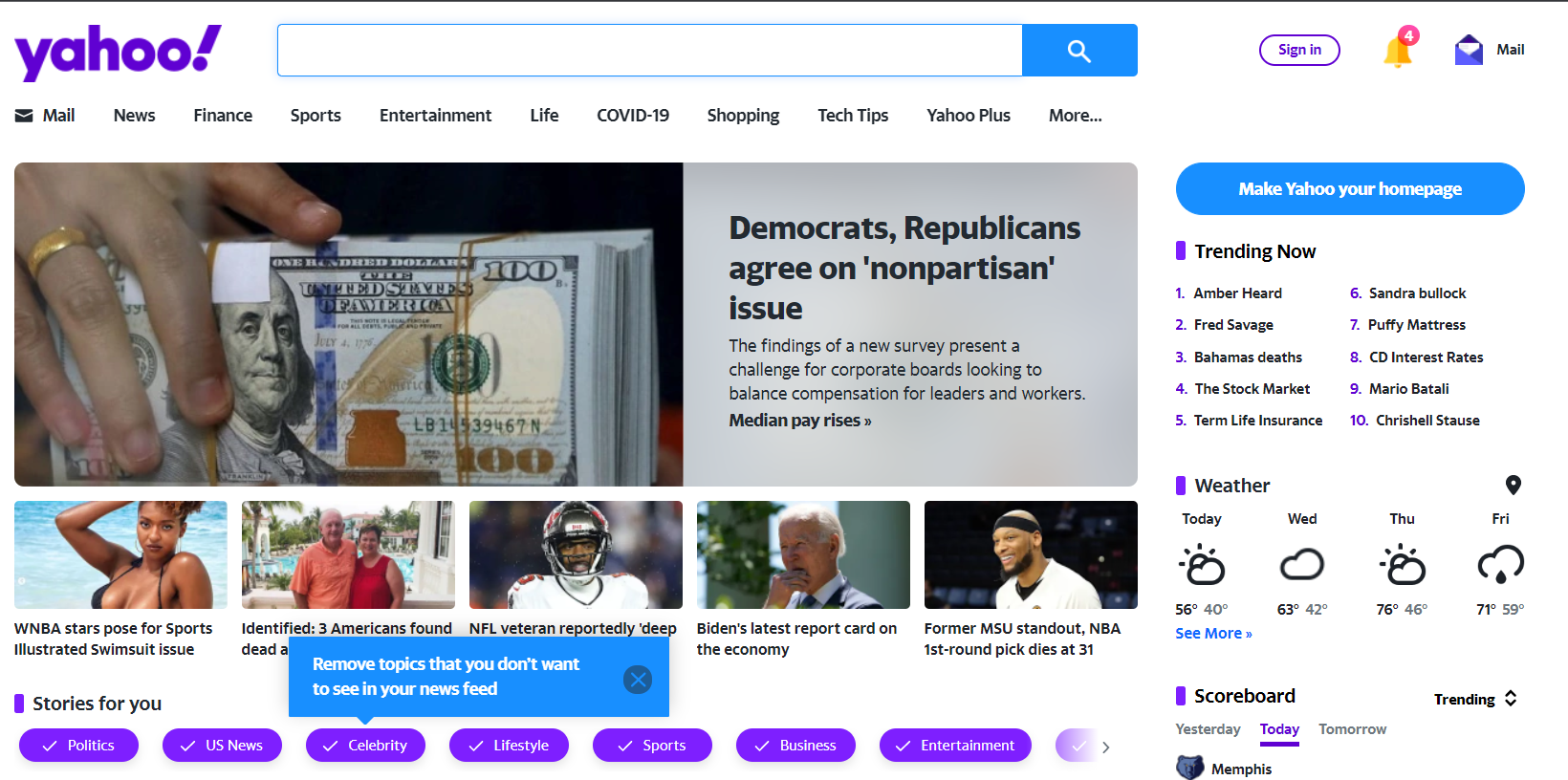
Besides its 100% benevolent nature, there are cases when users uncover that Yahoo is set as their search engine by force. Changing it to the one you used does not help – it will be switched back to Yahoo almost immediately. Searching with such settings is likely not comfortable because the results differ from what you expect. And the most unpleasant thing is that someone earns money for you with such changes.
Why Yahoo Search Keeps Coming Back in Chrome
Seeing your search engine constantly changed to Yahoo usually means that a browser hijacker, unwanted extension, or bundled application is controlling Chrome settings. It can change the default search engine, redirect search queries, add startup pages, or reopen the browser with pages chosen by the operator. Some cases are only unwanted software or a vendor “secure search” feature, but the fix is the same: remove the component that keeps rewriting Chrome.
The exact form of that malware may be different. Most browser hijackers are tiny programs that sit deep on the disk. Throughout the last couple of years, they massively opted for the guise of a browser plugin. That makes the malware implementation much easier, and formally such plugins do not violate any rules – the user allows it to do all these nasty things during the installation.
Is the Yahoo Search in Chrome Dangerous?
Yahoo Search itself is not dangerous, but a forced Yahoo redirect is a risk signal. The extension or app behind it may track searches, push sponsored results, open misleading pages, or send you toward phishing and fake security alerts. Scam sites like Pornographic Virus Alert from Microsoft also appear among these redirections.
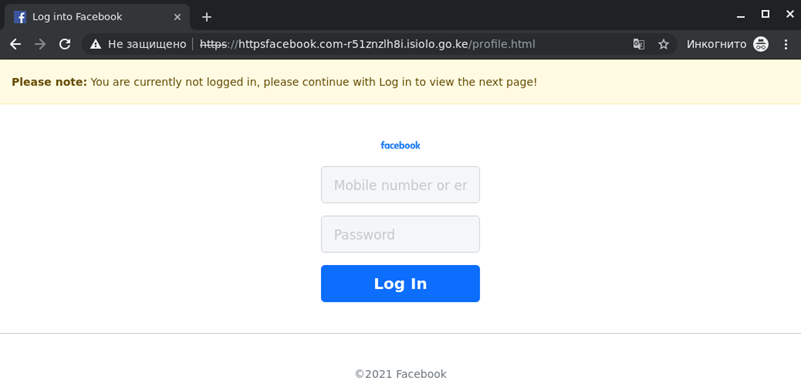
Besides the possibility of being scammed in such a way, you may also get your personal information stolen. In the cases when malware is spread as a browser hijacker, it asks you to give access to cookie files and browser history. Those two categories are pretty valuable for selling the data to third parties. Besides that, cookies may contain the login credentials in the unciphered form – that is just a gift for cybercriminals.
How Did the Yahoo Search Hijacker Get Installed?
As I have mentioned before, browser hijackers may have different forms. Web browser plugin, “PC optimiser”, rogue – choose what you want. While all this diversity is hard to compare when you don’t know about the internal things, the externals – exactly how they are distributed- are most likely the same. Crooks who spread hijackers usually try to bait the user into installing the malware under something useful. Usually, such stuff is found on online forums, abandoned sites that were hacked, and advertisements.
Any advertised offers that look too generous or contain statements baiting you to click on them must not be trusted. Only God knows what will happen – redirection, malware downloading, or even throwing you to the exploit page. It is better not to choose at all – I recommend you avoid clicking such things. It is one of the most basic principles of cyber hygiene – don’t ignore it!
What to Check Before Resetting Chrome
- Open Settings > Search engine and remove suspicious Yahoo-like entries from Manage search engines and site search.
- Open chrome://extensions, disable unknown extensions, then remove anything that can change search, new tab, or startup behavior.
- Open chrome://policy. If Chrome says it is managed on a personal PC, inspect recently installed programs and remove the app that enforces the policy.
- Check Windows Installed apps, Startup apps, Task Scheduler, and the Chrome shortcut target for unwanted launch parameters or recently added software.
- If Chrome Sync restores the redirect, pause sync, clean the profile, and only re-enable trusted extensions. Our browser extension safety guide explains which permissions deserve extra caution.
Resetting Chrome is useful after those checks, but a reset alone may not hold if an external app, policy, or adware process is still rewriting the profile.
Remove Yahoo Search from Chrome
Browser hijackers often leave more than one persistence point. You may remove the visible extension but miss a policy, helper app, startup task, or shortcut parameter that restores the redirect. That is why the safest order is: remove suspicious browser entries, remove the Windows app that installed them, scan for adware, and only then reset Chrome settings.
If Yahoo keeps coming back after manual checks, use anti-malware software to look for adware and browser-hijacker leftovers. GridinSoft Anti-Malware can scan the browser profile, startup locations, and common persistence paths, then help remove the component that keeps changing the search engine.
Reset Your Chrome Browser Settings
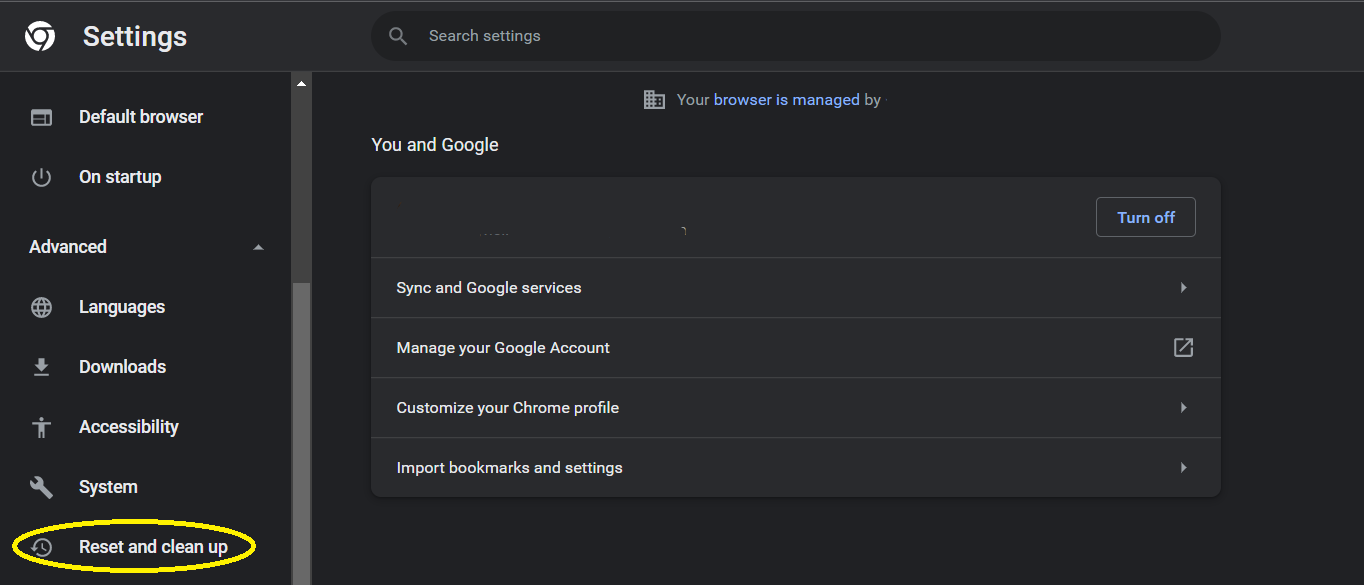
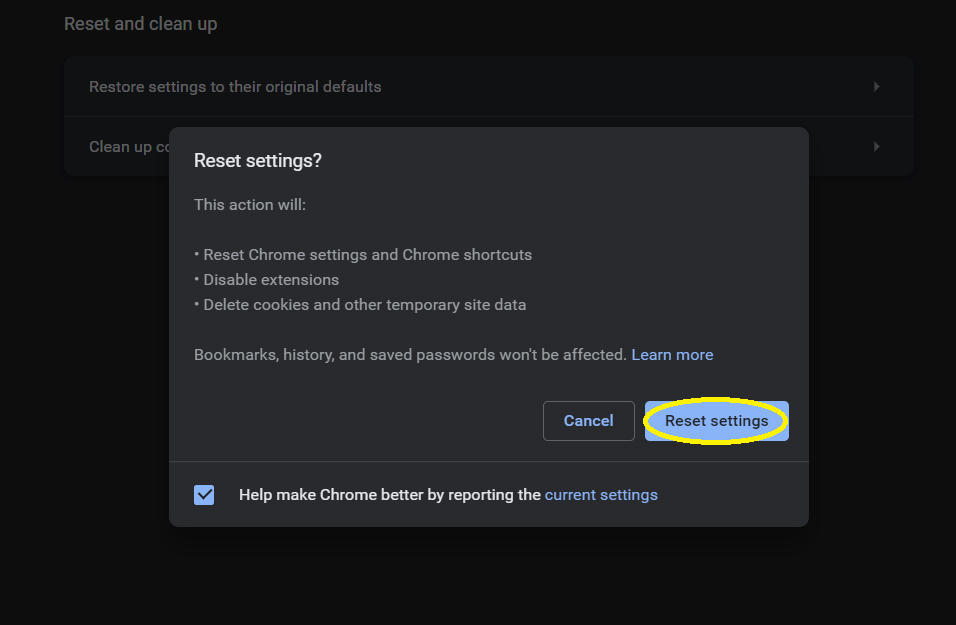
- Most of the contemporary browsers have the same reset steps. Chrome is not an exclusion; it is a trendsetter for the rest programs in this class. Go to Settings, and find there the Reset and Clean Up submenu.
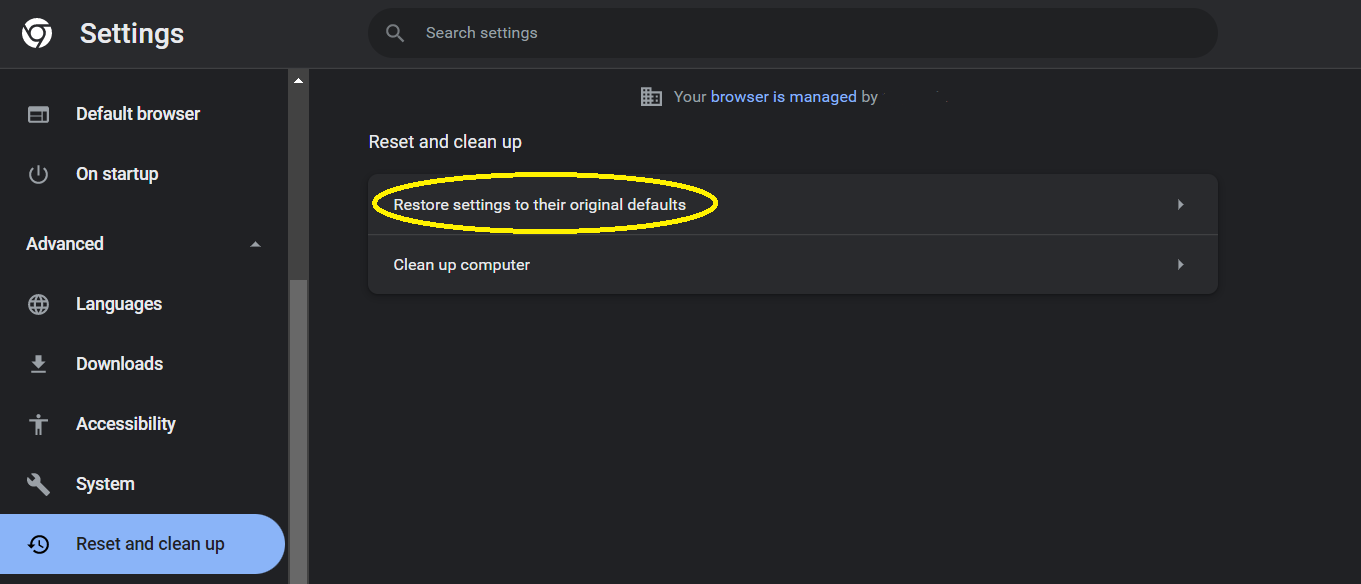
- In it, click on the Restore settings to their original defaults. That will call the appearance of the pop-up window.
- In that pop-up window, accept the settings resetting. Then, your browser will be as good as the newly installed.
FAQ
Does “Your settings were changed by an unknown app” mean Yahoo is malware?
No. Yahoo is a legitimate search engine. The warning means Chrome detected a search-setting change from outside the browser, so the risky part is the app, extension, policy, or adware that made the change.
Why does Yahoo come back after I change Chrome back to Google?
Yahoo usually comes back when an extension, installed app, Chrome policy, shortcut, startup task, or synced profile keeps rewriting the default search engine. Remove that source first, then reset Chrome settings. If the unwanted route mentions Freshy or freshysearch-api.net, use the Freshy Search hijacker cleanup steps; if it flashes newspulsenow.net, use the Newspulsenow.net redirect cleanup guide before trusting the browser profile again.
How do I permanently remove Yahoo Search from Chrome?
Remove suspicious search engines, extensions, managed policies, startup entries, and recently installed apps before resetting Chrome. If the setting changes again after restart, scan Windows for adware or a browser hijacker.
Why does Chrome say it is managed by my organization on my personal PC?
On a home computer, that message can appear when software adds Chrome policies. Check chrome://policy, uninstall the app that created the policy, and remove any extension or startup item tied to the forced search engine.
References
- Google Chrome Help. “Reset Chrome settings to default.” Google, accessed June 2, 2026. https://support.google.com/chrome/answer/3296214