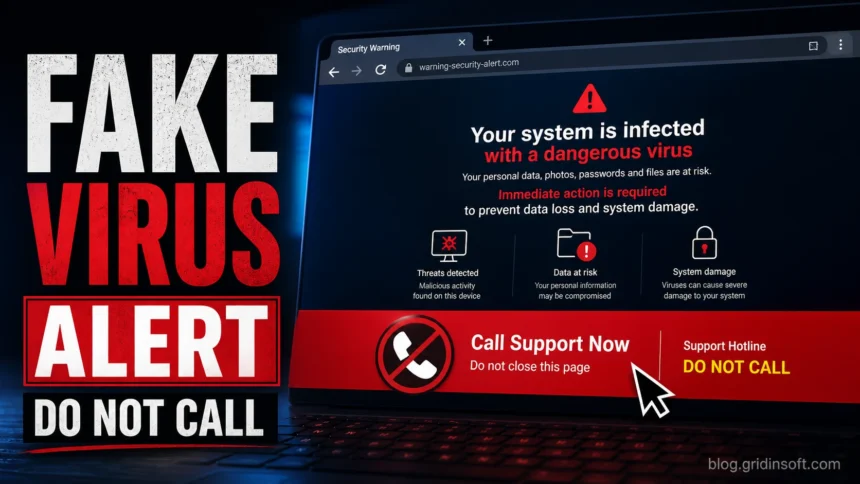
The “Pornographic Virus Alert from Microsoft” page is a tech support scam, not a real Microsoft Defender or Windows Security warning. Do not call the number, do not install remote-access software, and do not pay for any “support” offered on the page. Close the browser, block the site’s notifications, check for suspicious extensions or apps, and run a trusted malware scan if the alert keeps returning.
- If the page is stuck in full screen: press Esc or F11, then close the tab. If that fails, use Ctrl + Shift + Esc to open Task Manager and end the browser process.
- If you already called the number: disconnect the internet, remove any remote-access tools the caller asked you to install, change passwords from a clean device, and contact your bank or card provider if you paid.
- If the warning comes back: review browser notification permissions, remove suspicious extensions, reset the browser, and scan the PC for adware or potentially unwanted apps.
What Is the Pornographic Virus Alert from Microsoft?
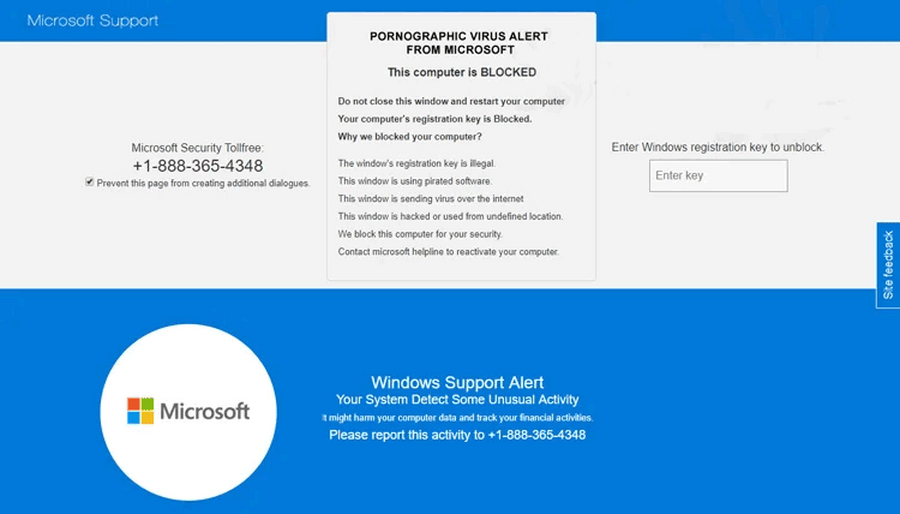
The Pornographic Virus Alert from Microsoft is a deceptive browser page that claims your computer has been locked because it found a “pornographic virus” or unsafe browsing activity. It usually imitates Microsoft or Windows security language, displays a phone number, and warns you not to close the page. Microsoft’s own support guidance says real Microsoft error and warning messages do not include a phone number, and Microsoft does not proactively contact users to fix unsolicited PC problems.[1]
The goal is pressure. The scammer wants you to call before you have time to verify the warning. Once on the phone, they may ask you to install a remote-access tool, show fake scan results, sell unnecessary support, request payment by card, gift card, or cryptocurrency, or install unwanted software.
Why It Appears in the Browser
In many cases, the alert is just a malicious or compromised web page opened through an ad, redirect, fake download button, adult-site pop-under, cracked-software page, or push-notification spam. A related iPhone/Mac lure is the “You May Have Viruses On After Visiting An Adult Website” pop-up scam, which uses iCloud and photo-loss claims instead of a Microsoft support phone number. A website can make a browser page look alarming, play audio, loop pop-ups, or enter full-screen mode, but that does not prove the site scanned your PC.
If the alert appears repeatedly after you reopen the browser, check for these causes:
- the browser is restoring the same scam tab after a forced close;
- a suspicious site was allowed to send notifications;
- an unwanted extension is redirecting searches or new tabs;
- adware or a potentially unwanted application is changing browser behavior;
- a risky download bundle added a browser helper or scheduled task.
How to Remove the Pornographic Virus Alert from Microsoft
- Do not call the number. Treat every phone number inside the alert as hostile. Close the tab or browser first.
- Break the browser lock. Press Esc or F11 to leave full screen. If the browser will not respond, press Ctrl + Shift + Esc, select Chrome, Edge, Firefox, Opera, or another browser process, and choose End task.
- Reopen safely. When the browser asks to restore pages, decline. If it restores the page automatically, open browser settings and clear the startup page/session restore option.
- Block scam notifications. In Chrome or Edge, open Settings, search for Notifications, and remove any unfamiliar site from the allowed list. Pay special attention to random domains, adult-site redirects, download portals, and “security alert” names.
- Remove suspicious extensions. Disable extensions you do not recognize, especially coupon tools, search helpers, PDF converters, download assistants, and extensions installed around the time the alerts started.
- Uninstall recently added apps. In Windows settings, sort installed apps by date and remove software you did not intentionally install.
- Reset the browser if needed. Use the browser’s built-in reset option to restore search engine, startup page, new-tab behavior, and site permissions.
- Scan the PC. Run a full scan with your installed security tool. If you want a second opinion, scan the system with Gridinsoft Anti-Malware and check suspicious URLs with the Gridinsoft Website Reputation Checker.
After uninstalling the suspicious app or deleting the visible threat, use Gridinsoft Anti-Malware to check hidden files, startup entries, scheduled tasks, bundled apps, browser changes, and other persistence points that can restore malware.
Download Anti-MalwareIf You Already Called the Fake Microsoft Support Number
Act as if the scammer may have seen sensitive information or changed settings. Disconnect the computer from the internet, uninstall remote-access tools such as AnyDesk, TeamViewer, UltraViewer, or similar utilities you were told to install, and run a full malware scan before using the PC for banking or email.
Change important passwords from a different clean device, starting with email, Microsoft, banking, PayPal, crypto exchange, and social accounts. If you entered card details or paid for “support,” contact the bank or card issuer immediately and explain that it was a tech support scam. Microsoft also recommends reporting tech support scams through its reporting page, while the FTC recommends reporting fraud through ReportFraud.ftc.gov.[2][3]
How to Tell It Is Fake
| What you see | Why it is suspicious |
|---|---|
| A browser page says your computer is locked | A normal website should not be treated as a Windows lock screen. Scam pages often use full-screen mode to fake it. |
| The warning includes a support phone number | Microsoft says real Windows error and warning messages do not include phone numbers.[2] |
| The page mentions pornographic websites or legal threats | Scammers use shame and urgency to stop people from thinking clearly. |
| The caller wants remote access | Remote access gives the caller control over files, browsers, passwords, and banking sessions. |
| The “technician” asks for gift cards, crypto, or urgent payment | Legitimate support does not demand anonymous payment methods to unlock a browser page. |
Prevention Tips
Keep Microsoft Defender SmartScreen or your browser’s anti-phishing protection enabled. Microsoft Edge also includes a scareware blocker designed to detect deceptive full-screen warnings, fake tech support numbers, alarm sounds, and locked-page tricks before they mislead users.[4] That protection helps, but it is not a replacement for careful browser permissions.
- Do not allow notifications from random download, streaming, adult, or “security scan” sites.
- Avoid cracked software, fake codec downloads, and aggressive download buttons.
- Keep Windows, browsers, and extensions updated.
- Use an ad blocker or DNS filtering on devices used by less technical family members.
- Teach family members that a security warning with a phone number is a red flag.
FAQ
Is the Pornographic Virus Alert from Microsoft real?
No. It is a tech support scam page pretending to be Microsoft. Real Windows and Microsoft security warnings do not ask you to call a phone number shown inside a browser pop-up.
Can a website lock my computer?
A website can abuse full-screen mode, pop-up loops, audio, and scary text to make the browser feel locked. That is different from Windows being locked. Use Esc, F11, or Task Manager to close the browser.
Does seeing the alert mean I have malware?
Not always. One redirect can show the page once. Repeated alerts usually mean a notification permission, unwanted extension, adware, or browser restore setting is bringing the page back.
Should I call Microsoft to check?
Do not call any number displayed in the warning. If you need Microsoft help, open Microsoft’s official support site yourself in a new browser session or use Windows Security from the Start menu.
What if I let the caller access my PC?
Disconnect from the internet, remove the remote-access tool, run a full malware scan, change passwords from a clean device, and contact your bank if payment or financial details were involved.
References
- Microsoft Support. “Avoid and report Microsoft technical support scams.” Microsoft, accessed June 1, 2026. https://support.microsoft.com/en-US/security/avoid-and-report-microsoft-technical-support-scams
- Microsoft Support. “Protect yourself from tech support scams.” Microsoft, accessed June 1, 2026. https://support.microsoft.com/en-us/windows/protect-yourself-from-tech-support-scams-2ebf91bd-f94c-2a8a-e541-f5c800d18435
- Federal Trade Commission. “Tech Support Scams.” FTC, accessed June 1, 2026. https://www.ftc.gov/business-guidance/small-businesses/cybersecurity/tech-support-scams
- Microsoft Support. “Prevent online scams with the scareware blocker in Microsoft Edge.” Microsoft, accessed June 1, 2026. https://support.microsoft.com/en-us/edge/prevent-online-scams-with-the-scareware-blocker-in-microsoft-edge