PUA:Win32/Vigua.A is a Microsoft Defender label for a potentially unwanted application, not a single fixed virus. Keep the item quarantined while you check its path, download source, publisher signature, and behavior. Remove it if it came from a bundle, crack, fake optimizer, or unknown download; consider restoring it only when it is verified official software and a second scan supports a false positive.
Should you remove Vigua.A or treat it as a false positive?
Keep Vigua.A quarantined until you identify the affected file. Remove it when the source is an unknown bundle, crack, or fake optimizer, or when unwanted browser and startup changes appeared; request a false-positive review only for verified official software whose signature, source, and second-scan result all support it.
Threat Summary
| Detection Name | PUA:Win32/Vigua.A |
| Threat Type | Potentially Unwanted Application (PUA); scareware examples discussed below |
| Behavior in the examples below | Misleading optimization claims, unclear system changes, and privacy concerns; behavior varies by application |
| Common Sources | Software bundles, pirated programs, deceptive advertisements |
| Risk Level | Depends on the affected file, whether it ran, and observed changes; the label alone does not establish data theft |
What to Check First When Defender Flags Vigua.A
Before you restore or delete anything manually, open the Defender alert details and write down the affected file, container, detection time, and source folder. If the label or Protection History status is unclear, use our Microsoft Defender detection names guide to interpret the category and action first. Vigua.A decisions are usually about context: the same alert can mean a real unwanted bundle, a risky installer, or a trusted utility that needs false-positive review.
| What you see | Safer decision |
|---|---|
| Installer from ads, cracks, repacks, or a fake optimizer page | Keep it quarantined, uninstall the related app, and scan for bundled PUAs. |
| Alert returns after reboot or after removing the visible app | Run a full scan and compare the new alert’s time and path; inspect startup or browser persistence if symptoms remain. |
| Detection points to Downloads, Temp, browser cache, or an unfinished .crdownload file | Delete the source file, clear the browser download/cache item, then run a fresh scan. |
| Trusted open-source or vendor utility from its official site | Verify the signature/hash and submit or rescan the exact file before treating it as clean. |
| Defender shows Vigua.A but the file no longer exists | Run a full scan first; if clean, it may be a stale Protection History entry rather than an active file. |
Understanding PUA:Win32/Vigua.A Behavior
The unwanted optimizer samples discussed below combine scareware tactics with unclear system changes and privacy concerns. They illustrate why a Vigua.A alert deserves investigation, but their behavior is not a profile of every file carrying this detection. Microsoft’s entry names the detection without publishing a detailed behavior analysis; use the affected application and its actions to assess your own case.
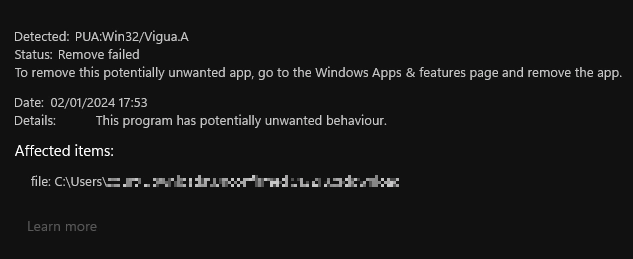
The deceptive nature of these programs becomes apparent when you analyze their behavior patterns. Unlike genuine optimization software that provides detailed explanations of detected issues, the optimizer samples discussed here present vague “error counts” without specifics, making it impossible to verify their claims or understand what changes they propose to make.
How PUA:Win32/Vigua.A Spreads and Infects Systems
Software Bundling and Distribution Networks
Although some PUAs maintain “official websites,” users almost always encounter them through unwanted channels. Vigua.A frequently arrives as “recommended software” bundled with freeware or pirated programs, similar to other software bundling schemes we’ve analyzed. This distribution method has been recognized as dangerous by security vendors for years, yet it remains a primary infection vector.
The bundling process often involves multiple layers of deception, where users downloading legitimate software unknowingly agree to install additional “optimization tools.” These bundled applications frequently include several PUA variants, creating a comprehensive infection that affects multiple system components simultaneously.
Targeting Vulnerable User Groups
Vigua.A campaigns specifically target users seeking system performance improvements or those experiencing legitimate computer issues. By positioning themselves as solutions to common problems like slow startup times or registry errors, these applications exploit user frustration and technical uncertainty to gain system access.
Technical Analysis of Vigua.A Operations
Fake System Scanning and Issue Generation
In the optimizer examples examined here, the apparent scan does not provide verifiable diagnostics. Before making changes to the system, legitimate system optimizers usually provide detailed information about each proposed action and allow users to make informed decisions. In contrast, Vigua shows only generic error counts without specifics and offers to “fix” them in one click.
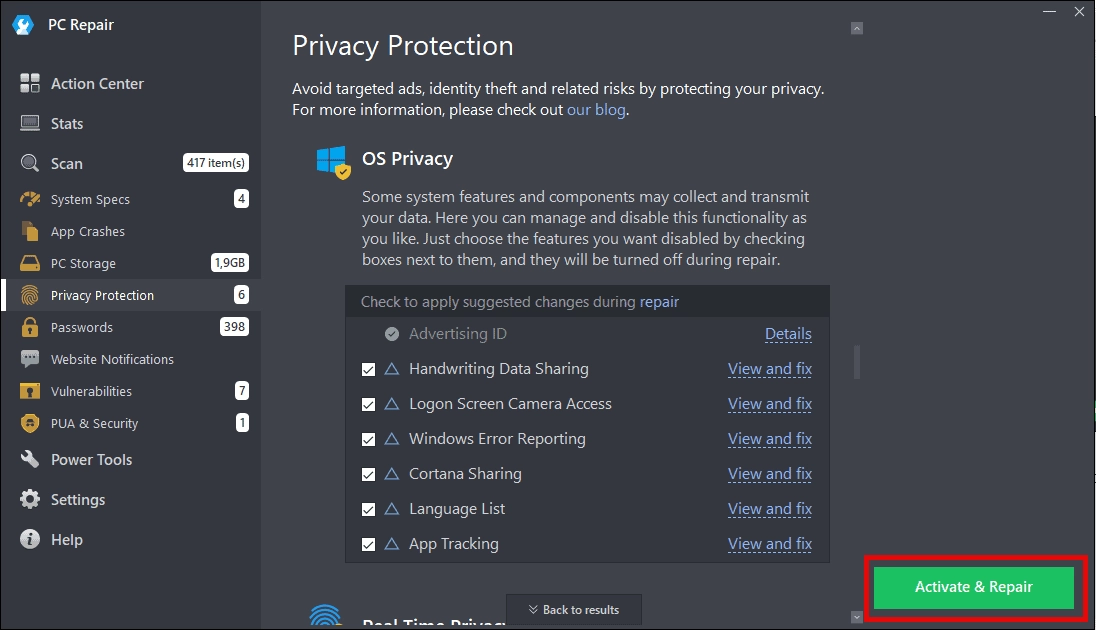
The opacity of these operations represents a significant security concern. Without access to source code or detailed operation logs, users cannot verify what changes are being made to their systems. This lack of transparency is characteristic of potentially unwanted programs that prioritize profit over user safety.
Dangerous System Modifications
Another category of PUAs under this detection name includes pseudo system optimizers that promise to “improve” user experience by removing alleged bloatware and disabling supposedly unnecessary functionality. The critical issue is that both sample categories I’ve tested failed to specify what exactly they modify, creating the same transparency problems as the scareware variants.
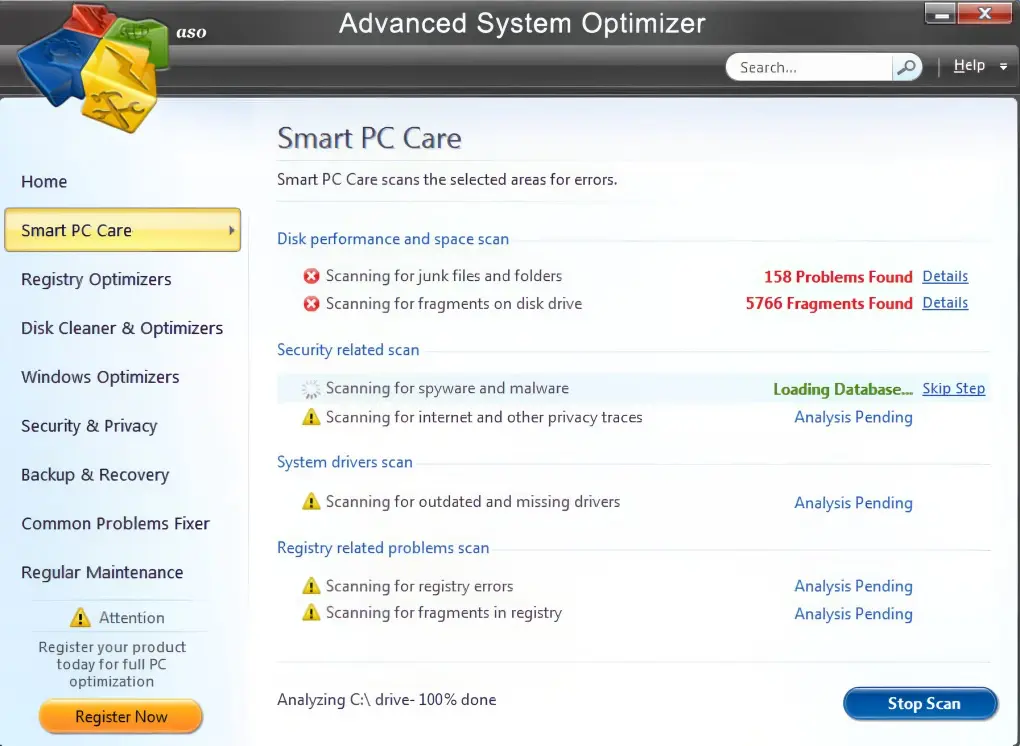
The main concern: when programs disable functionality they consider unnecessary, there’s a significant risk they’ll disable features users actually need. This can lead to system instability, application malfunctions, and degraded user experience. The situation becomes particularly problematic when dealing with no-name software that lacks proper support channels or accountability mechanisms.
Data Collection and Privacy Violations
Comprehensive Browser and System Monitoring
The original sample analysis also describes collection of browser and system information. Treat the fields below as the privacy concerns raised in that analysis, not a complete behavior specification for every Vigua.A detection. For an affected application, check what its privacy notice discloses and what its permissions or observed activity actually support; the alert name alone cannot tell you which data left the PC.
Browser and system data covered by the sample analysis:
- Operating system version and build
- User account names and privileges
- CPU and GPU specifications
- Display resolution and configuration
- Complete installed program inventory
- Browser usage patterns and timing
- Default search engine settings
- Search query history and keywords
- Network IP addresses and configurations
- Browser extensions and customizations
Collection of these fields is different from establishing that passwords or session tokens were stolen by information stealing malware. Sharing activity data with an untrusted vendor can still create a privacy risk. Whether a particular app sends or sells that data requires evidence about that app; do not assume a sale to advertising networks from the detection name.
Impact on System Performance and Security
Resource Consumption and System Degradation
Unwanted background activity can consume resources and contribute to slow performance, network traffic, or battery drain. Compare the affected process and the timing of the slowdown with the installation before attributing those symptoms to it.
If an optimizer makes inappropriate system changes, possible consequences include:
- Registry corruption from improper cleanup attempts
- Service disruption when legitimate system processes are disabled
- Application conflicts due to modified system configurations
- Blue Screen of Death (BSoD) in severe cases of system instability
Security Vulnerability Creation
If an unwanted application disables protection, changes firewall rules, or alters access controls, those changes can expose the system to further threats. Investigate such changes when they are actually present; a Vigua.A label by itself does not establish that the application created a vulnerability or opened remote access.
False Positive, Stale Alert, or Real PUA?
False positives are possible with Vigua.A because Defender uses the name for unwanted-app behavior, not one exact file hash. Do not decide from the name alone. Decide from the source path, publisher, what changed on the system, and whether the alert returns after normal cleanup.
- Likely real PUA: the file came through a bundle, fake update, cracked installer, system optimizer, browser add-on, or download manager that you did not intentionally install.
- Possible false positive: the file came from the official project or vendor page, has the expected publisher/signature, matches a public release hash, and does not create browser, startup, or payment-pressure changes.
- Stale Defender history: the original path is gone, new scans are clean, but Windows Security still shows the old Vigua.A item. Compare the event time and affected path with the completed action and preserve the details. A 2024 Microsoft Learn community answer discusses
C:\ProgramData\Microsoft\Windows Defender\Scans\History\Service\DetectionHistory, but clearing history is not a removal test or a routine first step. - Removal incomplete: a new event points to an existing or recreated file after reboot, reinstalling the utility, or reopening the same archive/download. Investigate that active source; an unchanged old event alone does not establish a new infection.
If the alert appeared after installing another unwanted app, compare it with related PUA cleanup guides such as PUA:Win32/Packunwan, PUADlManager:Win32/OfferCore, and PUA:Win32/Presenoker. Those families often share the same bundleware pattern: the visible installer is only one part of the cleanup.
Prevention and Best Practices
Safe Software Installation Practices
Preventing Vigua.A infections requires adopting secure software installation practices:
- Download software only from official sources and verified publishers
- Read installation prompts carefully and decline additional software offers
- Use custom installation options to review all components being installed
- Avoid pirated software that frequently contains bundled unwanted applications
- Keep Windows Defender active to catch PUA installations in real-time
System Monitoring and Maintenance
Regular system monitoring helps identify unwanted software before it causes significant problems:
- Review installed programs monthly and remove unfamiliar applications
- Monitor system performance for unexplained slowdowns or resource usage
- Check browser settings for unauthorized changes to search engines or homepages
- Use reputable security software that can detect PUA installations
Understanding the Broader PUA Ecosystem
PUA:Win32/Vigua.A represents just one detection name in a vast ecosystem of potentially unwanted software. Understanding related threats helps users recognize similar patterns and avoid future infections:
- Software bundlers like PUABundler:Win32/PiriformBundler that package multiple unwanted applications
- Download managers such as PUADlManager:Win32/OfferCore that modify download processes
- System optimizers including PUA:Win32/WebCompanion with similar deceptive practices
- Adware variants like PUA:Win32/Presenoker that display unwanted advertisements
These applications often work together, with one PUA installation leading to additional unwanted software through cross-promotion networks and affiliate marketing schemes.
How to Remove PUA:Win32/Vigua.A
Keep the item Defender named quarantined and record its path and source. For cleanup, download and install Gridinsoft Anti-Malware, update its detection database, run a Full Scan, review the detections, and apply the recommended cleanup. Restart when requested and check whether the original alert or unwanted behavior returns. Do not restore the file merely to inspect it.
If the alert returns after quarantine, another component may still be present. A bundled app, startup entry, scheduled task, service, or browser change can recreate the symptom. A full scan checks for detected leftovers and persistence; it cannot guarantee that every component is gone or prove the PC was never exposed.
Defender can quarantine the visible file, but repeated alerts may mean a loader, scheduled task, service, browser change, or bundled component is recreating it. Scan the PC before trusting the cleanup.
Check what Defender may have left behindManual Removal Steps for Advanced Users
These checks are optional for experienced users when symptoms remain after cleanup; they are not an additional mandatory sequence. Change only entries you can connect to the unwanted application, and keep a record so an unrelated setting can be restored:
- Identify the specific application through Windows Programs and Features
- Uninstall through Control Panel and decline any retention offers
- Check browser settings for unauthorized changes to search engines or extensions
- Review startup programs and disable any suspicious entries
- Clear browser data to remove tracking cookies and stored preferences
- Run a fresh scan and compare new detections and symptoms with the earlier event; a clean result supports follow-up but does not certify complete removal
References
- Microsoft Security Intelligence. “PUA:Win32/Vigua.A threat description.” Microsoft, published July 21, 2016, accessed September 23, 2026. Microsoft threat description.
- Microsoft Learn Q&A. “Windows Defender says i have pua:win32/vigua.a.” Microsoft Learn, May 2024, accessed September 23, 2026. Microsoft Learn discussion of stale DetectionHistory alerts.
- Microsoft. “How Microsoft identifies malware and potentially unwanted applications.” Microsoft Learn, updated September 10, 2026, accessed September 23, 2026. Software classification criteria.
FAQ
Is PUA:Win32/Vigua.A a dangerous virus that can steal my personal information?
The PUA label does not by itself establish a virus or theft of personal information. The unwanted optimizer examples in this article raise privacy and system-change concerns, but assess your file from its source and observed behavior. If there is separate evidence of account access or credential theft, secure those accounts from a trusted device; removing an application does not recover stolen credentials.
How can I tell if my computer is infected with Vigua.A or similar potentially unwanted programs?
Common signs include unexpected system optimization pop-ups claiming to find numerous errors, unfamiliar programs appearing in your installed software list, slower system performance, increased network activity, and browser changes like modified search engines or new toolbars. You may also notice programs running at startup that you don’t remember installing, or receive persistent notifications about system problems that require paid software to fix.
Can I safely ignore this detection if my antivirus shows it as low priority?
Review the detection rather than dismissing it because of its priority. Keep an unknown file quarantined, check what was detected and whether it ran, and remove an unwanted app or bundle. A verified official utility may merit a false-positive review. The priority alone does not establish either harmlessness or ongoing data collection.
Why does Microsoft Defender sometimes detect legitimate software as Vigua.A?
A legitimate application can be flagged incorrectly, and a PUA classification can also reflect behavior Microsoft considers unwanted even when the user intentionally installed it. Torrent and cryptomining software are explicit enterprise-only PUA categories in Microsoft’s criteria. Names such as qBittorrent or NiceHash therefore are not enough to settle a particular alert: verify the exact release and download source, update Defender, and request a review before allowing the file.
What’s the difference between PUA:Win32/Vigua.A and other similar PUA detections?
PUA detections identify software classified as potentially unwanted; they do not supply a complete behavior report. Vigua.A is not limited to the optimizer samples described here. Related guides such as PUADlManager:Win32/Snackarcin and PUA:Win32/Conduit explain other labels and contexts. Use the affected file and actual changes to choose the response.
How can I prevent future PUA infections like Vigua.A?
Prevention requires careful software installation practices: download programs only from official sources, read installation prompts thoroughly, use custom installation options to review all components, avoid pirated software that often contains bundled PUAs, and maintain active real-time protection through Windows Defender or reputable security software. Regular system monitoring and monthly reviews of installed programs help identify unwanted software before it causes problems.
Will removing PUA:Win32/Vigua.A affect my system performance or legitimate programs?
Removing an unwanted app may reduce its background activity, but a performance improvement is not guaranteed. Quarantining a file that a wanted program relies on can also stop that program from working. If a trusted application breaks, verify the detection and obtain a clean official copy or vendor guidance rather than broadly excluding files or restoring an unverified item.
Can PUA:Win32/Vigua.A lead to more serious malware infections?
A risky installer can deliver more than one unwanted or malicious component, so additional findings or persistent symptoms justify a full scan and further investigation. That is different from saying every Vigua.A detection causes a more serious infection. Escalate based on evidence such as new detections, disabled protection, or unauthorized account activity.
Conclusion
Use the Vigua.A alert as the starting point for identifying the affected file. Keep an unknown item quarantined, remove unwanted software, and use a full Gridinsoft Anti-Malware scan to check for detected leftovers and persistence. Review any new alert after restart by its time and path; seek a false-positive review for a verified official application. A clean scan is useful evidence, not a guarantee of complete removal or proof that no exposure occurred.