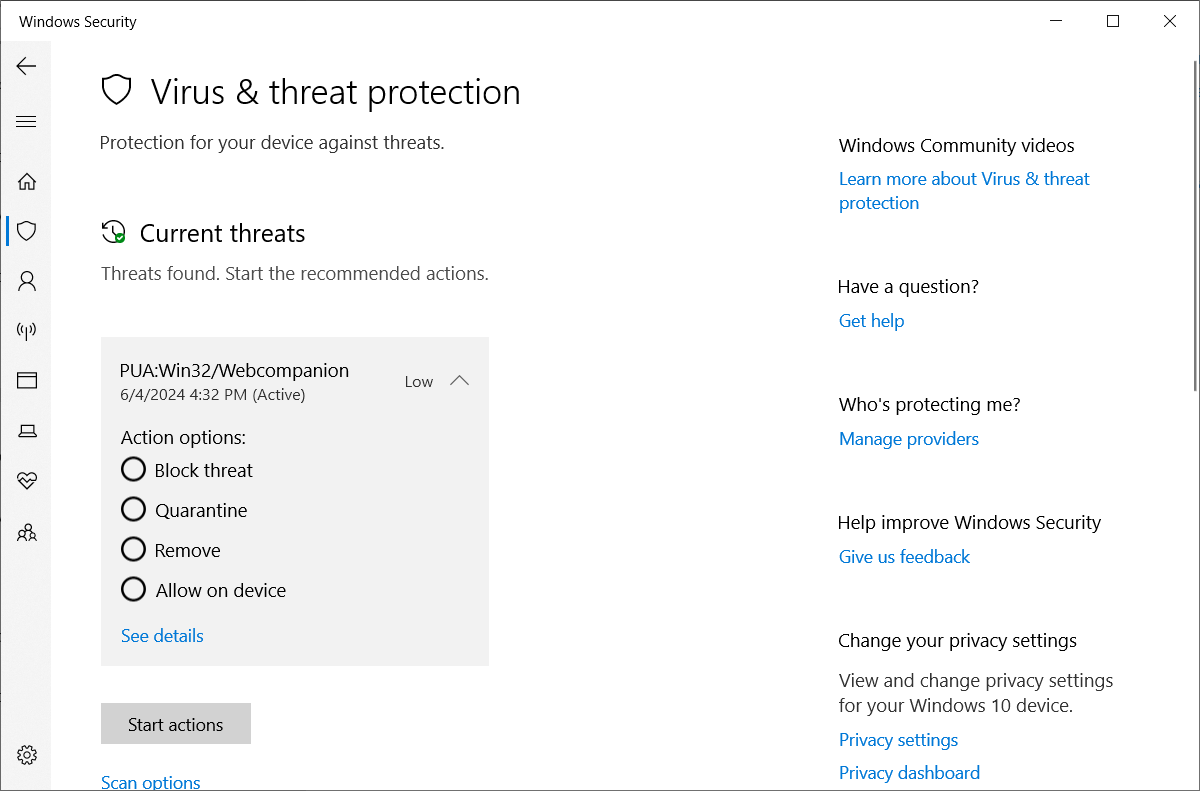
PUA:Win32/WebCompanion is a Microsoft Defender detection associated with Adaware Web Companion and related bundled installs. The program may be presented as a web protection tool, but it can arrive without clear consent and change browser search, traffic filtering, extensions, or startup behavior.
What to check after uninstalling WebCompanion
After uninstalling, open each browser and verify the default search engine, homepage, startup page, and extension list. Then check Windows Startup Apps and Task Scheduler for update tasks or service entries that point to the old Web Companion folder. If Defender reports the detection again, remove the leftover folder only after closing all browsers.
Is WebCompanion a false positive?
It may be an expected detection if you intentionally installed Web Companion from the official vendor. It is unwanted when it arrived inside another installer, changed browser settings, or keeps reinstalling after removal.
- Uninstall Web Companion and any same-day bundled apps if you did not choose them intentionally.
- Check browser search, homepage, extensions, proxy settings, and notification permissions.
- Scan again after reboot because bundled installers can leave updaters behind; for the broader non-Defender cleanup flow, use the Adaware Web Companion removal guide.
- For related browser-hijacker cleanup, see PUA:Win32/Conduit.
PUA:Win32/Webcompanion Overview
PUA:Win32/Webcompanion is a Microsoft Defender detection associated with a potentially unwanted program called Adaware Web Companion. This program, developed by Lavasoft, is positioned as a malicious link blocker. Thus, it filters traffic completely and if it finds a site dangerous, it blocks access to it, acting as an Internet Security module. However, it has gained notoriety and is classified as potentially unwanted software.
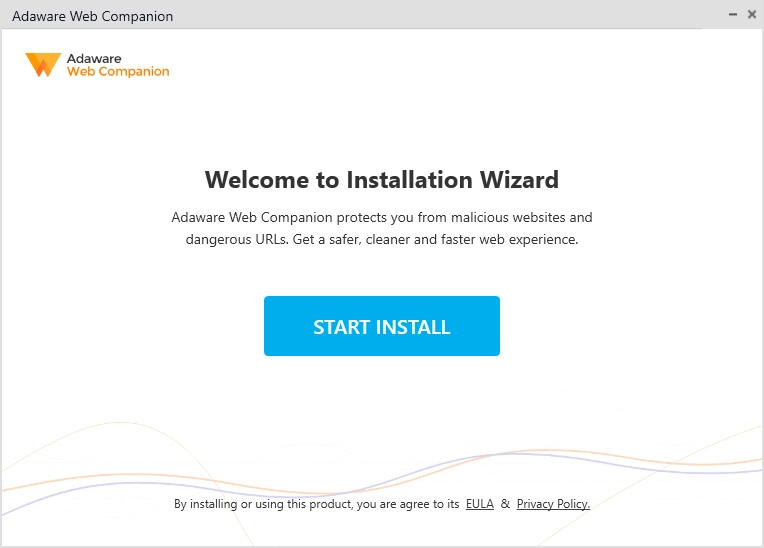
Adaware Web Companion is not a malicious program by itself, but given its distribution method and the actions it performs on the system, there are quite solid reasons why it can be considered as unwanted.
Although Adaware Web Companion has an official website, like most unwanted programs it is distributed as bundleware, as additional “recommended” software bundled with other programs. And, when uninstalling the main program which installed the PUA:Win32/Webcompanion, the latter is not removed but remains in the system.
As for its actions, it can redirect traffic, search queries, and sometimes even change the start page and search engine after installation. While it does not always make these changes, it did so in our tests, and user reviews indicate that such cases happen more often than not. Changes generally depend on various factors such as the program version, user’s IP address, geographical location, and presence of anti-malware software on the system (which we will revisit later).
Technical Analysis
When downloaded from the official website, the installation process appears ordinary and unremarkable. However, most users acquire it unintentionally as part of bundled software with other programs.
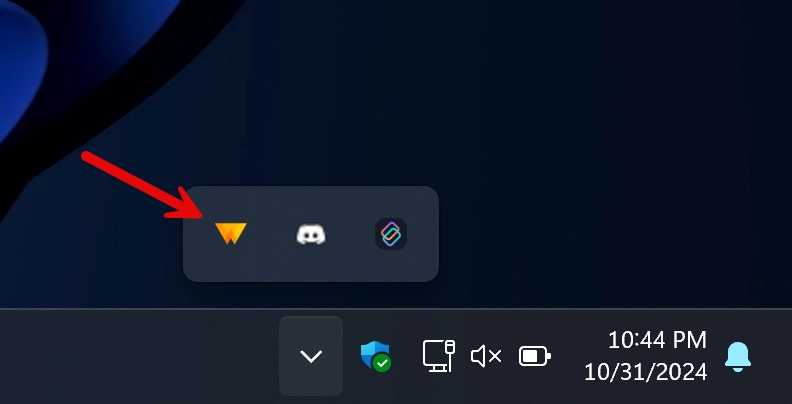
After installation, the program runs in the system tray and continues operating quietly, making it unlikely that the user will notice it.
Let’s examine this program’s inner workings to understand its operation. So, start with the installation process: the program has an online installer that downloads the necessary files to the C:\Program Files (x86)\Lavasoft\Web Companion folder.
During installation, it checks a selection of system values, mostly ones responsible for browser and system configurations:
- HKLMSYSTEMControlSet001ControlSession ManagerResourcePolicies: Checking managed system resource policies.
- HKLMSOFTWAREMicrosoftWindowsCurrentVersionUninstallGoogle Chrome: Checking if Google Chrome is installed.
- HKLMSOFTWAREMicrosoftWindowsCurrentVersionUninstallGoogle ChromeDisplayName: Getting the display name of Google Chrome to confirm the exact version installed.
- HKLMSOFTWAREPoliciesMicrosoftWindowsCurrentVersionInternet Settings: Checking internet policy settings to adapt to network configurations and policies.
By checking these keys, the PUA:Win32/Webcompanion ensures compatibility and optimizes performance based on system’s settings.
It then unpacks its files to AppData\Local\Temp folder – a directory normally inaccessible for the user. This is a common way unwanted programs are used to soft-lock the user from manually deleting the program. Still, it is possible to reach the directory and remove it from here – I will show you how to do this in the removal section.
One unusual aspect here is the program’s check of the anti-malware status (last active process). Depending on the outcome of this check, PUA:Win32/Webcompanion may adjust its behavior accordingly. For instance, it may refrain from loading additional modules.
Execution
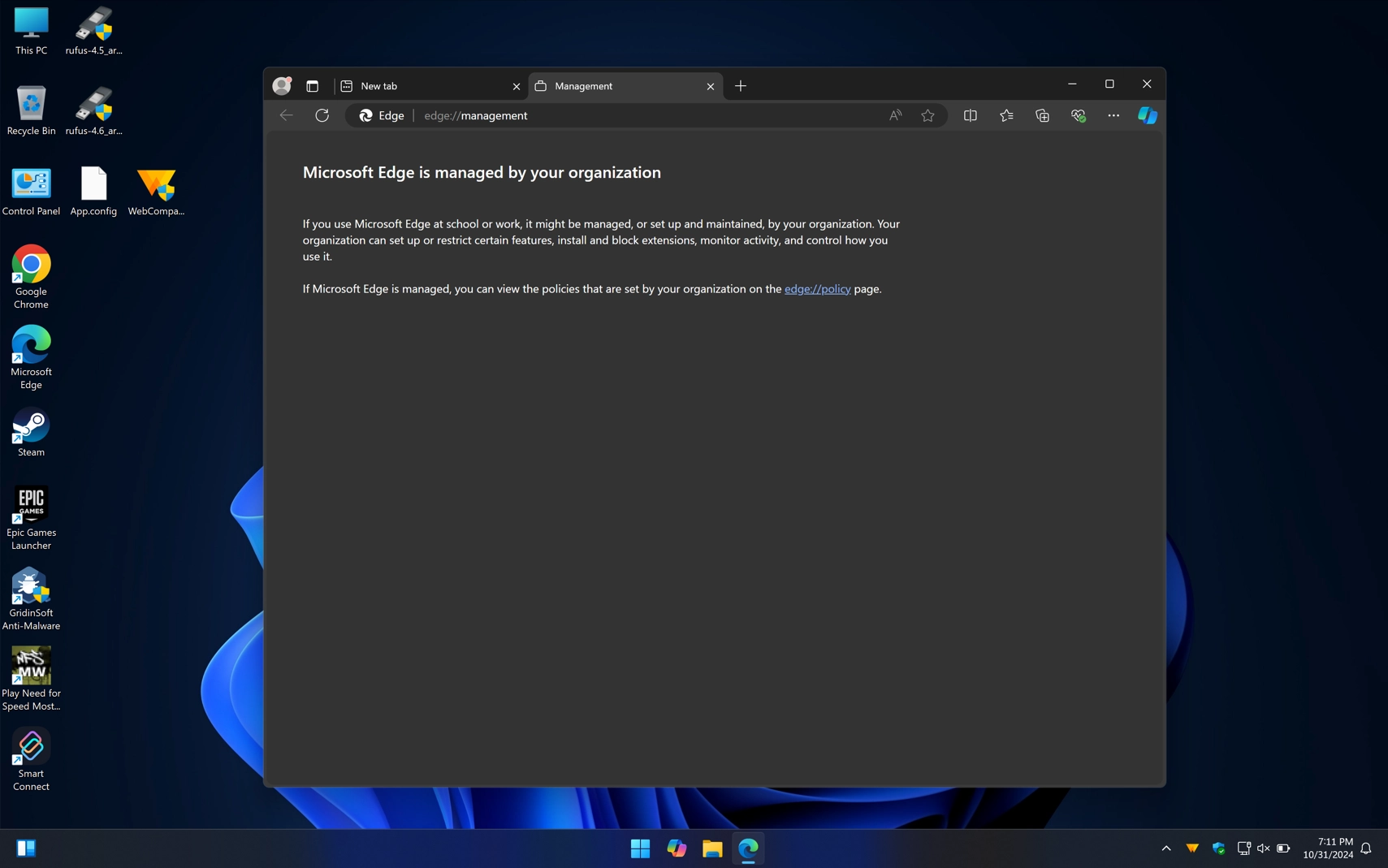
Following installation, PUA:Win32/Webcompanion starts with changing browser properties. It switched Edge, Chrome and all other browsers installed on the test machine to the “managed by your organization” mode. This way, it restricts the user from applying any changes to browser settings.
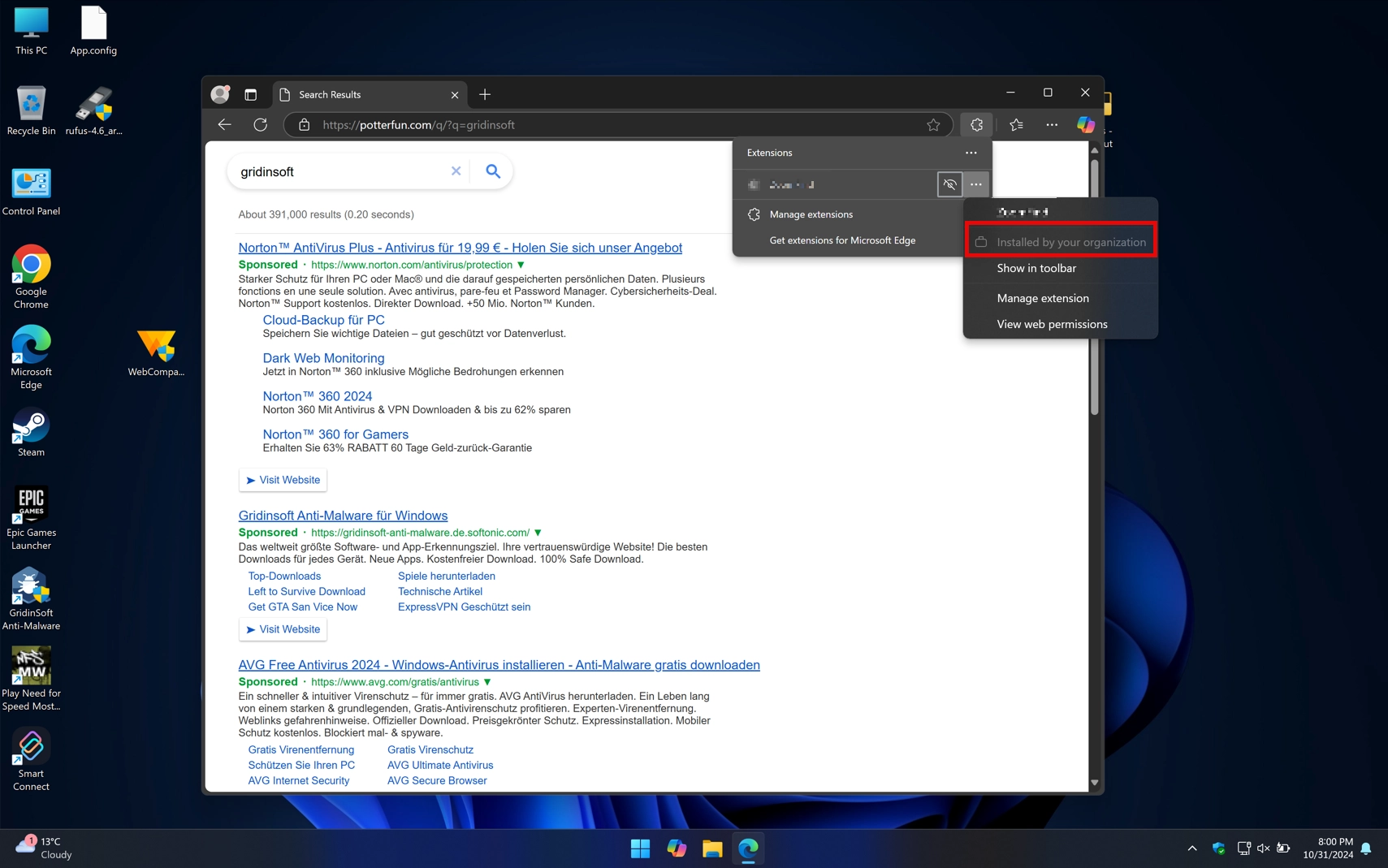
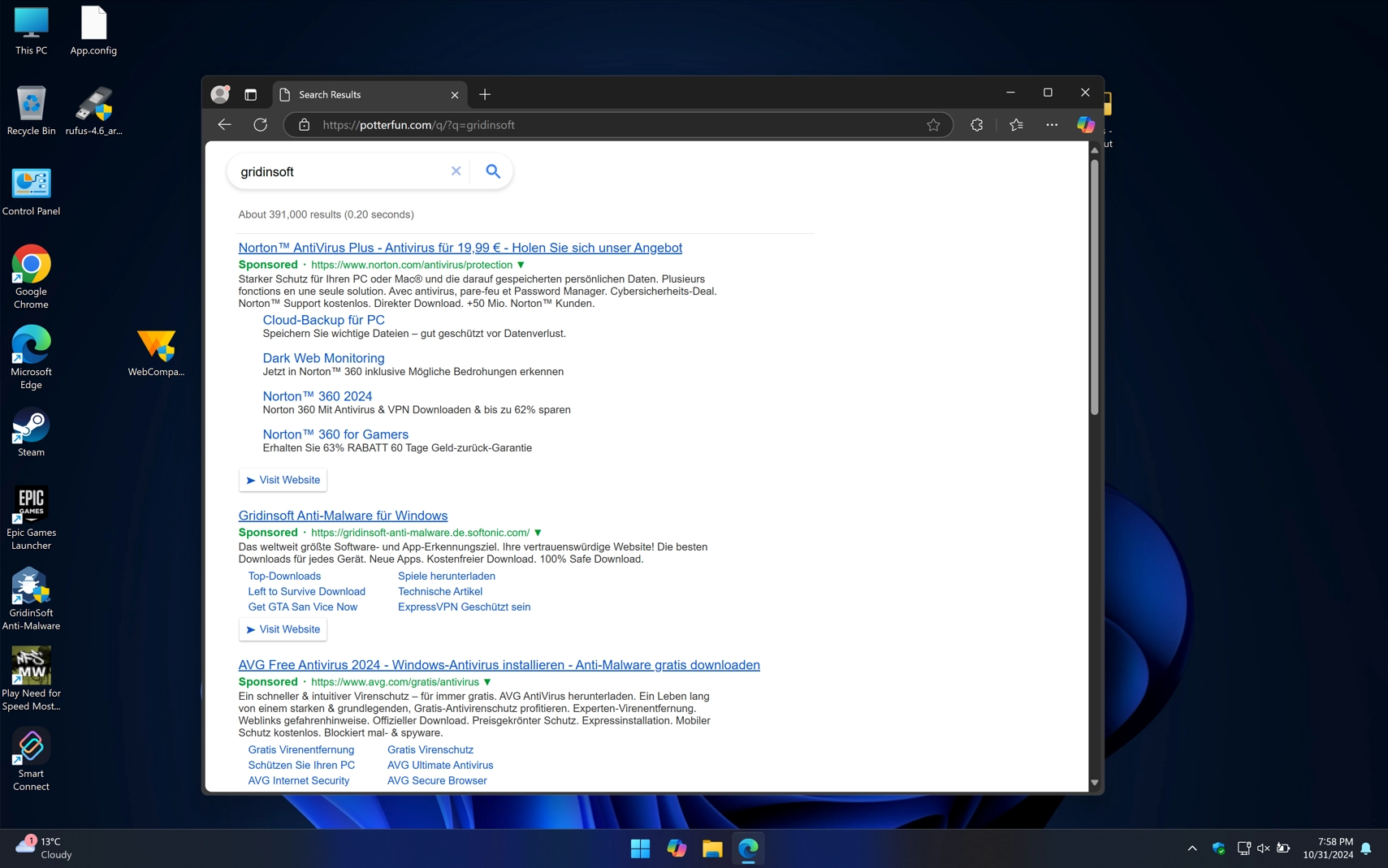
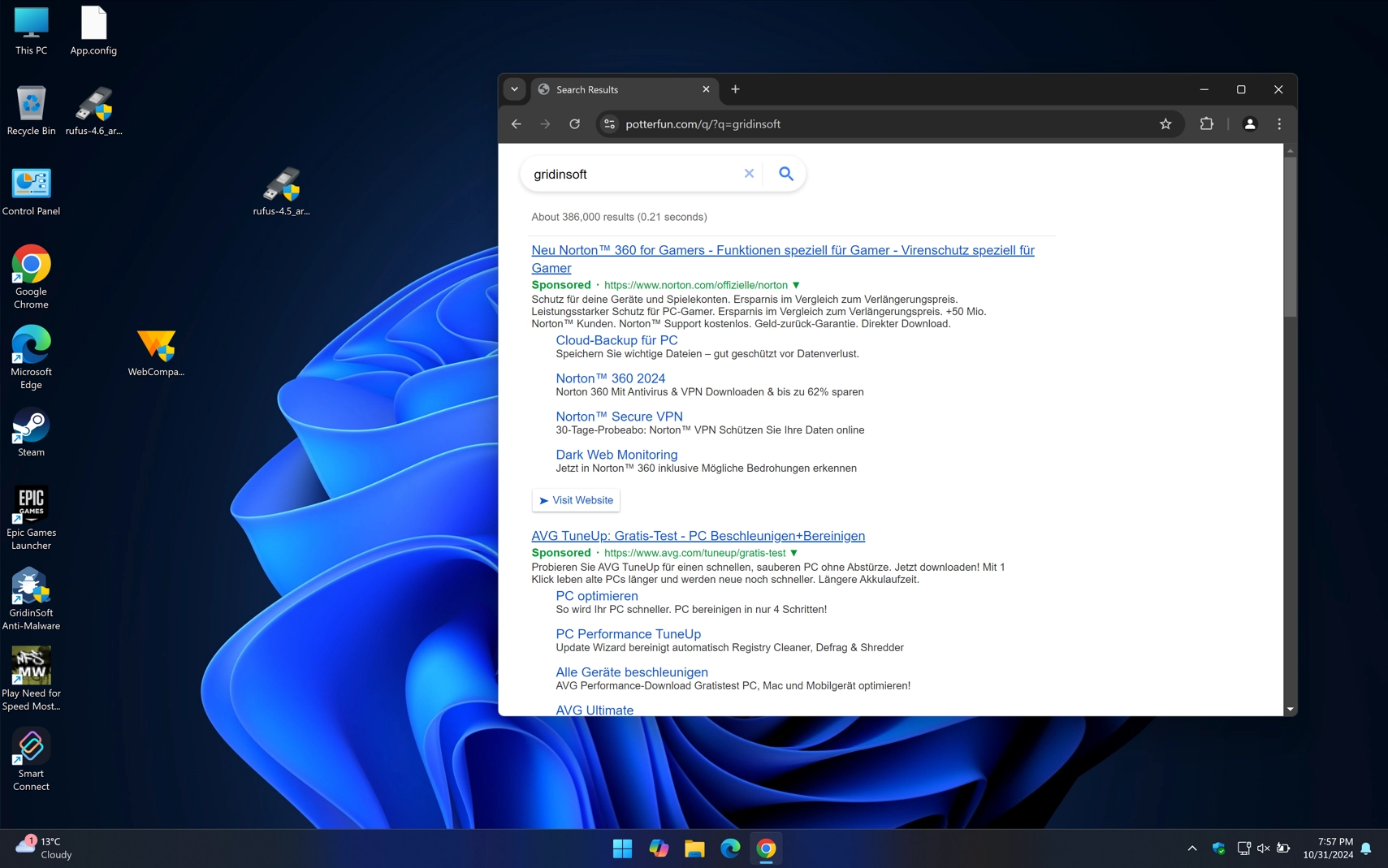
Afterwards, WebCompanion starts doing its dirty job. In our tests, it installed malicious browser extensions, specifically one of browser hijacker type. We made a separate publication on this PrimeLookup extension – it is a rather sticky malware that can severely interfere with your browser activities.
Activity
Although Web Companion doesn’t perform data theft, it does collect basic information on user activity for advertising and marketing purposes. For instance, data like browsing activity, visited websites, and product preferences are sent to the developers’ servers to tailor more relevant advertisements.
Is PUA:Win32/Webcompanion False Positive?
PUA:Win32/Webcompanion can occasionally result in a false positive detection, as seen in various Reddit posts. However, this is generally an exception rather than the rule. In most cases, it is a real detection related to the aforementioned program. While some versions may run on your system without issues, others might trigger Defender alerts, especially after updates. If you’ve knowingly installed Adaware Web Companion, you can safely ignore the Defender alert.
On the other hand, if you didn’t install this application yet receive a PUA:Win32/Webcompanion detection alert, consider running a full system scan. For thorough system cleanup, consider using GridinSoft Anti-Malware. This tool can remove existing threats and protect against future ones. Download it by clicking the banner below and run a Standard scan – it will do the rest.
Manual Removal Steps
You can also remove PUA:Win32/Webcompanion manually. This process is similar to uninstalling any other program, with the additional steps of manually resetting browsers and clearing files from the temporary folder. Let me give you a step-by-step instruction.
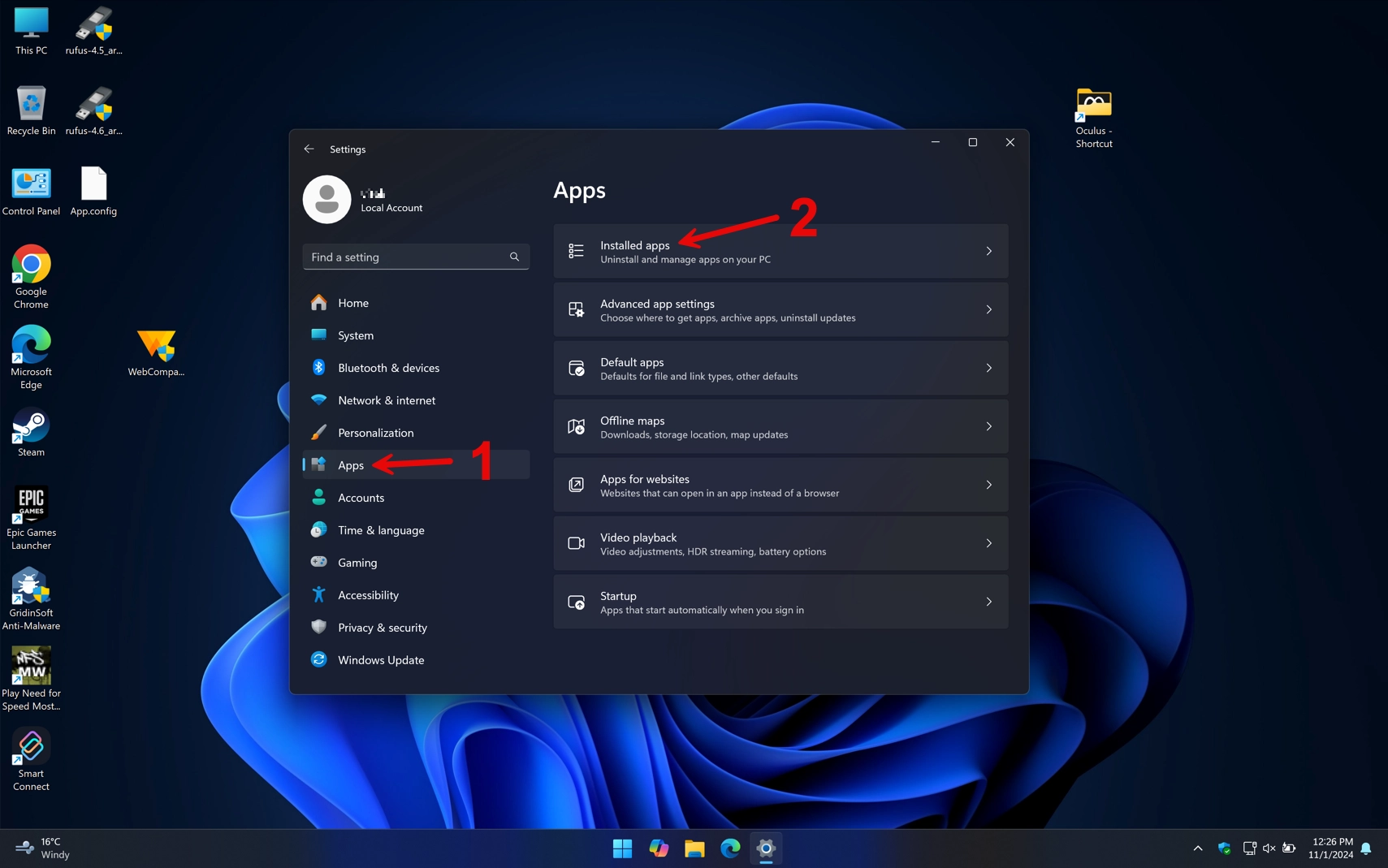
- Step 1. Open Start and select Settings. Next, select Apps from the left menu, then click on Installed apps.
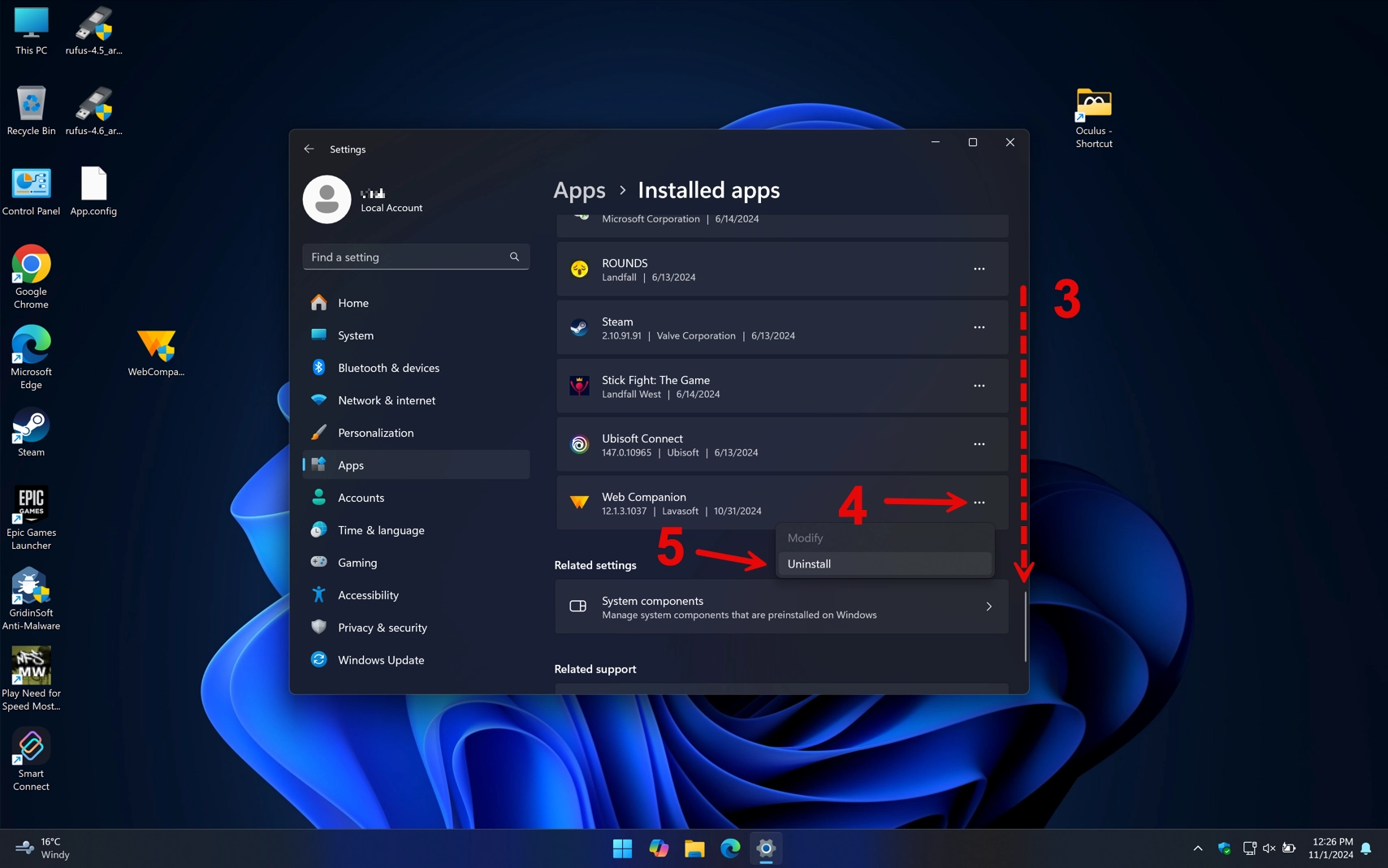
- Step 2. Scroll down to find Web Companion, click the three dots next to it, and select Uninstall. Follow the instructions until the process is complete.
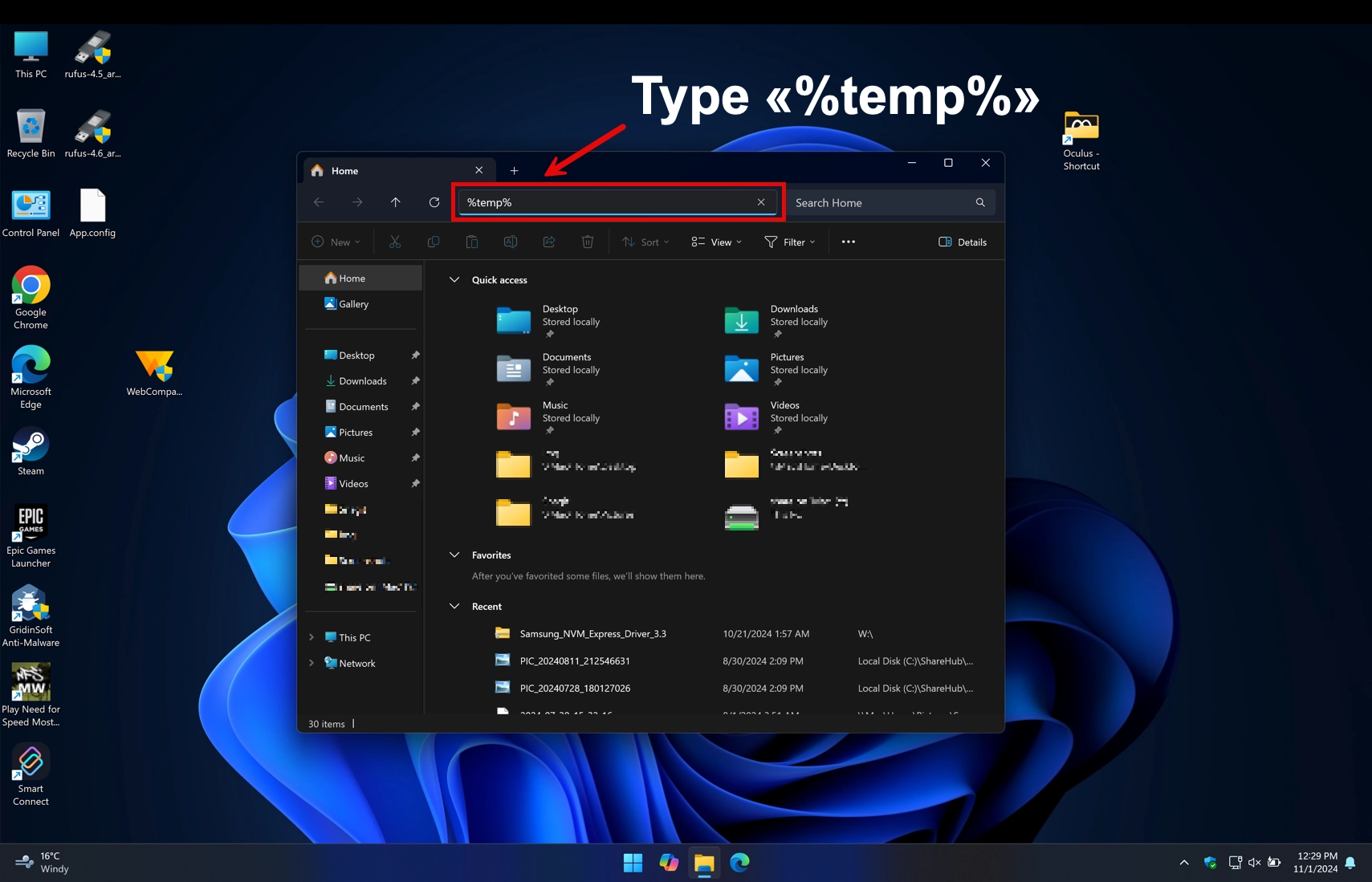
- Step 3. Next, open Explorer and in the top address bar, type %temp% and press Enter. This will open your Windows temporary files folder.
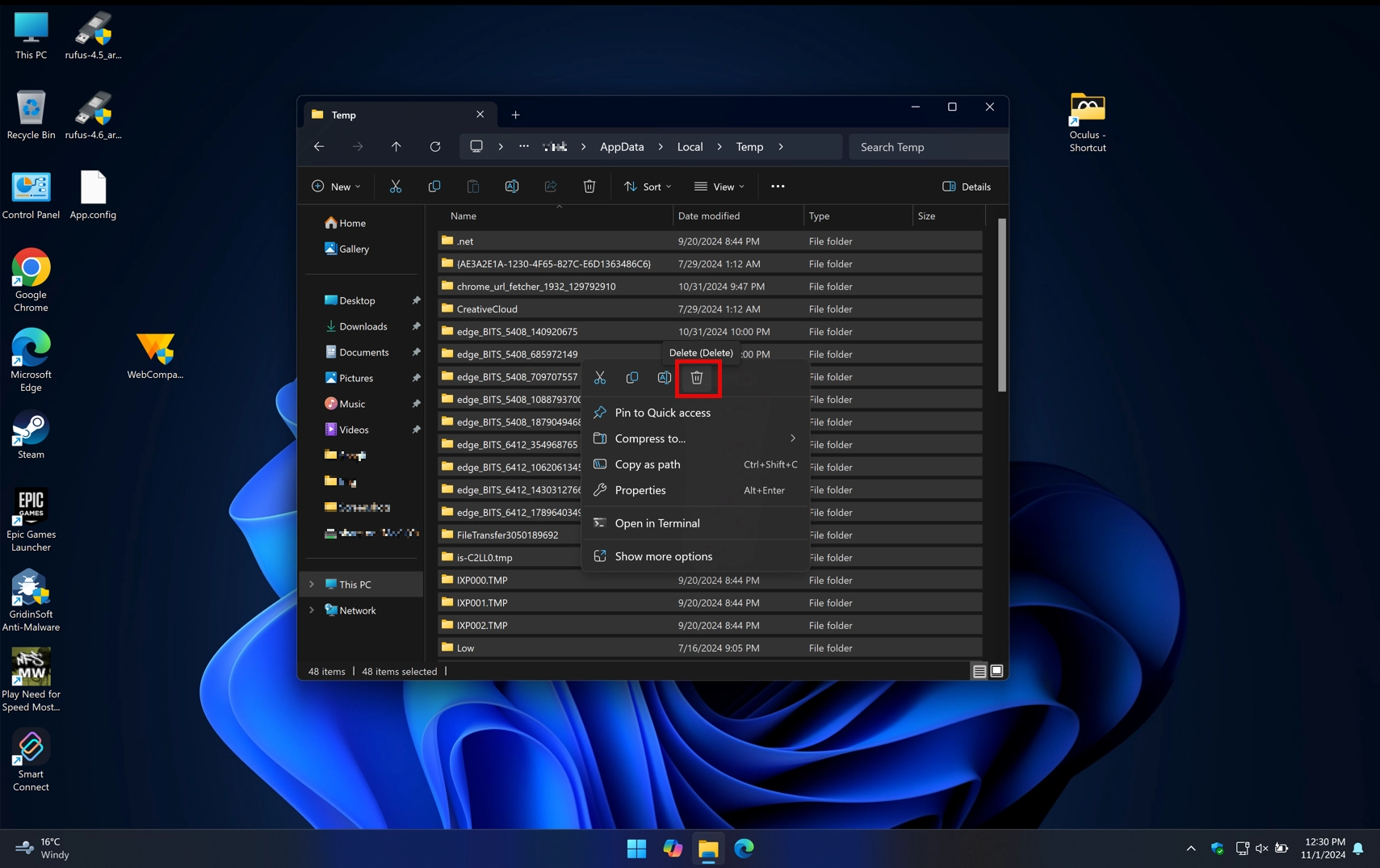
- Step 4. Press CTRL + A to select all items in the folder, then right-click and choose the Recycle Bin icon or press the Del key on your keyboard.
Related PUA and browser cleanup guides