Scareware is a fake security warning that uses panic to make you click, call, pay, install software, or give someone remote access. If a browser page says your device is infected, do not press buttons inside the warning and do not call the number on the screen. Close the browser from the operating system, remove suspicious notification permissions, and scan the device only if the alerts return, a download started, or you installed something from the warning.
What should you do first?
- Do not click the warning. Fake close buttons, “Remove threats,” “Scan now,” and “Call support” buttons can trigger redirects, downloads, or a phone scam.
- Leave full-screen mode if possible. Press Esc or F11 on Windows, or use the browser/window controls on macOS.
- Force-close the browser if it will not close. Use Task Manager on Windows or Force Quit on macOS. Reopen without restoring the previous tabs.
- Remove browser notifications from unknown sites. Recurring fake virus alerts often come from Chrome, Edge, Safari, or Firefox notification permissions.
- Run a scan if the alert comes back. Also scan if a file downloaded, an extension appeared, a remote-support tool was installed, or the warning showed outside the browser.
Modern scareware is no longer just an old “rogue antivirus” program. Microsoft now documents full-screen scareware pages with fake malware warnings, loud pressure, fake tech-support numbers, and remote-access lures [1]. Barracuda Research reported CypherLoc in May 2026 as a browser-lock scareware kit observed in about 2.8 million attacks since the start of 2026 [2]. The lesson for users is simple: the browser page is trying to control your reaction, not prove that your files are infected.
| Threat type | Scareware, tech-support scam, browser-lock page, notification spam, or rogue security app |
| Common wording | Your computer is infected, virus found, Windows locked, call support, remove threats now, protection expired |
| Main goal | Make you call, pay, install a tool, allow remote access, enter credentials, or enable notifications |
| Safe action | Close from the OS/browser controls, revoke permissions, remove unknown extensions/apps, scan if symptoms persist |
What is scareware?
Scareware is a social-engineering attack that pretends your device has an urgent security problem. It may appear as a browser pop-up, a full-screen “locked” page, a push notification, a fake antivirus scan, or a program that invents problems to sell a cleanup. The warning is designed to create fear before you have time to check whether it is real.
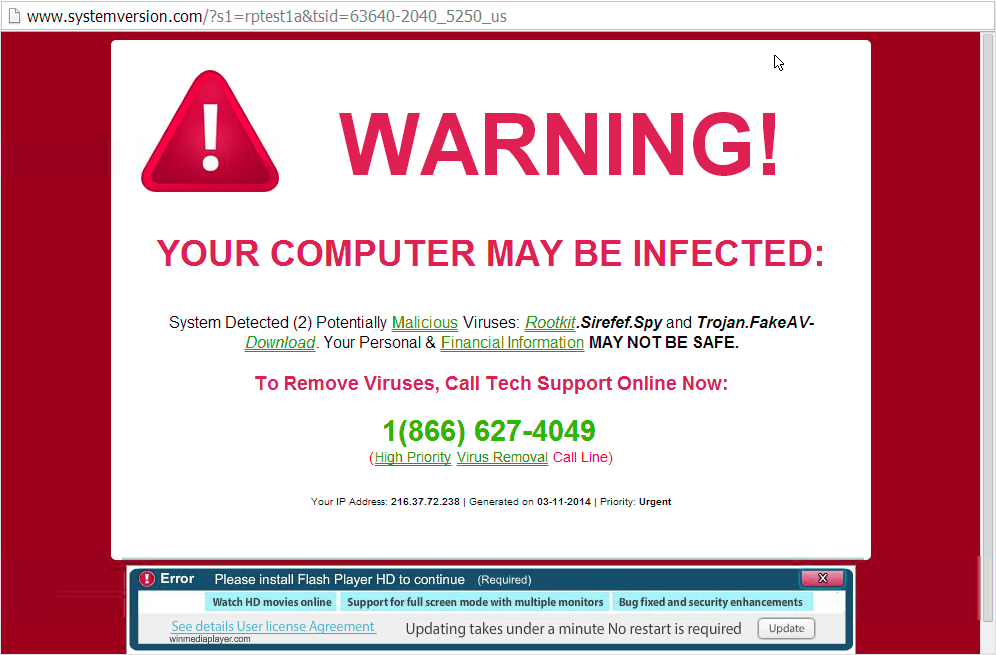
The most important detail is where the warning appears. A real antivirus alert comes from the security app installed on your device. A scareware alert usually appears inside a website, an ad redirect, a browser notification, or an unknown app you did not intentionally trust. If the warning includes a phone number, a countdown, a demand for payment, or a request for remote access, treat it as a scam.
Fake alert or real security warning?
| Browser page says “your PC is infected” | Usually scareware. Close the tab or force-close the browser; do not click buttons inside the page. |
| Lower-right desktop notification repeats | Often a browser notification permission. Remove the sending site from Chrome, Edge, Safari, or Firefox notification settings. |
| Warning asks you to call support | Tech-support scam pattern. The FTC says urgent security pop-ups can lead victims into fake support traps [3]. |
| Installed antivirus shows a detection | Open the security app directly from Start/Menu or system settings, not through the web page. Check quarantine details and scan results there. |
| Alert returns after cleanup | Check extensions, notification permissions, startup apps, recent installs, and run a full malware scan. |
Scareware examples victims actually search for
People in trouble often search the exact phrase on the screen, not the word “scareware.” These patterns are the same attack family:
- Fake virus alert pop-ups: a web page says “Your computer is infected” and offers a scan or cleanup. Use the fake virus alert removal guide for the browser-notification cleanup path.
- Fake Microsoft or Windows security warnings: a full-screen page imitates Windows or Defender and asks you to call support. See the Microsoft Security Warning scam guide for that exact flow.
- Adult-content accusation pages: warnings such as “Pornographic Virus Alert from Microsoft” use shame and urgency to make victims call. We cover that wording in the Pornographic Virus Alert from Microsoft guide.
- Brand-name pop-ups: fake renewal, expired protection, or infection messages may borrow familiar antivirus or phone-brand names. If the alert appears in a browser tab or from an unknown site, verify it through the real app or official account.
- Browser-lock scareware: newer pages can force full-screen mode, hide the cursor, play warning sounds, show your public IP address, and relock the page after you try to escape.
How scareware works
Scareware succeeds by compressing the user’s decision time. It uses alarming language, fake progress bars, loud audio, countdowns, “threat level” labels, and familiar brand visuals to make the warning feel official. The attacker wants you to act before you notice that a website cannot run a real full-device antivirus scan by itself.
In older scareware, the usual goal was to sell rogue antivirus software. Today the goal can be broader: browser notification permission, a malicious extension, a fake support call, remote-access software, credential theft, or a payment. CypherLoc is a useful 2026 example because it shows the modern direction: the attack lives in the browser, uses technical tricks to avoid analysis, and pressures the victim into calling a fraudulent support number rather than relying only on installed malware [2].
How to remove scareware pop-ups and alerts
- Close the scare page safely. Try Esc, F11, the tab close button, or the browser window controls. If that fails, open Task Manager on Windows or Force Quit on macOS and close the browser.
- Do not restore the bad tab. When the browser reopens, decline session restore if it offers to reopen the previous pages.
- Remove suspicious notification permissions. In Chrome or Edge, review notification permissions and remove unknown sites. For a dedicated walkthrough, use our browser push notification guide.
- Check extensions. Remove unknown search helpers, coupon tools, PDF converters, download managers, “security” add-ons, or anything installed around the time the alerts started.
- Check installed apps. Uninstall recent cleaners, driver updaters, fake antivirus tools, remote-support apps, or bundles you did not mean to install.
- Clear site data for the suspicious domain. This helps stop the browser from reloading the same scam state or saved permission.
- Run a full scan if symptoms persist. Scan the system if the alert returns, tabs open by themselves, the homepage/search engine changed, a file downloaded, or you installed anything from the pop-up.
What if you clicked, paid, or gave access?
- If you only saw the warning: close it, remove notification permissions, and watch whether it returns.
- If you clicked a button: check downloads, extensions, notification permissions, and installed apps before entering passwords or payment details.
- If you installed software: uninstall it, scan the system, and check startup items and browser settings.
- If you gave remote access: disconnect from the internet, remove the remote-access tool, scan the device, and change important passwords from a different trusted device.
- If you paid or entered card details: contact your bank or card issuer quickly, dispute unauthorized charges, and monitor accounts for follow-up fraud.
- If you entered passwords: change them from a clean device and enable multi-factor authentication where possible.
After uninstalling the suspicious app or deleting the visible threat, use Gridinsoft Anti-Malware to check hidden files, startup entries, scheduled tasks, bundled apps, browser changes, and other persistence points that can restore malware.
Download Anti-MalwareWhat can scareware lead to?
Scareware itself may be “just” a fake message, but the actions it pushes can be serious. The risk depends on what happened after the warning appeared.
- Money loss: fake cleanup subscriptions, bogus support fees, gift-card pressure, or card theft.
- Remote access compromise: scammers may ask you to install remote-support software and then open banking, email, or password manager accounts.
- Adware and unwanted apps: fake cleaners and bundled tools can change search settings, inject ads, or keep redirects alive.
- Credential theft: fake login forms can imitate Microsoft, Apple, Google, email, or banking portals.
- Malware follow-up: downloads from the scare page can install stealers, loaders, miners, ransomware, or other malicious tools.
How to avoid scareware
- Keep the browser updated. Browser vendors add protections against known deceptive pages and full-screen abuse.
- Block unknown site notifications by default. Do not click “Allow” to watch a video, verify you are human, or download a file.
- Do not trust web pages that claim to scan your whole PC instantly. Open your security app directly if you want to verify a warning.
- Avoid random cleanup tools from ads. Download security software only from the vendor’s official site or a trusted store.
- Teach less technical family members the support-number rule. A real security alert does not need a pop-up phone number to fix your device.
FAQ
What is scareware in cyber security?
Scareware is a social-engineering threat that uses fake security warnings to pressure a user into unsafe actions such as clicking a link, calling fake support, paying for unnecessary software, installing a program, or giving remote access.
Is scareware a virus?
The warning itself is often a fake web page or notification, not a virus. It becomes more serious if it makes you install software, allow notifications, add an extension, enter credentials, or give someone remote access.
How do I get rid of scareware pop-ups?
Close the browser without clicking inside the alert, reopen without restoring tabs, remove suspicious notification permissions, check extensions and recent apps, then run a scan if the pop-ups keep returning.
Can a web page scan my computer for viruses?
No ordinary web page can instantly scan your whole device. If a website claims it found dozens of infections before you opened a trusted security app, treat it as scareware.
Should I call the number in a security pop-up?
No. A security pop-up that tells you to call a number is a common tech-support scam pattern. Use the official website, installed app, or account portal for any company you already trust.
References
- Microsoft Support. “Prevent online scams with the scareware blocker in Microsoft Edge.” Microsoft Support, accessed June 7, 2026. https://support.microsoft.com/en-us/topic/prevent-online-scams-with-the-scareware-blocker-in-microsoft-edge-b02c7895-f9b7-4d9f-8e12-3668f00915be
- Megharaj Balaraddi. “Threat Spotlight: CypherLoc, an advanced browser-locking scareware targeting millions.” Barracuda Networks Blog, May 20, 2026, accessed June 7, 2026. https://blog.barracuda.com/2026/05/20/threat-spotlight-cypherloc-scareware
- Federal Trade Commission. “Seemingly urgent security messages could lead to tech support scams.” FTC Consumer Advice, April 28, 2025, accessed June 7, 2026. https://consumer.ftc.gov/consumer-alerts/2025/04/seemingly-urgent-security-messages-could-lead-tech-support-scams