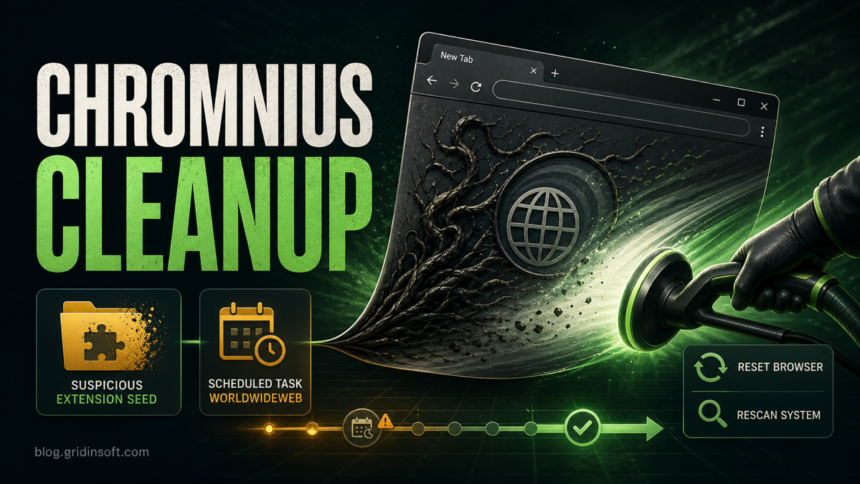
Chromnius and ChromniusEdge are Chromium-based unwanted-browser installs that can keep search, start-page, and extension changes alive after the obvious app is removed. If you see Chromnius folders under C:\ProgramData, an ExtensionSeed folder, DNR Extension Rules, or a scheduled task named WorldWideWeb, treat it as a PUP/browser-hijacker cleanup case: uninstall first, check the browser profile, remove the persistence item, then scan again after reboot.
The goal is not to delete every folder with a browser-like name. Work from the visible symptoms and the persistence points below so you do not break your normal Chrome or Edge profile while leaving the hijacker task behind.
What Is Chromnius or ChromniusEdge?
Chromnius is usually reported as an unwanted Chromium-based browser or browser component. Malwarebytes has previously classified the chromnius.download domain as associated with a potentially unwanted program and describes Chromnius as a Chromium-based browser that may arrive as bundleware and use its own search engine and start page.
ChromniusEdge appears in the same cleanup lane: an Edge-like name, browser-extension seeding, and persistence artifacts around ProgramData and Task Scheduler. The name alone does not prove every file on the PC is malicious, but it is a strong reason to check how it was installed and whether it is still controlling browser behavior.
Common Symptoms
- Your browser opens with an unfamiliar search engine, start page, or new-tab page.
- Chrome or Edge extensions come back after you remove them.
- You find folders such as
C:\ProgramData\chromnius\orC:\ProgramData\chromniusedge\. - An
ExtensionSeedfolder or extension-rule file appears under the Chromnius/ChromniusEdge folder. - Task Scheduler contains a task named
WorldWideWebor another browser/updater task you did not create. - Security tools flag names such as
PUP.PL.Chromnius.ddor related browser-hijacker detections.
Why ExtensionSeed, DNR Rules, and WorldWideWeb Matter
ExtensionSeed is a warning sign because unwanted browsers and hijackers often use seeded extension data to restore add-ons, search settings, or policy-like behavior after manual cleanup. Chrome’s Declarative Net Request rules are a legitimate extension mechanism, but in a hijacker case, DNR Extension Rules can explain why redirects, blocked pages, or search changes return even after the visible extension is removed.
The WorldWideWeb scheduled task is important because scheduled tasks can relaunch an updater or repair component after reboot. Recent research into Dragon Boss Solutions PUP activity showed why signed unwanted-browser ecosystems and update mechanisms deserve more scrutiny than a normal unwanted app. Do not assume a signed browser bundle is harmless if it is also creating tasks, seeding extensions, or changing security/browser behavior.
If WorldWideWeb.exe itself is present, use the WorldWideWeb.exe safety and removal guide to verify its path, signer, hash, and parent World Wide Solutions package before cleaning the browser.
If the same PC also contains numbered LocalNetSolutions or LocalNetService folders with NetOneUpdater.exe, NetTwoUpdater.exe, or NetFourUpdater.exe, follow the NetOneUpdater.exe cleanup checklist before resetting the browser again.
How to Remove Chromnius and ChromniusEdge
- Disconnect suspicious installer sources. Close the browser tab or installer that led to Chromnius. Do not download a second “fix” from pop-ups, search ads, or removal-guide ads.
- Uninstall the visible app. Open Windows Settings, go to Apps, and uninstall Chromnius, ChromniusEdge, or any unknown browser/updater installed around the same time.
- Check browser extensions. In Chrome and Edge, open the extensions page, remove unknown add-ons, and write down extension IDs that return after restart. If the browser says an extension is managed by policy, check the policy section below.
- Check ProgramData folders. Look for
C:\ProgramData\chromnius\andC:\ProgramData\chromniusedge\. If the uninstall is complete and no legitimate app owns those folders, move them to a temporary quarantine folder rather than deleting them blindly. - Remove seeded extension data. Inside the Chromnius folders, check for
ExtensionSeedandDNR Extension Rules. These belong to the Chromnius cleanup target, not to your normal Chrome or Edge profile. - Open Task Scheduler. Look under Task Scheduler Library for
WorldWideWebor a similarly named browser/updater task. Disable it first, reboot, and confirm it does not return before deleting it. - Reset changed browser settings. Restore the default search engine, start page, and new-tab page. If redirects continue, reset Chrome or Edge settings after exporting bookmarks.
- Reboot and rescan. A clean result before reboot is not enough when tasks and extension seeds were present. Reboot, open the browser once, and scan again.
Check Chrome and Edge Policies
If an extension keeps reinstalling or the browser says it is managed, check the policy screens before editing the registry:
- Chrome:
chrome://policyandchrome://extensions. - Edge:
edge://policyandedge://extensions. - Look for extension-forcelist, homepage, search-provider, or update URLs that reference Chromnius, ChromniusEdge, or unfamiliar domains.
For a deeper extension persistence walkthrough, use the Gridinsoft guide on browser extensions that keep reinstalling themselves. If you are dealing with a broader unwanted-browser cleanup, compare the steps with the PUA/browser hijacker removal guide.
Scan for Leftovers That Restore the Hijacker
When Chromnius or ChromniusEdge returns after uninstall, the visible browser is often only one part of the problem. A scheduled task, updater, seeded extension folder, browser policy, or bundled module can restore the same settings after reboot. At that point, run a full Gridinsoft Anti-Malware scan, remove detections, reboot, and scan again if the start page, extensions, or task return.
Browser reset can remove visible symptoms, but adware may keep a desktop app, extension source, notification permission, or startup task that brings pop-ups and redirects back.
Scan for browser-hijacker leftoversWhat Not to Delete
Do not delete your entire Chrome or Edge user data folder just because Chromnius is Chromium-based. That can remove passwords, sessions, and bookmarks without touching the scheduled task or updater that caused the problem. Also avoid downloading unrelated removal tools from ads. Use Windows uninstall, browser settings, Task Scheduler, and a trusted scan path first.
After Removal
- Change passwords only if you installed the bundle, entered credentials after redirects started, or saw account alerts.
- Review browser notifications and remove unknown sites if pop-ups continue.
- Check recently installed apps for other PUPs from the same installer chain.
- Keep a note of extension IDs and task names if the issue returns; those details help distinguish reinfection from a leftover setting.
FAQ
Is Chromnius malware?
It is better treated as a potentially unwanted browser or browser hijacker unless a security tool identifies a stronger payload. The risk rises when it arrives bundled, changes search/start-page behavior, seeds extensions, or creates scheduled tasks.
Why does Chromnius come back after I uninstall it?
The usual causes are leftover updater tasks, seeded extension data, browser policies, or a bundled app that restores the unwanted browser settings after reboot.
Can I delete the ExtensionSeed folder?
Delete or quarantine only the ExtensionSeed folder that belongs to Chromnius or ChromniusEdge after the unwanted app is uninstalled. Do not remove normal Chrome or Edge profile folders unless you have backed up browser data and know why you are doing it.
What is the WorldWideWeb task?
In this cleanup lane, WorldWideWeb is a suspicious scheduled task associated with Chromnius persistence. Disable it, reboot, and confirm the browser settings do not return before deleting it.
Do I need to reinstall Windows?
Usually no. Start with uninstall, browser cleanup, scheduled-task removal, and a reboot scan. Consider a clean reinstall only if security tools keep detecting new payloads, browser/security settings are repeatedly tampered with, or you find evidence of broader compromise.
References
- Malwarebytes. “chromnius.download.” Malwarebytes Threat Alert, updated September 26, 2023, accessed June 27, 2026. https://www.malwarebytes.com/blog/detections/chromnius-download
- James Northey and Ryan Dowd. “When PUPs Grow Fangs: Dragon Boss Solutions Left an Open Door on 25,000+ Endpoints.” Huntress, April 14, 2026, accessed June 27, 2026. https://www.huntress.com/blog/pups-grow-fangs