

Is the Trojan.Agent popup real?
- If the warning appears only inside a browser tab or notification, check Windows Security before trusting it. A web page cannot show a genuine Defender affected-item path.
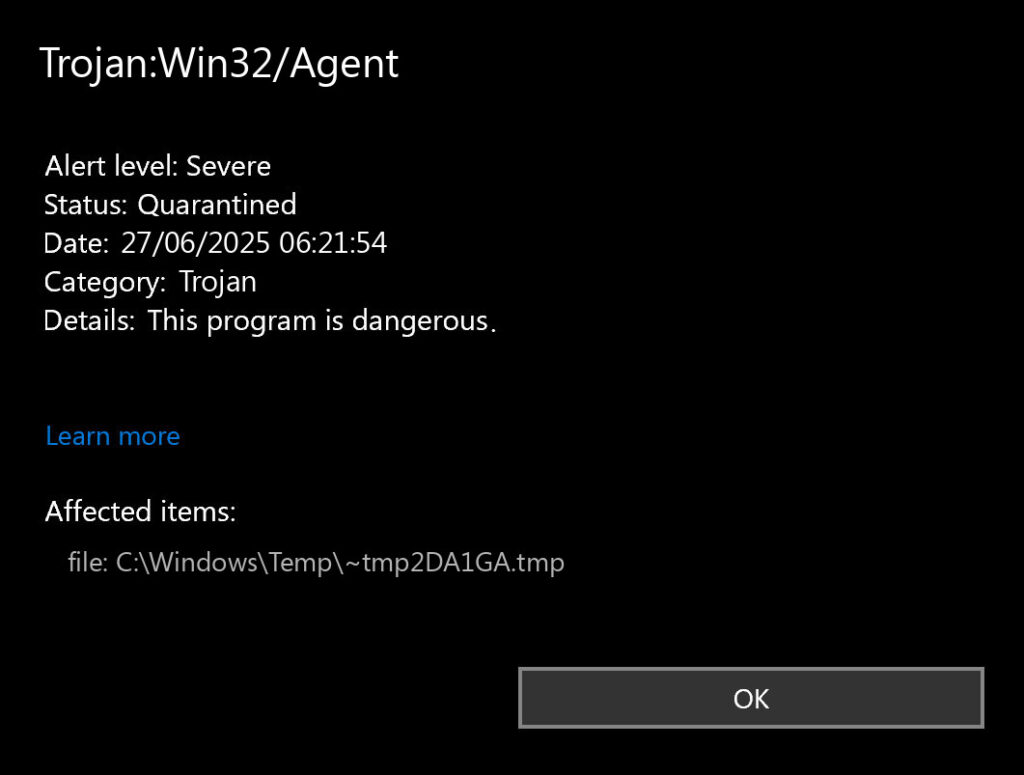
- If Windows Security reports Trojan:Win32/Agent, keep the item quarantined and copy the affected file path from Protection History.
- Trojan.Agent, Trojan.Win32.Agent, and Trojan/W32.Agent are generic Agent-style names, so match the vendor name with the path and file source.
- Do not restore the file unless you can prove it came from a trusted source and is clean.
- If the file ran or the alert returns, check startup entries, scheduled tasks, browser extensions, other devices or synced folders, and account activity.
| Where the warning appears | What it means and what to do |
| Only in a browser tab, pop-up, or site notification | A message such as Trojan found in /Win32 is usually a fake browser warning, not a Defender result. Do not call a phone number, install a “fix,” or allow notifications. Close the page, revoke the site’s notification permission, and check Windows Security Protection History. |
| Windows Security Protection History | This is a real Defender event. Keep the item quarantined, record the affected path and status, delete the original download or archive, and run a full scan. |
| An installed third-party antivirus | Use that vendor’s exact detection name, affected path, action and log. Trojan.Agent is a generic label, so the path and source decide the response. |
| Inside an archive, Downloads folder, or browser cache and never ran | Delete the source, clear the relevant cache if needed, keep the item quarantined and scan again. Do not restore it merely because it may have been blocked before execution. |
| The same path returns after reboot | Check the original source, Startup, scheduled tasks, services, browser extensions, removable storage and synced folders because something may be recreating the file. |
Trojan.Agent is a generic antivirus label, not one specific malware family. The first check is where the warning appears. A browser page can imitate Windows security wording, but a genuine installed-antivirus event records a vendor, affected item or path, status and action.
If a web page or notification says Trojan found in /Win32 but Windows Security has no matching event, close the page without clicking its buttons, calling its number or downloading its suggested tool. Revoke the site’s notification permission, remove suspicious extensions, and scan any file you downloaded around the same time.
If Windows Security or another installed antivirus reports Trojan:Win32/Agent, Trojan.Agent, Trojan.Win32.Agent, or Trojan/W32.Agent, copy the affected path and keep the item quarantined. Then use the file source, whether it ran, and whether the same path returns after reboot to choose the cleanup steps below.
| Detection name | Trojan:Win32/Agent |
| Related Agent names | Trojan.Agent, Trojan.Win32.Agent, Trojan/W32.Agent, Win32.Trojan.Agent, and vendor-specific variants. |
| What it means | A generic Microsoft Defender trojan detection. It can describe many different malicious files or behaviors. |
| First thing to check | The exact file path in Windows Security -> Virus & threat protection -> Protection history. |
| High-risk sources | Cracks, activators, torrents, fake updates, unknown installers, email attachments, suspicious scripts, and archives. |
| Common persistence points | Startup apps, Run registry keys, scheduled tasks, services, browser extensions, and AppData/Temp folders. |
| Safest response | Keep the item quarantined, remove the original source, run a full Defender scan, then run Microsoft Safety Scanner. |
What are Trojan.Agent and Trojan:Win32/Agent?
Trojan.Agent and Trojan:Win32/Agent are generic labels used by security vendors for files or behavior that match a trojan pattern. The label alone does not identify one exact malware family; Microsoft Defender uses the colon-and-slash form, while other products may use dots or different prefixes.
That distinction matters. A page that says “Agent always steals banking passwords” is not accurate enough. Some Agent detections are infostealers, but others are droppers, downloaders, loaders, scripts, or packed files that install something else. The right response is to assume risk first, then verify the file path and source.
Microsoft’s Security Intelligence description for Trojan:Win32/Agent[1] emphasizes that Agent is generic and the behavior can vary. Defender can remove the detected threat, but a full scan may be needed to catch remaining files or system changes. If the alert came from a risky download, do not stop after one quick scan.
What to do first after the Defender alert
- Do not restore the file. Leave it quarantined while you investigate.
- Open Protection history. Go to Windows Security -> Virus & threat protection -> Protection history.
- Copy the affected item path. The path is more important than the generic Agent name.
- Delete the original download or archive. If the detection came from a ZIP, installer, crack, or attachment, remove that source too.
- Update Defender intelligence. Open Windows Update and install security intelligence updates.
- Run a full scan. Use a full Defender scan, not only a quick scan.
- Run Microsoft Safety Scanner. Use Microsoft Safety Scanner[2] in full-scan mode if the alert is severe, repeated, or incomplete.
Check the detected file path
The file path helps identify the source, but it cannot establish whether the file ran. Check the detection action, timestamp and available execution evidence as well. Use the table below as a triage guide.
| Detected path | How to read it |
C:\Users\<your name>\Downloads |
Often the original installer, archive, script, or attachment. Delete the source and scan again. |
C:\Users\<your name>\AppData\Local\Temp |
Suspicious. Malware often unpacks temporary files here during installation. |
C:\Users\<your name>\AppData\Roaming |
Suspicious if the folder name is random or created around the detection time. Check startup entries. |
C:\ProgramData |
Can be abused for persistence. Check folder names, creation dates, and scheduled tasks. |
C:\Windows\System32 |
High impact. Do not delete random files manually; quarantine first and run deeper scans. |
| Recycle Bin, NAS, OneDrive, or removable drive | May be an old infected copy, a synced archive, or another device restoring the file. Empty the bin only after backup decisions, pause sync if needed, and scan the source device. |
| Inside a browser cache | Often blocked before execution, but clear the browser cache and remove suspicious extensions. |
Is it a real infection or only a blocked file?
It is probably a real infection when
- The file came from a crack, activator, torrent, fake update, unknown installer, or email attachment.
- The same detection returns after reboot.
- Defender reports multiple related files, not just one downloaded archive.
- You see new startup items, scheduled tasks, unknown services, or browser redirects.
- Your accounts show suspicious sign-ins, or the machine is making unusual network connections.
It may be a blocked or inactive file when
- The detection was inside a ZIP, ISO, browser cache, or Downloads folder and you never ran it.
- Defender quarantined or removed it successfully.
- A full scan and Microsoft Safety Scanner find nothing else.
- The affected file no longer exists, and the only remaining warning is an old Protection history event.
Even in the second case, do not restore the file unless you have a strong reason. Delete the original source and keep the system under observation.
Safe verification before deleting or restoring anything
If the file still exists outside quarantine, check its source before you decide what to do. Right-click it, open Properties, and check the Digital Signatures tab if available. A valid signature from the expected vendor is a useful signal, but it is not a guarantee. A file from an unofficial mirror, a crack site, or a random Telegram/Discord link should stay quarantined even if its name looks familiar.
If you believe Defender flagged a legitimate file incorrectly, submit it through the official Microsoft Security Intelligence file submission[3] page. Do this before adding exclusions. Never exclude your entire Downloads, Temp, AppData, Desktop, or user profile folder.
What if Defender says “remediation incomplete”?
“Remediation incomplete” does not always mean the malware is still active. It can also appear when Defender tried to remove a file that was already deleted, moved, locked, or recreated by another process. Treat it as a signal to verify, not as a reason to panic.
- Restart Windows once.
- Install Defender security intelligence updates.
- Delete the original download, archive, or installer that caused the detection.
- Run a full Defender scan.
- Run Microsoft Safety Scanner in full-scan mode.
- If the detection returns, inspect startup apps, scheduled tasks, Run keys, and browser extensions.
Why Trojan.Agent keeps coming back
A repeating Agent alert usually means one of three things: the original source file is still being scanned, another startup point is recreating it, or sync/removable storage is putting the same file back. Use the exact path and timestamp from Protection history before deleting random files.
When Protection history identifies hidden or encoded PowerShell rather than a recreated file, follow the Commando.A!ml recurring-alert workflow to trace the scheduled task or other launcher.
| Repeat pattern | What to check next |
| Same ZIP, ISO, installer, or script in Downloads | Delete the original source file, not only the quarantined copy, then run a full scan. |
| Same random file returns after reboot | Check Startup apps, scheduled tasks, Run keys, services, and AppData or ProgramData folders created around the alert time. |
| Detection appears in a browser cache | Clear the browser cache, remove suspicious extensions, and check whether a redirect or fake update page is still opening. |
| Detection appears on a NAS, USB drive, or cloud-synced folder | Scan the source device or synced folder. Otherwise the cleaned PC may keep seeing the same restored file. |
If Defender keeps reporting Agent after quarantine, check for startup entries, scheduled tasks, browser changes, and hidden files that can recreate the alert.
Check for Agent leftoversManual removal steps
Use manual cleanup when the detected path or source suggests real malware. If you are not comfortable editing startup items and registry keys, use an anti-malware scanner instead of guessing.
Step 1: Disconnect and keep the item quarantined
If the alert came from a risky source or you suspect data theft, disconnect from the internet. In Windows Security, choose Quarantine or Remove. Do not choose Allow or Restore while investigating.
Step 2: Remove the original source file
Delete the installer, ZIP, ISO, script, or attachment that triggered the alert. Many repeated detections happen because the original archive remains in Downloads and Defender keeps scanning it.
Step 3: Check startup apps
- Press Ctrl + Shift + Esc to open Task Manager.
- Open Startup apps.
- Disable unknown entries created around the detection time.
- Right-click suspicious entries and check their file locations.
Step 4: Check scheduled tasks
- Press Windows + R, type taskschd.msc, and press Enter.
- Look for recently created tasks with random names or unusual triggers.
- Open the Actions tab and check whether a task launches the detected file, PowerShell, WScript, or a script from AppData/Temp.
- Delete only tasks that clearly point to the suspicious file or command.
Step 5: Check Run registry keys carefully
Open regedit and inspect these locations:
HKEY_CURRENT_USER\Software\Microsoft\Windows\CurrentVersion\Run
HKEY_LOCAL_MACHINE\Software\Microsoft\Windows\CurrentVersion\Run
HKEY_CURRENT_USER\Software\Microsoft\Windows\CurrentVersion\RunOnce
HKEY_LOCAL_MACHINE\Software\Microsoft\Windows\CurrentVersion\RunOnce
Export the relevant key first. Remove only entries confirmed to launch the detected malicious file or command. If the target is uncertain, leave it for analysis; an unfamiliar name is not sufficient evidence.
Step 6: Check common file locations
Look for suspicious files created around the same time as the alert:
C:\Users\{your name}\Downloads
C:\Users\{your name}\AppData\Local\Temp
C:\Users\{your name}\AppData\Roaming
C:\ProgramData
C:\Windows\Temp
Do not delete random Windows system files. Investigate files that match the Defender path or the same unsafe download, and quarantine confirmed threats. Do not delete a file solely because its name looks random.
Step 7: Clean browsers if redirects or pop-ups appeared
Agent-style trojans and droppers can arrive with browser hijackers, notification spam, or unwanted extensions. Remove extensions you did not install yourself, then reset the browser if redirects continue.
- Launch Chrome.
- Click the three dots (...) in the top right corner.
- Select Extensions > Manage Extensions.
- Click Remove next to the extension you want to delete.
Quick Access: Type chrome://extensions/ in the address bar.
- Open Safari.
- In the menu bar, click Safari and select Settings (or Preferences).
- Click on the Extensions tab.
- Select the extension and click Uninstall.
- Click the menu button, select Add-ons and themes.
- Go to the Extensions tab.
- Click the three dots (...) next to the extension and select Remove.
Quick Access: Type about:addons in the address bar.
- Launch Microsoft Edge.
- Click the three dots (...) in the top right corner.
- Select Extensions.
- Find the extension and click Remove.
Quick Access: Type edge://extensions/ in the address bar.
- Launch Brave browser.
- Click the menu icon > Extensions.
- Find the extension and click Remove.
Quick Access: Type brave://extensions/ in the address bar.
- Launch Opera.
- Click the Opera logo in the top left corner.
- Select Extensions > Extensions.
- Click the X or Remove button next to the extension.
Quick Access: Type opera://extensions/ in the address bar.
- Tap on the three dots (...) in the top right corner and Choose Settings.

- Choose Reset and Clean up and Restore settings to their original defaults.

- Tap Reset settings.

Quick Access: Type chrome://settings/reset in the address bar.
- Open Safari.
- In the menu bar, click Safari > Clear History.
- Select all history and click Clear History.
- Go to Safari > Settings (or Preferences).
- Click the Privacy tab and select Manage Website Data... > Remove All.
- In the Advanced tab, check Show features for web developers.
- In the menu bar, select Develop > Empty Caches.
- Launch Brave browser.
- Click the menu icon in the top right corner and select Settings.
- Click Additional settings > Reset settings.
- Tap Restore settings to their original defaults.
- Confirm by clicking Reset settings.
Quick Access: Type brave://settings/reset in the address bar.
- In the upper right corner tap the three-line icon and Choose Help.

- Choose More Troubleshooting Information.

- Choose Refresh Firefox... then Refresh Firefox.

Quick Access: Type about:support and click Refresh Firefox.
- Tap the three dots.

- Choose Settings.

- Tap Reset Settings, then Click Restore settings to their default values.

Quick Access: Type edge://settings/reset in the address bar.
- Launch the Opera browser.
- Click the Opera menu button in the top left corner and select Settings.
- Scroll down to the Advanced section in the left sidebar and click Reset and clean up.
- Click Restore settings to their original defaults.
- Click Reset settings to confirm.
Quick Access: Type opera://settings/reset in the address bar.
Step 8: Run full scans again
After manual cleanup, run a full Defender scan and a Microsoft Safety Scanner full scan. Reboot and check Protection history. If the same path returns, something is recreating the file and you should re-check scheduled tasks, startup entries, services, and browser extensions.
Automatic removal with GridinSoft Anti-Malware
Manual cleanup is useful for understanding what happened, but generic Agent detections can hide behind packed files, droppers, startup entries, and browser components. A second anti-malware scan is safer when the file came from a risky source, the alert returns, or Defender reports remediation incomplete.
After removal, reboot Windows and check that no new Trojan:Win32/Agent events appear. If the only remaining item is an old Protection history entry and full scans are clean, monitor the system instead of restoring the original file.
What to do after cleanup
- Change passwords from a clean device if the file ran or if you saw suspicious account activity. Revoke other sessions, review recovery methods and authorized apps, and enable MFA; a password change alone may not invalidate every stolen session.
- Prioritize email and Microsoft accounts because they can be used to reset other passwords.
- Check browser sync for unwanted extensions or changed search settings.
- Update Windows and browsers to close common infection paths.
- Back up important files after the system is clean.
How Trojan:Win32/Agent usually gets in
Most user cases start with social engineering: a fake invoice, a cracked game, a software activator, a fake browser update, a malicious attachment, or a bundled downloader. Some detections are blocked before they execute, but the source still matters. If the same download also installed browser extensions, changed search settings, or created startup entries, treat the whole event as a compromise.
The risk is higher when the file was executed. If you only downloaded an archive and Defender quarantined it before extraction or launch, the response can be simpler: delete the archive, clear the browser cache if needed, and run full scans.
How to prevent the next Agent alert
- Download software from official vendor sites.
- Avoid cracks, activators, repacked installers, and unknown mirrors.
- Keep Defender real-time protection enabled.
- Install Windows and browser updates promptly.
- Scan email attachments before opening them.
- Keep offline or cloud backups of important files.
FAQ
Is Trojan:Win32/Agent one specific virus?
No. It is a generic Defender detection name. The exact behavior depends on the file Defender found, which is why the affected path and source are so important.
Should I allow or restore Trojan:Win32/Agent?
No, not unless you have verified the file source, signature, and scan results. Never restore files from cracks, unknown installers, email attachments, Temp, AppData, or browser cache.
Does Trojan:Win32/Agent always steal passwords?
No. Some variants can steal data, but the Agent label is broad. Because password theft is possible, change important passwords from a clean device if the file ran or if you see suspicious account activity.
Is Trojan.Agent the same as Trojan:Win32/Agent?
Not exactly. Trojan:Win32/Agent is Microsoft Defender wording, while Trojan.Agent or Trojan.Win32.Agent can come from other vendors. They are all broad Agent-style labels, so the file path, source, and repeat behavior matter more than the short family name alone.
Why does Trojan.Agent keep coming back after quarantine?
The most common causes are a leftover archive or installer, a scheduled task or startup entry recreating the file, a suspicious browser extension, or a synced/removable drive restoring the same item. Copy the exact path from Protection history and remove the source, not only the latest quarantined copy.
Can Microsoft Safety Scanner help?
Yes. Microsoft Safety Scanner is useful as a second Microsoft scan, especially when Defender says remediation incomplete or when the detection returns after reboot. Use the full-scan option.
Why does the alert remain in Protection history after removal?
Protection history can show old events after the file is gone. If the affected file no longer exists and full scans are clean, it may be historical. If the same path appears again with a new time, continue cleanup.
Do I need to reinstall Windows?
Usually no. Reinstall Windows only if multiple scanners still find active malware, system files are damaged, security tools cannot run, or you have evidence of a deeper compromise.
Quick removal summary
- Keep the detected file quarantined.
- Copy the affected item path from Protection history.
- Delete the original download, archive, or attachment.
- Update Defender intelligence and run a full scan.
- Run Microsoft Safety Scanner in full-scan mode.
- Check startup apps, scheduled tasks, Run keys, and browser extensions if the alert returns.
- Change passwords from a clean device if the file ran or accounts look suspicious.
Related cleanup topics: what trojan malware does, heuristic detections, Trojan:Win32/Wacatac, and why cracked games are risky.
- Trojan.Win32.Agent.sa: ba38be61a59e64b9462b7db2985951fb33853e1ea97263d37d0c7e475a5ea6cc
- Trojan.Win64.Agent.cl: 19c5defe2ad3d6100aaf2b257b2ec147ab922c7c08a3eef9b6a3fb4198664696
- Trojan.Win64.Agent.oa!s1: 84e37f4b182090a16a717ffcaad5ceb7ff48367e8adcb7488af23d495eacf38b
- Trojan.Win32.Agent.oa!s1: 470b563ea0fc75bbaf62c2aa1bd82cf99a0b47a596aaa33a469401eb0896b72b
- Trojan.Win32.Agent.cl: d01742d9a3ae416df163266d1791fa954b0603ec99e87cd8c6a50b255fa66d44
- Trojan.Win32.Agent.oa!s1: ecd74167b6f8635b7c4cb7b9bfdba2629fb8b0698d2235f76e97f9b4213366f9
- Trojan.Win64.Agent.oa!s1: e565a38ac2e8537ace49ed12845210f13533fe65833152d9d6e09e19ed1cc9b7
- Trojan.Win64.Agent.oa!s1: 8036f5ba032291b77a546843641f0addd7fbe28a41b132f27ad704f56429a1ef
- Trojan.Win64.Agent.cl: 48999730488636e9379012256a7bd4d40867bf2473442377464b2c5ecb01ed2f
- Trojan.Win32.Agent.cl: 449922b94da9f0c67f5d08eb45caf64225338e8904a7a6a83dde3e1bc4cc736d
Related threats
Related Microsoft Defender guides
References
- Microsoft. “Trojan:Win32/Agent threat description.” Microsoft Security Intelligence, accessed July 27, 2026. Microsoft threat description.
- Microsoft. “Microsoft Safety Scanner Download.” Microsoft Learn, updated April 13, 2026, accessed July 27, 2026. Microsoft Safety Scanner guidance.
- Microsoft. “Submit a file for malware analysis.” Microsoft Security Intelligence, accessed July 27, 2026. Microsoft file submission page.

Great guide—dealing with Trojan:Win32/Agent can be a real nightmare, especially when it compromises not just your system but also the integrity of any web-based projects you’re working on.