StartMenuExperienceHost.exe is the Windows component that displays the Start menu. If it crashes, Start may flash open and close, freeze, or stop responding while the rest of the desktop still works. Begin by restarting Windows Explorer or ending the host process in Task Manager; Windows normally launches it again. If the failure returns, check whether the Start package is installed, review Event IDs 1000 and 1001, isolate third-party conflicts, and repair Windows components in that order. Do not download a replacement EXE or delete the Start package.
What is StartMenuExperienceHost.exe?
Microsoft moved the Start menu into its own app process so a Start failure does not have to take down the entire Windows shell. On current Windows 10 and Windows 11 systems, each signed-in user normally has a StartMenuExperienceHost.exe process when the Start menu is available. Microsoft’s current troubleshooting guidance treats package installation, process execution, application crashes, policy, and third-party conflicts as separate diagnostic branches.[1]
The standard executable is inside the protected Start menu SystemApps package:
C:\Windows\SystemApps\Microsoft.Windows.StartMenuExperienceHost_cw5n1h2txyewy\StartMenuExperienceHost.exe
A file in that folder with a valid Microsoft signature is a normal Windows component. A similarly named file in Downloads, Temp, AppData, a game folder, or an unknown startup location needs a separate safety check. For the same legitimate-versus-lookalike method, see our guide to checking whether an EXE file is safe.
Restart the Start menu first
- Press
Ctrl + Shift + Escto open Task Manager. - Find Windows Explorer, right-click it, and choose Restart.
- If Start is still frozen, open the Details tab.
- Right-click StartMenuExperienceHost.exe and choose End task.
- Press the Windows key again. Windows should start a fresh copy for your session.
Ending this process is normally safe; it does not uninstall the Start menu. If the process launches and exits again, restarting it is only a symptom reset. Continue with the package and crash checks below.
Check whether the Start package is installed and running
Open a regular, non-administrator Windows PowerShell window and check the package registered for your account:
Get-AppxPackage -Name Microsoft.Windows.StartMenuExperienceHost
If the command returns package details, Start is installed for that user. Next, open PowerShell as administrator and check the process:
Get-Process StartMenuExperienceHost -IncludeUserName
No process does not automatically mean the executable is missing. Start may not have activated for the user, may have crashed immediately, or may be blocked by a policy or third-party shell customization. If the first package command returns nothing, use an elevated PowerShell window to see whether the package still exists for another account:
Get-AppxPackage *StartMenu* -AllUsers
- Package present and process running: look for a crash, hang, policy, or shell-extension conflict.
- Package present but process absent: check activation events, Safe Mode, and then targeted re-registration.
- Package present for another account only: the current user registration or profile may be damaged.
- Package absent for every user: do not download loose Start menu files. Use a known-good restore, supported Windows repair, reset, or backup recovery path.
Find the crash evidence
Open Event Viewer, go to Windows Logs → Application, and filter the time window when Start failed. Microsoft recommends checking Event IDs 1000 and 1001 for StartMenuExperienceHost.exe.[1] Record the faulting module, exception code, Windows build, and whether the event repeats after every Start attempt.
Also check Reliability Monitor by running perfmon /rel. Its timeline often makes it easier to see whether the failures began after a Windows update, graphics or shell utility installation, policy change, or profile problem. A faulting module name is evidence to investigate, not a file to delete blindly.
For activation problems, open Applications and Services Logs → Microsoft → Windows → TWinUI → Operational. Messages such as “Package was not found,” “Element not found,” or “Package could not be registered” point toward package registration rather than a random Start menu crash.
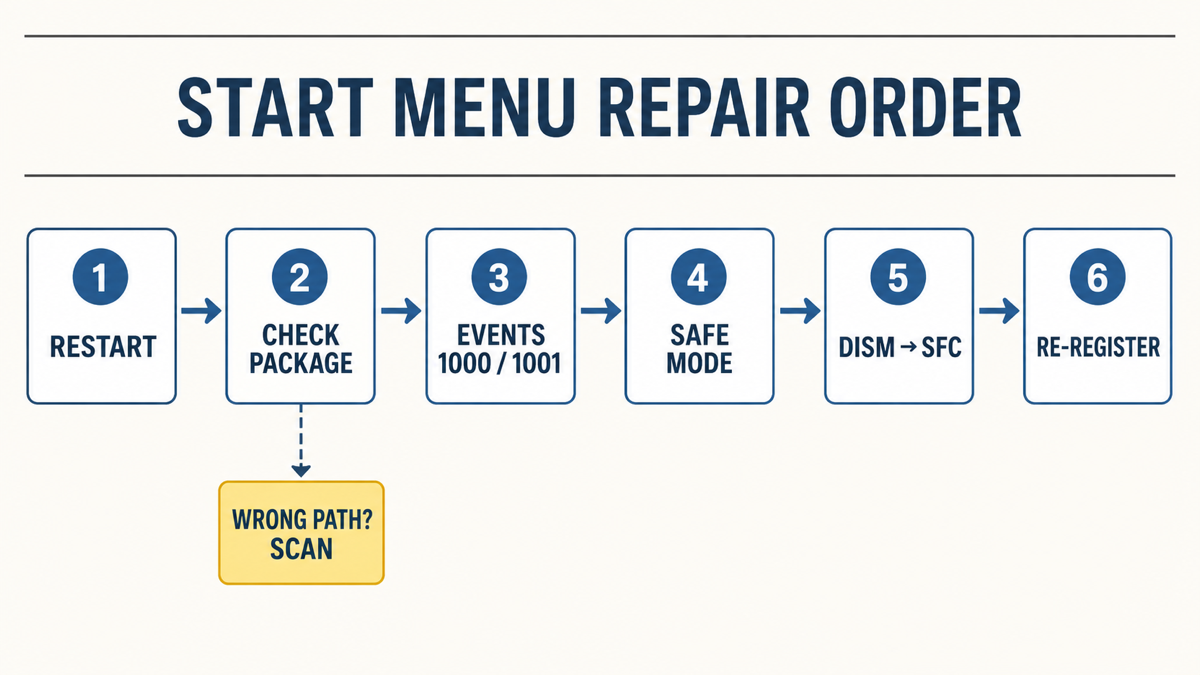
Repair StartMenuExperienceHost.exe in the safest order
1. Install pending Windows updates and restart
Check Settings → Windows Update, install the current cumulative update, and restart once. If the problem began immediately after an update, record the exact build with winver and check Microsoft’s Windows release-health page before removing anything. Do not treat one forum report about a specific KB as proof that every Start crash has the same cause.
If Windows Update itself remains busy or broken, use the separate TiWorker.exe and Windows Update repair guide rather than interrupting servicing processes at random.
2. Test Safe Mode or a clean boot
If Start works in Safe Mode, the Windows package is probably intact and a non-Microsoft service, shell modification, overlay, theme tool, Explorer replacement, or startup app is a stronger suspect. A clean boot lets you re-enable groups of non-Microsoft services and startup apps until the conflict returns. Keep a record of what you disable so you can restore normal startup afterward.
This is especially important when the crash began after installing taskbar customizers, Start menu replacements, Explorer patchers, graphics overlays, or aggressive “debloat” scripts. Remove or update the confirmed conflicting tool instead of repeatedly registering Windows packages.
3. Repair the Windows component store, then system files
Open Command Prompt as administrator. Microsoft documents running DISM first because it supplies the repair files that System File Checker may need.[2]
DISM.exe /Online /Cleanup-Image /RestoreHealth
sfc /scannow
Let each command finish. Restart Windows after repairs are reported, then test Start before moving to package registration. If DISM cannot find repair content or Windows Update is damaged, use an official Windows installation source or proceed to a supported in-place repair rather than downloading individual DLL or EXE files.
4. Re-register only the Start package that already exists
Use re-registration when the package exists on disk but is not registered for the affected account. In a regular, non-administrator PowerShell window for that user, run:
Add-AppxPackage -Path "C:\Windows\SystemApps\Microsoft.Windows.StartMenuExperienceHost_cw5n1h2txyewy\AppxManifest.xml" -Register -DisableDevelopmentMode
Microsoft specifically notes that a per-user registration should run in the user’s non-elevated PowerShell context.[1] If the manifest path does not exist, stop. Do not create the folder, copy files from another PC, or run a broad command that re-registers every Windows app without first understanding the failure.
5. Test another user profile
Create a temporary local account and test Start there. If Start works in the new account while the same Windows build fails only in the original profile, focus on per-user package registration, policies, and profile data. Move personal files carefully; do not copy the entire damaged AppData profile into the new account.
6. Escalate to rollback, restore, or in-place repair
Use System Restore or uninstall a recent update only when the timing and Microsoft release information support that cause. When the package is missing system-wide or DISM/SFC cannot repair Windows, an in-place repair install can preserve apps and files while rebuilding Windows components. Back up important data first. A full reset is a later option, not the first response to one crash event.
When StartMenuExperienceHost.exe may be suspicious
The process name alone is not proof of malware. Check the running file’s location in Task Manager with Open file location, then open Properties → Digital Signatures. You can also query the signature directly; Microsoft’s cmdlet reports whether the file has a valid Authenticode signature.[3]
Get-AuthenticodeSignature -LiteralPath "C:\Windows\SystemApps\Microsoft.Windows.StartMenuExperienceHost_cw5n1h2txyewy\StartMenuExperienceHost.exe" | Format-List Status,StatusMessage,SignerCertificate
Scan the file and the computer when the copy runs outside the protected SystemApps package, has no valid Microsoft signature, appears in Startup or Task Scheduler, keeps running after its user signs out, or arrived with an untrusted installer. If the file is in the correct folder and signed by Microsoft, malware removal is not the normal fix for a Start menu crash.
If the process path is wrong, the name imitates a Windows component, or high CPU started after an unknown installer, scan for hidden miners, services, startup entries, and bundled components.
Scan the suspicious copyOther Windows shell processes can fail at the same time. Our Shell Infrastructure Host guide explains the legitimate sihost.exe path and what a wrong-path copy changes. For sustained CPU, memory, or crash symptoms in the visual shell itself, use the ShellExperienceHost.exe repair guide without applying Start-package commands to the wrong process. If Event Viewer points to a background app rather than Start itself, use the backgroundTaskHost.exe crash guide to identify the owning package.
If the Settings window flashes and closes while these shell processes remain healthy, use the SystemSettings.exe crash guide to distinguish normal suspension from a package fault and repair only the Settings component first.
FAQ
Is it safe to end StartMenuExperienceHost.exe?
Yes. Ending the legitimate process temporarily closes the Start host, and Windows normally launches it again for your session. Repeated immediate exits mean you should check the event log and package state.
Why is StartMenuExperienceHost.exe missing from Task Manager?
The package may not be registered for your account, the process may be crashing before you see it, or Start may not have activated. Check the per-user package, then the all-users package, before assuming the file is gone.
Should I download StartMenuExperienceHost.exe?
No. Microsoft does not support installing loose Start AppX files. Replacement-download sites cannot safely reconstruct the package, dependencies, signatures, and Windows servicing state.
What do Event IDs 1000 and 1001 tell me?
They record application crash and Windows Error Reporting details. Match the event time and faulting application to StartMenuExperienceHost.exe, then use the faulting module and recent-change timeline to choose the next diagnostic step.
Should I re-register every Windows app?
Not as a first step. Confirm that the Start package exists, repair Windows components, and target the Start package. Broad re-registration can produce unrelated errors and obscure the original cause.
References
- Microsoft. “Troubleshoot Start menu errors — Windows Client.” Microsoft Learn, updated June 30, 2026; accessed August 6, 2026. learn.microsoft.com
- Microsoft. “Use the System File Checker tool to repair missing or corrupted system files.” Microsoft Support, accessed August 6, 2026. support.microsoft.com
- Microsoft. “Get-AuthenticodeSignature.” Microsoft Learn, PowerShell module reference; accessed August 6, 2026. learn.microsoft.com