LightingService.exe is normally the ASUS Aura lighting service installed with Armoury Crate or older Aura Sync software, not a Windows system file. If it stays busy, use a short stop-and-measure test, then update or cleanly reinstall the ASUS package. If Easy Anti-Cheat names it in a game security violation, closing the service can confirm the conflict, but Aura-synced effects may freeze or stop until it restarts. Treat the file as suspicious only when its location, signature, or persistence does not match your installed ASUS software.
A brief spike while Aura changes an effect or discovers a device is different from sustained CPU use at idle. The useful signs are a process that holds one or more CPU threads busy for minutes, raises idle temperature, returns to the same load after reboot, or prevents a protected game from launching.
What is LightingService.exe?
LightingService.exe runs the Aura lighting layer used by supported ASUS and ROG computers, motherboards, and peripherals. ASUS currently integrates Aura Sync into Armoury Crate, where users can synchronize devices, choose basic or advanced effects, and enable in-game lighting features. [1]
The process is not required by Windows itself. Its job is narrower: coordinate lighting effects and communicate with supported RGB devices. Ending it for a short test should not remove Windows or disable physical cooling, but lighting animations, synchronized colors, Aura Creator effects, or game-linked lighting may stop updating until the service or Armoury Crate starts again.
| Situation | What it means and what to do |
|---|---|
| Signed ASUS copy with low or brief CPU use | Usually normal. Let the effect or device refresh finish, then measure again. |
| Signed copy with sustained idle CPU | Test Static or Dark lighting, stop the service briefly, and update Aura components. |
| Easy Anti-Cheat names LightingService.exe | Close the service for one launch test, then update or repair Armoury Crate instead of deleting the EXE. |
| Wrong folder, missing ASUS signature, or no ASUS software | Handle it as a suspicious-copy case and check startup or service persistence. |
Why LightingService.exe can use high CPU
Aura effects are calculated and sent to one or more lighting devices. Sustained load can appear when a dynamic effect loops incorrectly, devices repeatedly resynchronize, two RGB utilities compete for the same controller, or Aura components no longer match after a partial update. A current ASUS or Windows update can also expose a service error that disappears only after the package is repaired.
Do not trust a fixed “normal percentage” from a process database. Five percent on one CPU is not the same amount of work on another. Measure the behavior instead:
- Does the load remain after Armoury Crate has been idle for two or three minutes?
- Does switching from an animated effect to Static or Dark (Off) reduce it?
- Does ending only LightingService.exe make the CPU and temperature fall?
- Does another RGB application become busy at the same time?
- Does Event Viewer show the same LightingService.exe crash or Aura module error repeatedly?
If another ASUS process is busy as well, use the related ArmouryCrate.UserSessionHelper.exe high-CPU guide to separate the user-interface helper from the lighting service. Repairing the wrong component can hide the symptom without fixing the loop.
Step 1: verify the file before changing anything
- Open Task Manager and select Details.
- Find
LightingService.exe, note its PID and current CPU use, then choose Open file location. - Open the file’s Properties and check Digital Signatures. The signer should match ASUS/ASUSTeK software installed on the machine.
- Confirm that the file is inside an ASUS lighting program folder. A common package location is
C:\Program Files (x86)\LightingService\LightingService.exe, but the installed version and device can differ. - Check Installed apps for Armoury Crate, Aura Creator, or an older Aura Sync package that explains the service.
Microsoft’s Sigcheck can display file version and certificate-chain details when the Properties dialog is not enough. [3] The EXE safety checklist explains how to combine path, signature, hash, and behavior instead of trusting a filename alone.
Step 2: reduce the lighting workload
Open Armoury Crate, select Aura Sync → Aura Effects, and record the current effect. Change an animated effect such as Strobing, Color Cycle, Rainbow, Music, or an advanced Aura Creator profile to Static for a test. If the current device offers it, Dark (Off) is an even simpler baseline.
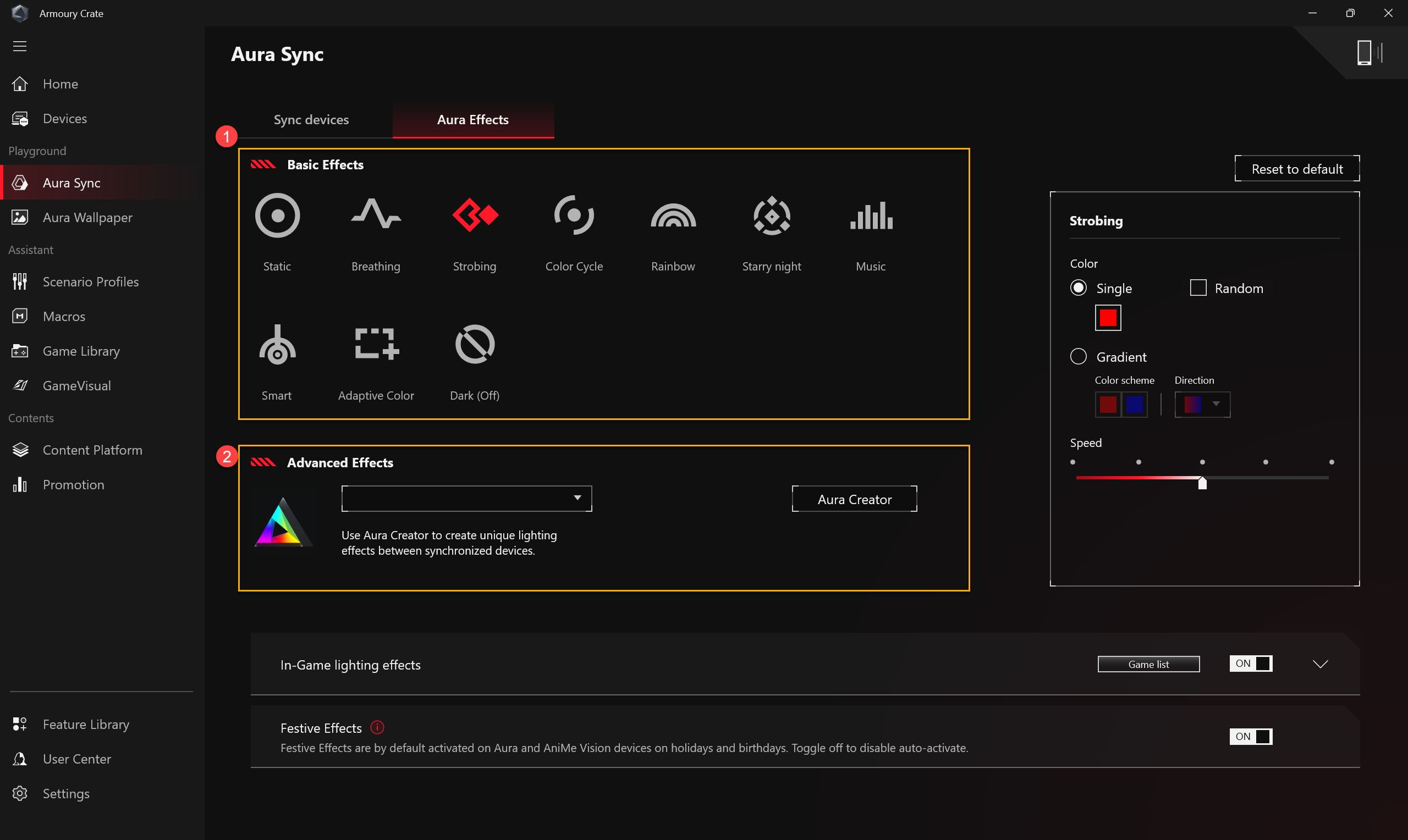
Wait a minute and compare the same Task Manager reading. If CPU use falls, the process is legitimate but the active effect or device synchronization is the likely trigger. Keep the simpler effect temporarily, then update the package before rebuilding a complex profile.
The current Armoury Crate interface also exposes In-Game lighting effects. Turn that feature off temporarily when the problem appears only during game launch. The goal is to isolate the feature, not to permanently remove ASUS services.
Step 3: run a reversible stop test
Save any lighting changes and close Armoury Crate. In Task Manager, end only LightingService.exe, or stop the corresponding ASUS lighting service in the Services console. Watch CPU use for another minute and launch the affected game once.
- If CPU use drops and stays low, LightingService or the effect it runs is involved.
- If the game starts without the security violation, the named service conflict is confirmed.
- If nothing changes, identify the actual CPU consumer instead of deleting ASUS files.
- If the service starts again with Armoury Crate or after reboot, that can be normal for the installed package.
Expect synchronized RGB effects to freeze, revert, or stop changing during this test. Do not disable cooling services, firmware controls, Windows Management Instrumentation, or every ASUS process at once. A one-variable test gives a useful answer and is easy to reverse.
How to fix the Easy Anti-Cheat LightingService.exe error
The exact message commonly appears as Game Security Violation Detected (#0000000D) [LightingService.exe]. It means the game protection blocked the current launch while that process was present; it does not by itself prove that the ASUS file is malware or that the account is banned.
- Close Armoury Crate and stop LightingService.exe for one launch test.
- If the game opens, restart Windows and update every offered Armoury Crate, Aura, device, and service component.
- Disable the Armoury Crate In-Game lighting effects option and avoid running multiple RGB, macro, overlay, or hardware-monitoring tools during the next test.
- Use the game’s launcher to verify or repair its Easy Anti-Cheat component if the error persists after ASUS software is current.
- If the same message returns, collect the exact process name and contact the game publisher or anti-cheat support. Do not run forum batch files or delete service entries.
For a different anti-cheat symptom, the Roblox anti-cheat error guide shows the same safe principle: identify the incompatible software first, update it, and avoid broad system changes that create a second problem.
Step 4: update or cleanly reinstall Armoury Crate
Open Settings → Update Center in Armoury Crate and install the offered application, service, Aura, and device updates. Restart Windows, return to the same lighting effect, and repeat the CPU and game-launch tests.
If the service still crashes, consumes CPU at idle, or triggers the game after a complete update, use ASUS’s supported clean-reinstall path. ASUS recommends its Armoury Crate Uninstall Tool, a restart, and a fresh installer from the support page for the device. It also recommends reinstalling Armoury Crate when a service error remains after a restart. [2]
- Download the current installer and uninstall tool from the official ASUS support page for your model.
- Save custom profiles you may need to recreate and close games.
- Run the official uninstall tool and restart Windows.
- Install Armoury Crate and Aura components again, allow updates to finish, and restart once more.
- Test Static lighting first, then restore more complex effects one at a time.
Do not download a standalone replacement for LightingService.exe from a file library. The executable depends on version-matched ASUS services, device modules, and drivers. Replacing one file can leave the package less consistent than before.
Can LightingService.exe be disabled permanently?
You can stop it temporarily for diagnosis or before an affected game. Permanent disablement makes sense only if you accept losing Aura-synced lighting features. If you do not use Armoury Crate or Aura at all, the official uninstall tool is cleaner than deleting the executable, changing service registry entries, or leaving a broken package behind.
Before removing Armoury Crate on a laptop or prebuilt desktop, check which performance, peripheral, fan-profile, and update features you actually use. LightingService is focused on RGB, but the larger Armoury Crate package can control other device-specific functions.
What if LightingService.exe looks suspicious?
A same-name file can be suspicious when it runs from Downloads, Temp, a random user folder, removable media, or an unexplained startup location; lacks a valid ASUS signature; appears on a computer with no ASUS lighting software; launches unknown child processes; or returns after the official package is removed.
Record the path, signer, parent process, and startup source before removing anything. The suspicious startup apps checklist can help locate the entry that recreates a process after reboot.
If the wrong-path copy arrived with an unknown installer or keeps returning, a service, scheduled task, startup entry, or bundled module may remain after the visible EXE is ended. Run a full Gridinsoft Anti-Malware scan, remove confirmed detections, restart Windows, and scan again if the process or security warning returns.
If the file is ASUS-signed, in the expected package folder, and the only symptom is CPU use or an anti-cheat conflict, malware scanning is not a substitute for updating or reinstalling Armoury Crate.
Quick decision checklist
- Brief load during an effect change: wait and measure again.
- Sustained load at idle: test Static/Dark, then stop the service briefly.
- Easy Anti-Cheat names the process: close it for one launch, then update ASUS and game components.
- Problem returns after updates: use the official ASUS uninstall/reinstall path.
- Wrong path or signer: inspect persistence and run a full security scan.
FAQ
Is LightingService.exe a virus?
Usually no. It is commonly installed with ASUS Aura or Armoury Crate. Verify the file location, ASUS signature, and installed software. A same-name file in a user-writable or unexplained folder needs a separate security check.
Why does LightingService.exe keep coming back?
The installed ASUS service can start with Windows, Armoury Crate, or an Aura feature. That is normal for the legitimate package. Reappearance is suspicious when the official ASUS software has been removed but an unknown startup item or task recreates a wrong-path copy.
Will stopping LightingService.exe turn off my RGB?
Lighting may freeze at the current color, revert, or stop changing. Aura Sync, Aura Creator, and game-linked effects may not update until the service restarts. This is why a short stop test is useful but deleting the EXE is not.
Does LightingService.exe control fans?
The process is associated with Aura lighting, not Windows cooling. However, Armoury Crate as a whole can expose fan and performance profiles on supported devices, so understand the larger package before uninstalling it.
Does an Easy Anti-Cheat violation mean I was banned?
The LightingService.exe launch error alone shows that the current game start was blocked while the process was present. It does not by itself prove a ban. Close the service for a test, update ASUS software, and follow the game publisher’s support route if the error continues.
References
- ASUSTeK Computer Inc. Armoury Crate Introduction (Version 6.0). ASUS Official Support, updated May 14, 2026; accessed August 14, 2026. ASUS Armoury Crate version 6.0 documentation.
- ASUSTeK Computer Inc. Armoury Crate FAQ. ASUS Official Support, updated June 1, 2026; accessed August 14, 2026. ASUS Armoury Crate installation, uninstallation, and service-error guidance.
- Mark Russinovich. Sigcheck v2.91. Microsoft Sysinternals, updated February 4, 2026; accessed August 14, 2026. Microsoft Sysinternals Sigcheck documentation.