iFrmewrk.exe is normally a legitimate helper from older Intel PROSet/Wireless packages, not a Windows system process. It can remain on a Windows 11 PC after an upgrade or an OEM software installation. A familiar filename is not enough to trust it: verify that the file is under an Intel program folder, has a valid Intel signature, and belongs to the installed PROSet or computer-maker package. Do not download a replacement EXE or copy it into System32.
If the legitimate helper causes a startup prompt, crash, or persistent resource use, disable its startup entry for a reversible test and repair or remove the parent package. Do not delete iFrmewrk.exe by itself or remove the Wi-Fi adapter driver without first saving a supported replacement.
What is iFrmewrk.exe?
The filename expands to an Intel Framework application used by legacy Intel PROSet/Wireless software. Those packages combined a Wi-Fi driver with optional connection-management, profile, diagnostics, event, and OEM integration components. On older systems, iFrmewrk.exe commonly launched at sign-in as the IntelWireless startup item.
Intel now says the legacy and DCH PROSet/Wireless software lines reached end-of-life starting with package version 21.50.X. Intel also explains that modern Windows systems can use a driver-only package, although a computer maker may have installed PROSet components for OEM-specific features. EOL means the helper is old and should be evaluated in context; it does not mean every existing copy is malicious.
| Check | Expected context and what it means |
|---|---|
| Parent software | Intel PROSet/Wireless, Intel Wireless software, or an OEM wireless package installed for the laptop or desktop. |
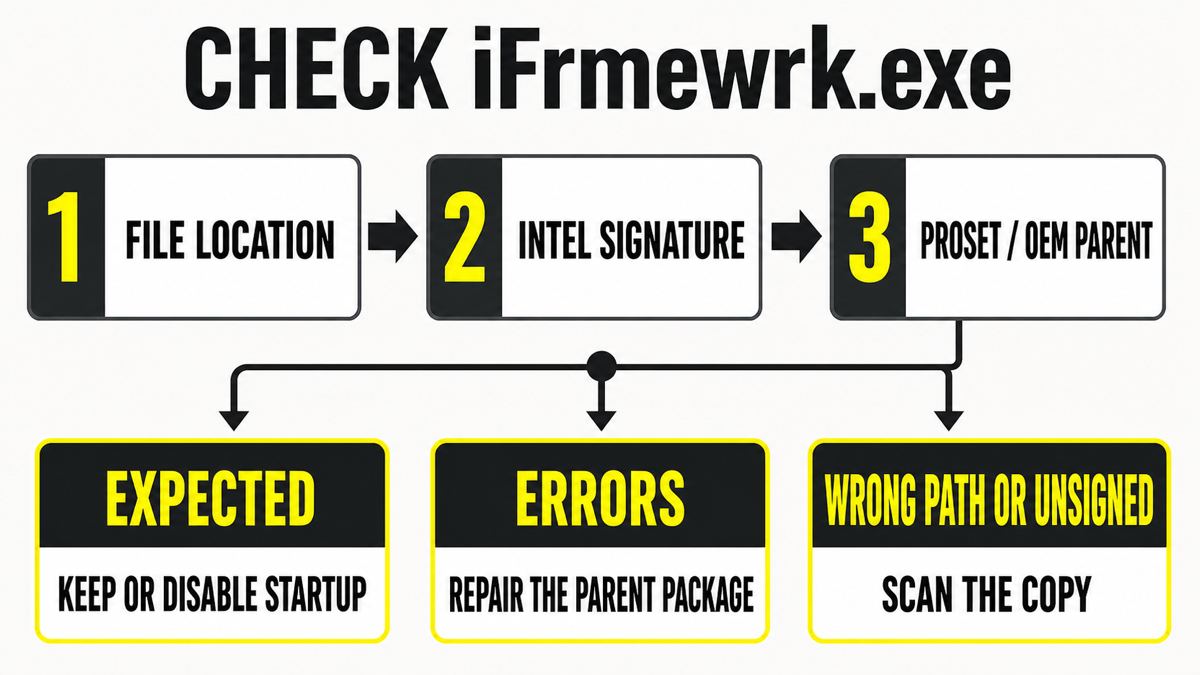
| Historical locations | Older packages commonly used C:\Program Files\Intel\Wireless\Bin\ifrmewrk.exe. Later packages can use C:\Program Files\Common Files\Intel\WirelessCommon\ifrmewrk.exe. A 32-bit or OEM build may use a corresponding Program Files (x86) path. |
| Digital signature | A valid signature from Intel Corporation or clearly matching Intel package metadata. Publisher wording can vary by package generation; validate the signature, not a screenshot or filename alone. |
| Startup context | An IntelWireless entry, often under a Windows Run location, or a startup item that resolves to the installed Intel/OEM package. |
| Warning signs | The file runs from AppData, Temp, Downloads, System32, or an unrelated program folder; has no valid expected signature; has an unrelated parent; or keeps returning after PROSet is removed. |
Use Task Manager’s Open file location, then open Properties → Digital Signatures. Microsoft Sysinternals Sigcheck is another option for viewing the version, hash, and signature chain. File size is not a reliable verdict because Intel and OEM packages shipped different builds over many years.
Why is iFrmewrk.exe on Windows 11?
iFrmewrk.exe was built for a software generation in which Intel’s connection utility managed profiles and wireless features that Windows now handles directly. It may still appear on Windows 11 because the PC was upgraded from an older Windows release, the OEM recovery image installed a legacy package, or an old driver bundle was carried forward during maintenance.
The presence of the process does not show that Windows 11 itself needs it. It also does not prove that the Wi-Fi driver is obsolete. Intel distinguishes the PROSet software package from the driver version inside that package, and current driver-only packages can support modern adapters without the old connection utility. Check the exact adapter model in Device Manager → Network adapters before changing anything.
For another Intel component where the parent service matters more than the filename alone, see the KillerNetworkService.exe troubleshooting guide.
Can you disable iFrmewrk.exe at startup?
Usually, yes—when Windows manages the Wi-Fi connection and the PC does not rely on legacy PROSet profiles or OEM features. Disabling the helper is different from disabling the wireless adapter or deleting its driver.
- Confirm the current Wi-Fi manager. If Windows Settings controls the connection and you do not use a legacy Intel profile utility, the helper is a stronger candidate for a startup test.
- Record the current state. Note the startup-item name and file location so you can reverse the change.
- Disable, do not delete. Open Settings → Apps → Startup or Task Manager → Startup apps and disable the Intel/PROSet entry when it is listed. Microsoft recommends these controls for registered startup apps.
- Restart and test. Confirm that Wi-Fi connects after sign-in, saved networks still work, sleep/wake reconnects correctly, and any required enterprise or OEM feature remains available.
- Restore the item if a required feature disappears. Re-enable the startup entry, then get the correct package from the computer manufacturer’s support page.
Some old builds register directly under HKLM\Software\Microsoft\Windows\CurrentVersion\Run or its 32-bit equivalent and may not appear with a friendly app name. Do not remove a registry value until its command resolves to the verified Intel file and you have exported the value. The broader Windows startup-app inspection guide covers that verification flow.
Fix an iFrmewrk.exe error, crash, or high CPU use
A legitimate iFrmewrk.exe error normally points to an old or partially removed PROSet/OEM package, a missing companion DLL, or a package conflict. Downloading a loose EXE or DLL from a file repository can introduce the wrong version or malware and does not repair the package relationship.
- Capture the exact error. Record the missing DLL or faulting-module name and whether the prompt appears only at sign-in. Check Event Viewer under Windows Logs → Application for the matching time.
- Verify the installed parent. In Settings → Apps → Installed apps or Control Panel → Programs and Features, look for Intel PROSet/Wireless or the computer maker’s wireless package. Do not assume the newest generic Intel package is correct for an old OEM laptop.
- Test startup disable. If Wi-Fi continues to work and the prompt disappears, leave the helper disabled while you decide whether the old management software is still needed.
- Repair from the OEM package. Download the system-specific wireless package from the laptop or motherboard maker. Use its repair option when offered. This preserves model-specific dependencies better than replacing one file.
- Remove obsolete management software cleanly. If the adapter uses a supported Windows or vendor driver and no PROSet/OEM feature is needed, uninstall the parent software through Apps or Programs and Features. Restart and retest Wi-Fi.
- Troubleshoot the driver separately. If the adapter itself disconnects, disappears, or shows a Device Manager error, first save the correct driver package and follow the OEM or Intel clean-driver procedure. Do not remove the network driver merely to silence iFrmewrk.exe.
For high CPU use, close the legacy profile utility and end iFrmewrk.exe once as a test. If the process returns, identify the Intel startup entry or companion service that launches it. Persistent load after a clean package repair is a reason to remove the obsolete management layer or ask the OEM for the supported package—not to set unusual process priorities or disable security tools.
How to remove iFrmewrk.exe safely
Remove the parent Intel PROSet/Wireless or OEM package, not the standalone executable. Before uninstalling, identify the wireless adapter model and save a working driver from the computer maker. Intel warns that removing a DCH-compliant OEM package can remove OEM-specific features, so a managed business PC should be handled by its administrator.
After uninstalling and restarting, confirm that the old IntelWireless startup command is gone and Wi-Fi still works through Windows. If a broken startup entry remains, Windows can show where its invalid command is stored. Export that one value before removing it. Do not run a registry cleaner or delete the whole Intel directory.
If the copy is in the wrong folder or unsigned
A wrong location or missing signature raises suspicion but is not a malware verdict by itself. Open the file location, check its signature and parent process, and compare the surrounding files with the installed Intel/OEM package. Our EXE safety checklist shows how to combine these signals.
If iFrmewrk.exe runs from a user-writable folder, has an unrelated parent, or persists after the verified PROSet package is removed, submit the file to the Gridinsoft Online Virus Scanner. If the file already ran or recurring activity remains, use a full Gridinsoft Anti-Malware scan to check for detections, startup entries, scheduled tasks, bundled apps, and other persistence. A clean scan lowers suspicion but cannot prove that no compromise occurred.
If the process path is wrong, the name imitates a Windows component, or high CPU started after an unknown installer, scan for hidden miners, services, startup entries, and bundled components.
Check a suspicious iFrmewrk copyFAQ
Is iFrmewrk.exe a virus?
The Intel PROSet/Wireless copy in an expected Intel program folder with a valid Intel signature is legitimate. A same-name file in AppData, Temp, Downloads, System32, or an unrelated package needs separate verification.
Does Windows 11 need iFrmewrk.exe?
No. It is not a Windows component. Modern Windows can use a supported Wi-Fi driver without the old connection utility, although an OEM package may provide model-specific features.
Will disabling iFrmewrk.exe turn off Wi-Fi?
Disabling only the startup helper usually leaves the adapter driver active, but legacy profiles or OEM features may stop working. Test after a restart and restore the startup item if a required function disappears.
Should I download iFrmewrk.exe if it is missing?
No. Repair or reinstall the matching Intel/OEM parent package. A loose EXE from a file repository may be the wrong version, lack required companion files, or be unsafe.
Does PROSet end-of-life mean iFrmewrk.exe is malware?
No. EOL means Intel no longer develops that software line. It is a reason to review whether the package is still needed and supported, not evidence that the existing signed file is malicious.
References
- Intel Corporation. “Learn about Intel® PROSet/Wireless Software.” Intel Support, last reviewed February 7, 2025, accessed August 4, 2026. https://www.intel.com/content/www/us/en/support/articles/000005649/wireless/legacy-intel-wireless-products.html
- Microsoft Support. “Configure Startup applications in Windows.” Microsoft, accessed August 4, 2026. https://support.microsoft.com/en-US/Windows/Experience/Startup-Boot/configure-startup-applications-in-windows
- Russinovich, Mark. “Sigcheck v2.91.” Microsoft Sysinternals, updated February 4, 2026, accessed August 4, 2026. https://learn.microsoft.com/en-us/sysinternals/downloads/sigcheck