
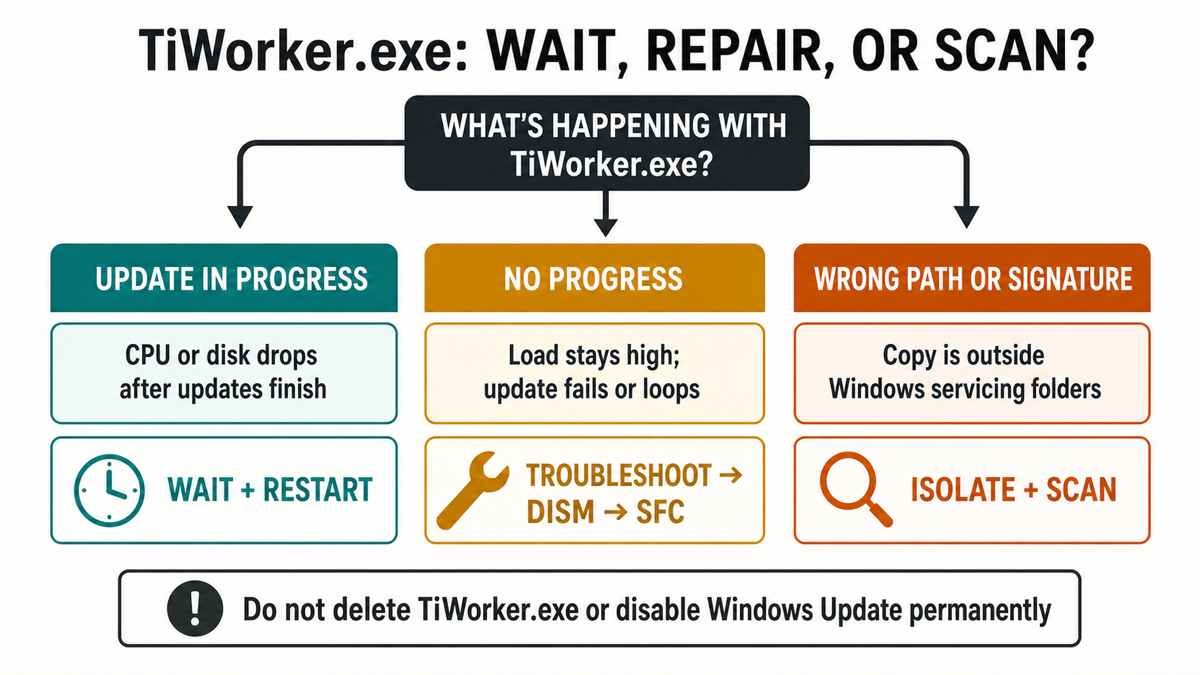
TiWorker.exe is normally Windows Modules Installer Worker, a legitimate process that installs and maintains Windows components. High CPU or disk usage during an update is usually temporary. Start by opening Windows Update: let an installation finish and restart when requested. If the same update repeatedly fails or heavy load returns without progress, use the repair steps below. If the running file has an unusual location or the slowdown followed an untrusted download, check its identity and scan for malware. Deleting TiWorker.exe or permanently disabling updates can leave the original problem unresolved.
- An update is progressing or requests a restart: keep the PC on power, let it finish, then use Restart when prompted.
- The same update fails again or heavy load persists across sessions: record its KB number and error, check storage, then follow the Windows repair steps.
- A copy runs from AppData, Temp or an unrelated folder: check that exact file’s signature and run a full malware scan, especially after an unknown installer.
Why TiWorker.exe uses so much CPU or disk
Windows servicing does more than download updates. It checks component versions, stages replacement files, applies changes and cleans up superseded components. That work can keep the CPU or disk busy even when Task Manager shows little network traffic or Settings says that Windows is up to date.
TiWorker.exe works with Windows Modules Installer, whose service executable is TrustedInstaller.exe. They are related but are not interchangeable filenames. MoUsoCoreWorker.exe coordinates update activity and has its own troubleshooting path, particularly when the PC will not sleep.
On a hard drive, many small file operations can make Windows feel unresponsive without a large transfer rate. Check the CPU and Disk columns for the TiWorker process itself, not just the total percentage at the top of Task Manager. A busy disk caused by another application calls for a different diagnosis.
How long should you wait before troubleshooting?
There is no single normal CPU percentage or maximum runtime for every update and PC. Use progress and repeatability to decide. As a practical first check, leave the PC plugged in and otherwise idle, then compare the situation again after 15–30 minutes. This is a suggested observation interval, not a deadline by which Windows must finish.
- Open Settings → Windows Update on Windows 11. On Windows 10, use Settings → Update & Security → Windows Update.
- Note the update name or KB number, status, percentage and any restart request. Take a screenshot if the status keeps changing.
- Compare again after the observation interval. Changing progress or a completed update followed by falling load favors normal servicing. A stationary percentage alone does not establish a freeze.
- If the same KB repeatedly fails, save its error code. If heavy load returns after a normal restart and an idle period, move to the repair steps.
Example: a cumulative update that moves from installing to a restart request gives you a clear next action. The same KB failing with the same error after each restart gives you a specific repair target. “TiWorker is at 40%” does not distinguish those situations.
How to fix TiWorker.exe high CPU on Windows 11 or 10
1. Finish pending updates and check free space
Save your work and use Restart when Windows requests it. Keep the laptop connected to power through installation. Once back at the desktop, check Update history and give any follow-up servicing time to settle. Do not repeatedly end TiWorker.exe while an installation is making progress.
If Windows reports insufficient storage, open Settings → System → Storage. Review temporary files or cleanup recommendations and remove only categories you understand; check Downloads before selecting it. Use Windows’ cleanup controls rather than manually deleting files from C:\Windows\WinSxS\.
Retest the failed update after freeing space. Stop here if it completes and the load settles; running every repair on a working PC is unnecessary.
2. Run the Windows Update troubleshooter in Get Help
Microsoft’s current troubleshooting route is the Get Help app. Open it from Start, enter Windows Update troubleshooter, and follow the offered diagnostics. On Windows 11, Settings → System → Troubleshoot → Other troubleshooters → Windows Update may also direct you to this workflow. [1]
Apply the suggested fixes, restart if requested, then check Windows Update again. Record any issue that remains unresolved. If Get Help cannot launch or cannot fix it, continue with the component repair below; do not download an unofficial “TiWorker fixer.”
3. Repair Windows components with DISM, then run SFC
Use these tools when updates keep failing or you suspect damaged Windows files. Open Start, type Command Prompt, and choose Run as administrator. First run:
DISM.exe /Online /Cleanup-Image /RestoreHealth
Let DISM finish. A pause at one percentage is not, by itself, a reason to close the window. When it reports successful completion, run the second command:
sfc /scannow
Microsoft documents this order: DISM repairs the Windows image that SFC uses when checking protected system files. Wait for SFC verification to complete, then restart and retry the failed update. [2]
- DISM succeeds and SFC repairs files: retest the update and compare TiWorker activity after the restart.
- SFC reports no integrity violations: it found no protected-file corruption in that check. This does not diagnose every update failure or act as a malware scan.
- DISM cannot find source files, or SFC cannot repair some files: save the exact message. Repeating the commands indefinitely will not provide a missing repair source; use the next step or get help for that error.
4. Escalate a recurring failure instead of trying random fixes
For Windows 11, Settings → System → Recovery → Fix problems using Windows Update → Reinstall now can reinstall the current Windows version while preserving apps, files and settings. This is different from Reset this PC. Back up important files first and keep power and internet connected. The option may be absent on older builds or work/school PCs with managed updates. [4]
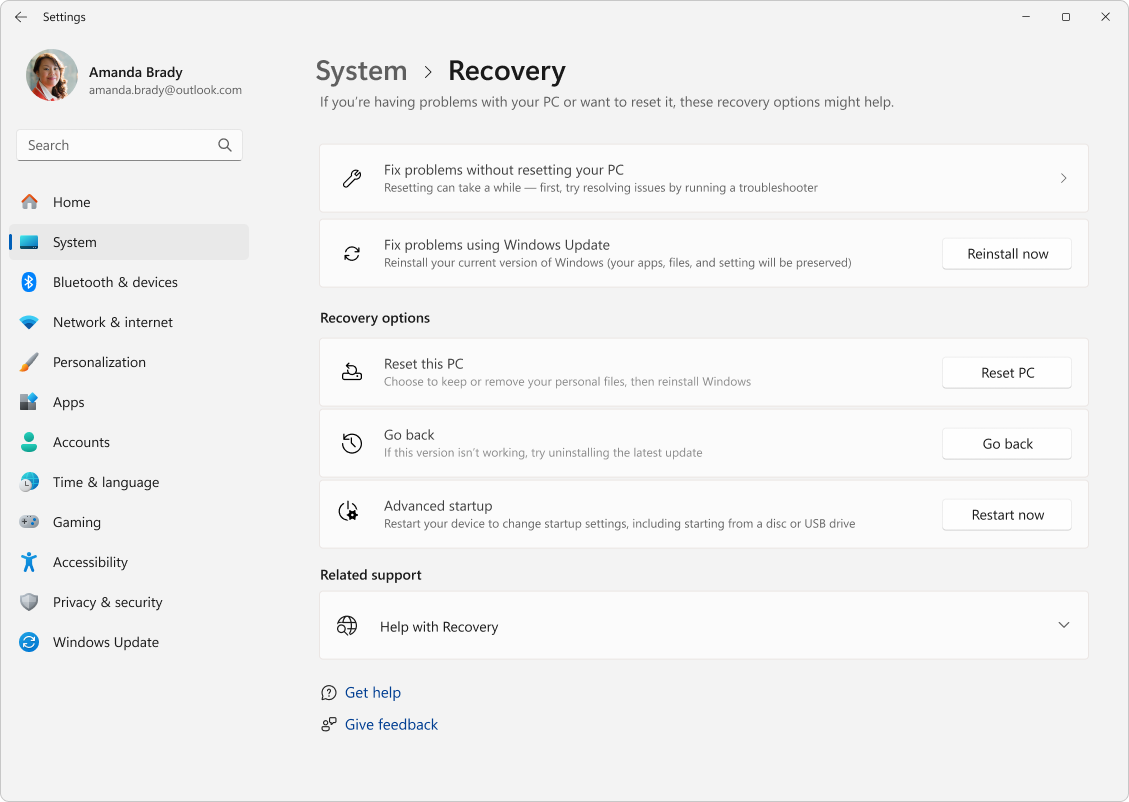
If the option is unavailable or the update still fails, give Microsoft support or your IT team the Windows version/build from winver, failing KB number, error code, DISM/SFC results and symptom timing. On a managed PC, ask IT before changing update services or policies.
If Task Manager actually identifies WaaSMedicAgent.exe as the busy process, follow its Windows Update Medic checks. It is a different component, even though both can appear during update trouble.
Is your TiWorker.exe legitimate or a malware lookalike?
A normal active TiWorker.exe is commonly inside a versioned Microsoft servicing-stack folder under C:\Windows\WinSxS\. The full folder name varies with Windows architecture and build. Several stored versions are not automatically suspicious. Inspect the copy that is actually running.
- Press Ctrl + Shift + Esc, open Details, and locate TiWorker.exe. Note its process ID if several instances appear.
- Right-click that row and choose Open file location. Record the full path without moving or deleting the file.
- Open Properties → Digital Signatures, if available, select the Microsoft signer and check the signature details. A Microsoft-looking description or icon is not a signature.
- If the tab is missing or the result is unclear, use the PowerShell check below. Some Windows files use catalog signatures, so an absent tab alone is not a malware verdict.
In an administrator PowerShell window, this lists each accessible running copy and checks its signature:
Get-Process -Name TiWorker -ErrorAction SilentlyContinue | ForEach-Object {
    if ($_.Path) {
        $_ | Select-Object Id, Path
        Get-AuthenticodeSignature -LiteralPath $_.Path |
            Format-List Status, StatusMessage, SignerCertificate
    }
}
Look for Status: Valid and a Microsoft signer together with a plausible Windows servicing path. Get-AuthenticodeSignature can check Windows catalog signatures as well as embedded signatures. [3] No output can mean the process has exited or its path was inaccessible; it does not mean “clean.” Access denied, an unsigned result or another verification error needs investigation, not immediate deletion.
A same-name executable in %APPDATA%, %LOCALAPPDATA%, %TEMP%, Downloads or Startup deserves closer inspection, particularly after a crack, fake update or unknown installer. For additional checks, use our guide to checking whether an EXE file is safe.
How Gridinsoft Anti-Malware helps with a suspicious copy
If a suspicious TiWorker.exe returns after reboot, deleting that one file may miss the program or startup mechanism recreating it. Gridinsoft Anti-Malware makes the cleanup easier to manage by scanning for related threats and presenting detections and file locations for review, instead of leaving you to identify every component manually. This is the malware branch of the diagnosis; a genuine busy Windows worker still needs the update checks above.
- Stop running the suspect download. If you also see recurring security alerts or unexplained connections, disconnect the affected PC from the network and avoid signing into sensitive accounts on it. Use a trusted device to obtain the installer if needed.
- Download Gridinsoft Anti-Malware from its official page, install it and update its detection database. If the PC is isolated, use a trusted connection only as needed for setup and updates.
- Run a Full scan. Checking the system is more useful than checking only a filename when another component may be involved.
- Review detected items and their paths. Apply the recommended quarantine or removal actions to confirmed threats. Do not add an exclusion merely because a detection uses a Windows filename.
- Restart and check again. Rescan if detections or symptoms return, and retain the report for support. Compare the process path as well as CPU usage: lower load alone does not establish successful cleanup.
If the process path is wrong, the name imitates a Windows component, or high CPU started after an unknown installer, scan for hidden miners, services, startup entries, and bundled components.
Scan for malware with GridinsoftA scan does not prove that no data was exposed. If malware was confirmed, address any affected accounts from a trusted device. If Windows remains damaged after cleanup, the clean Windows installation USB guide explains the recovery route.
How to tell whether the problem is fixed
For an update problem, look for the previously failing update completing, no outstanding restart request and TiWorker load settling during an idle period. It can legitimately run again for later maintenance. For a suspicious-copy problem, check that the detected file does not reappear, follow-up scans do not repeat the same detections and unexplained startup activity has stopped. Persistent symptoms are a reason to examine the recorded error or scan report, not to disable protection.
Avoid replacing TiWorker.exe with a downloaded EXE, permanently disabling Windows Modules Installer or Windows Update, or deleting WinSxS contents. A SoftwareDistribution cache reset can be appropriate for a diagnosed update error, but should follow relevant Microsoft guidance after you have recorded the failure details; it is not a universal first fix for high CPU.
FAQ
Can I end TiWorker.exe in Task Manager?
Ending it does not repair the reason it is busy, and Windows may start the work again. Let a progressing installation finish. Use a normal restart when requested, then troubleshoot recurring failures rather than repeatedly killing the process.
Why does TiWorker.exe run when no update is downloading?
Component installation and cleanup can happen after the download finishes. A quiet network graph or an up-to-date message in Settings does not exclude local servicing work.
Is it a virus if CPU usage drops when I open Task Manager?
That observation alone cannot identify malware. The task may have finished or its workload may have changed. Check the running file’s location and signature, the update state, and whether the behavior began after an untrusted download. Scan when those checks raise concern.
Can I disable Windows Modules Installer Worker permanently?
Windows needs component servicing for updates and system changes. Repair the recurring failure instead. On a work or school PC, let IT manage update policies.
References
- Microsoft. “Windows Update Troubleshooter.” Microsoft Support, accessed September 15, 2026. Troubleshooter guidance.
- Microsoft. “Using System File Checker in Windows.” Microsoft Support, accessed September 15, 2026. DISM and SFC instructions.
- Microsoft. “Get-AuthenticodeSignature.” Microsoft Learn, accessed September 15, 2026. Signature verification documentation.
- Microsoft. “Fix issues by reinstalling the current version of Windows.” Microsoft Support, accessed September 15, 2026. Repair reinstall guidance and screenshot.