OfficeClickToRun.exe is normally a legitimate Microsoft 365 and Office servicing process, not a virus. It can use CPU, disk, memory, and network resources while Office installs, updates, or repairs itself. Investigate it when the load stays high after Office finishes updating, a Bad Image error keeps returning, the file runs from an unexpected folder, or its Microsoft signature is missing. Do not delete the real file or permanently disable the Click-to-Run service as a first fix.
OfficeClickToRun.exe quick checks
- Normal role: installs, updates, streams, and repairs Click-to-Run editions of Microsoft 365 and Office.
- Typical location:
C:\Program Files\Common Files\Microsoft Shared\ClickToRun\OfficeClickToRun.exe. - Normal behavior: a temporary resource spike during an update, installation, or repair that later settles.
- Repair signal: sustained idle CPU/disk use, repeated Office launch failures, or an
OfficeClickToRun.exe - Bad Imagedialog. - Suspicious signal: a copy in
AppData,Temp, Downloads, or another unrelated folder, especially without a valid Microsoft signature.
What the symptoms mean
CPU, disk, or network rises while Office says it is updating: Usually normal servicing. Let it finish, close Office apps if prompted, and check again after a restart.
Correct path and Microsoft signature, but the process stays busy while Office is idle: More likely a stuck update or damaged Office installation than malware. Update Office, then run Quick Repair and Online Repair.
OfficeClickToRun.exe - Bad Image or an Office app will not open: Treat it as a damaged or incompatible Office component. Use Microsoft 365 repair; do not download the named DLL from a file library.
Wrong folder, invalid signature, unknown parent process, or the copy remains after Office is removed: Potential lookalike or unwanted persistence. Quarantine the suspicious copy and scan the PC.
What does OfficeClickToRun.exe do?
Click-to-Run is the common installation type for current Microsoft 365 and many Office releases. Its background service is named ClickToRunSvc. The service delivers updates, stages Office components, and supports repair work, so the process can remain visible even when Word, Excel, Outlook, or PowerPoint is not open.
That background presence is not proof of a problem. A short burst of activity can be expected when Office downloads or applies an update. The useful distinction is whether the load falls when servicing ends. A process that consumes resources continuously, returns to high use after every restart, or coincides with broken Office apps needs repair rather than repeated Task Manager kills.
For comparison with another legitimate servicing process, our TiWorker.exe high-CPU guide shows how to separate temporary update work from a component that remains stuck. In Task Manager, confirm whether OfficeClickToRun.exe is actually the top consumer and whether disk, memory, or another process is the real bottleneck.
Is OfficeClickToRun.exe safe or malware?
A familiar filename is only one clue. Check the process context instead of assuming that every copy is safe or malicious.
- Open the file location. In Task Manager, right-click OfficeClickToRun.exe and choose Open file location. The current Click-to-Run copy is normally under
C:\Program Files\Common Files\Microsoft Shared\ClickToRun. AnUpdatessubfolder beneath that trusted ClickToRun tree can also be part of servicing. A copy under a user profile, Downloads, Temp, or an unrelated application directory needs more scrutiny. - Check the signature. Open Properties → Digital Signatures and confirm the signer is Microsoft Corporation and Windows reports the signature as valid. A correct-looking path does not compensate for an invalid signature.
- Check the owner application. If Microsoft 365 or Office is installed and the process becomes active during update or repair work, the context makes sense. If Office was never installed or the process survives a complete official uninstall, investigate persistence.
- Check recurrence. Ending the task may lower CPU temporarily, but the service can start it again. Repair the servicing state instead of using repeated termination as the solution.
You can inspect the expected file signature and service state in an elevated PowerShell window:
$officeC2R = "$env:ProgramFiles\Common Files\Microsoft Shared\ClickToRun\OfficeClickToRun.exe"
Get-AuthenticodeSignature $officeC2R | Format-List Status,SignerCertificate
Get-Service ClickToRunSvc | Select-Object Status,StartType,Name
If the file is not in the documented vendor tree, the signature is invalid, or the launcher does not match Office, follow the full EXE safety checklist before allowing or deleting anything.
Fix OfficeClickToRun.exe high CPU, disk, or network use
- Confirm that Office is not actively servicing. Open an Office app, go to File → Account, and look at Product Information. If an update is in progress, let it complete. Save open work before closing Office apps or restarting.
- Install the current Office update. In File → Account, choose Update Options → Update Now. If Update Options is missing on a managed PC, your organization may control the update channel; contact IT instead of forcing service changes.
- Restart once. A restart clears an incomplete Office app session and lets the servicing process finish pending work. Recheck Task Manager after Office has settled.
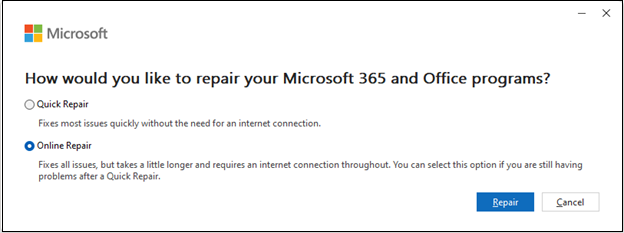
- Run Quick Repair. In Windows 11, open Settings → Apps → Installed apps, find Microsoft 365 or Office, choose the menu, and select Modify. Quick Repair is the faster local pass.
- Escalate to Online Repair. If the process remains stuck, Office apps fail, or Bad Image returns, run Online Repair. It takes longer and requires an Internet connection, but Microsoft describes it as the more complete repair option.
- Uninstall and reinstall only if repair fails. Use the official Microsoft 365/Office entry in Installed apps or Control Panel. If normal removal is stuck, use Microsoft’s uninstall troubleshooter rather than deleting ClickToRun files or services by hand.
Do not start by clearing unknown Office caches, deleting DLLs, using a registry cleaner, or copying an executable from another PC. Those steps can turn a repairable servicing problem into a broken installation and make signature verification harder.
September 2026 activation issue: If Office 2016 or 2019 became unlicensed or disappeared after KB5002907, use the specific activation or reinstall recovery path. Microsoft paused that optional update after reports of these failures; this is distinct from diagnosing sustained ClickToRun resource use.
Fix OfficeClickToRun.exe Bad Image errors
A Bad Image dialog usually means Windows could not load one of the Office program components correctly. The message may name a DLL and show a status such as 0xc000012f or 0xc0000020. The filename in the dialog is not a safe download instruction: never fetch that DLL from a third-party DLL site.
- Record the exact DLL path and status code in the dialog.
- Restart Windows and try one Office app once.
- Run Office Quick Repair.
- If the error returns, run Online Repair.
- If Office repair cannot start or complete, use the official uninstall troubleshooter, restart, and reinstall Office from your Microsoft account or organization portal.
If the dialog instead names ai.exe or aimgr.exe, use the ai.exe Bad Image DLL check to distinguish an Office component from a separate endpoint-agent library before repeating repair.
If the dialog is accompanied by repeated application crashes, check the faulting application behind WerFault.exe rather than treating Windows Error Reporting as the cause.
Should you disable ClickToRunSvc or end the task?
Ending OfficeClickToRun.exe once is reasonable only as a temporary diagnostic step after you save your work. It is not a repair: ClickToRunSvc may launch the process again, and Office updates or applications may fail while the service is unavailable.
Do not permanently disable or delete the service while a Click-to-Run Office installation remains on the PC. If you no longer use Office, uninstall the Microsoft 365 or Office suite through the supported Windows/Microsoft flow. Uninstalling the suite removes the applications but does not delete documents you created in Word, Excel, PowerPoint, or other Office apps.
Silent uninstall commands and Office Deployment Tool configurations belong to managed deployment workflows. They depend on the installed product IDs, architecture, update channel, and organization policy. A consumer troubleshooting guide should not guess those values. On a work or school device, involve the administrator.
What to do with a suspicious copy
Use the malware branch only when evidence supports it: the executable is outside the Microsoft Shared\ClickToRun tree, lacks a valid Microsoft signature, starts from a user-writable folder, was launched by an unknown installer, creates unrelated startup entries, or remains after an official Office uninstall. High CPU by itself is not enough.
- Disconnect from sensitive work if the unknown file already ran.
- Record the full path, signature status, parent application, and any antivirus detection name.
- Quarantine the suspicious copy; do not delete the legitimate Microsoft file.
- Run the main cleanup scan. Use the download button below to get and install Gridinsoft Anti-Malware, update its detection database, and run a Full Scan. Review the detections and apply the cleanup actions for confirmed threats.
- Restart and check the original symptom. If the suspicious process or a new alert returns, scan again and compare the affected path and detection time with your notes.
Optional follow-up: if symptoms persist, check Task Scheduler, Startup apps, services, and browser changes for an entry tied to the recorded suspicious file. Our suspicious startup-app guide covers those locations. These manual checks are not a prerequisite for the full scan. If the installer or scanner cannot run, use Safe Mode or offline recovery to restore access, then return to the updated Gridinsoft scan.
A scan is useful here because removing one visible copy may leave a scheduled task, startup entry, service, hidden file, or bundled program that recreates it. Gridinsoft Anti-Malware can check those persistence locations; it cannot prove that an exposed account was never accessed. If you suspect account access, use a separate trusted device to change affected passwords and revoke unfamiliar sessions while device cleanup proceeds.
FAQ
Why is OfficeClickToRun.exe running when Office is closed?
The Click-to-Run service can install, update, stage, or repair Office components in the background. Check whether the resource use settles after servicing finishes rather than judging the process only by its presence.
Can I delete OfficeClickToRun.exe?
No. Deleting the legitimate Microsoft file can break Office updates, repair, or app startup. Repair or uninstall the Office suite through supported Microsoft tools instead.
Is OfficeClickToRun.exe high CPU a virus?
Not by itself. Sustained high CPU usually points to stuck servicing when the path and signature are legitimate. Treat it as suspicious when the path, signer, parent process, or persistence does not match Microsoft Office.
What is the Office Click-to-Run service name?
The service name is ClickToRunSvc. Its display name is Microsoft Office Click-to-Run Service.
Will uninstalling Office delete my documents?
No. Microsoft’s uninstall guidance says removing Microsoft 365 or Office applications does not remove documents, workbooks, or presentations you created. Keep normal backups before major software changes anyway.
References
- Microsoft Support. “Repair an Office application.” Microsoft, accessed August 14, 2026. support.microsoft.com.
- Microsoft Support. “How to update Microsoft 365 or Office for Windows.” Microsoft, accessed August 14, 2026. support.microsoft.com.
- Microsoft Support. “Uninstall Microsoft 365 or Office from a PC.” Microsoft, accessed August 14, 2026. support.microsoft.com.