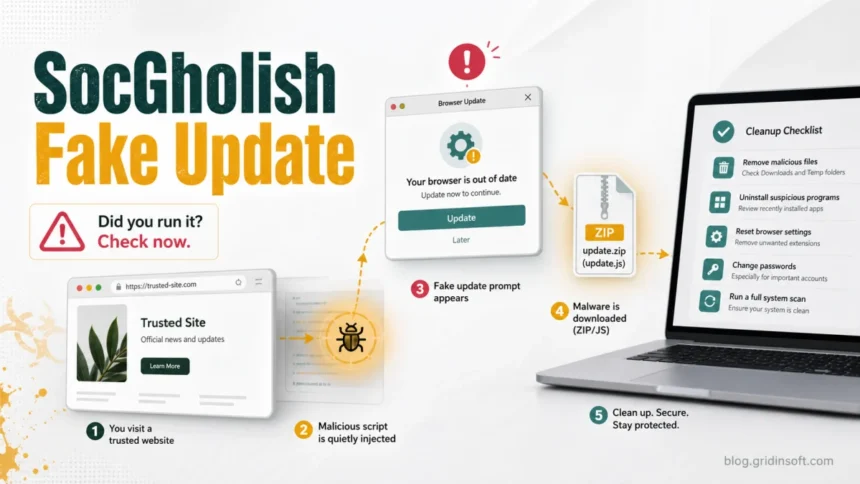
SocGholish is malware delivered through fake browser or software update prompts on compromised websites. If you only saw the pop-up, close the page and update your browser from its official settings. If you downloaded or ran an update.zip, .js, .exe, or similar fake update, keep the file quarantined, disconnect if suspicious activity continues, run a full malware scan, check startup entries, and change important passwords from a clean device.
SocGholish is also known as FakeUpdates. The important point for a home Windows user is simple: the fake prompt is the trick, but the downloaded file is the danger. For the broader decision of whether a suspicious page view, click, notification prompt, or download needs cleanup, see the website-visit malware checklist. Once executed, it can open the door for more malware, remote access, credential theft, or ransomware-related follow-up activity.
What is SocGholish?
SocGholish is a JavaScript-based malware family and downloader that masquerades as a browser, Windows, Teams, codec, or software update. Red Canary describes it as a drive-by download threat that tricks visitors of compromised websites into executing malware [2]. In practice, a legitimate site may be hacked, injected with malicious script, and made to show a fake update page to selected visitors.
The name overlaps with FakeUpdates because the lure is usually a fake update. Malpedia tracks FakeUpdates as a JavaScript downloader that can write payloads to disk before launching them [3]. That is why a SocGholish incident should not be treated as only a bad pop-up if a file was downloaded and opened.
Why SocGholish matters now
SocGholish is not just an old fake-update trick. On June 18, 2026, Operation Endgame reported disruption work against SocGholish infrastructure, including remediation of 14,971 infected websites and takedown of 106 servers and domains [1]. The same official notice warns that SocGholish spreads through fake software updates and can give attackers initial access to a computer.
That freshness matters for searchers because many articles explain the threat for security teams, but fewer answer the immediate user question: Did I run it, and what should I check on my PC now?
How the fake update attack looks
- You visit a normal website, often from search results, a bookmark, an email link, or a shared article.
- A malicious script decides whether to show you a fake update page.
- The page says your browser, Windows, Teams, media player, or security component is outdated.
- You are pushed to download an archive or script such as
update.zip,Browser_Update.js,Google Launcher.js, or an executable installer. - If the file runs, SocGholish can contact attacker infrastructure and pull follow-up payloads.
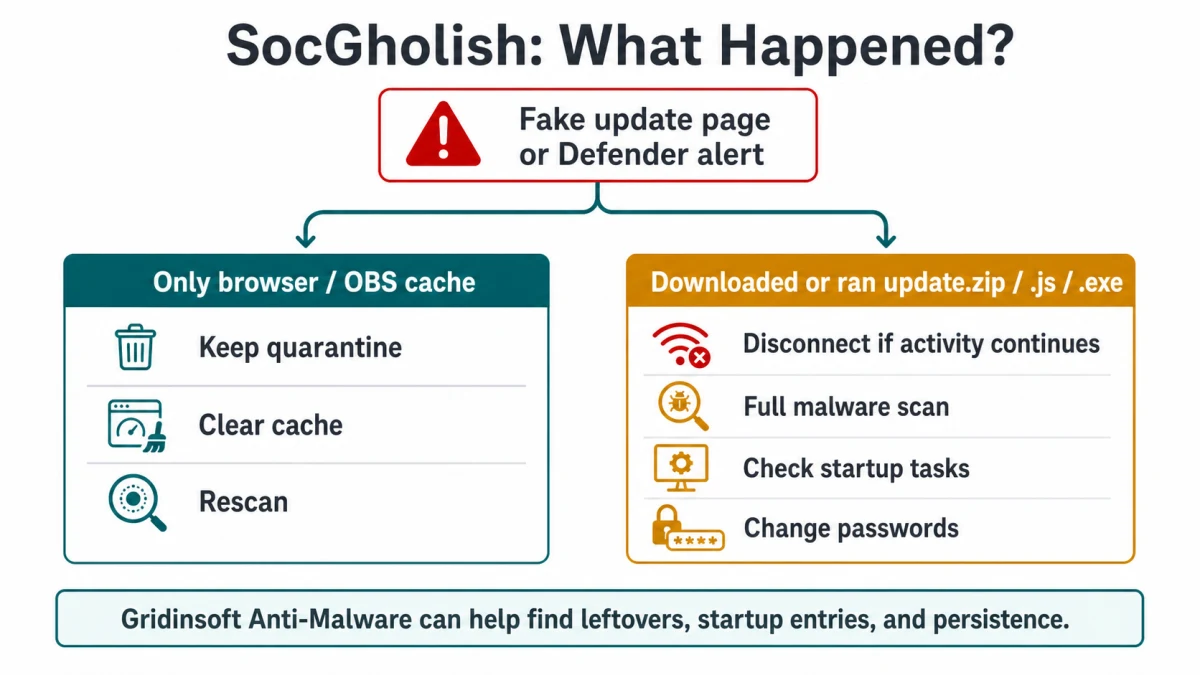
What to do if you only saw the pop-up
If you did not download or run anything, the risk is lower. Still, do not click the update button or trust the page.
- Close the tab or browser window.
- Update Chrome, Edge, Firefox, or Windows only through official settings.
- Clear the browser cache if your security tool later reports a JavaScript cache alert.
- Do not revisit the same page until the site owner has cleaned it.
- Run a quick scan if your browser downloaded something automatically.
If Microsoft Defender or another security tool names Trojan:JS/FakeUpdate.HNAP!MTB from a browser or OBS cache path, use our FakeUpdate.HNAP cache-vs-malware guide. That page is for the exact Defender/cache alert; this page is for the broader SocGholish infection path.
What to do if you downloaded or ran the fake update
- Keep the file quarantined or delete it. Do not restore it, open it again, or add a security-tool exclusion.
- Disconnect temporarily if the PC is acting strangely. Turn off Wi-Fi or unplug Ethernet if you see command windows, new processes, remote access prompts, or repeated alerts.
- Run a full security scan. Start with your built-in antivirus, then scan with Gridinsoft Anti-Malware to check hidden files, startup entries, scheduled tasks, browser changes, unwanted apps, and persistence.
- Check recent downloads. Look for archives, JavaScript files, installers, and renamed update files in
%USERPROFILE%\Downloads,%TEMP%, and browser download history. - Review Startup and Task Scheduler. Unknown startup entries or scheduled tasks created around the download time are stronger infection signals.
- Check browser extensions and notification permissions. Remove unknown extensions, strange search/homepage changes, and unwanted notification permissions.
- Change passwords from a clean device. Prioritize email, Microsoft, Google, banking, Steam, Discord, crypto, password manager, and work accounts if the fake update ran.
Why use Gridinsoft after SocGholish
SocGholish is a loader-style infection path. Removing the downloaded file is not always enough, because the file may already have started another component. A full Gridinsoft Anti-Malware scan is useful after a fake update because it checks for the leftovers users usually miss manually: hidden files, startup entries, scheduled tasks, unwanted programs, browser changes, and persistence that can recreate symptoms after reboot.
Use Gridinsoft as the concrete cleanup step after the visible fake update is quarantined. Remove detections, reboot, and scan again if alerts or browser redirects return. Be realistic about the boundary: a malware scan can clean technical components, but it cannot recover passwords already typed into compromised sessions.
If the page or email made you download an invoice, coupon, tracking app, browser extension, or support tool, scan the PC before opening it again or logging into sensitive accounts.
Scan for SocGholish leftoversSigns SocGholish may have run
| Signal | Why it matters |
|---|---|
A downloaded .zip, .js, or .exe was opened |
This is the line between a fake prompt and an active infection attempt. |
| Security alerts mention FakeUpdates, SocGholish, GhoLoader, or suspicious JavaScript | These labels match the fake-update delivery family or nearby loader activity. |
| New startup item, scheduled task, or unknown process appears after the click | Persistence may be present even if the original download was removed. |
| Browser extensions, notifications, homepage, or search settings changed | The same incident may include browser-level unwanted changes. |
| Account sign-in alerts appear after the fake update | Assume credential or session exposure until passwords and sessions are reviewed. |
How to avoid SocGholish fake updates
- Update browsers through Settings > About, not through a website pop-up.
- Update Windows through Settings > Windows Update.
- Do not run JavaScript files from downloads. A browser update should not arrive as a random
.jsfile. - Be suspicious when a normal news, restaurant, auto shop, or small business site suddenly demands an urgent browser update.
- Keep real-time protection enabled while installing new software.
- Use a password manager and MFA so a single exposed password does not become full account takeover.
If you own the website showing SocGholish
If visitors tell you your site shows fake browser updates, treat it as a website compromise. Change administrator passwords, enable MFA, remove unknown WordPress accounts, update plugins/themes/core, and ask your host or security provider to scan for injected scripts and backdoors. Operation Endgame specifically urged cleaned WordPress site owners to change login credentials, enable multi-factor authentication, delete unknown accounts, and keep sites updated [1].
Related Gridinsoft guides
If your alert is the exact Defender label Trojan:JS/FakeUpdate.HNAP!MTB, start with the FakeUpdate.HNAP cache or malware guide. If a fake update opened a terminal or asked you to run commands, use the Fake Chrome Update terminal cleanup guide. If the detection says Trojan.FakeGoogleJS, use the Trojan.FakeGoogleJS cleanup guide.
FAQ
Is SocGholish the same as FakeUpdates?
Yes, in common security reporting SocGholish is also called FakeUpdates. The name describes the social-engineering lure: a fake browser or software update that tricks the user into running malware.
Is seeing a fake update pop-up enough to infect my PC?
Usually the bigger risk starts when a file is downloaded and executed. Still, close the page, avoid the site, clear cache if a security alert appears, and scan if anything downloaded automatically.
What file names should I look for?
Look for recent archives, JavaScript files, and installers near the time of the prompt. Names vary, but examples include update.zip, Browser_Update.js, Google Launcher.js, fake browser installers, and generic software update files.
Can SocGholish steal passwords?
SocGholish is mainly an initial-access and downloader path, but follow-up payloads can include credential theft or remote access. If you ran the fake update, change important passwords from a clean device and revoke suspicious sessions.
Should I reinstall Windows?
Not automatically. First quarantine the file, run full scans, check startup and scheduled tasks, and secure accounts. Consider reset or professional help if alerts return, remote access appears, security settings were disabled, or high-value accounts were exposed.
References
- Operation Endgame / The Netherlands Police. “International law enforcement initiate hunt on malware group SocGholish.” Operation Endgame, June 18, 2026; accessed June 20, 2026. https://www.operation-endgame.com/
- Red Canary. “SocGholish.” Red Canary Threat Detection Report, accessed June 20, 2026. https://redcanary.com/threat-detection-report/threats/socgholish/
- Fraunhofer FKIE. “FAKEUPDATES (Malware Family).” Malpedia, accessed June 20, 2026. https://malpedia.caad.fkie.fraunhofer.de/details/js.fakeupdates