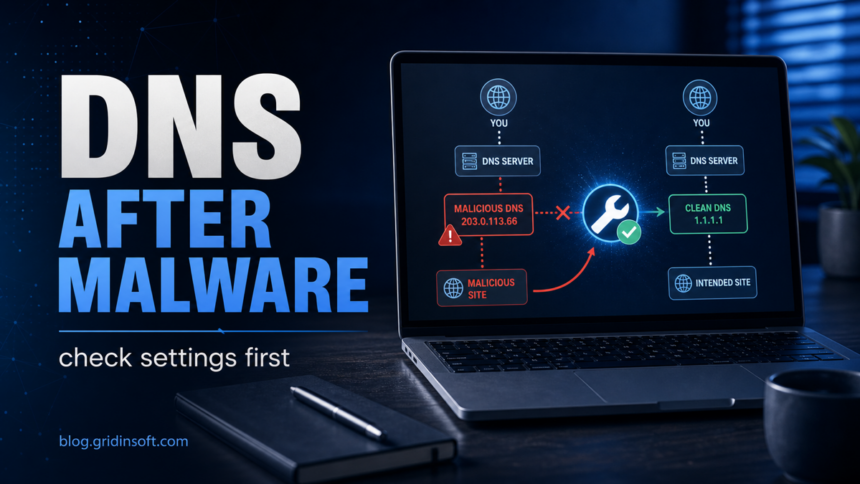
If Windows says “DNS server isn’t responding” after malware, adware, a suspicious VPN/proxy tool, or a browser redirect cleanup, treat it as a configuration problem until proven otherwise. Do not start by changing random router settings. First confirm whether the issue affects only one PC, only one browser, or every device on the network. Then check local DNS, proxy, VPN, browser Secure DNS, and Winsock settings before resetting the router.
This guide focuses on the security-adjacent version of the error: DNS breaks after a suspicious download, unwanted extension, browser hijacker, fake update, or cleanup attempt. For the broader attack concept, see our explanation of DNS spoofing vs DNS hijacking.
No Internet After Malware or Infostealer Removal
If the whole laptop loses internet right after an antivirus removes malware or an infostealer, do not assume the Wi-Fi itself is broken. Treat it as a leftover network setting first: a dead proxy, damaged Winsock catalog, pinned DNS resolver, removed VPN/filter driver, stopped network service, changed hosts file, or router DNS change. Restore the connection from the least destructive checks before you sign back into browsers or password managers.
- Handle account recovery from a clean device. If an infostealer was detected, change important passwords and revoke sessions from another trusted phone or PC while you repair this machine. Use our infostealer recovery checklist for the account side.
- Turn off unknown proxies first. Check Windows proxy settings and browser proxy extensions before changing router settings. A dead local proxy can make every browser look offline.
- Return DNS to automatic or a known resolver. Remove unknown manual DNS servers, then test with a trusted resolver only long enough to confirm DNS is the failing layer.
- Reset Winsock and TCP/IP after cleanup. Run the reset commands below only after removing suspicious proxy, VPN, DNS changer, or filtering software, so the bad setting source does not reapply it on reboot.
- Review adapter, VPN, and filter drivers. If Wi-Fi connects but pages still fail, check recently removed VPNs, parental-control tools, ad blockers, traffic filters, and security suites that installed network drivers.
- Check services and hosts only after the common settings. Make sure DNS Client, DHCP Client, and WLAN AutoConfig are running, and inspect the Windows hosts file if specific security, banking, or login sites fail. When Defender flags the file as PossibleHostsFileHijack, reset unknown entries and check what rewrites them after reboot.
- Move to the router only if other devices are affected. If every device on the network loses DNS or redirects, inspect router DNS, firmware, admin password, and remote-management settings.
If the ads are tied to a named DNS adware program rather than a general resolver error, use the DNSUnlocker adware removal guide after the basic DNS/proxy checks.
When the internet starts working again, rescan before restoring browser sessions or syncing saved passwords on the repaired PC. If DNS, proxy, or VPN settings return after reboot, the cleanup is not complete yet.
What Usually Changed?
DNS is the lookup step that turns a domain name into an IP address. Malware and unwanted software do not need to “break the internet” directly to create this error. They can leave behind one bad setting that makes normal lookups fail or redirect.
- Manual DNS servers: an adapter may be pinned to an unknown resolver instead of automatic DNS from the router or ISP.
- Proxy leftovers: Windows or a browser may still point web traffic through a local or remote proxy that no longer works.
- VPN/filtering app remnants: removed VPN, parental-control, ad-filter, or “privacy” tools can leave network drivers or DNS rules behind.
- Browser Secure DNS overrides: Chrome or Firefox can use a DNS-over-HTTPS provider that ignores the system DNS path.
- Router DNS changes: if every device on the Wi-Fi has the same redirect or DNS failure, the router’s DNS settings may have been changed.
- Damaged TCP/IP or Winsock state: cleanup tools, security suites, and network filters can leave Windows networking in a broken state.
Fast Isolation Test
- Try another device on the same Wi-Fi. If the phone and another PC work, the problem is probably local to the Windows machine.
- Try another network. Use a phone hotspot briefly. If DNS works there, focus on the router or ISP path.
- Try a direct IP test. If an IP address responds but domains do not, DNS is the likely failing layer.
- Try another browser. If Edge works but Chrome does not, check extensions and Secure DNS before resetting Windows.
- Note the timing. DNS that breaks after 5-15 minutes can point to a service, scheduled task, VPN helper, or unwanted app reapplying settings.
Check Windows DNS Settings
Open Settings → Network & Internet → Advanced network settings, choose the active Wi-Fi or Ethernet adapter, and inspect the DNS server assignment. On a home network, “Automatic” is often the expected value. A manual resolver is not automatically malicious, but unknown DNS addresses after an infection are a red flag.
If you need a temporary clean resolver for testing, use a known provider such as Cloudflare 1.1.1.1 / 1.0.0.1 or Google Public DNS 8.8.8.8 / 8.8.4.4. This should be a test and recovery step, not a way to ignore a setting that keeps coming back.
Remove Proxy and VPN Leftovers
Open Settings → Network & Internet → Proxy. For most home users, “Use a proxy server” should be off unless they intentionally use one. Also review installed VPN, “DNS changer,” ad-blocking, traffic filtering, and unknown security tools. Remove software you do not recognize, then restart Windows.
If a redirect or unwanted search page appeared before the DNS error, also review browser extensions. A browser hijacker can combine extension changes with DNS/proxy settings, which is why DNS repair alone may not be enough. Our browser hijacker removal guide covers the extension and notification side.
Flush DNS and Reset the Network Stack
After removing suspicious DNS, proxy, and VPN settings, open Terminal or Command Prompt as Administrator and run:
ipconfig /flushdns
netsh winsock reset
netsh int ip reset
ipconfig /release
ipconfig /renew
Restart the PC after these commands. This clears stale DNS cache, rebuilds Winsock, resets TCP/IP state, and asks the router for a fresh lease. Microsoft documents network reset and TCP/IP settings as normal Windows troubleshooting paths, but the security angle is to do them after removing the suspicious setting source, not before.
Check Browser Secure DNS
If only one browser fails, check its DNS-over-HTTPS or Secure DNS setting. In Chrome, open Settings → Privacy and security → Security and review Use secure DNS. In Firefox, review Settings → Privacy & Security → DNS over HTTPS. Use the default/provider you intentionally chose, or temporarily disable the override to test whether Windows DNS works again.
This matters after malware cleanup because some “privacy” or adware bundles alter browser networking separately from Windows. A system DNS fix can look ineffective when the browser is still using its own resolver path.
When to Inspect the Router
Move to the router only when multiple devices on the same network show the same DNS failure, redirects, or suspicious search results. Log in to the router from a clean device, check the WAN/LAN DNS fields, and compare them with the ISP or resolver you intentionally use. Also update router firmware, disable remote administration if you do not need it, and change the router admin password if it is still default or reused.
If you cannot verify the router settings, contact the ISP or reset the router using the vendor’s instructions. Do not keep unknown DNS servers “because the internet works again.” DNS hijacking can send you to look-alike login pages even when browsing appears normal.
Scan Before You Declare It Fixed
If DNS or proxy settings return after reboot, the source is still active. Check Startup apps, Task Scheduler, browser extensions, installed programs, and recently downloaded installers. Then run a full malware scan. Gridinsoft Anti-Malware can help identify adware, PUA, proxy changers, browser hijackers, and persistence entries that keep reapplying network changes.
After uninstalling the suspicious app or deleting the visible threat, use Gridinsoft Anti-Malware to check hidden files, startup entries, scheduled tasks, bundled apps, browser changes, and other persistence points that can restore malware.
Download Anti-MalwareSigns It Was DNS Hijacking, Not a Normal Outage
- DNS changes return after you set them back to automatic.
- Only search, shopping, antivirus, banking, or login sites redirect.
- Chrome and Firefox disagree because one uses Secure DNS and the other does not.
- The router DNS field contains addresses you did not set.
- The issue started after a fake update, cracked software, driver updater, VPN, or browser extension.
- Security software reports blocked outbound traffic from a browser helper, script host, PowerShell, or unknown process.
If the DNS failure came after a fake update or script-based infection, also review our guide to a fake Chrome update that opened Terminal and our cleanup checklist for PowerShell outbound connection alerts.
Safe Fix Order
- Confirm whether the issue is one PC, one browser, or the whole network.
- Remove unknown VPN, proxy, DNS changer, adware, and browser extensions.
- Set adapter DNS to automatic or a known resolver for testing.
- Flush DNS and reset Winsock/TCP-IP.
- Check browser Secure DNS if only one browser fails.
- Inspect router DNS only if multiple devices are affected.
- Run a malware scan if settings return or redirects continue.
- Change important passwords from a clean device if you saw phishing-style redirects.
FAQ
Is “DNS server isn’t responding” always malware?
No. ISP outages, router problems, VPN bugs, bad adapter drivers, and stale DNS cache can cause the same error. Malware becomes more likely when the error follows a suspicious download, redirect, unwanted extension, proxy change, or settings that keep returning after reboot.
Should I change DNS to 8.8.8.8 or 1.1.1.1?
It is fine as a temporary test with a known resolver. If the setting keeps changing by itself, or if an unknown DNS address appears, investigate the cause instead of only replacing the address.
Why does DNS fail only in Chrome?
Chrome can use Secure DNS separately from Windows DNS settings. Extensions, browser policies, or a selected Secure DNS provider can make Chrome behave differently from Edge or Firefox.
When should I reset the router?
Reset or reconfigure the router when several devices on the same network show the same DNS error or redirects. If only one Windows PC is affected, start with local DNS, proxy, VPN, and malware checks.
Can malware change router DNS?
Yes, some attacks target router admin panels or weak/default router credentials. That is why router DNS, firmware, admin password, and remote-management settings matter when every device on the network is affected.
References
- Microsoft Support. “Fix network connection issues in Windows.” Microsoft, accessed May 31, 2026. https://support.microsoft.com/en-US/windows/fix-network-connection-issues-in-windows-10-166a28c4-14c1-bdb1-473c-09c1571455d8
- Microsoft Support. “Essential Network Settings and Tasks in Windows.” Microsoft, accessed May 31, 2026. https://support.microsoft.com/en-gb/windows/change-tcp-ip-settings-bd0a07af-15f5-cd6a-363f-ca2b6f391ace
- Google Chrome Help. “Manage Chrome safety and security.” Google, accessed May 31, 2026. https://support.google.com/chrome/answer/10468685
- Mozilla Support. “Firefox DNS over HTTPS.” Mozilla, accessed May 31, 2026. https://support.mozilla.org/en-US/kb/firefox-dns-over-https-redirect-1
- Cybersecurity and Infrastructure Security Agency. “Home Network Security.” CISA, accessed May 31, 2026. https://www.cisa.gov/news-events/news/home-network-security