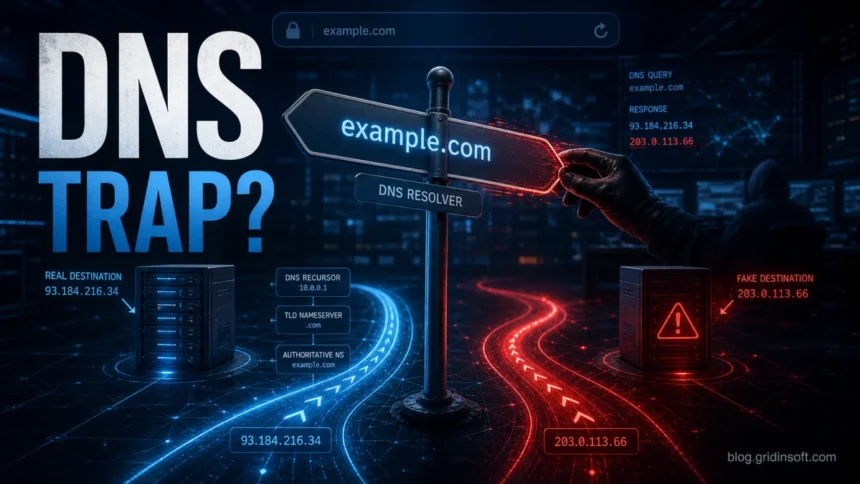
DNS spoofing and DNS hijacking both send people away from the site they meant to visit, but they usually attack different parts of the DNS chain. DNS spoofing forges or poisons DNS answers, so a real domain resolves to an attacker-controlled IP address. DNS hijacking changes the DNS settings, router, domain account, or DNS infrastructure that decides where queries go. DNS cache poisoning is a common DNS spoofing method, while malware-driven router or adapter changes are common DNS hijacking cases.
If the redirect happens only on one device, start by checking local DNS, proxy, hosts-file, and browser Secure DNS settings. If several devices on the same network are affected, inspect the router DNS servers. If a public domain resolves incorrectly for users in many networks, the issue may be at the domain registrar, authoritative DNS, or recursive resolver layer.
DNS Spoofing vs DNS Hijacking: Quick Difference
| Attack | What changes |
|---|---|
| DNS spoofing | False DNS answers are returned for a real domain. The victim may type the correct address, but the DNS response points to the wrong IP address. |
| DNS cache poisoning | A forged answer is stored in a DNS cache, so later users of that resolver keep receiving the malicious result until it expires or is cleared. |
| DNS hijacking | The DNS path itself is changed: local adapter DNS, router DNS, browser DNS, ISP/rogue resolver, domain registrar account, or authoritative DNS records. |
In plain language: spoofing is usually about the answer being fake; hijacking is usually about the DNS route or authority being taken over. The terms overlap in real incidents, so the best response is to check both the returned IP address and the configuration that produced it.
How DNS Normally Works
The Domain Name System translates readable domain names into IP addresses. When you enter a domain in a browser, your device first checks local memory and DNS cache. If it has no fresh answer, it asks a resolver, which then works through the DNS hierarchy until it receives the authoritative answer for that domain.
That process is fast and usually invisible. It becomes risky when an attacker can change either the response or the resolver path. A poisoned cache can return a bad answer. A hijacked router can send every device to a rogue DNS server. A compromised domain account can change the authoritative DNS records for the real domain.
What Is DNS Hijacking?
DNS hijacking, also called DNS redirection, is an attack where the DNS decision path is manipulated so users are sent to a destination chosen by the attacker. The browser may still show the domain the user typed, which makes phishing pages, fake updates, ad redirects, and credential theft harder to notice.
Common DNS hijacking paths include:
- Local device hijacking: malware or a suspicious installer changes Windows adapter DNS, proxy settings, hosts-file entries, or browser Secure DNS settings.
- Router hijacking: a weak router password or vulnerable router firmware lets an attacker replace the DNS servers for the whole home or office network.
- Rogue resolver: traffic is forced through a DNS resolver that returns modified answers, sometimes by malware, captive portals, or network-level interception.
- Registrar or DNS-provider compromise: attackers change authoritative DNS records, name servers, or domain account settings for a real domain.
- On-path manipulation: a man-in-the-middle position lets an attacker interfere with DNS traffic before the legitimate response is trusted.
Some redirects are not malicious. Hotel and airport Wi-Fi captive portals, parental controls, corporate filtering, and ISP error pages can intentionally intercept DNS or web requests. The warning sign is when the redirect appears without consent, affects sensitive sites, changes after installing software, or points to unknown DNS servers.
What Is DNS Spoofing?
DNS spoofing means a DNS requester receives a forged answer. Instead of resolving a domain to its correct IP address, the response points to an attacker-controlled or unwanted address. A successful spoofing attack can lead to a phishing page, malware download, ad injection, fake support warning, or traffic interception.
DNS cache poisoning is the best-known form of DNS spoofing. In that case, the false answer is inserted into a DNS cache, so the resolver keeps serving the wrong IP address to later users. Spoofing can also happen through forged responses on an unsafe network, compromised DNS software, or local malware that races or rewrites DNS answers.
DNS spoofing is harder for a normal user to see than a simple DNS settings change. Your adapter DNS may look normal, yet the answer returned by a resolver can still be wrong. That is why comparing results from multiple trusted resolvers is often more useful than checking only one setting screen.
How to Check a Suspicious DNS Redirect
- Compare DNS answers. Check the same domain through your current resolver and a trusted public resolver. If the IP addresses differ, confirm whether the domain uses CDN/geolocation before treating the difference as malicious.
- Check Windows DNS settings. Review adapter DNS, proxy, VPN, and browser Secure DNS settings. If DNS was changed after a suspicious installer or browser extension, treat it as a hijacking symptom.
- Inspect the hosts file. Unexpected entries for banks, mail providers, search engines, antivirus sites, or software vendors are suspicious. If entries point to 127.0.0.1 localhost or an unknown external IP, verify why they exist.
- Check the router. Log in from a clean device, confirm primary and secondary DNS servers, update firmware, and change the router admin password if the settings were altered.
- Clear local caches only after recording evidence. Flushing DNS can fix a stale local problem, but take note of the bad IP address first if you need to investigate.
- Scan for malware and unwanted extensions. If DNS or proxy settings keep returning after reboot, remove the program, service, scheduled task, or extension that is restoring them.
If Windows also reports that the DNS server is not responding after malware, follow the cleanup order there: adapter DNS, proxy, Secure DNS, Winsock, browser settings, router DNS, and malware persistence.
What to Do If You Were Redirected
- Do not enter passwords, payment data, recovery phrases, or 2FA codes on the redirected page.
- Close the tab and open the site again from a clean network or mobile data connection.
- Check the URL, certificate warning, and login page behavior. A missing or mismatched SSL certificate is a strong warning sign.
- If you entered credentials, change the password from a clean device and revoke active sessions where the service allows it.
- Use Gridinsoft’s online URL/IP checker to review suspicious IP addresses or domains before trusting them.
- If redirects keep coming back, run a malware scan and remove unwanted browser extensions, proxy rules, scheduled tasks, and DNS-changing applications.
For home users, the most common practical fix is simple but important: reset DNS settings to a trusted resolver, clean the device, secure the router, and change passwords only after the device and network path are clean. For site owners and admins, the priority is different: protect registrar accounts, enable multi-factor authentication, monitor DNS records, and deploy DNSSEC where appropriate.
How to Prevent DNS Spoofing and Hijacking
- Use DNSSEC where you control the domain. DNSSEC helps validating resolvers reject tampered DNS data for signed zones.
- Protect domain and DNS-provider accounts. Use MFA, strong unique passwords, role separation, and change alerts for name servers, A/AAAA records, MX records, and DS records.
- Harden routers. Change default admin passwords, update firmware, disable remote admin access unless required, and review DNS servers after any suspicious network behavior.
- Keep browsers and operating systems updated. Modern browser certificate checks limit what DNS attacks can achieve, but they do not make fake login pages harmless.
- Avoid unknown public Wi-Fi for sensitive logins. Captive portals and unsafe networks can create confusing DNS behavior. Use a trusted network or VPN when handling important accounts.
- Remove DNS-changing malware quickly. Browser hijackers, fake optimizers, cracked software bundles, and unwanted extensions can restore malicious DNS or proxy settings after every reboot.
FAQ
Is DNS spoofing the same as DNS hijacking?
Not exactly. DNS spoofing forges DNS answers, while DNS hijacking changes the DNS settings, resolver path, router, or DNS authority that controls where queries go. In real incidents, both can appear together.
Is DNS cache poisoning DNS spoofing?
Yes. DNS cache poisoning is a specific DNS spoofing technique where a forged answer is stored in a resolver cache and reused for later queries.
Can HTTPS stop DNS hijacking?
HTTPS helps because the browser should warn when a fake destination cannot present a valid certificate for the real domain. However, users can still be tricked by lookalike domains, malicious downloads, fake support pages, or stolen credentials entered on a convincing phishing page.
Why does DNS hijacking affect every device on my Wi-Fi?
If every device on the network is redirected, the router DNS settings or upstream resolver is more likely involved than a single infected computer. Check the router DNS servers and admin account before changing passwords on affected sites.
References
ICANN, “DNSSEC – What Is It and Why Is It Important?”, Internet Corporation for Assigned Names and Numbers, updated March 5, 2019, accessed June 6, 2026. https://www.icann.org/resources/pages/dnssec-what-is-it-why-important-2019-03-05-en
CISA, “ED 19-01: Mitigate DNS Infrastructure Tampering”, Cybersecurity and Infrastructure Security Agency, January 22, 2019, accessed June 6, 2026. https://www.cisa.gov/news-events/directives/ed-19-01-mitigate-dns-infrastructure-tampering
Google Public DNS, “Flush Cache”, Google, accessed June 6, 2026. https://dns.google/cache