Steganography malware uses an ordinary-looking file, often an image, as a carrier for hidden data. A normal JPG or PNG does not usually infect a computer just because you viewed it, but attackers can hide payloads, commands, configuration, or download instructions inside media and then use a separate loader, script, SVG behavior, exploit, or social-engineering step to extract and run it. That is why people searching “can an image have a virus?” need a practical answer, not just a definition.
At a glance: when an image is risky
- Low risk: you only viewed a normal JPG/PNG/WebP from a trusted source and did not run anything else.
- Medium risk: the file came from a random email, Discord, Telegram, torrent, fake converter, or file-sharing link.
- High risk: the “image” is really an SVG, archive, shortcut, script, registry file, installer, or double-extension file such as
photo.jpg.exe. - Urgent risk: you followed a fake CAPTCHA/update instruction, pasted a command, allowed a macro, ran a script, or saw an antivirus alert after opening the file.
The important distinction is execution. Steganography can hide data inside the media, but something still has to decode and use that data. In real attacks, that “something” is often a phishing document, JavaScript, PowerShell, mshta.exe, wscript.exe, a malicious browser-rendered SVG, or malware that is already running on the system.
Why this topic is searched differently
People rarely search like analysts. Instead of typing only “steganography attack,” victims ask questions such as “can a picture have a virus,” “malware hidden in image,” “I opened a suspicious image am I safe,” “can JPG/PNG/WebP contain malware,” and “SVG virus.” The winning answer has to separate panic from real risk: ordinary media viewing is usually not enough, but media files can become part of a malware chain when paired with scripts, exploits, fake updates, or social engineering.
What is steganography malware?
Steganography is the practice of hiding information inside another file so the hidden content is not obvious. MITRE ATT&CK tracks steganography as sub-technique T1027.003 because adversaries can conceal data in images, audio, video, text, or other digital media. In malware operations, the hidden data may be shellcode, a DLL, a command-and-control address, configuration, stolen data, or the next-stage payload.
This is different from simple file-name deception. A fake file named invoice.jpg.exe is not steganography; it is an executable pretending to be an image. Real steganography means the visible media still appears normal while extra data is tucked into metadata, appended data, pixel channels, color bits, comments, or another structure that a loader knows how to read.
Can an image infect you just by opening it?
Usually, no. A standard JPG, PNG, or WebP is data for an image viewer, not a program. If your browser, operating system, and image libraries are patched, simply viewing a normal image is usually low risk. The danger rises when one of these conditions is true:
- The file is not a real image, even though the name suggests one.
- The image is an SVG, because SVG can contain XML, links, and script-like web behavior.
- A document, archive, shortcut, or script extracts hidden data from the image.
- The image targets a vulnerability in an outdated viewer, browser, PDF reader, or media library.
- Another malware component is already running and downloads the image as a stealthy payload container.
- A fake CAPTCHA, “Windows Update,” codec prompt, or document viewer tells you to run a command.
If you only previewed a normal photo and nothing else happened, the right response is calm verification: close the source, update the app if needed, scan the file or folder, and do not install “viewer,” “codec,” or “verification” tools from the same page.
How steganography image attacks work
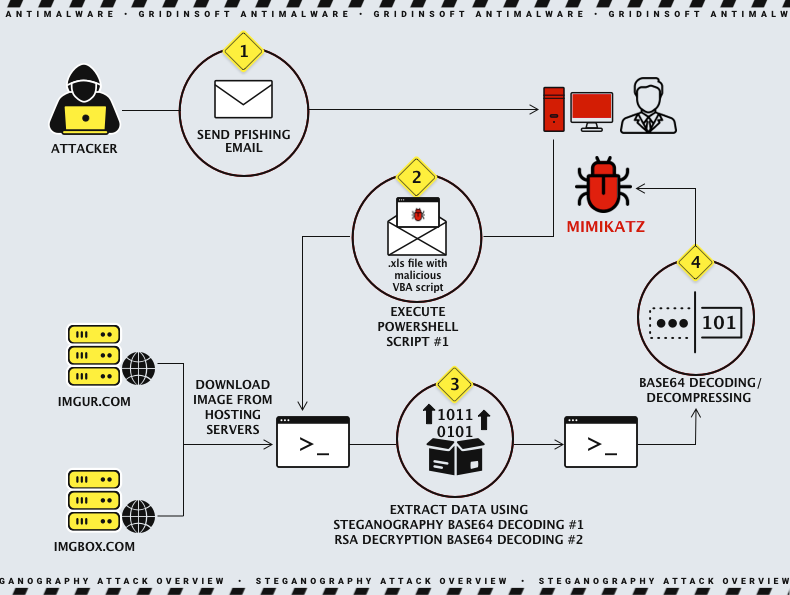
Most real-world steganography malware chains are multi-stage. The hidden image is only one piece of the operation.
- Lure: the victim receives an email attachment, fake invoice, PDF, download page, fake CAPTCHA, fake Windows update screen, or file-sharing link.
- Starter: a script, document, shortcut, SVG, registry file, or command launches the first stage.
- Carrier: the first stage downloads or opens an image that appears harmless but contains hidden encoded data.
- Extractor: malware reads specific bytes, metadata, pixel channels, appended blocks, or markers inside the image.
- Payload: the extracted content becomes a DLL, shellcode, configuration, C2 instruction, infostealer, RAT, miner, or another malware stage.
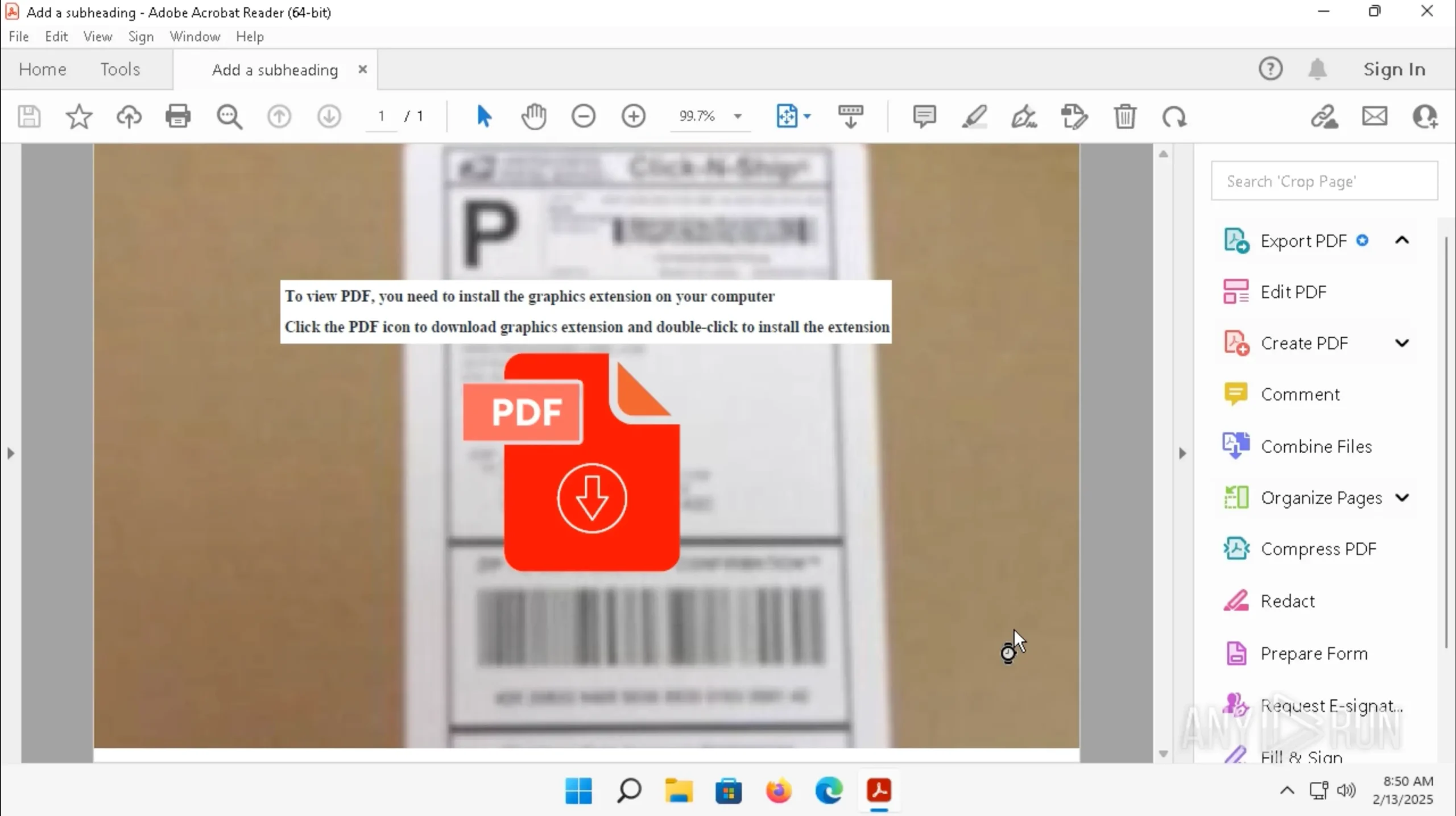
One modern example is a ClickFix-style chain reported by Huntress. Victims were shown fake “human verification” or “Windows Update” lures, instructed to run a command, and the later stages used a .NET steganographic loader to extract Donut-packed shellcode hidden inside PNG pixel data [2]. That pattern matters for home users because the infection did not start with magic image viewing; it started with a social-engineering instruction to run something.
JPG, PNG, WebP, SVG: which image formats are risky?
| File type | Realistic risk |
|---|---|
| JPG / JPEG | Usually safe as an image. Risk rises with exploit chains, huge or malformed files, appended data, or a separate loader that extracts hidden bytes. |
| PNG | Usually safe as an image, but often used as a payload carrier because pixel data and chunks can hold hidden encoded content. |
| WebP | Usually safe when opened in patched software. Treat unknown WebP files like any other untrusted download, especially after a security alert. |
| SVG | Higher risk than ordinary raster images because SVG is text-based and browser-rendered. It can be abused for phishing, redirects, embedded web content, or script-like behavior. See our separate SVG virus guide. |
| ICO / GIF / BMP / TIFF | Usually safe when handled by updated software, but still possible as malformed exploit targets or hidden-data carriers. |
| Double extensions | .jpg.exe, .png.scr, .webp.lnk, .gif.js, and similar names are high risk. They are not normal images. |
Warning signs after downloading or opening an image
- The page asks you to press
Win+R, paste a command, run PowerShell, or “verify” yourself outside the browser. - The file extension changes after download, or Windows hides the real extension.
- The image is inside a ZIP/ISO/RAR with scripts, shortcuts, installers, cracks, or password notes.
- The file is far larger than expected for the visible image.
- The file opens in a browser and behaves like a web page, especially if it asks for login credentials.
- Antivirus flags
MZ,TVq, Base64, shellcode, script content, or suspicious metadata in the file. - After opening the file, you notice
powershell.exe,mshta.exe,wscript.exe,rundll32.exe,regsvr32.exe, or unknown installers starting unexpectedly. - Browser redirects, new extensions, startup entries, remote-access tools, or password-manager alerts appear soon after.
What to do if you opened a suspicious image
| What happened | What to do now |
|---|---|
| You only previewed a normal JPG/PNG/WebP and closed it. | Delete the file if you do not trust the source, update the viewer/browser, and scan the download folder. This is usually enough. |
| You opened an SVG from email or a cloud link. | Close it, do not enter credentials, clear the download, scan the file, and review browser history for redirected login pages. |
| You ran a command, script, registry file, fake update, codec, viewer, or installer. | Disconnect from the network, run a full malware scan, check startup entries, and change passwords from a clean device. |
| Antivirus detected the image or a related script. | Quarantine it, scan the whole system, and submit the file to a trusted file checker if you need a second opinion. |
| You saw account logins, password alerts, crypto-wallet prompts, or remote-access tools afterward. | Treat it as possible infostealer activity: clean the PC first, reset passwords, revoke sessions, rotate tokens, and monitor financial accounts. |
For a second opinion, scan the file with the Gridinsoft Online Virus Scanner. If you suspect the file already executed or a loader ran on Windows, use Gridinsoft Anti-Malware or another trusted endpoint scanner and follow up with account cleanup from a clean device.
Technical details: what hides inside the image?
Steganography malware does not use one universal trick. Analysts commonly see these patterns:
- Pixel-channel encoding: data is hidden in least-significant bits or selected color channels.
- Metadata and comment fields: encoded data is stored where normal viewers ignore it.
- Appended payloads: extra bytes are placed after the normal media content.
- Marker-based extraction: the loader searches for a marker such as an encoded header, then decodes what follows.
- Polyglot behavior: one file is interpreted differently by different tools.
- SVG abuse: the “image” is also XML/web content, which can host links, redirects, forms, or obfuscated script-like logic.
This is also why a single scan result can be confusing. One scanner may flag unusual entropy or embedded executable markers, while another may treat the same file as harmless until the extraction stage is visible. Google Cloud Security Command Center documents steganography-tool activity as suspicious because it can hide command-and-control traffic or sensitive data inside harmless-looking digital messages [3].
How to reduce the risk
- Show file extensions in Windows. This prevents
photo.jpg.exetricks from looking like a photo. - Keep browsers, Windows, Office, PDF readers, and image viewers patched. Media-file risk is much worse when old parsing bugs remain exposed.
- Treat SVG attachments carefully. If the sender is unknown, do not open SVGs in the browser and do not enter credentials from a rendered SVG page.
- Do not paste commands from “verification” pages. Real CAPTCHA, Windows Update, and document viewers do not need you to open Run and paste PowerShell or
mshta. - Scan unknown downloads before opening archives or running anything inside them.
- Block risky script execution where possible. Organizations should monitor suspicious parent-child process chains such as browser to script host to PowerShell.
- Use layered detection. Steganography is meant to hide from simple static checks, so behavior monitoring and endpoint protection matter.
If your concern started with a file named like an image but behaving like malware, compare this guide with our focused writeups on sysupdate.jpeg malware, SVG virus phishing, and whether MP4 files can contain malware.
FAQ
Can a JPG or PNG contain malware?
A JPG or PNG can hide suspicious data, commands, or payload bytes, but it usually cannot infect a patched system by itself. The higher risk appears when a separate script, loader, exploit, or fake instruction extracts and runs the hidden content.
Can I get infected just by viewing a picture?
It is uncommon on patched systems. Simple viewing is usually low risk, but old image libraries, malicious SVG files, browser exploits, fake downloads, and “run this command” lures can turn an image-related incident into a real infection.
Is SVG more dangerous than JPG or PNG?
Yes, unknown SVG files deserve more caution. SVG is a browser-rendered XML format, not only a flat bitmap, so attackers can abuse links, redirects, forms, and obfuscated web content inside a file that looks like an image attachment.
Why did my antivirus flag an image file?
The scanner may have found an embedded executable marker, encoded script, suspicious metadata, exploit pattern, unusually high entropy, or a double-extension trick. Quarantine the file and scan the surrounding folder or archive before opening anything else from the same source.
What if I already ran a command from a fake verification page?
Treat it as possible compromise. Disconnect from the network, run a full malware scan, check startup entries and recent downloads, then reset important passwords and revoke account sessions from a clean device.
References
- MITRE ATT&CK. “Obfuscated Files or Information: Steganography, Sub-technique T1027.003.” MITRE, last modified May 12, 2026, accessed June 7, 2026. https://attack.mitre.org/techniques/T1027/003/
- Huntress. “ClickFix Gets Creative: Malware Buried in Images.” Huntress, accessed June 7, 2026. https://www.huntress.com/blog/clickfix-malware-buried-in-images
- Google Cloud. “Command and Control: Steganography Tool Detected.” Security Command Center documentation, accessed June 7, 2026. https://cloud.google.com/security-command-center/docs/findings/threats/steganography-tool-detected