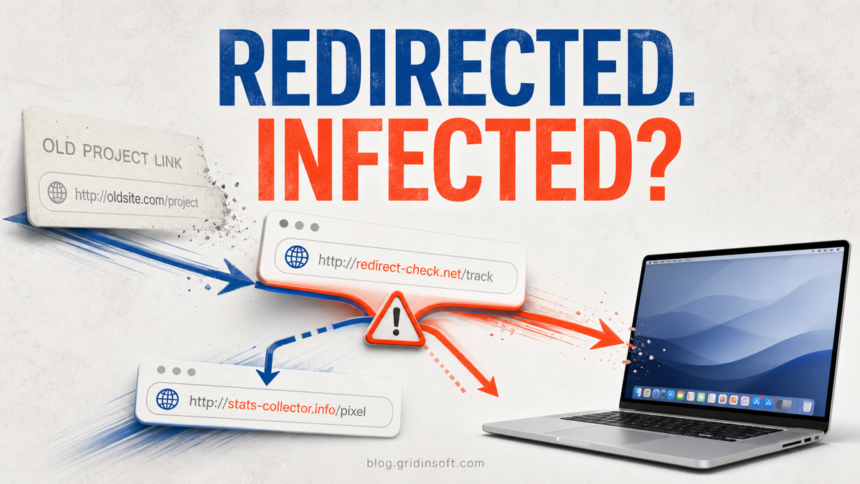
A single Bulsis.net redirect is not evidence that your Mac or browser was infected. If you did not download or run a file, add an extension, allow notifications, enter a password, or see the behavior return, the proportionate response is to close the tab, keep the browser updated, and monitor. The risk changes when you granted a permission or when redirects continue on unrelated sites.
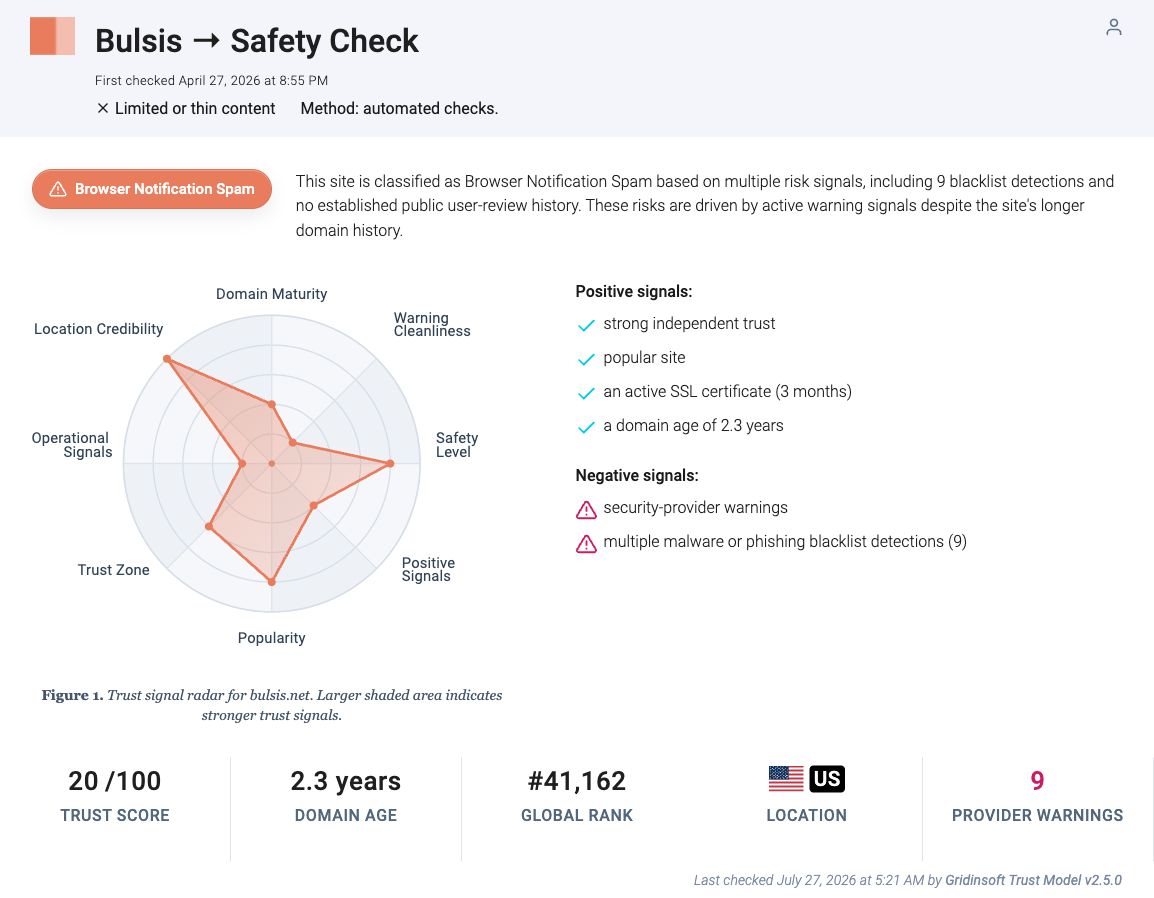
Gridinsoft currently classifies Bulsis.net as Browser Notification Spam, with a 20/100 trust score and nine provider warnings. That verdict is a reason to avoid the domain; it is not proof that one visit silently installed software on your Mac or Windows PC.
Why did an old link redirect through Bulsis.net?
The firsthand user problem behind this guide involved an old project link from a GitHub repository. Instead of opening the retired project, the browser passed through Bulsis.net and landed on an unrelated affiliate-style page. The user saw the chain in Zen Browser history but found no download, extension, permission, or stored site data.
Old links can change behavior when a project expires, a domain changes hands, or an intermediate advertising route replaces the original destination. A separate public urlscan capture records an unrelated upstream page loading a bulsis.net/go/... address. The capture proves that Bulsis.net has appeared as an intermediate destination; urlscan gave the capture no classification and does not prove that the Reddit visit installed anything.[1]
Did the Bulsis.net redirect infect your Mac?
In the visit-only scenario, there is no reported sign of compromise. Browser history can show every page, frame, and redirect visited during navigation; those entries describe where the browser went, not whether code gained persistence. A modern browser still processes page content, so no website visit is literally zero-risk, but silent exploitation of a fully updated Mac is a different and much less common event than a page asking the user to allow, download, install, or sign in.
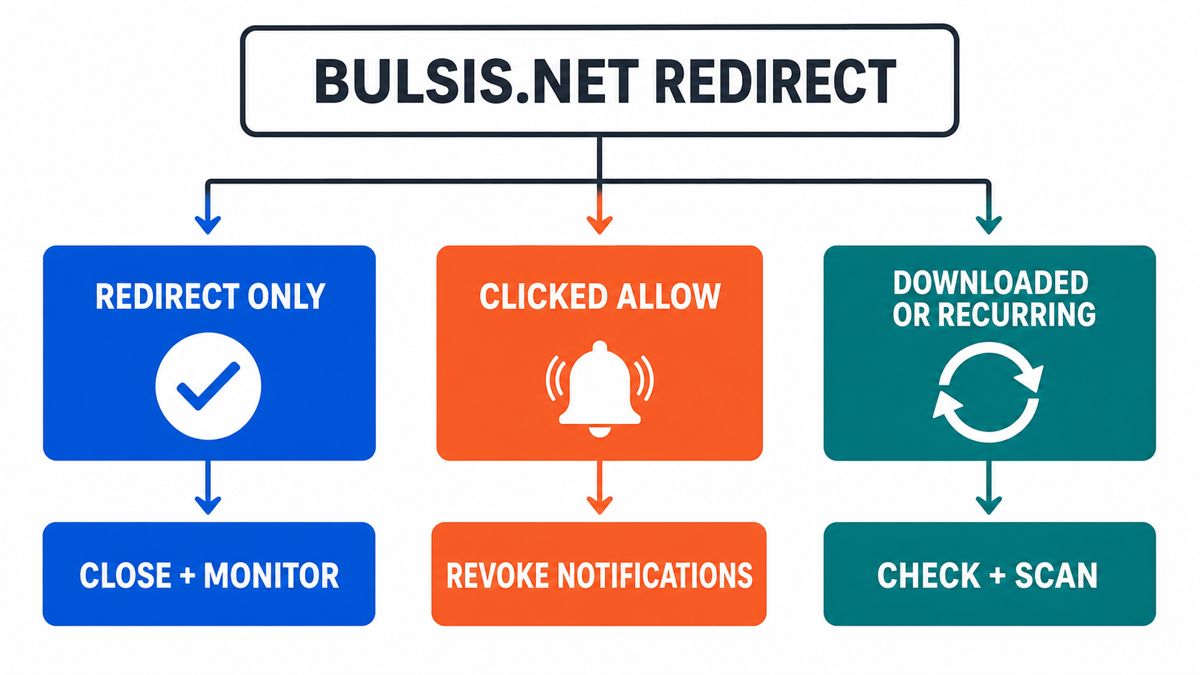
| What happened | Risk and what to do |
|---|---|
| Redirect only No download, permission, login, extension, or repeated behavior |
Close the tab, do not reopen the old link, update the browser and macOS, and monitor. A full reset or password change is not justified by the redirect alone. |
| You clicked Allow Notifications continue after the tab is closed |
Revoke the site’s browser notification permission and check macOS or Windows notification settings. This is a permission cleanup, not proof of a system infection. |
| A file ran or redirects recur Unknown extension, app, profile, startup item, or new tabs on unrelated sites |
Inspect downloads and browser persistence, remove the unwanted component, and run a full malware scan. Change passwords only if credentials were entered, a payload ran, or account alerts appear. |
For the broader distinction between a page view, a download, a file that ran, and credentials entered, use the website-visit malware checklist. The rest of this guide stays focused on the Bulsis.net redirect and its browser-specific checks.
Checks for Mac, Zen Browser, and Firefox
Zen Browser is Firefox-based, so its permission and extension controls follow the Firefox model even when the interface styling differs. Start with the evidence the user can actually verify:
- Check downloads. Open the browser download list and the macOS Downloads folder. Do not open an unexpected installer, disk image, archive, script, or configuration profile just to identify it.
- Review extensions. In Zen or Firefox, open Add-ons and Themes, then Extensions. Remove only items you did not install or no longer trust.
- Review notification permissions. Open Settings, Privacy & Security, Permissions, then Notifications and Settings. Remove Bulsis.net and unknown allowed sites. Firefox documents that sites can send web notifications only after permission has been granted.[2]
- Check macOS notifications. Open System Settings, Notifications, and look for website entries or unfamiliar browser senders. Turn off the unwanted source.
- Look for persistence, not normal history. The meaningful warning signs are redirects on unrelated sites, a changed homepage or search provider, an unknown profile, a new app, or behavior that returns after the browser and Mac restart.
If only the original old link produces the redirect, the source is likely that link or its current destination. If many unrelated sites now redirect, use the recurring tabs and redirects checklist to inspect extensions, browser launch settings, scheduled behavior, and adware.
Remove Bulsis.net notifications
A website notification can appear after its tab is closed because the permission belongs to the browser profile. Removing that permission is the direct fix. Check every browser profile you use because permissions do not automatically carry across profiles.
If bulsis.net keeps showing unwanted pop-ups, you likely granted it permission to send notifications. To stop them, you need to revoke that permission in your browser settings.
- Copy and paste this into the address bar:
chrome://settings/content/notifications - Scroll down to the Allowed to send notifications list.
- Find bulsis.net.
- Click the three dots (...) next to it and select Remove (or Block).
- Open Safari and go to Settings (or Preferences).
- Click the Websites tab and select Notifications on the left.
- Find bulsis.net in the list on the right.
- Select it and click Remove (or change "Allow" to "Deny").
- Copy and paste this into the address bar:
about:preferences#privacy - Scroll down to Permissions and click Settings... next to Notifications.
- Type bulsis.net in the search bar or find it in the list.
- Select the site and click Remove Website.
- Copy and paste this into the address bar:
edge://settings/content/notifications - Look under the Allow section.
- Find bulsis.net.
- Click the three dots (...) next to it and select Remove (or Block).
- Copy and paste this into the address bar:
brave://settings/content/notifications - Scroll to the Allowed to send notifications list.
- Find bulsis.net.
- Click the three dots (...) and select Remove (or Block).
- Copy and paste this into the address bar:
opera://settings/content/notifications - Check the Allowed to send notifications list.
- Find bulsis.net.
- Click the three dots next to it and select Remove.
- Chrome on Windows or macOS: Settings → Privacy and security → Site settings → Notifications. Remove or block Bulsis.net and other unknown allowed senders.
- Microsoft Edge: Settings → Privacy, search, and services → Site permissions → All sites. Select the unwanted site and set Notifications to Block.
- Firefox or Zen: Settings → Privacy & Security → Permissions → Notifications → Settings. Remove the site or change it to Block, then save the changes.
- Safari on Mac: Safari → Settings → Websites → Notifications. Deny Bulsis.net or any unknown website. Apple also lets you disable the website entry under System Settings → Notifications.[3]
- Chrome on Android: Chrome → Settings → Site settings → Notifications. Block the site, then clear its site data if it keeps reappearing.
Do not click an unwanted notification to reach its settings; open the browser settings directly. If the alert imitates an antivirus warning, prize, update, or account problem, compare it with the fake browser warning cleanup guide.
If Bulsis.net redirects keep returning
A one-time redirect from one retired link points to the link chain. Repeated redirects on unrelated websites point somewhere else: an extension, allowed notification sender, changed browser policy, restored startup tab, synced profile setting, unwanted app, or adware component may be recreating the behavior.
- Remove the notification permission and restart the browser.
- Disable unknown extensions, then test again without restoring the previous tab session.
- Check homepage, new-tab, search-engine, and startup-page settings.
- On Mac, review Applications, Login Items, and configuration profiles for unfamiliar additions.
- On Windows, review recently installed apps, browser policies, Startup apps, and Task Scheduler if the browser launches an unwanted URL after sign-in.
- Run a full malware scan if the redirect survives those browser checks or started after an installer, fake update, extension, or unknown app was opened.
Removing the visible permission may not address an extension, unwanted app, startup item, or bundled adware module that keeps rebuilding the browser state. In that recurring-symptom case, Gridinsoft Anti-Malware can check for detections, hidden files, unwanted apps, startup entries, scheduled tasks, browser changes, and persistence. Remove detections, reboot, and scan again if the redirects return.
If you downloaded something or entered information
- A file downloaded but was not opened: delete or quarantine it, then check it with a file scanner. A download sitting unopened is a different exposure from a file that executed.
- You installed an app, extension, or profile: remove it, inspect browser and startup persistence, and run a full scan.
- You copied a Terminal command from the page: stop and investigate the exact command and any files or login items it created. Do not rerun it for testing.
- You entered a password: change that password from a clean device, revoke active sessions, and enable MFA. Change reused passwords too.
- You entered payment details: contact the card issuer or bank through its official app or number and review transactions.
FAQ
Can a redirect infect a Mac without a download?
It is technically possible for a malicious page to exploit an unpatched browser or operating system, but a single redirect on an updated Mac is not by itself evidence that this happened. Downloads, permission changes, new extensions or apps, and recurring symptoms are much stronger reasons to escalate.
Why does Bulsis.net appear in browser history?
Browser history can record intermediate pages in a redirect chain. The entry proves that the browser navigated through the address; it does not prove that the site installed software or gained persistence.
Do I need to clear all cookies and browser data?
Usually not. Clear the affected site’s data if it remains stored, revoke its notification permission, and avoid restoring the tab. A full browser reset is better reserved for changed settings, unknown extensions, or redirects that continue after targeted cleanup.
Should I change passwords after only seeing the redirect?
Not for the redirect alone. Change passwords if you typed credentials into the destination, installed or ran something, approved remote access, or see suspicious account activity afterward.
Is Bulsis.net a browser hijacker?
The current Gridinsoft verdict is Browser Notification Spam, and public captures show the domain in redirect chains. Those facts do not establish that every visit came from a local browser hijacker. Recurring behavior across unrelated sites is the signal to investigate local persistence.
References
- urlscan GmbH. “bulsis.net public scan: submitted and effective URL history.” urlscan.io, scan submitted April 23, 2026; accessed July 27, 2026. https://urlscan.io/result/019dba47-fe11-71bd-93c7-deace99c313b/
- Mozilla Support. “Web Push notifications in Firefox.” Mozilla, updated June 15, 2026; accessed July 27, 2026. https://support.mozilla.org/en-US/kb/push-notifications-firefox
- Apple. “Customize website notifications in Safari on Mac.” Safari User Guide, accessed July 27, 2026. https://support.apple.com/guide/safari/customize-website-notifications-sfri40734/mac