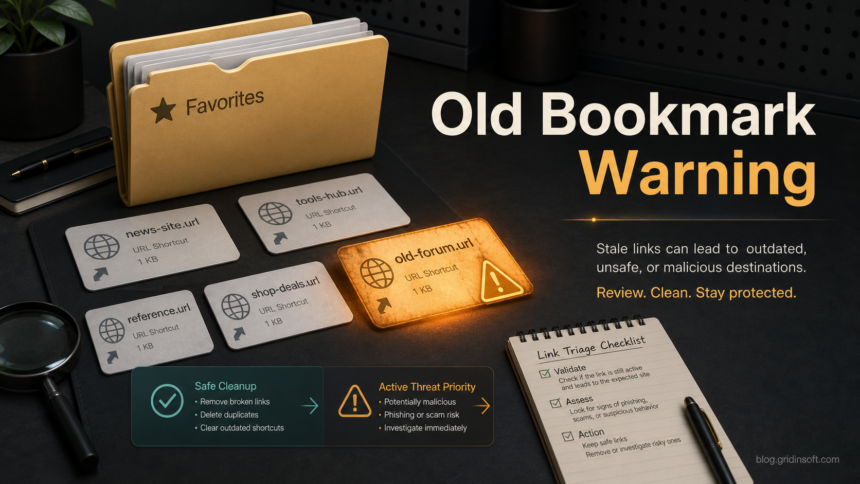
Antivirus can flag old bookmarks and Windows .url shortcuts when the saved website has become a phishing page, scam, parked domain, adware distributor, or blocked redirect. That does not automatically mean every bookmark is active malware on your PC. Treat these findings as unsafe saved links first, then look for higher-risk signs such as shortcuts in Startup folders, unwanted browser redirects, changed browser policies, unknown extensions, or companion executable detections. If the alert started after opening a risky page rather than from an old shortcut, compare the exposure levels in our website-visit malware checklist.
The right response is simple: do not open the flagged site, inspect or delete the shortcut, rescan, and prioritize anything that can run at startup or change the browser. This keeps a long list of stale Favorites from hiding the one or two items that actually need cleanup.
Why Old Favorites Get Flagged
Windows Internet Shortcut files are small text-based shortcut files that point to a web address. Microsoft documents them as Internet Shortcuts: applications can create a shortcut by setting the URL and saving it as a file. Older Internet Explorer Favorites, desktop web shortcuts, and exported bookmark folders may still contain many of these .url files years later.
A scanner may flag the shortcut because of the destination, not because the shortcut file itself is a program. For example, a bookmark saved years ago can later point to a domain that was sold, parked, compromised, turned into a fake download page, or added to phishing and scam blocklists. In that case, the security product is warning you that opening the saved link is unsafe. The Bulsis.net redirect case shows how to assess an old project link that now passes through an unrelated chain without assuming the device is already infected.
This is why old Favorites can inflate a scan result. One abandoned bookmarks folder can contain dozens of links to sites that no longer serve the same content they did when you saved them.
Old Bookmark Or Active Threat?
Use the location and behavior of the shortcut to decide how urgent it is.
| Finding | Risk and what to do |
|---|---|
Old Favorite under %USERPROFILE%\Favorites\ |
Usually a saved unsafe link. Delete the shortcut or remove the bookmark, then rescan. Do not open the target site to “check.” |
.url file in Downloads or on Desktop |
Review where it came from. If it arrived with a cracked app, movie folder, archive, or fake installer, inspect the whole folder and remove related files. |
.url shortcut in a Startup folder |
Higher risk. Anything in Startup can open when you sign in. Remove it and check other startup entries, scheduled tasks, and browser launch settings. |
| Browser opens unwanted sites after reboot | Treat this as an active browser or startup hijack, not just an old bookmark. Check extensions, notification permissions, browser policies, and shortcuts. |
| Executable, script, or PUA detections appear with the URL shortcuts | Prioritize the executable or persistence finding first. URL shortcuts may be a symptom or lure, while the running item causes the recurring behavior. |
How To Inspect A URL Shortcut Safely
Do not double-click the flagged shortcut. Open it as text instead.
- Right-click the
.urlfile and choose Open with or Show more options. - Open it with Notepad. If Windows tries to launch the browser, cancel and use Notepad from the app list.
- Look for the
URL=line. - Copy only the domain or URL text if you need to check it with a reputation checker. Do not visit the site in your browser.
A normal Internet Shortcut often looks like this:
[InternetShortcut]
URL=https://example.com/saved-page
If the URL points to a domain you do not recognize, a fake download page, a URL shortener, a file path, or a command-like protocol, delete the shortcut and check the surrounding folder. You do not need to keep old Favorites that now point to blocked or suspicious destinations.
Clean Up Old Favorites Without Overreacting
Start with the low-risk cleanup first:
- Delete the flagged Favorite, bookmark, or
.urlshortcut. - Empty the Recycle Bin if you are sure you do not need the shortcut.
- Run the same scanner again and confirm the old URL shortcut finding is gone.
- Check whether the browser still opens unwanted pages, changes search settings, or restores unknown extensions.
- Review Startup apps, Task Scheduler, and browser shortcut targets if the alert returns after reboot.
If you want to check a saved domain without visiting it, use the Gridinsoft Website Reputation Checker. Paste the suspicious domain or URL there instead of opening the page directly. For files that arrived with the shortcut, use the Gridinsoft Online Virus Scanner or scan the PC locally.
When A URL Shortcut Needs Malware Cleanup
A stale Favorite is usually a link-cleanup task. A shortcut becomes more serious when it is part of behavior that keeps coming back: browser redirects, startup launches, fake update pages, unknown extensions, suspicious download folders, or detections for scripts and executables in the same place.
After removing the visible shortcuts, run a deeper scan when alerts return after reboot, the browser still opens unwanted sites, or you find companion items under locations such as %APPDATA%\Microsoft\Windows\Start Menu\Programs\Startup, %TEMP%, or browser profile folders. Gridinsoft Anti-Malware can help check for bundled apps, hidden files, startup entries, browser changes, and other persistence that a bookmark cleanup alone will not remove.
What Not To Do
- Do not open every flagged bookmark to see whether it is “really bad.” That can expose the browser to phishing, fake downloads, or redirects.
- Do not count every old Favorite as a separate active infection. Group them as unsafe saved links unless there is a startup, executable, extension, or redirect symptom.
- Do not ignore a shortcut just because it is only a text file. Location matters: Startup folders and modified browser shortcuts can still cause unwanted launches.
- Do not restore quarantined URL shortcuts unless you know the destination is safe and still needed.
FAQ
Is a flagged bookmark malware?
Usually no. A flagged bookmark often means the saved website is now suspicious or blocked. It becomes a malware-cleanup concern when it is tied to startup behavior, browser hijacking, suspicious downloads, or recurring alerts.
Can I delete old Favorites and URL shortcuts?
Yes. If the shortcut points to a suspicious, scam, phishing, or adware-related destination, deleting it is safer than keeping it. Removing the shortcut does not remove browser history or normal browser data beyond that saved link.
Can a .url file run malware?
A basic .url file opens a saved target, but shortcut abuse is real when attackers place shortcuts in startup locations, use unexpected protocols, modify browser shortcuts, or pair the link with scripts and executables. That is why location and surrounding files matter.
Why did the scan find so many bookmark warnings at once?
Old Favorites folders can contain many saved links from years of browsing. If several destination domains are now parked, compromised, or blacklisted, the scanner may report many URL findings even though they come from one stale bookmark collection.
Should I scan the whole PC after deleting bookmarks?
Scan the whole PC if the browser still redirects, alerts return after reboot, unknown extensions appear, startup entries look suspicious, or executable detections appeared with the URL shortcuts. If the only findings were old Favorites and they disappear after deletion, deeper cleanup may not be necessary.
References
- Microsoft. “Internet Shortcuts.” Microsoft Learn, accessed July 6, 2026. https://learn.microsoft.com/en-us/windows/win32/lwef/internet-shortcuts
- MITRE ATT&CK. “Boot or Logon Autostart Execution: Registry Run Keys / Startup Folder (T1547.001).” MITRE, accessed July 6, 2026. https://attack.mitre.org/techniques/T1547/001/