
ApplicationFrameHost.exe is a legitimate Windows process that displays the window frames of some packaged apps. The expected Microsoft-signed file runs from C:\Windows\System32. If it stays at high CPU, memory, or GPU use, the app shown through the host is usually the first thing to troubleshoot—not the host file itself. Close the affected app, repair or reset that app, and reserve system repair for failures that affect several Windows components.
Do not delete or permanently disable ApplicationFrameHost.exe. A same-name file outside the Windows system folder, an invalid signature, or activity that began after an unknown installer is a different security case and needs a path, signer, launcher, and persistence check.
What is ApplicationFrameHost.exe?
Windows uses Application Frame Host to provide desktop window chrome—the border, title bar, resize behavior, and switching surface—for apps built around the Universal Windows Platform and related packaged-app models. The app still has its own process and identity; ApplicationFrameHost.exe supplies the frame that helps present it on the desktop. Microsoft describes UWP as a supported Windows application model built on the Windows Runtime, although new Windows app development now favors the Windows App SDK and WinUI.[1]
This distinction matters during troubleshooting. A busy frame host does not automatically identify the app that is doing the work. It can reflect a Photos, Store, Settings, Xbox, media, or other packaged-app window that is rendering, waiting, or stuck. Not every current Windows app uses Application Frame Host, so diagnose the windows that are actually open rather than assuming one universal owner.
ApplicationFrameHost.exe is different from backgroundTaskHost.exe. Application Frame Host is associated with visible app windows, while backgroundTaskHost.exe handles registered work that packaged apps perform without keeping their main window in the foreground.
Is ApplicationFrameHost.exe safe?
| What you find | What it means and what to do |
|---|---|
C:\Windows\System32\ApplicationFrameHost.exe with a valid Microsoft Windows signature |
This is the expected Windows copy. Find the app associated with the busy or unresponsive window before changing anything. |
| The process briefly appears, becomes suspended, or stops using resources when an app closes | This is usually normal lifecycle behavior. No removal is needed. |
| The signed System32 copy remains busy while one packaged app is frozen or rendering | Close, update, repair, or reset that app. Ending the host is only a temporary test. |
The file runs from AppData, Temp, Downloads, or an unrelated program folder |
Treat it as a lookalike until the signer, parent process, startup source, and scan result are verified. |
| Several Windows apps fail and DISM or SFC reports corruption | Repair Windows components after app-specific fixes have failed. |
A familiar filename is not proof of safety. Use the complete path and digital signature together. The EXE safety checklist explains how to add the parent process, source, behavior, and scan result without trusting one clue by itself.
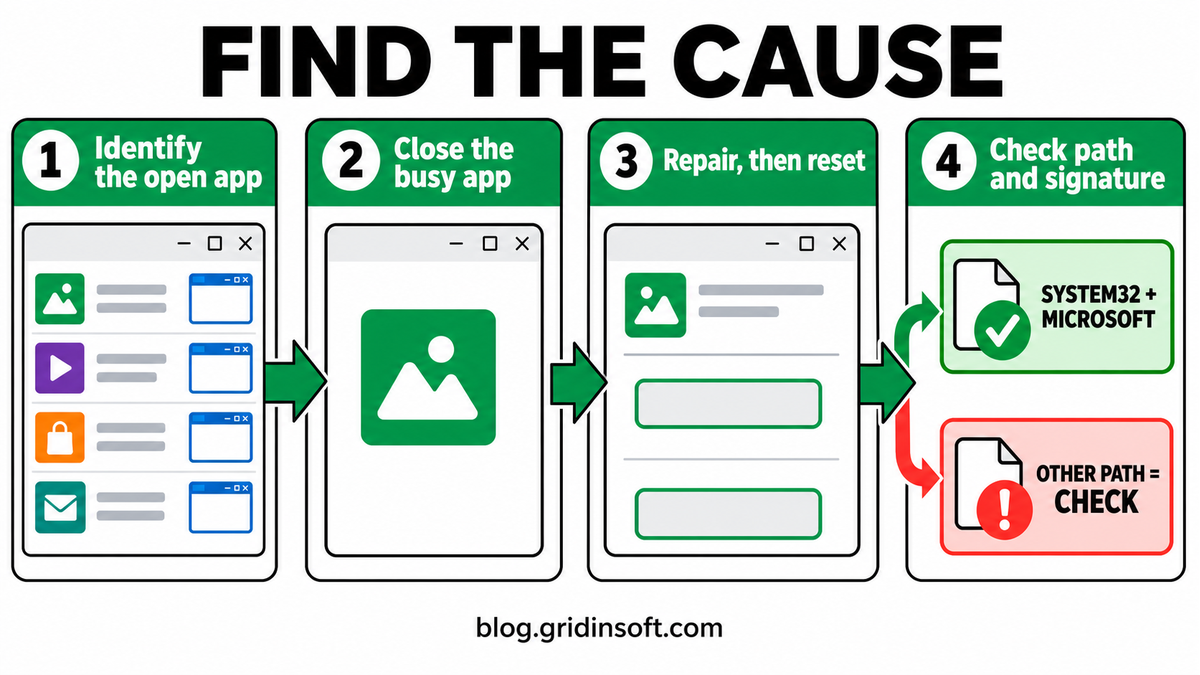
Find the app behind high CPU or memory
A short resource spike while a window opens, resizes, plays media, or changes display state can be normal. Investigate when use stays elevated for several minutes, the same window stops responding, the GPU will not return to idle, or the problem returns after every sign-in.
- Record what is open. Note the visible app windows and the action that starts the spike. Keep Task Manager open on the Processes tab and sort by CPU, Memory, or GPU.
- Close one packaged app at a time. Wait briefly after each close. If Application Frame Host drops to idle, the last app is the stronger suspect.
- Test a clean reopen. Reopen only that app and repeat the same action once. A repeatable spike gives you a narrow owner to repair.
- Use End task only as a diagnostic test. Ending Application Frame Host can close or disrupt the windows it is presenting. Windows can start it again when a packaged app needs a frame.
- Check Reliability Monitor for hangs. Press Win + R, enter
perfmon /rel, and compare the failure time with the app you were using. The app name and fault details are more useful than a generic host-process label.
If the whole PC is under load rather than one app window, follow the slow Windows PC diagnosis before blaming Application Frame Host. Low free memory, a driver problem, indexing, updates, or another process can make the host look guilty simply because it is visible at the same time.
Why does Task Manager say Application Frame Host is suspended?
Suspended normally means Windows has paused an inactive packaged app to conserve CPU, memory pressure, and battery. The app should resume when you bring its window back to the foreground. A suspended entry with no sustained resource use is not a malware warning and does not need to be removed.
Troubleshoot when the app never resumes, opens as a blank frame, repeatedly changes between suspended and busy, or leaves the GPU active after its window closes. Restart the app first. If the same symptom returns, continue with its update, Repair, and Reset options.
If Photos is the app that repeatedly returns to high memory after it is idle or closed, use the Microsoft.Photos.exe high-memory guide to isolate the folder or cloud source before resetting the package.
Repair the app, not the Windows host
Windows provides per-app recovery under Settings → Apps → Installed apps → Advanced options for supported apps. Microsoft recommends trying Repair first and using Reset if repair is unavailable or does not solve the problem.[2]
- Install pending Windows and app updates. Restart before testing again.
- Choose Repair when available. This attempts to fix the app while preserving its data.
- Use Reset only after noting the consequences. Reset can remove local app data, preferences, caches, and sign-in state.
- Reinstall the owning app from its official source. Do not download a loose ApplicationFrameHost.exe from a file repository.
- Update the graphics driver if the symptom is sustained GPU use. Use Windows Update or the PC/GPU vendor’s official package, then retest the same app action.
If the app update itself is stuck and Task Manager shows WSAPPX using CPU or disk, use the WSAPPX troubleshooting guide to identify the package that is retrying before resetting the app.
If the busy entry is specifically Service Host: State Repository Service, use the State Repository Service high-CPU diagnostic steps to correlate the spike with an app or deployment error before changing Windows services.
If one work or school app is affected, managed policy or account state may be part of the problem. Do not run broad app re-registration scripts or remove package permissions on a managed device without the administrator’s guidance.
Use DISM and SFC only for broader Windows failures
System repair makes sense when several built-in apps fail, Windows features also stop working, or app-specific repair and reinstall do not help. Install updates and restart first. Then open Terminal (Admin) or Command Prompt (Admin), run DISM.exe /Online /Cleanup-Image /RestoreHealth, wait for it to finish, and then run sfc /scannow.
Microsoft recommends this order because DISM repairs the Windows image that System File Checker uses to restore protected files.[3] Do not close the SFC window before verification reaches 100%. Restart and test the same app again. If only one third-party app still fails, return to that app’s vendor support rather than repeating system-wide repairs.
If ApplicationFrameHost.exe is outside System32
Open Task Manager, right-click the process, and choose Open file location. For the expected Windows copy, the path should be C:\Windows\System32\ApplicationFrameHost.exe. Open Properties → Digital Signatures and confirm that the signature is valid and belongs to Microsoft Windows.
A copy in a user-writable folder, an invalid or missing Microsoft signature, a launcher you do not recognize, or a process that appeared after a crack, fake update, or unknown installer needs security triage. Record the path and startup source before ending it. Check Task Scheduler, Startup apps, services, and nearby files rather than deleting one visible EXE and assuming the source is gone.
If the suspicious file already ran or returns after removal, a loader, scheduled task, service, or bundled module may be recreating it. Run a full Gridinsoft Anti-Malware scan, remove confirmed detections, restart, and scan again if the process or alert returns. A clean scan lowers suspicion but cannot prove that no compromise occurred.
If the process path is wrong, the name imitates a Windows component, or high CPU started after an unknown installer, scan for hidden miners, services, startup entries, and bundled components.
Check a suspicious copyMalware can also inject code into a legitimate process. Gridinsoft recently documented E4del and PINHOLE using ApplicationFrameHost.exe as an injection target. That research is not evidence that a normal System32 instance is infected. Injection becomes relevant only when surrounding evidence—an untrusted shortcut, PowerShell activity, new persistence, security alerts, or suspicious network traffic—supports it.
Can you disable or delete ApplicationFrameHost.exe?
Do not delete, rename, deny permissions to, or permanently disable the protected Windows file. Doing so can break packaged-app windows and will not fix the app that caused the resource use. Ending the process in Task Manager is reversible and useful for one test, but affected app windows may close and Windows can launch the host again.
If the genuine file is damaged, use Windows repair tools. If a same-name file is malicious, remove the malware copy and its persistence—not the signed System32 component.
FAQ
Is ApplicationFrameHost.exe a virus?
The Microsoft-signed copy in C:\Windows\System32 is a legitimate Windows component. A same-name file in AppData, Temp, Downloads, or an unrelated folder needs separate path, signature, parent, and persistence checks.
Why is Application Frame Host using my GPU?
The app displayed through the host may be rendering video, animation, or other accelerated content. Close packaged apps one at a time, identify the owner, then update or repair that app and the graphics driver if sustained GPU use returns.
Is a suspended Application Frame Host normal?
Yes. Windows can suspend an inactive packaged app to save resources. Investigate only when the app cannot resume, stays blank, or repeatedly returns to high resource use.
Will Reset delete my app data?
It can. Try Repair first. Reset may clear local data, preferences, caches, and sign-in state, so save work and note account settings before using it.
Should I run SFC for every Application Frame Host problem?
No. Repair the single app that reproduces the symptom first. Use DISM and SFC when several Windows apps or components fail, or when app-specific recovery does not solve broader system problems.
References
- Microsoft. “What’s a Universal Windows Platform (UWP) app?” Microsoft Learn, last updated August 21, 2024, accessed August 28, 2026. https://learn.microsoft.com/en-us/windows/uwp/get-started/universal-application-platform-guide
- Microsoft Support. “Repair apps and programs in Windows.” Microsoft, accessed August 28, 2026. https://support.microsoft.com/en-us/windows/apps/repair-apps-and-programs-in-windows
- Microsoft Support. “Use the System File Checker tool to repair missing or corrupted system files.” Microsoft, accessed August 28, 2026. https://support.microsoft.com/en-us/windows/experience/backup-recovery/use-the-system-file-checker-tool-to-repair-missing-or-corrupted-system-files